
Contents
- MiXplorer Silver vs Solid Explorer: what each documents for SMB
- Is the phone the client or the server?
- Prepare the PC or NAS share first
- Connect and run a disposable copy test
- When the connection fails: symptom and next check
- Moving large files: copy, verify, then delete
- Cloud access is not cloud sync
- FTP and SFTP: when they make sense
- When this does not apply
- Frequently Asked Questions
- How can I view SMB shares on my Android phone?
- Is MiXplorer Silver or Solid Explorer better for SMB?
- Why can’t Android open a USB drive shared from Windows?
- What is the most secure file manager for Android?
- What is the best Android app for sharing files with a PC?
- Are MiXplorer Silver and Solid Explorer free?
- How do I use FTP on my Android phone?
- How this comparison was prepared
A bulk move over Wi-Fi that nobody checked can leave you with a half-copied folder and an emptied source. Both MiXplorer Silver and Solid Explorer list SMB access to Windows and NAS shares, so either can open a PC folder from your phone. Choose by how you like to work: Solid Explorer describes local, cloud and network folders in one dual-pane view, while MiXplorer Silver names the SMB versions it supports, lists Tasks for Copy and Move operations and lists more phone-side servers. Then prove the choice on your own share with a disposable file before you move anything you care about.
This is a documentation-based comparison. We checked the developers’ current store listings, MiXplorer’s privacy policy and Microsoft and Android documentation on October 11, 2026; we did not install the apps, measure speed or test them against a PC or NAS. If you are fitting a file manager into a wider routine, start with the Android productivity and essential apps guide.
MiXplorer Silver vs Solid Explorer: what each documents for SMB
Each row compares the same thing in both listings. “Not stated” means the listing does not say, which is different from “not supported”.
Scroll horizontally to view all table columns.
| Solid Explorer | MiXplorer Silver | |
|---|---|---|
| Network clients listed | SMB/CIFS (Samba), SFTP, FTP, WebDAV (listing) | SAMBA, FTP(S, ES), SFTP, WebDAV (listing) |
| SMB versions named | Not stated | SMB1, SMB2.0/2.1, SMB3 |
| Two folders at once | Dual-pane layout; drag files between panels | Unlimited tabs; dual panel in landscape mode with drag and drop |
| Copy and Move as tasks | Not stated | Tasks for Copy, Move and other operations |
| Phone as a server | Built-in web server for browsers on your network; FTP server | FTP(S, ES), HTTP(S), WebDAV and DLNA servers |
| Cloud accounts named | Google Drive, OneDrive, Dropbox, Box, NextCloud, SugarSync, MediaFire, Yandex; Mega needs a paid add-on | Mega.nz, Dropbox, Box, OneDrive and OneDrive Business, pCloud, SugarSync and others; WebDAV clouds |
| How it is sold | Listing shows ads and in-app purchases; Mega is a paid add-on | Paid bundle of MiXplorer with Archiver, Image, Tagger and PDF add-ons |
| Check before choosing | Does it connect to your PC’s signing settings? Is your cloud provider listed? | Same two checks; Google Drive access is per file (see below) |
Pick Solid Explorer if you mainly want a phone share and a cloud folder visible side by side and you drag files between them. Its listing does not tie the dual pane to an orientation. Pick MiXplorer Silver if you want the SMB versions spelled out, prefer tabs, or want Copy and Move operations listed as tasks. Its dual panel is described for landscape mode. Neither listing gives you a reason to expect faster or more reliable transfers from one app, and we have no measurements that would.
MiX Silver is sold as a paid app. Solid Explorer’s listing shows ads and in-app purchases, but its description doesn’t say what they unlock apart from the Mega add-on. Neither description gives prices, so check them and any trial terms in your own Play Store rather than in older comparisons.
For local-only file tidying, an open-source option is covered in our F-Droid apps by task guide; it is not part of this SMB comparison.
Takeaway: Choose by layout, cloud list and phone-side servers, then confirm the app works with your own share.
Is the phone the client or the server?
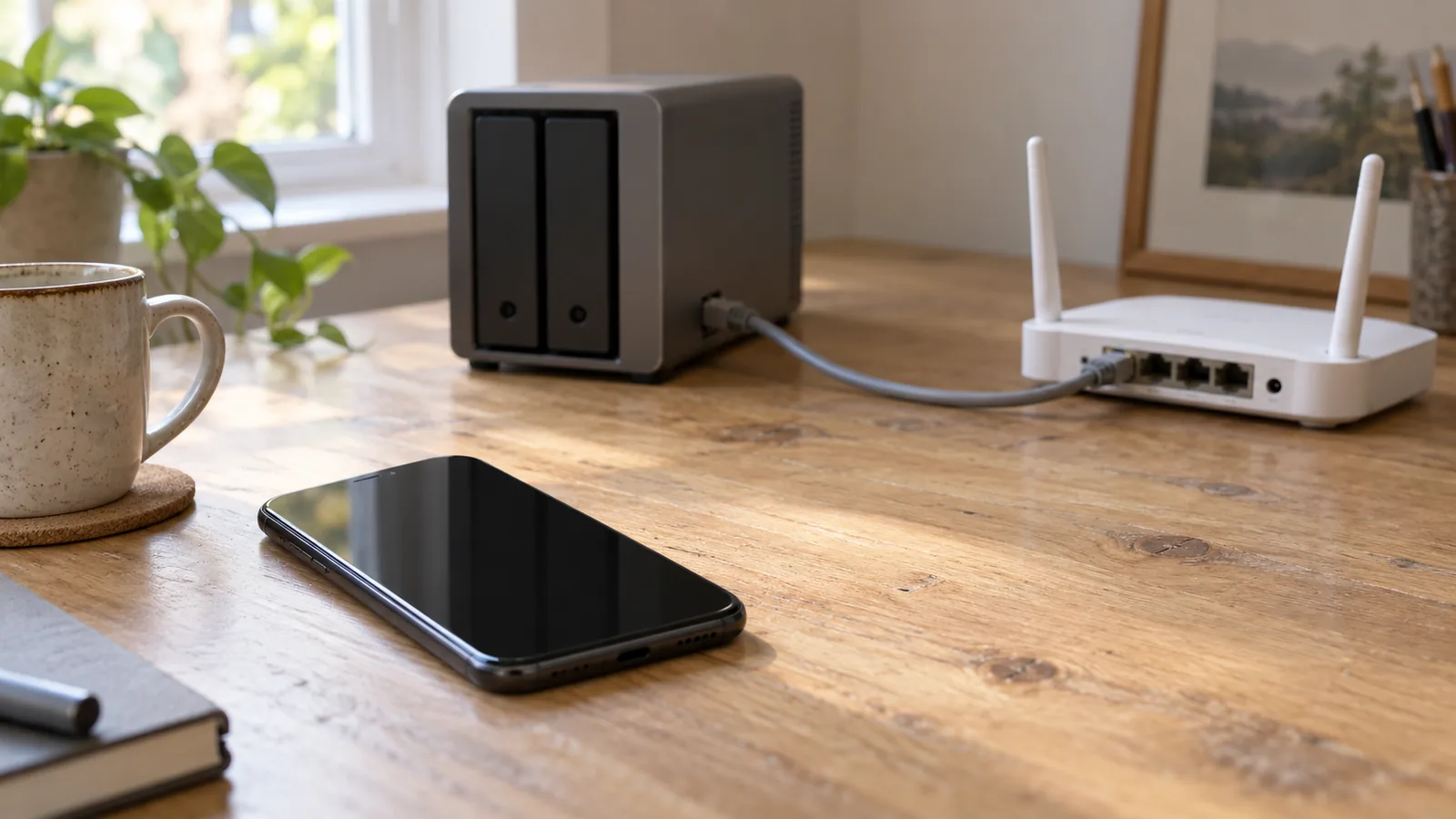
SMB access means your phone opens a folder that a Windows PC or NAS is sharing. The phone app is the client; the PC or NAS is the server and decides who may read or write.

Both apps can also reverse that direction. Solid Explorer lists a built-in web server, so another device on your network can browse the phone’s files in a web browser, and a separate FTP server for reaching phone files from a PC (listing). MiXplorer Silver lists FTP, HTTP, WebDAV and DLNA servers (listing). Use these when the PC needs to pull files from the phone and you don’t want to set up a share on the PC. For opening an existing PC or NAS folder, you need the SMB client.
Takeaway: If the files live on a PC or NAS, use the SMB client; if the PC needs to reach the phone, start a phone-side server.
Prepare the PC or NAS share first
The PC or NAS decides who may connect and what they may change, so set up the share before you open the app.
Common mistake: Turning off password-protected sharing because Microsoft’s troubleshooting page lists it as a fix. That leads to guest-style access, which can’t use SMB signing or encryption and which Microsoft advises against (guest logons). Share to a named account instead.
On the phone, make sure the app has the storage access it asks for and that you know which local folder it will write to. Our new Android phone setup steps cover reviewing permissions one at a time.
Takeaway: Share one test folder to a named account on an awake PC or NAS before you touch the app.
Connect and run a disposable copy test
Menu names differ between apps and versions, and we have not verified the current ones. Look for an option such as SMB, LAN or network storage, then:
- Add a new SMB connection.
- Enter the server’s name or local network address as the host, the shared folder name as the share, and the username and password of the account you gave access to. Don’t choose guest or anonymous sign-in.

- Open the test folder and open one disposable file directly from the share.
- Copy the large test file to a local folder on the phone. Wait for the app to report completion.
- Open the copied file on the phone and compare its size with the original on the PC.
- Copy a small file from the phone back to the share and open it on the PC. This confirms write access, which can fail even when reading works.
- Delete only the test copies.
Record what happened so you can compare apps or settings later. These are fields for your own observations; we have not filled in results.
Scroll horizontally to view all table columns.
| Field | Your observation |
|---|---|
| App and version | |
| Phone model and Android version | |
| PC or NAS, and Windows edition or NAS OS | |
| Share and account used (not the password) | |
| File name and size | |
| Direction (share to phone, phone to share) | |
| Time taken, by your clock | |
| File opens after copy? Size matches? | |
| Screen on or off during copy |
Check free space before larger copies. Our 128GB vs 256GB storage guide explains how quickly local storage fills.
Takeaway: A connection counts as working only after a read, a write and an opened copy all succeed with disposable files.
When the connection fails: symptom and next check
Start with the cheapest explanation. None of these rows is a certain diagnosis.
Scroll horizontally to view all table columns.
| What you see | Check first | Avoid |
|---|---|---|
| Server not found | PC or NAS awake; same network; Windows profile Private with discovery and sharing on (Microsoft Support) | Forwarding ports on your router |
| Sign-in refused | Account name and password; the folder is shared to that account | Switching to guest access |
| Connects to a Windows 11, version 24H2 Home PC but not a 24H2 Pro, Enterprise or Education PC | Signing requirements differ by edition in 24H2 (below); check the app’s current support notes | Turning off SMB signing |
| An older NAS only offers guest access | NAS user accounts, firmware update | Enabling insecure guest logons on Windows |
| Device works only with SMB1 | Firmware update to SMB2 or later (Microsoft) | Reinstalling SMBv1 |
| Reading works, saving to the share fails | Write permission for that account on the folder | Granting Everyone full control as a test |
| Phone folders under Android/data can’t be copied | Android storage restrictions (below) | Expecting a full phone backup |
In Windows 11, version 24H2, editions handle signing differently. Microsoft says 24H2 Enterprise, Pro and Education require both outbound and inbound SMB signing, while 24H2 Home requires neither (SMB signing). When your phone opens a Windows share, the PC is the server, so its inbound requirement applies. If the same share and account work from a 24H2 Home PC but not a 24H2 Pro PC, signing support in the phone app is one difference worth checking. Signing protects message integrity and verifies identities; it does not encrypt the files. Microsoft advises against disabling it as a workaround, and guest sessions can’t use signing or SMB encryption at all (guest logons).
Android limits what any file manager can reach on the phone. Even with all-files access, an app can’t read other apps’ private folders under Android/data/ (Android Developers), and from Android 11 the system file picker can’t select files in Android/data/ or Android/obb/ (Android Developers). Copying phone folders to a share is useful, but it is not a full backup of apps and their data.
Settings names on Samsung and Pixel phones also differ; our Pixel vs One UI comparison explains why instructions written for one phone may not match yours.
Takeaway: Fix the account, permission or firmware on the PC or NAS; don’t weaken signing, guest or SMB1 settings to get connected.
Moving large files: copy, verify, then delete
Common mistake: Using Move for a large folder you would miss. A move that stops halfway can leave files split between the phone and the share, and neither listing documents how an interrupted transfer is resumed or rolled back. Copy first.
- Copy the folder to its destination.
- Open a sample of the copied files, including the largest ones, and compare total size or file count.
- Make sure a second, independent copy exists, such as a cloud backup or another drive.
- Only then delete the source.
Our Android backup guide covers keeping photos, messages and authenticator access recoverable. If you are clearing a phone before selling it, follow the before-selling checklist and confirm the copies open before you reset.
Keep the phone on Wi-Fi and plugged in for long copies, and watch the app until it reports completion. We have not tested how either app behaves when the screen turns off mid-transfer.
Takeaway: Delete the source only after the copy opens and a second independent copy exists.
Cloud access is not cloud sync
Both listings name cloud providers you can browse and copy to. Neither listing describes scheduled or two-way synchronization, conflict handling or what happens when a file is deleted on one side. Treat both apps as tools for opening and copying files on demand.
Google Drive differs between the two. Solid Explorer lists Google Drive among its cloud locations (listing). MiXplorer’s privacy policy says it uses the Drive drive.file permission and can see only files you create or open with MiXplorer, not your entire Drive (privacy policy). If you expect to browse all your existing Drive folders, try that first.
If you need folders kept in step automatically, use a dedicated sync tool. Our productivity guide’s local file ownership section discusses Syncthing, and the Obsidian vs Google Keep comparison shows how sync behavior affects a notes vault.
Takeaway: Use either app to open and copy cloud files on demand, and a sync tool to keep folders matched.
FTP and SFTP: when they make sense
FTP is the common choice when the PC should connect to the phone. Both apps list phone-side FTP servers, and both list FTP and SFTP clients for reaching servers.
The protocols are not equally protected. SFTP runs over SSH and is encrypted; FTP is only protected when it runs over TLS/SSL, usually called FTPS (WinSCP protocol comparison). MiXplorer Silver lists FTPS variants for both its client and server. Use SFTP or FTPS when both sides support it, start a phone-side server only for the transfer, and stop it afterwards.
Keep SMB and FTP on your home network. Microsoft recommends blocking SMB’s TCP port 445 from the internet (Microsoft Learn); do not forward it on your router to reach files from outside.
Takeaway: Prefer SFTP or FTPS, run a phone-side server only while you need it, and keep it on your home network.
When this does not apply
This guide covers copying files on demand between an Android phone and a PC or NAS on the same home network. It is the wrong tool when:
- You need files from outside your home. This guide does not cover remote access, and SMB should not be exposed to the internet (Microsoft Learn).
- You want a full phone backup or automatic sync. A file manager can’t reach other apps’ private data under Android/data/, and neither listing describes scheduled two-way sync. Use the Android backup guide and a dedicated sync tool.
- A device only works with SMB1 or guest access and has no firmware update. Ask the vendor for an update to SMB2 or later, or stop using it for shared files, rather than lowering the PC’s security settings (SMBv1, guest logons).
- The PC or NAS is managed by work or school. Sharing and signing may be set by the organization; ask the administrator rather than changing them.
- You are moving everything to a new phone. See how to transfer data from iPhone to Android, which covers migration tools rather than shared folders.
Frequently Asked Questions
How can I view SMB shares on my Android phone?
Install a file manager with an SMB client, such as Solid Explorer or MiXplorer Silver, and add an SMB connection with the PC or NAS name or local address, the share name and an account that has access. Run the disposable copy test above before relying on the connection.
Is MiXplorer Silver or Solid Explorer better for SMB?
Neither is better on the evidence available. Both list SMB clients. Solid Explorer documents a dual-pane local, cloud and network view; MiXplorer Silver names SMB1 to SMB3, lists Copy and Move tasks and offers more phone-side servers. Choose by workflow, then test on your own share.
Why can’t Android open a USB drive shared from Windows?
Treat it like any other share: the PC must be awake with the drive attached, and the folder on that drive must be shared to the account you sign in with. Check the drive’s sharing and permissions for that account first. Opening a shared folder on the PC’s internal drive with the same account helps separate drive settings from phone or network problems, but it doesn’t prove the cause.
What is the most secure file manager for Android?
We can’t name one; no independent security audit of these apps was part of our sources. Your setup choices matter more: sign in with a named account, keep SMB signing on, don’t use guest access or SMB1, and keep shares off the internet. MiXplorer’s policy says saved network passwords are encrypted in the app’s private storage, which is the developer’s statement.
What is the best Android app for sharing files with a PC?
It depends on which device holds the files. To open a folder that a PC or NAS already shares, use a file manager with an SMB client, such as Solid Explorer or MiXplorer Silver. To let a PC open files on the phone, use a phone-side server: Solid Explorer lists a web server and an FTP server, and MiXplorer Silver lists FTP, HTTP, WebDAV and DLNA servers. We compared only these two apps.
Are MiXplorer Silver and Solid Explorer free?
MiX Silver is sold as a paid app that bundles MiXplorer with the Archiver, Image, Tagger and PDF add-ons. Solid Explorer’s Play listing shows ads and in-app purchases and marks Mega access as a paid add-on; its description doesn’t list prices or what the purchases unlock. Check current prices and terms in your own Play Store.
How do I use FTP on my Android phone?
To reach phone files from a PC, start the file manager’s FTP server, connect to it from an FTP client on the PC over the same network, and stop the server when finished. To reach a server from the phone, add an FTP or SFTP connection in the app. Prefer SFTP or FTPS, because plain FTP is not encrypted.
How this comparison was prepared
TasteOfAndroid prepared this guide with AI assistance from the developers’ Google Play listings (Solid Explorer updated September 22, 2026; MiXplorer Silver updated September 4, 2026), MiXplorer’s privacy policy, and Microsoft, Android Developers and WinSCP documentation, all checked on October 11, 2026. We did not install either app, test against a PC or NAS, measure transfer speed or capture screenshots, so this is not a review under our review policy. Our editorial policy explains how we handle sources and corrections.
Sources & methodology11 sources
Evidence used for this article. Links open the original source in a new tab.
- Solid Explorer File Manager (Google Play listing, updated September 22, 2026) — NeatBytes
- MiXplorer Silver File Manager (Google Play listing, updated September 4, 2026) — MiXplorer
- MiXplorer privacy policy — MiXplorer
- File sharing over a network in Windows — Microsoft Support
- Control SMB signing behavior — Microsoft Learn
- Enable insecure guest logons in SMB2 and SMB3 — Microsoft Learn
- SMBv1 not installed by default in Windows Server and Windows — Microsoft Learn
- Secure SMB traffic in Windows Server — Microsoft Learn
- Manage all files on a storage device — Android Developers
- Access documents and other files from shared storage — Android Developers
- Supported file transfer protocols — WinSCP
TasteOfAndroid is responsible for this page. The byline, method and commercial relationships are on the editorial policy and the author page.
Related Articles
Minimalist Android Launchers: Niagara and Olauncher
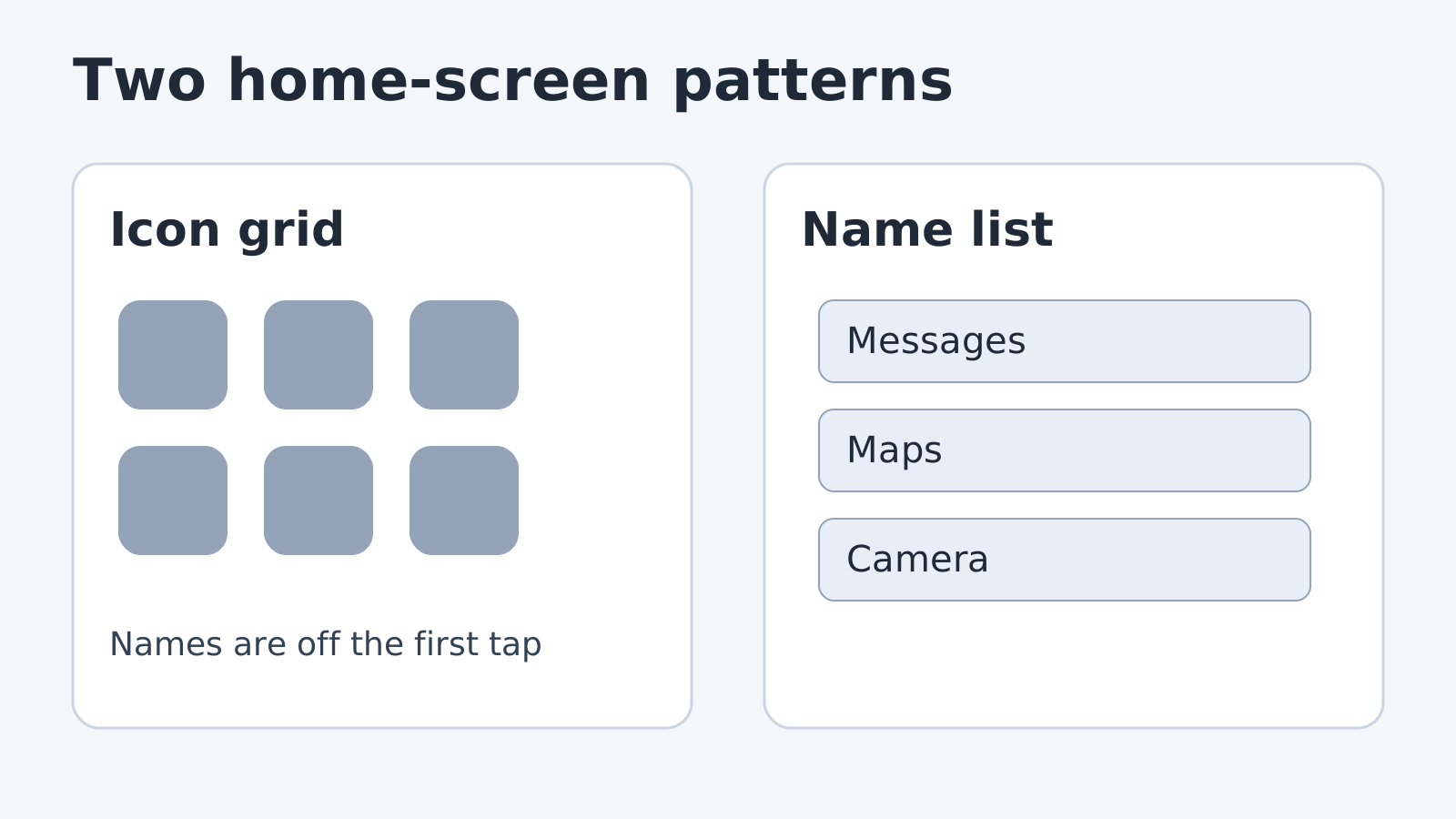
Niagara Launcher publishes a list-based home screen, a free tier and Pro prices. Olauncher documents swipe and long-press gestures. No screen-time test.
Tasker Profiles for Beginners: Four Everyday Routines
Wrong triggers can interrupt meetings. Use four beginner Tasker routines for Wi-Fi, time, location and car audio, then check entry, exit and recovery.
Obsidian vs Google Keep: Which Fits Your Android Notes?
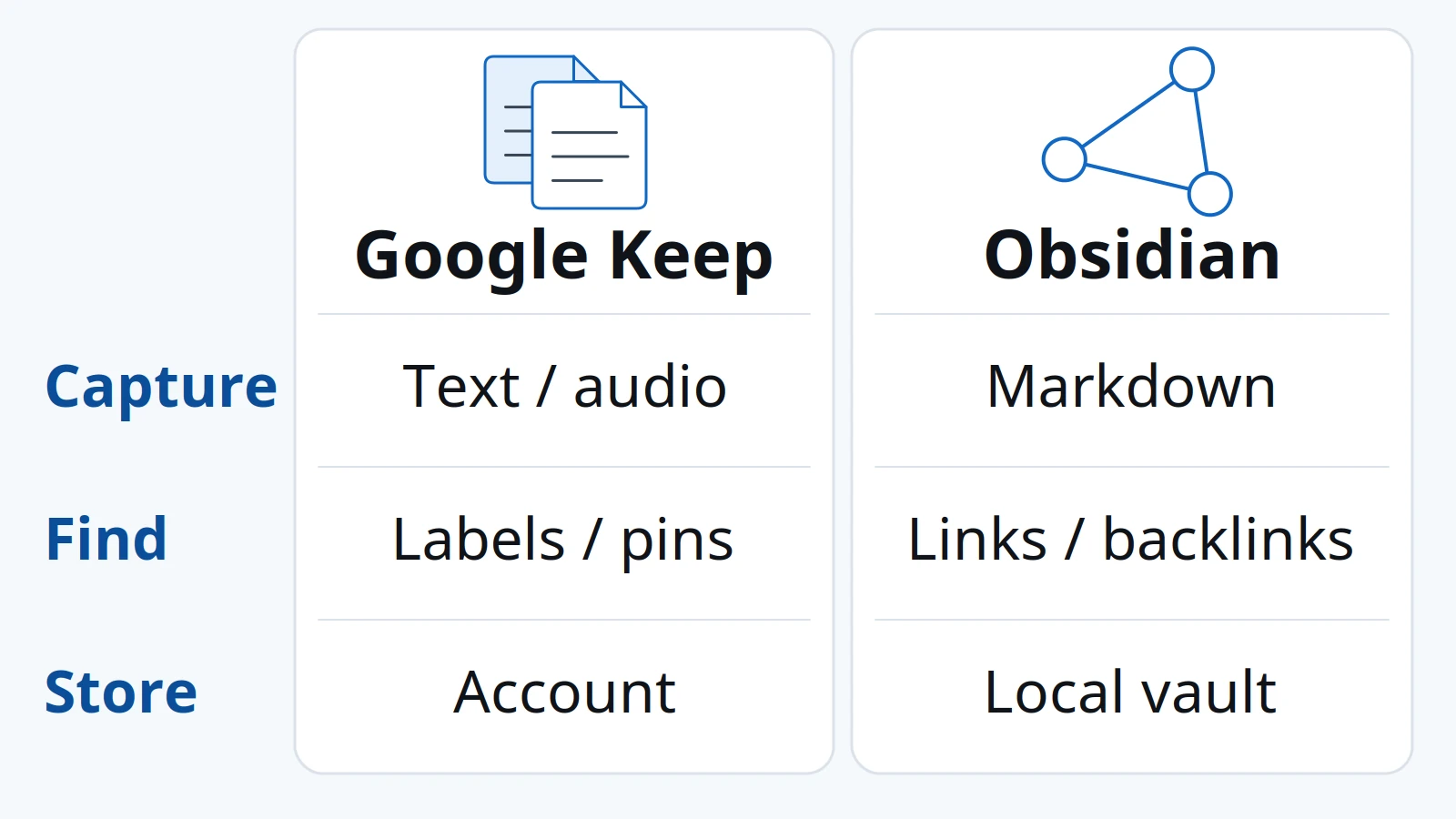
Compare Google Keep's quick capture with Obsidian's linked Markdown notes on Android. Check sync, sharing, backup and migration before choosing a workflow.