
Contents
- Why Battery Percentage Still Rises When Bypass Charging Is Enabled
- Samsung Pause USB Power Delivery Activation Gates and Menu Paths
- Google Pixel Charging Optimization and Periodic Calibration Cycles
- How Hardware Power Paths Route Adapter Current Versus Battery Current
- Switched-Capacitor Direct Charging Efficiency and PPS Step Regulation
- Why Your Android Phone Still Gets Hot With Bypass Charging Active
- Isolating Processor, Display, and Cellular Modem Heat from Battery Charging Heat
- Step-by-Step Troubleshooting Checklist for Gaming Heat and Power Path Verification
- Frequently Asked Questions
- Why is my Samsung Galaxy battery percentage still rising with Pause USB PD charging when gaming turned on?
- Does bypass charging stop an Android phone from getting hot while gaming?
- Why does a Google Pixel occasionally charge to full capacity when charging optimization is enabled?
- Why does a switched-capacitor charger require a USB PD PPS wall adapter?
- Sources
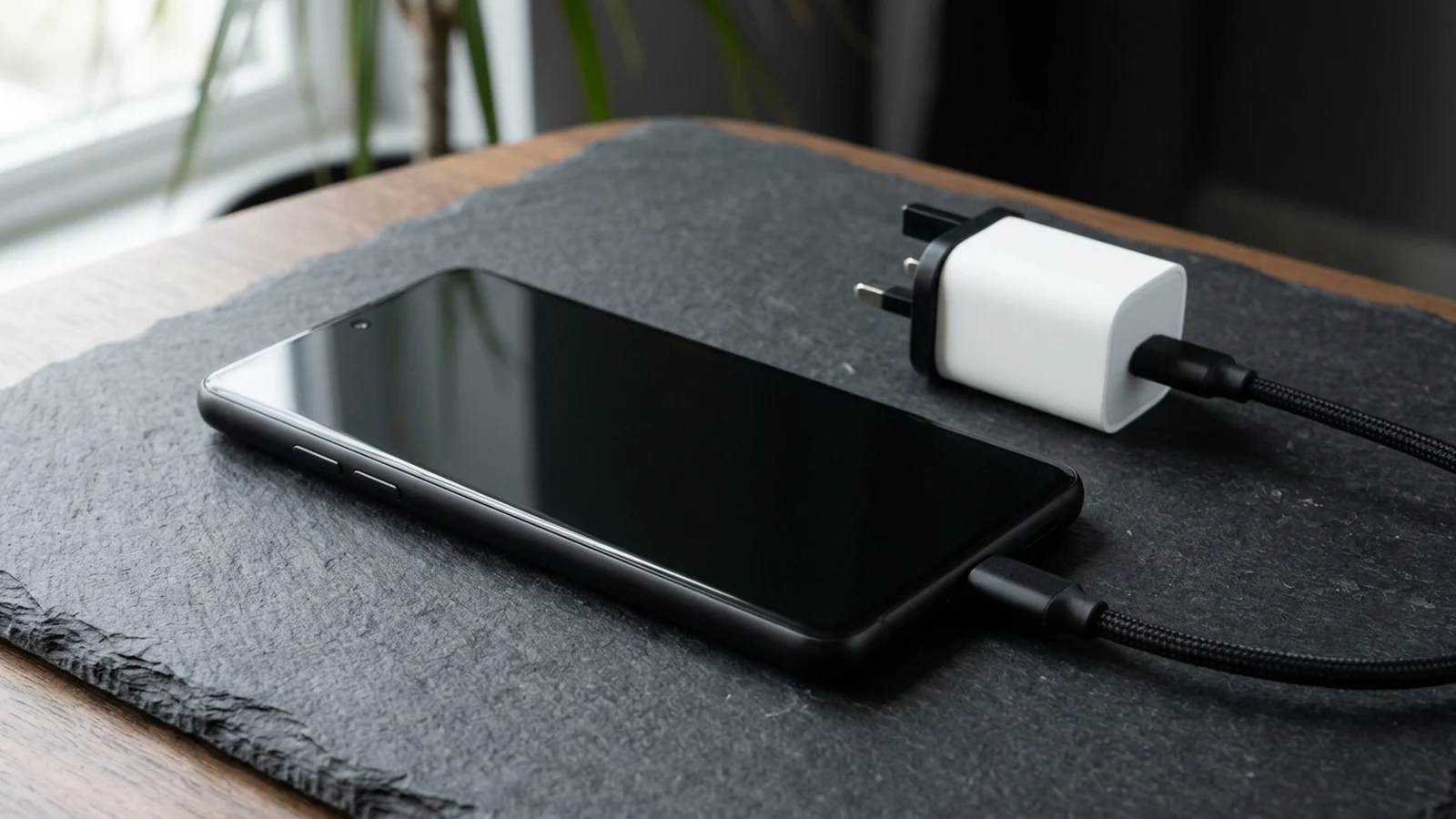
On Samsung Galaxy smartphones, the Pause USB PD charging when gaming feature helps reduce heat production and protect battery life by stopping battery charging when the user is gaming while the device is connected to a power source. While charging a Samsung Galaxy smartphone, power is normally used for both operating the device and charging the battery; Pause USB PD charging when gaming pauses battery charging and prioritises power supply to the device while gaming. Even if enabled, Samsung’s Pause USB PD charging when gaming feature operates only when a PD charger rated 25W or higher with Programmable Power Supply (PPS) support is connected, a game is running, and the battery holds a charge of 20% or more. Samsung Support UK defines Pause USB Power Delivery as a direct system power supply method that bypasses the battery when playing games, minimising physical battery charging and reducing degradation caused by heat generation while charging. Walk through the power-path and thermal checks below alongside our other Android how-to guides.
Why Battery Percentage Still Rises When Bypass Charging Is Enabled
On a Samsung Galaxy smartphone, if the battery has less than 20% charge or if a non-PD charger is connected to the device, the battery will continue to charge according to standard operating procedures. Samsung Support AE’s checklist when Pause USB PD Charging When Gaming does not activate requires verifying four conditions: the charger meets the 25W or higher PD requirement, the game is running in the foreground (not in the background), the battery charge level is above 20%, and the device is not overheating or experiencing other performance issues.
The table below maps each symptom where battery percentage continues to rise against its documented operating condition:
Scroll horizontally to view all table columns.
| Observed Charging Behavior | Documented Precondition or Fallback Mechanism |
|---|---|
| Adapter or charge threshold not met | Even if enabled, Samsung’s Pause USB PD charging when gaming feature operates only when a PD charger rated 25W or higher with Programmable Power Supply (PPS) support is connected, a game is running, and the battery holds a charge of 20% or more. |
| Fallback to standard battery charging | On a Samsung Galaxy smartphone, if the battery has less than 20% charge or if a non-PD charger is connected to the device, the battery will continue to charge according to standard operating procedures. |
| Screen turned off or switched away | Even if a game is running on a Samsung Galaxy smartphone, the Pause USB PD charging when gaming feature will not work if other actions are being performed, such as turning off the screen or switching to another screen. |
| Blank screen or background game state | Samsung Support AE states that the Pause USB PD Charging When Gaming feature will not activate if the device is performing other tasks, such as displaying a blank screen while gaming continues in the background or switching to a different screen outside the game. |
| Switching to browsing or messaging | Samsung Support AE states that Pause USB Power Delivery automatically disables when the device switches to non-gaming activities, such as browsing or messaging, and reverts to normal battery charging. |
| Device overheating during session | Samsung Support AE’s checklist when Pause USB PD Charging When Gaming does not activate requires verifying four conditions: the charger meets the 25W or higher PD requirement, the game is running in the foreground (not in the background), the battery charge level is above 20%, and the device is not overheating or experiencing other performance issues. |
| Pixel charging past the 80% cap | Google Pixel Phone Help states that to keep its battery capacity readings accurate, a Pixel phone needs to fully charge to 100% at every 10th cycle even when the ‘Limit to 80%’ option is turned on, and the user should leave the phone plugged in for at least 30 minutes after the screen shows 100%. |
| Pre-charge and termination handoff | Texas Instruments states that in a switched-capacitor charging system paired with a standard switching charger, if the battery being charged is below a predetermined voltage such as 3.5 V, the standard charger is used during pre-charge and constant-current charging until reaching that voltage, and the standard charger also resumes for current tapering and final termination. |
Samsung Pause USB Power Delivery Activation Gates and Menu Paths
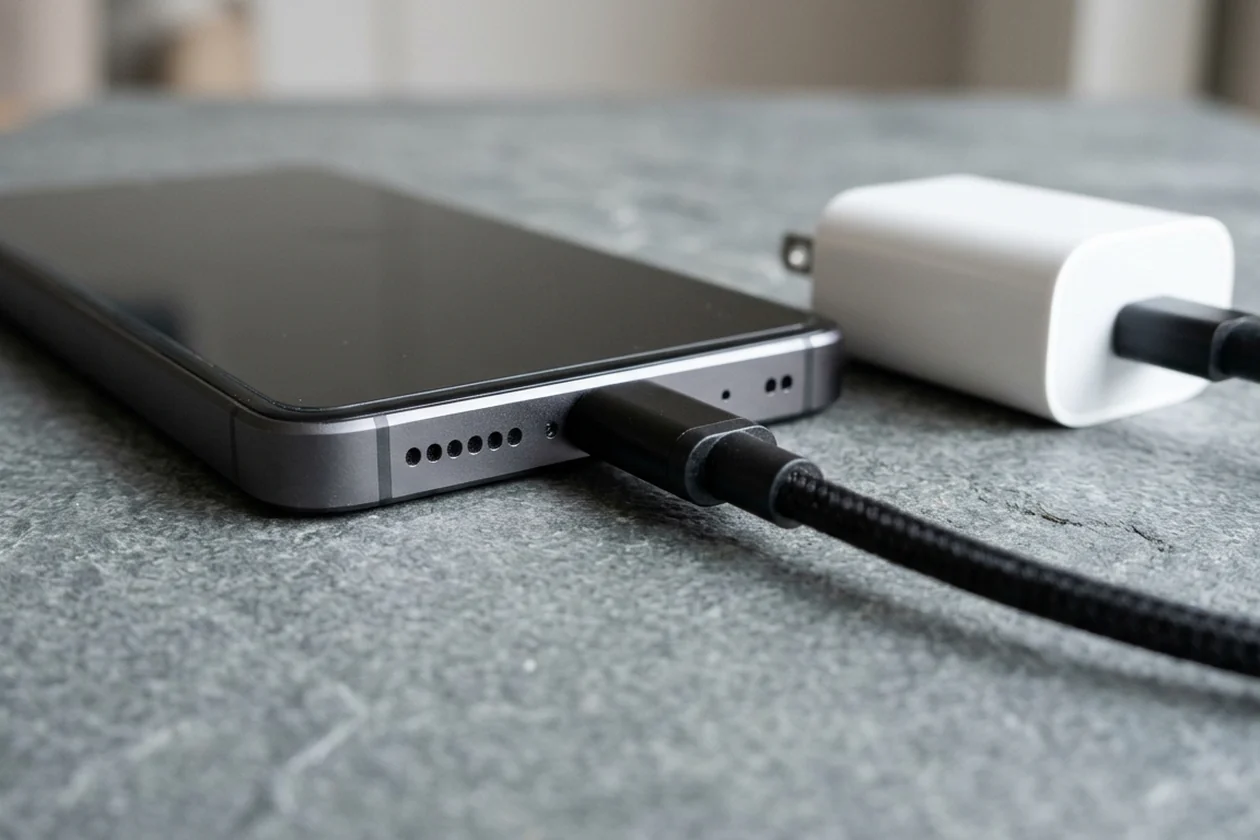
To compare how programmable voltage requests differ from fixed voltage contracts on wall adapters, see our USB-C PD PPS versus fixed PDO charging negotiation guide. The rules below govern Samsung Galaxy menu visibility, adapter compatibility, and supported models:
- Retail box adapter status: Samsung states that the 25W charger is not included with the purchase of a Galaxy phone.
- Gaming Hub menu navigation path: To access the Pause USB PD charging when gaming feature in the Game Booster menu, the Samsung Galaxy device needs to be connected to a PD charger before launching the Gaming Hub application, then navigating to Gaming Hub > More > Game Booster > Pause USB PD charging when gaming.
- Operating system menu visibility difference: For Samsung Galaxy devices running One UI 6.0 or later, support status for Pause USB PD charging when gaming can be verified in the settings without prior connection to the charger, whereas devices on older operating systems require connecting to the charger before support status can be verified.
- Alternative battery settings path: Samsung Support AE documents enabling Pause USB Power Delivery on supported Samsung Galaxy devices by connecting a compatible PPS charger (25W or higher) and navigating to Settings > Advanced Features > Battery > Pause USB Power Delivery.
- Initial activation state when plugged in: Samsung Support AE states that when a PD charger with a minimum output of 25W is connected to a Samsung Galaxy device and the battery charge level exceeds 20%, the Pause USB PD Charging When Gaming feature automatically activates in an off state so the user can manually enable it.
- Automatic game session toggle behavior: On Samsung Galaxy devices, Pause USB Power Delivery automatically turns on during gaming once activated in Game Booster settings, and automatically turns off once the user finishes gaming.
- Technical rationale for dynamic regulation: Samsung Support AE explains that requiring a high-power PD charger and a sufficient battery charge level ensures the device can sustain optimal performance without relying on battery power, while PPS technology allows the charger to dynamically adjust voltage and current.
- Supported Galaxy device families in UK documentation: Samsung Support UK lists the supported models for Pause USB Power Delivery as S23 series, S22 series, Tab S8 series, Flip5, Flip4, Fold5, Fold4, A23, A33, A53, A73, and M33, requiring a 25W or greater Programmable Power Supply supported Travel Adaptor and battery charge at 20% or more.
- Supported Galaxy device families in AE documentation: Samsung Support AE lists Pause USB PD Charging When Gaming availability on select Samsung Galaxy devices, including the Galaxy S24, Galaxy S25, Galaxy S26, Galaxy Z Fold, Galaxy Z Flip, and Galaxy A series.
- Samsung charger tiers and cable requirements: Samsung Support UK specifies that Adaptive Fast Charging is 15W via USB-A output, whereas Super Fast Charging is 25W using USB-C Power Delivery (USB PD) with PPS, and with a 45W Travel Adapter it requires a combination of a 45W TA and a 5A cable.
- Higher-wattage Samsung PPS adapters: Samsung Support UK specifies that Super Fast 2.0 Charging is 45W (requiring a compatible USB-C cable) and Super Fast 3.0 Charging is 60W using Samsung’s USB-C PD 3.1 PPS charger (EP-T6010).
Google Pixel Charging Optimization and Periodic Calibration Cycles
Google Pixel phones manage battery longevity and charging speed through the following settings and adapter rules:
- Limiting charge to 80% on Pixel: On Google Pixel 6a and later devices, users can limit battery charging to 80% to extend battery lifespan by opening Settings > Battery > Battery health > Charging optimization, turning on Charging optimization, and tapping Limit to 80%.
- Mandatory 10th-cycle full calibration: Google Pixel Phone Help states that to keep its battery capacity readings accurate, a Pixel phone needs to fully charge to 100% at every 10th cycle even when the ‘Limit to 80%’ option is turned on, and the user should leave the phone plugged in for at least 30 minutes after the screen shows 100%.
- Adaptive Charging learning window: On Google Pixel phones, Adaptive Charging needs about 14 days to learn charging habits and completes charging to 100% right before the user typically unplugs so the phone is not kept at 100% for a long time.
- Extreme Charging Mode conditions: On Pixel 11 and later devices, Extreme Charging Mode is available only when the current battery charge is 50% or lower until fully charged, recommends a 30W or higher power adapter, and temporarily pauses background activities such as app updates.
- Supported Pixel power adapters: Google Pixel Phone Help states that for power adapters, users can use a Google 30W, 45W, or 67W USB-C Fast Charger, any Programmable Power Supply (PPS) power adapter rated for 30W or more, or other USB Power Delivery (PD) adapters rated for 15W or more.
How Hardware Power Paths Route Adapter Current Versus Battery Current
The Texas Instruments BQ25640 is a 5A switch-mode battery charge management and system power path management device for single-cell Li-Ion and Li-polymer batteries, integrating an input reverse-blocking FET (Q1), switching FETs (Q2 and Q3), and a battery FET (Q4) between the system and battery. The TI BQ25640 uses Narrow VDC (NVDC) power path management, regulating the system slightly above the battery voltage without dropping below a configurable minimum system voltage, and supports system instant-on with a depleted or no battery as well as battery supplement mode when the adapter is fully loaded.
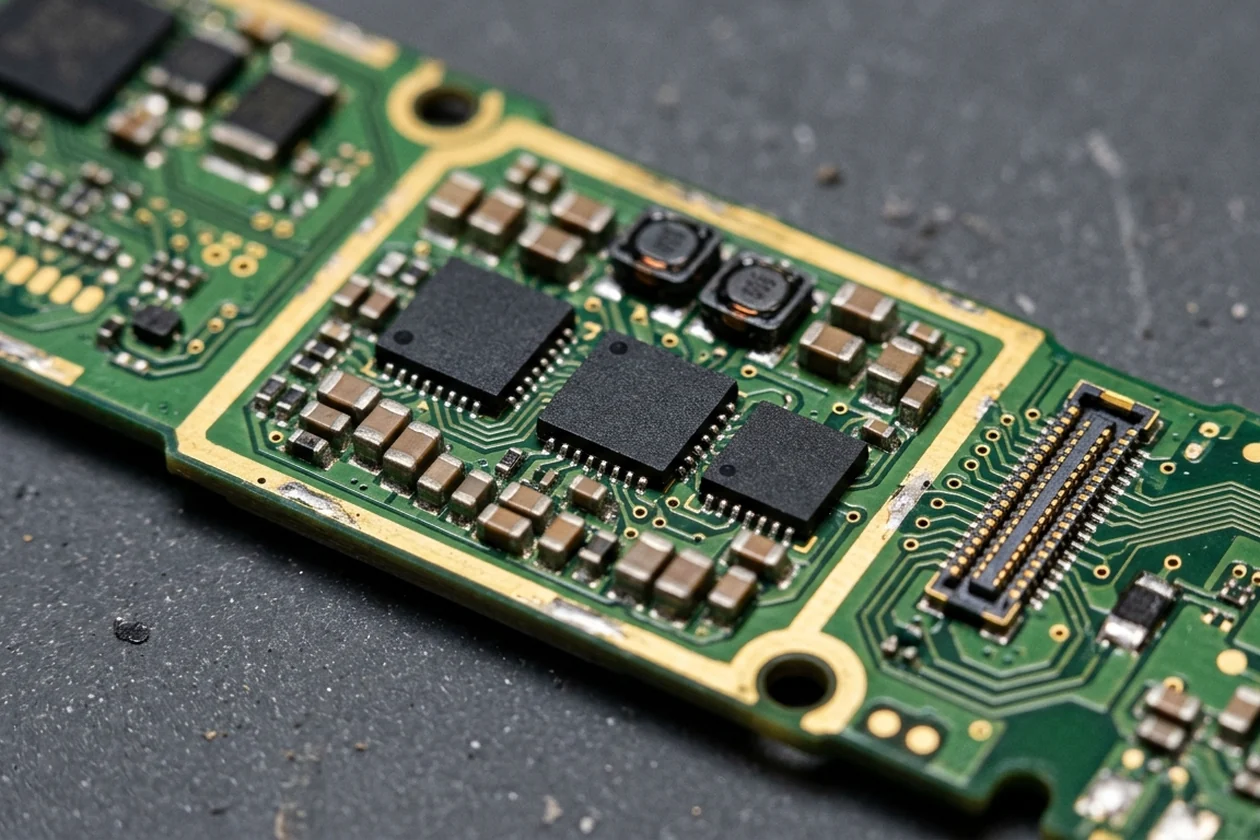
The table below compares published smartphone charger integrated circuit architectures across Narrow VDC buck power-path management and switched-capacitor direct charging:
Scroll horizontally to view all table columns.
| Charger IC or Topology | Published Power-Path Architecture and Operating Specifications |
|---|---|
| TI BQ25640 switch-mode FET layout | The Texas Instruments BQ25640 is a 5A switch-mode battery charge management and system power path management device for single-cell Li-Ion and Li-polymer batteries, integrating an input reverse-blocking FET (Q1), switching FETs (Q2 and Q3), and a battery FET (Q4) between the system and battery. |
| TI BQ25640 NVDC and battery supplement mode | The TI BQ25640 uses Narrow VDC (NVDC) power path management, regulating the system slightly above the battery voltage without dropping below a configurable minimum system voltage, and supports system instant-on with a depleted or no battery as well as battery supplement mode when the adapter is fully loaded. |
| TI BQ25640 input ratings and BATFET impedance | The TI BQ25640 has a 3.9V to 18V input operating voltage range (with 26V absolute maximum input voltage), a 7mΩ BATFET, and an input current limit (IINDPM) range from 10mA to 3.2A. |
| Standard buck converter dissipation at 6 A | Texas Instruments states that a typical buck-converter charger can achieve greater than 90% efficiency at 6 A, which means a power dissipation of over 2 W in the phone, whereas a typical thermal budget for a smartphone allows less than 1 W of charger dissipation. |
| Switched-capacitor dissipation at 6 A | Texas Instruments states that a switched-capacitor charger can achieve up to 97% efficiency at 6 A delivered to the battery with only 3 A required on the USB Type-C cable, resulting in less than 800 mW of dissipation in the phone. |
| Analog Devices MAX77928 ratings | The Analog Devices MAX77928 is a 10A bi-directional 3:1/2:1/1:1 switched-capacitor converter (SCC) direct charger for a 1S Li-ion battery with a 2.5V to 16.9V input operating range and 96.2% efficiency at 4.4V, 9A output with a 3:1 ratio. |
| Analog Devices MAX77928 conversion ratios and 1:1 bypass mode | In the Analog Devices MAX77928 direct charger, forward mode operates as a step-down switched-capacitor converter with a 3:1 or 2:1 input-to-output voltage conversion ratio, reverse OTG mode operates at 1:3 or 1:2, and bypass mode (1:1 conversion ratio) is supported in both directions via I2C configuration. |
| SGMICRO SGM41603 bidirectional switched-capacitor specs | The SGMICRO SGM41603 is an I2C-controlled 10A bidirectional 2:1 switched-capacitor converter that delivers 10A in forward direction (2:1 voltage divider) and 5A in reverse direction (1:2 voltage doubler) with 98.5% peak efficiency, a 5V to 11V recommended input range (V2X), and a 2.8V to 5.5V output range (V1X). |
Switched-Capacitor Direct Charging Efficiency and PPS Step Regulation
Texas Instruments states that a typical buck-converter charger can achieve greater than 90% efficiency at 6 A, which means a power dissipation of over 2 W in the phone, whereas a typical thermal budget for a smartphone allows less than 1 W of charger dissipation. Texas Instruments states that a switched-capacitor charger can achieve up to 97% efficiency at 6 A delivered to the battery with only 3 A required on the USB Type-C cable, resulting in less than 800 mW of dissipation in the phone.
- USB Type-C cable current limits and parallel charging: Texas Instruments states that all USB Type-C cables must support a minimum of 3 A at 20 V, while high-power versions can support up to 5 A at 20 V, enabling 6-A battery charging with standard 3-A USB Type-C cables or up to 10 A with 5-A cables when using switched-capacitor devices in parallel.
- PPS voltage and current step resolution: Texas Instruments explains that a switched-capacitor charger relies on a smart wall adapter using the USB PD PPS protocol to regulate input voltage and current: when the adapter is not in current foldback, the phone directs voltage output in 20-mV steps, and when in current foldback, the phone directs output current in 50-mA steps.
- Pre-charge and current-tapering handoff: Texas Instruments states that in a switched-capacitor charging system paired with a standard switching charger, if the battery being charged is below a predetermined voltage such as 3.5 V, the standard charger is used during pre-charge and constant-current charging until reaching that voltage, and the standard charger also resumes for current tapering and final termination.
- AOSP USB port power transfer limiting: In AOSP power management, setting UsbPort.enableLimitPowerTransfer to true disables charging and limits the sourcing power; when UsbPortStatus.isPowerTransferLimited() is true, the Android device reduces the power draw as a sink to 0 (or the lowest possible value allowed by hardware) and limits the source current to 0, and limiting source power can be enforced only when both port partners support the USB Power Delivery (PD) specification.
Why Your Android Phone Still Gets Hot With Bypass Charging Active
Google Pixel Phone Help states that on Pixel 6 and later (via Settings > Battery > Battery diagnostics > Phone is very warm), a phone can get warm when playing videos, games, or other media, using it as a Wi-Fi hotspot, or doing any of those activities while the phone is charging. Android’s ADPF Thermal API documentation states that once a device overheats, the game workload must drop below the sustainable performance level in order to dissipate heat, such as by shifting to smaller cores, reducing the frame rate, or lowering fidelity.
The table below details how the Android framework and device firmware classify and mitigate rising temperatures during active workloads:
Scroll horizontally to view all table columns.
| Thermal Layer or Status Level | Published Framework Behavior and Mitigation Action |
|---|---|
| AOSP Thermal HAL 2.0 status range | In Android 10 and higher, the AOSP thermal service in the framework monitors mitigation signals from Thermal HAL 2.0 and exposes a device’s current thermal status as an integer value ranging from 0x00000000 (no throttling) to 0x00000006 (device shutdown). |
| Light, moderate, and severe throttling codes | In AOSP PowerManager thermal status codes, THERMAL_STATUS_LIGHT (0x00000001) indicates light throttling where devices skip boosting or inefficient frequencies on big cores; THERMAL_STATUS_MODERATE (0x00000002) impacts foreground activities so apps should reduce power immediately; and THERMAL_STATUS_SEVERE (0x00000003) limits system capacity and might cause display jank and audio jitter. |
| Critical, emergency, and shutdown codes | In AOSP PowerManager thermal status codes, THERMAL_STATUS_CRITICAL (0x00000004) means the platform has placed all components to run at their lowest capacity; THERMAL_STATUS_EMERGENCY (0x00000005) turns off functions such as the modem and cellular data completely before shutdown; and THERMAL_STATUS_SHUTDOWN (0x00000006) triggers immediate shutdown. |
| Android ADPF getThermalHeadroom() telemetry | Android’s ADPF Thermal API (released in Android 11, API Level 30, with NDK API in Android 12, API Level 31) provides getThermalHeadroom(), returning a float from 0.0f (no throttling, THERMAL_STATUS_NONE) to 1.0f (heavy throttling, THERMAL_STATUS_SEVERE), and returns NaN if called more than once every 10 seconds or if thermal hardware is not supported. |
| Game workload reduction requirement | Android’s ADPF Thermal API documentation states that once a device overheats, the game workload must drop below the sustainable performance level in order to dissipate heat, such as by shifting to smaller cores, reducing the frame rate, or lowering fidelity. |
| Pixel system-level thermal self-protection | When a Google Pixel phone senses that it is too hot, it protects itself by limiting functions: it may reduce CPU performance, reduce charging speeds, turn off the camera flash, turn off the camera, partially or fully turn off mobile data or Wi-Fi (including 5G), or enter low power mode, and to reduce heat Google advises reducing display brightness and using Wi-Fi instead of mobile data. |
Isolating Processor, Display, and Cellular Modem Heat from Battery Charging Heat
If your battery loses charge rapidly while unplugged or idle outside gaming sessions, follow our dedicated guide to fixing Android battery drain. During plugged-in sessions, use these documented thermal behaviors to separate processor, display, and modem heat from battery charging heat:
- Automatic thermal charge pausing on Pixel: Google Pixel Phone Help states that if a Pixel phone gets too warm, it might pause charging to protect the battery and start charging again when it cools down, and some Pixel phones automatically adjust their charging to manage device and battery temperatures, which can cause slower charging.
- Built-in Pixel thermal diagnostics path: Google Pixel Phone Help states that on Pixel 6 and later (via Settings > Battery > Battery diagnostics > Phone is very warm), a phone can get warm when playing videos, games, or other media, using it as a Wi-Fi hotspot, or doing any of those activities while the phone is charging.
- Thermal drain and plugged-in warmth warning: Google Pixel Phone Help states that a battery drains much faster when it is hot, even if the user is not using the phone, that this kind of drain can damage the battery, and that the phone warms up when plugged in.
- ADPF thermal headroom polling interval: Android’s ADPF Thermal API (released in Android 11, API Level 30, with NDK API in Android 12, API Level 31) provides getThermalHeadroom(), returning a float from 0.0f (no throttling, THERMAL_STATUS_NONE) to 1.0f (heavy throttling, THERMAL_STATUS_SEVERE), and returns NaN if called more than once every 10 seconds or if thermal hardware is not supported.
Step-by-Step Troubleshooting Checklist for Gaming Heat and Power Path Verification
Work through the steps below in order when bypass charging fails to hold your battery percentage steady or the chassis remains hot during gameplay:
- Verify the Samsung activation conditions: Samsung Support AE’s checklist when Pause USB PD Charging When Gaming does not activate requires verifying four conditions: the charger meets the 25W or higher PD requirement, the game is running in the foreground (not in the background), the battery charge level is above 20%, and the device is not overheating or experiencing other performance issues.
- Confirm the adapter supports USB-C PD with PPS rather than USB-A Adaptive Fast Charging: Samsung Support UK specifies that Adaptive Fast Charging is 15W via USB-A output, whereas Super Fast Charging is 25W using USB-C Power Delivery (USB PD) with PPS, and with a 45W Travel Adapter it requires a combination of a 45W TA and a 5A cable.
- Check Game Booster menu visibility for your One UI version: For Samsung Galaxy devices running One UI 6.0 or later, support status for Pause USB PD charging when gaming can be verified in the settings without prior connection to the charger, whereas devices on older operating systems require connecting to the charger before support status can be verified.
- Keep the game active in the foreground with the screen on: Even if a game is running on a Samsung Galaxy smartphone, the Pause USB PD charging when gaming feature will not work if other actions are being performed, such as turning off the screen or switching to another screen.
- Account for periodic capacity calibration on Google Pixel: Google Pixel Phone Help states that to keep its battery capacity readings accurate, a Pixel phone needs to fully charge to 100% at every 10th cycle even when the ‘Limit to 80%’ option is turned on, and the user should leave the phone plugged in for at least 30 minutes after the screen shows 100%.
- Reduce display, cellular, and rendering heat when bypass charging is already active: When a Google Pixel phone senses that it is too hot, it protects itself by limiting functions: it may reduce CPU performance, reduce charging speeds, turn off the camera flash, turn off the camera, partially or fully turn off mobile data or Wi-Fi (including 5G), or enter low power mode, and to reduce heat Google advises reducing display brightness and using Wi-Fi instead of mobile data.
Frequently Asked Questions
Why is my Samsung Galaxy battery percentage still rising with Pause USB PD charging when gaming turned on?
Even if enabled, Samsung’s Pause USB PD charging when gaming feature operates only when a PD charger rated 25W or higher with Programmable Power Supply (PPS) support is connected, a game is running, and the battery holds a charge of 20% or more. On a Samsung Galaxy smartphone, if the battery has less than 20% charge or if a non-PD charger is connected to the device, the battery will continue to charge according to standard operating procedures. Even if a game is running on a Samsung Galaxy smartphone, the Pause USB PD charging when gaming feature will not work if other actions are being performed, such as turning off the screen or switching to another screen. Samsung Support AE states that Pause USB Power Delivery automatically disables when the device switches to non-gaming activities, such as browsing or messaging, and reverts to normal battery charging.
Does bypass charging stop an Android phone from getting hot while gaming?
On Samsung Galaxy smartphones, the Pause USB PD charging when gaming feature helps reduce heat production and protect battery life by stopping battery charging when the user is gaming while the device is connected to a power source. However, Google Pixel Phone Help states that on Pixel 6 and later (via Settings > Battery > Battery diagnostics > Phone is very warm), a phone can get warm when playing videos, games, or other media, using it as a Wi-Fi hotspot, or doing any of those activities while the phone is charging. Android’s ADPF Thermal API documentation states that once a device overheats, the game workload must drop below the sustainable performance level in order to dissipate heat, such as by shifting to smaller cores, reducing the frame rate, or lowering fidelity.
Why does a Google Pixel occasionally charge to full capacity when charging optimization is enabled?
On Google Pixel 6a and later devices, users can limit battery charging to 80% to extend battery lifespan by opening Settings > Battery > Battery health > Charging optimization, turning on Charging optimization, and tapping Limit to 80%. Google Pixel Phone Help states that to keep its battery capacity readings accurate, a Pixel phone needs to fully charge to 100% at every 10th cycle even when the ‘Limit to 80%’ option is turned on, and the user should leave the phone plugged in for at least 30 minutes after the screen shows 100%.
Why does a switched-capacitor charger require a USB PD PPS wall adapter?
Texas Instruments explains that a switched-capacitor charger relies on a smart wall adapter using the USB PD PPS protocol to regulate input voltage and current: when the adapter is not in current foldback, the phone directs voltage output in 20-mV steps, and when in current foldback, the phone directs output current in 50-mA steps. Texas Instruments states that a switched-capacitor charger can achieve up to 97% efficiency at 6 A delivered to the battery with only 3 A required on the USB Type-C cable, resulting in less than 800 mW of dissipation in the phone.
Sources
- Samsung Support UK and Samsung Support AE documentation covering Pause USB Power Delivery, Game Booster operating preconditions, supported Galaxy series, and Super Fast Charging adapter specifications.
- Google Pixel Phone Help documentation covering Charging optimization, capacity calibration cycles, Adaptive Charging, Extreme Charging Mode, and thermal protection behavior.
- Texas Instruments technical documentation and Analog Design Journal papers covering Narrow VDC buck battery charger power-path management and switched-capacitor direct charger architectures.
- Analog Devices and SGMICRO switched-capacitor direct charger datasheets covering step-down conversion ratios and bypass mode operation.
- Android Open Source Project and Android Developers documentation covering the Thermal Hardware Abstraction Layer, PowerManager thermal status codes, the Android Dynamic Performance Framework Thermal API, and USB port power transfer management.
TasteOfAndroid is responsible for this page. The byline, method and commercial relationships are on the editorial policy and the author page.
Related Articles
Android Private Space Versus a Work Profile and Cloned Apps
Compare Android 15+ Private Space, Work Profiles, and cloned apps across user IDs, locked notification states, Photo Picker visibility, VPN bypass, and backups.
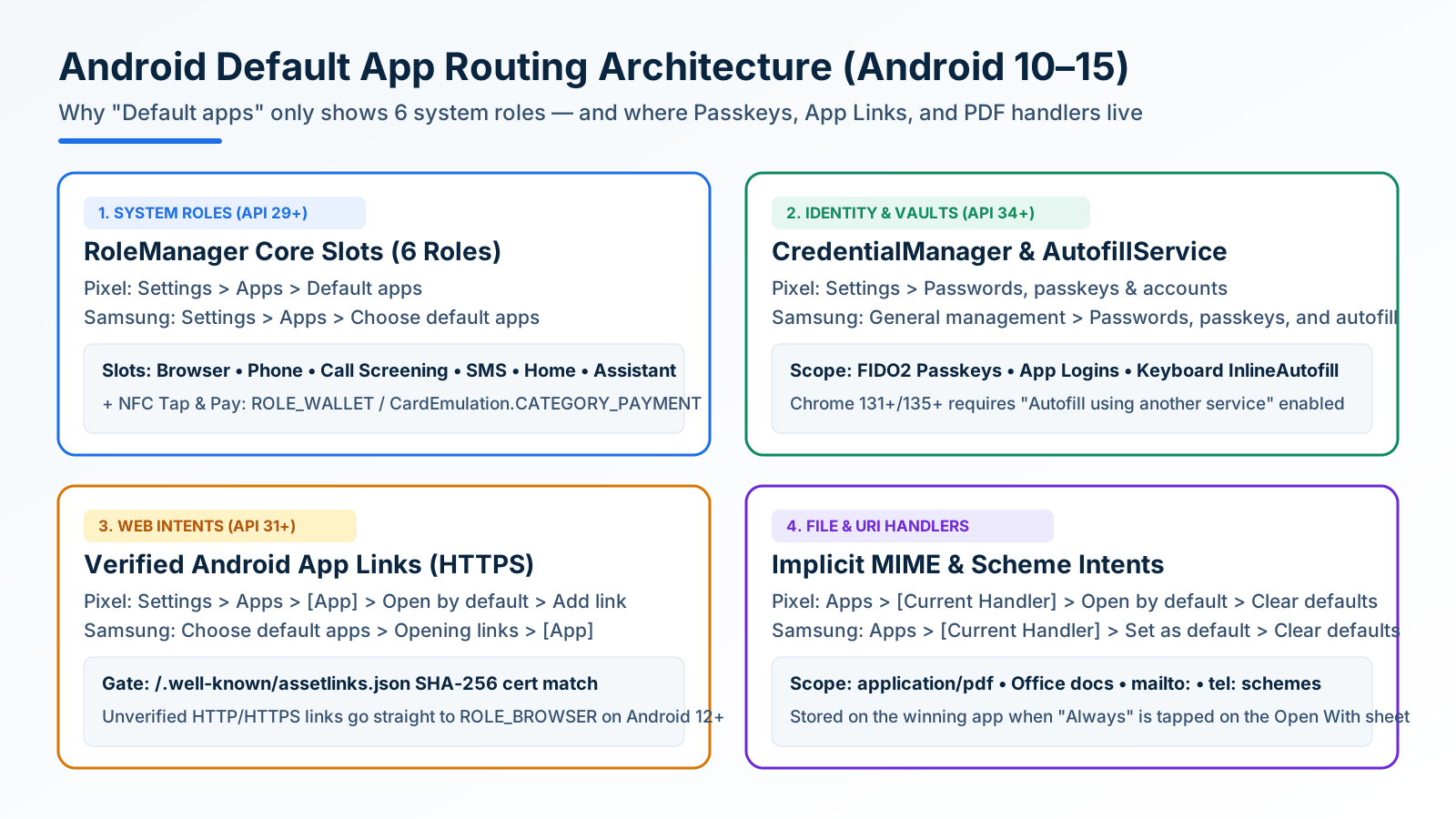
How to Change and Reset Default Apps on Android: Browsers, Passkeys, PDFs, and App Links
Looking only in Default apps fails when a wrong PDF viewer or browser hijacks links. Use Android's 4 routing menus to set browsers, passkeys, App Links, and MIME handlers.
Block Spam Calls and Robocalls on Android Without a Paid App
Use Filter spam calls, Pixel Call Screen, or Galaxy Text call. Google does not take numbers from your Contact list.