
Contents
- What does Android backup store, and when is it finished?
- Which photos and videos actually land in Google Photos?
- Are messages in the same backup as the photos?
- How do authenticator codes move?
- Rules of thumb before you erase the phone
- Worked example: 15 GB shared storage and the 24-hour bound
- A setup copy does not replace the backup
- When this does not apply
- Frequently asked questions
- Does the Android backup page state how long a backup is kept?
- Does a cable copy replace Google Photos and Authenticator?
- Method and sources
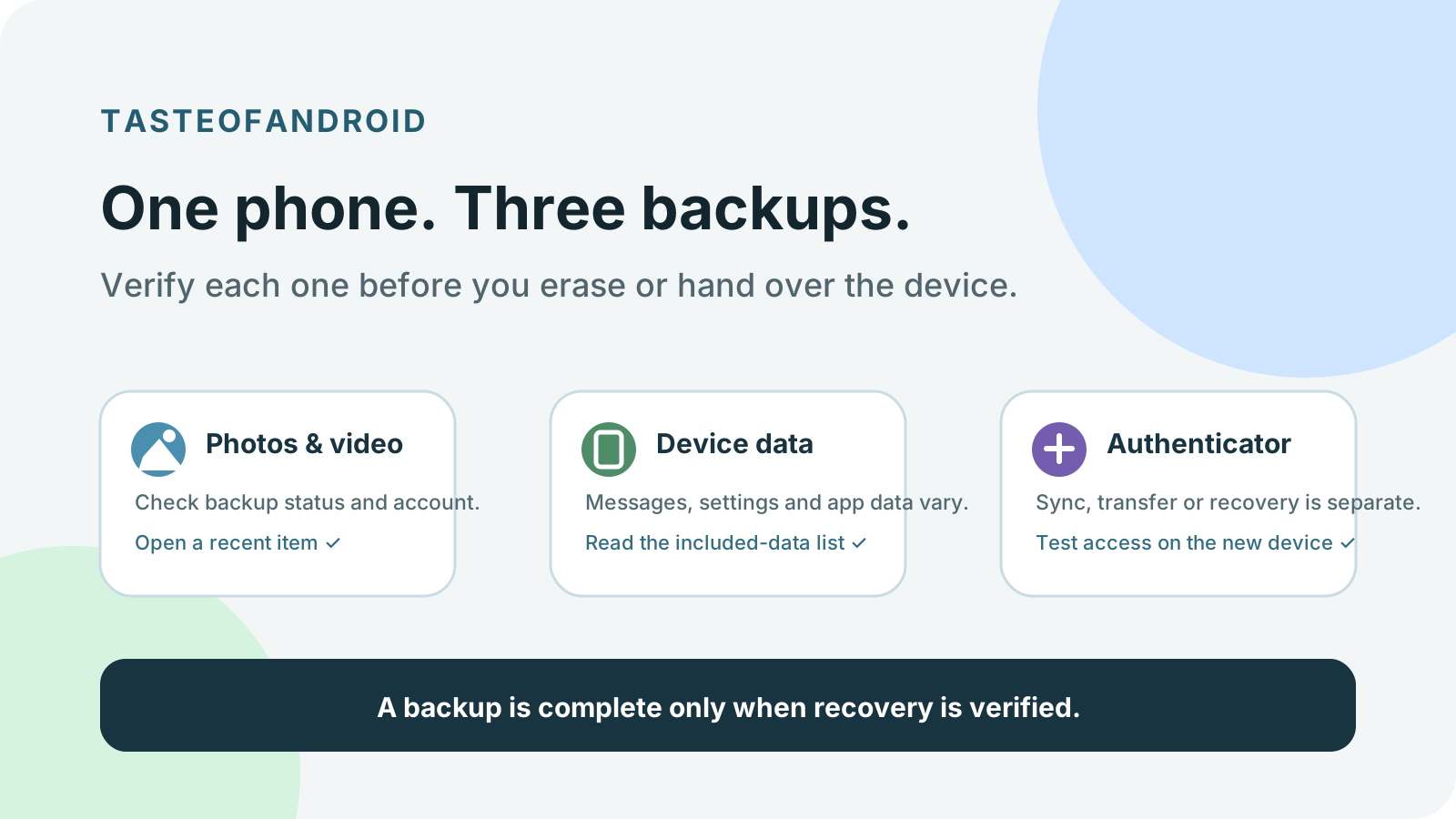
Erasing an Android phone too early costs the photos, messages, and authenticator codes that still exist only on that device. Confirm Google Photos, Android device backup, and Google Authenticator on their own before you reset, repair, sell, or hand the phone over.
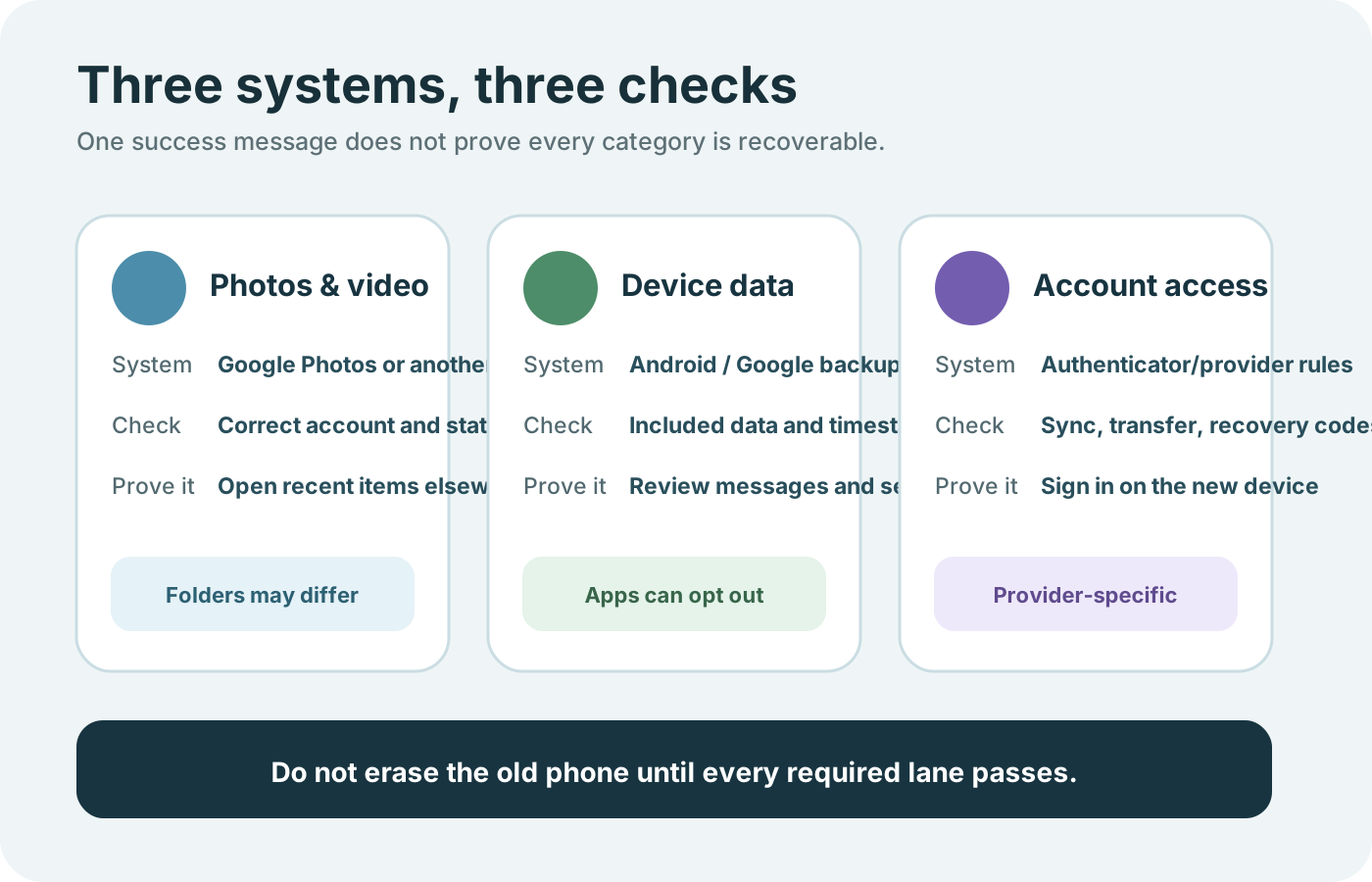
Back up an Android phone as three checks. Google Photos saves photos and videos to one Google Account at a time, with a per-file cap of 200 MB or 200 MP for photos and 10 GB for videos. Android backup stores apps and app data, call history, contacts, device settings, and SMS and MMS, and it adds RCS messages when you use Google Messages. Google Authenticator keeps codes across devices only after you sign in to a Google Account inside that app. Checked 17 October 2026, Android Help names 15 GB of no-charge backup storage and a window of up to 24 hours, and that page does not state how long a finished device backup is kept.
- Use a PIN, pattern, or password screen lock. A swipe or Smart Lock is the weaker choice on the backup page.
- Wait until the selected device-backup types show “On.” Photos uses its own status line, including “Backup complete.”
- Sign in inside Google Authenticator, or keep the old phone until the published transfer finishes.
- Leave the phone intact while any required item still exists only on it.
Scroll horizontally to view all table columns.
| What you are protecting | What the 17 October 2026 page states | Dominant failure mode | Prevention |
|---|---|---|---|
| Photos and videos[2][3] | One Google Account at a time. Photos up to 200 MB or 200 MP. Videos up to 10 GB. Items must be larger than 256 × 256. Storage saver resizes photos above 16 MP to 16 MP and videos above 1080p to 1080p. | A resized or paused upload treated as the original file. | Read the quality setting and the item’s backup status before you delete the phone copy. |
| Device data and messages[1][5] | Apps and app data, call history, contacts, device settings, SMS and MMS. RCS when you use Google Messages. Received end-to-end encrypted Google Messages are included in Android backup. | Erasing while the type still lacks “On,” or restoring onto an older Android version. | Wait for “On.” Put the backup on the same Android version or a newer one. |
| Authenticator codes[4] | Signing in on a new device syncs codes. Without a Google Account, codes stay on the phone and the help page gives a manual transfer that needs the old device. | Treating the phone backup list as the code store, or deleting a synced code to test it. | Confirm the codes on a second device. A synced deletion removes the code from every synced device. |
| Cable or Wi-Fi copy[6] | One transfer, best done during setup. Same data for cable and Wi-Fi. Downloads, hidden-folder media, non-Play apps, and non-Google accounts stay behind. | Using the copy as the only backup. | Finish the cloud checks first. The copy is a move during setup. |
Photos, device data with messages, and authenticator access each have their own check. A finished status on one lane leaves the other two unproved.
Scroll horizontally to read the labels in this diagram.
More of the site’s How-To guides sit next to this page once the three checks are in place.
What does Android backup store, and when is it finished?
Android backup uploads the phone’s supported data to the Google Account. You can restore it to the original phone or to some other Android phones. You cannot use it when you set up a personal device with a work profile, a work-only device, or a company-owned device. Some of the published steps work only on Android 9 and up.[1]
The automatic path on the backup page is Settings, then Google services, then All services. The tip there is to select Photos & videos, Device data, or both, then turn Backup on or off. A Google One backup can take up to 24 hours. When the data is saved, “On” appears under each data type you selected. A second published path for adding an account is Settings, then Google, then All services, then Backup under “Backup and restore.” Backup details sit at Settings, then Google services, then Backup.[1]
The included list is apps and app data, call history, contacts, device settings, and SMS and MMS messages. Extra data is added only with specific Google apps: RCS messages when you use Google Messages, phone-call settings and blocked numbers when you use Phone by Google, and pictures and videos when you use Google Photos. Not all apps back up or restore all of their settings and data.[1]
Once cloud backup is on, Google Play services says the device backs up automatically over Wi-Fi, with mobile data as a choice in backup settings, and Back up now for an immediate run. Some of that functionality works only on Android 9 and up. An organization can block a work-data backup.[7]
Encryption is stated in two layers. The backup page says data is encrypted as it moves, and that some data is further encrypted with the screen lock. Photos and videos in Google Photos, and MMS media from the carrier, are not encrypted by that screen lock. The Play services page says backups uploaded to Google servers are encrypted with the Google Account password.[1][7] Use a PIN, pattern, or password. The backup page tells you to prefer that over a swipe or Smart Lock.
Google Drive has no built-in Backups tab. Active backups are managed in the Google Account dashboard. Delete all data there permanently deletes every device backup on the account in one action, and the warning on that page also includes one chat app’s stored data in the same delete.[1]
A restore onto a phone that is already set up is offered when you add the Google Account. On a reset phone, follow the on-screen steps. Photos and videos are already in Google Photos. The rest restores during first setup or after a factory reset, and that process can take up to 24 hours to finish fully. Both devices must be on the same Android version, or the new device must be on a later one. A newer backup onto an older Android version can come back incomplete.[1]
Which photos and videos actually land in Google Photos?
Turning backup on saves photos and videos to one Google Account, and you can open them on devices signed in to that account. You can back up photos and videos to only one Google Account at a time. Account storage is shared across Google Photos, Google Drive, and Gmail. If that storage is full, the Photos page says to buy more or clean space up.[2]
The file limits on that page are photos up to 200 MB or 200 MP, videos up to 10 GB, and items larger than 256 × 256. Listed photo types include .jpg, .heic, .heif, .png, .webp, .gif, .avif, and most RAW files. A file type that is not listed may not work with Google Photos.[2]
On photos.google.com, with backup on and enough storage, the library status is one of these: No backup, Preparing backup, Backing up photos, Backup complete, or Backup paused. An individual item shows its backup status and size under Info, then Backed up.[2] “Backup complete” is that Photos status. It is a different string from the “On” mark under device-backup types.
Quality is a separate choice, and each Google Account comes with up to 15 GB of storage.[3]
Scroll horizontally to view all table columns.
| Quality | What the Photos quality page states | Storage effect |
|---|---|---|
| Original | Stored at the resolution you captured, with no quality change. Recommended above 16 MP and above 1080p. | Counts toward Google Account storage. |
| Storage saver | Photos above 16 MP are resized to 16 MP. Videos above 1080p are resized to 1080p. A photo may be stored as a different format, such as .jpg. Some portrait .jpg files in Multi-Picture Format are not compressed. | Counts toward storage. Items saved as High quality before 1 June 2021 do not. |
| Express | If the option is missing, it is not available in that country or region. Photos above 3 MP are resized to 3 MP. Videos above 480p are resized to 480p. | Counts toward storage. Express items from before 1 June 2021 do not. |
The quality page also says that if you are inactive in Google Photos for 2 years or more, your content may be deleted. That sentence is a Photos inactivity rule. It is not a retention period for the device backup on the Android Help page.[3]
Drive for desktop ends support for Google Photos backup on 10 August 2026. After that date, the page says folder backup continues by adding photos and videos from Google Drive to Google Photos. Stopping a folder backup blocks future uploads. Photos already in Google Photos stay until you delete them.[2]
Local capacity on the phone is a different number. The 128GB and 256GB Android storage guide is about how much the phone holds, which does not replace the Photos account or the device backup.
Are messages in the same backup as the photos?
SMS and MMS are on the device-backup list. RCS messages are additional data when you use Google Messages.[1]
End-to-end encryption in Google Messages applies to RCS chats with other Google Messages users, with RCS chats on, over data or Wi-Fi. SMS and MMS are not end-to-end encrypted. When an end-to-end encrypted message is received on the phone, Google says it is also included in Android backup.[5] That sentence covers received encrypted messages. It does not put other chat apps on the Android backup list.
The copy page names one chat app whose chats restore from that app’s cloud after you sign in on the new phone and open the app, and only if that app’s backups were already turned on on the old phone.[6]
Contacts saved to the Google Account sync on their own. Contacts that live only on the phone or SIM need the separate restore Google documents.[1]
How do authenticator codes move?
Google Authenticator codes are not on the device-backup list quoted above. The Authenticator help page gives its own sync. Signing in to a Google Account inside the app on a new device syncs the codes to that device. The sync feature needs Authenticator 6.0 or above on Android and 4.0 or above on iOS. The Android app itself needs Android 6.0 or above. Codes are encrypted in transit and at rest. Version 7.0 no longer has a time-correction setting. The app uses the operating system’s time.[4]
Choosing “Use without an account” removes codes from all of your Google Accounts and stores them on the device. Those codes are then unavailable on your other devices. If you already saved codes to a Google Account, the page puts that action at the profile picture, then Use Authenticator without an account.[4]
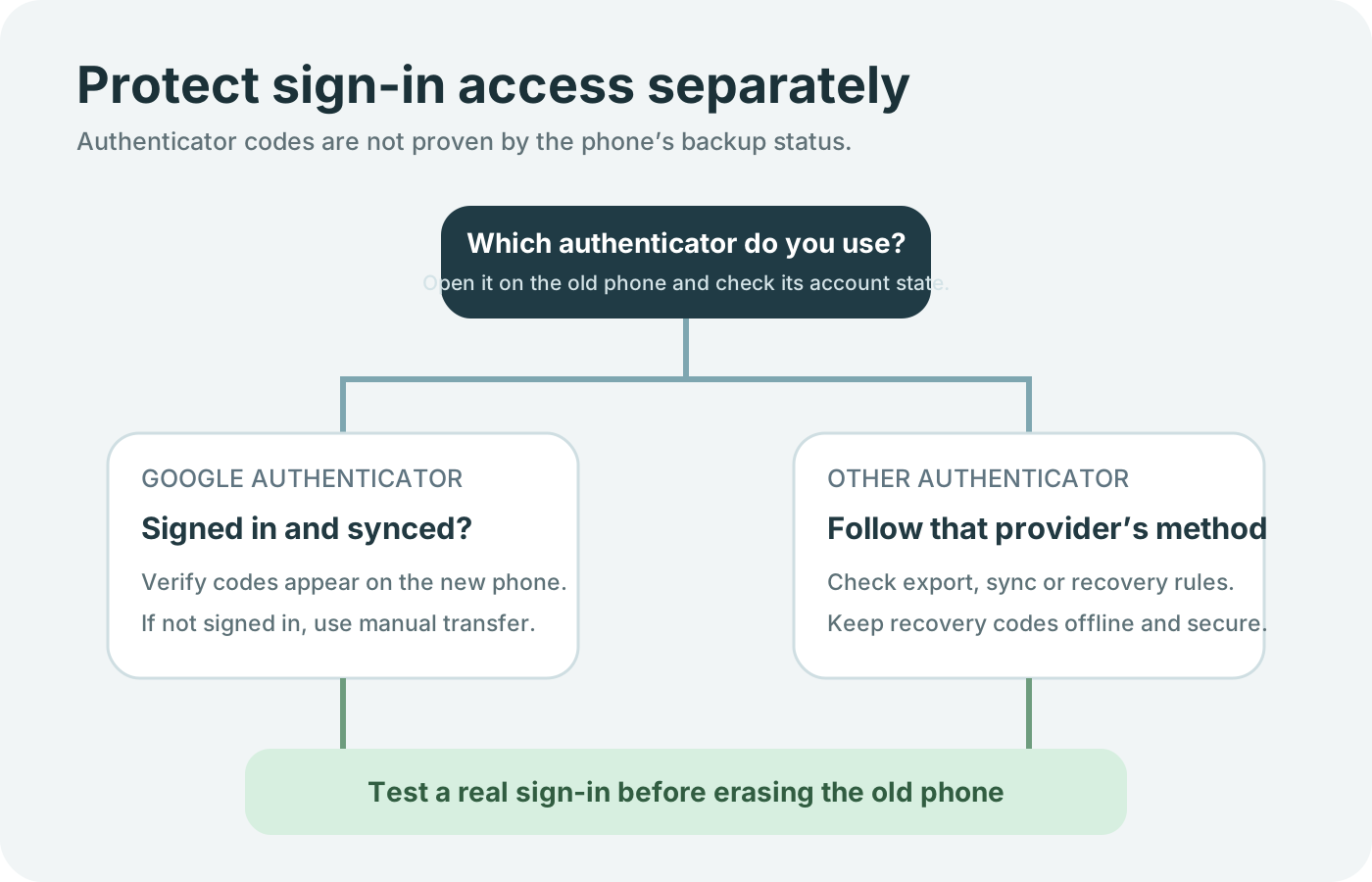
The same page says a manual transfer is still available without a Google Account. It requires the old device with the codes, the latest Authenticator version on that old device, and the new device. The published steps are:
- On the new device, install Google Authenticator.
- Tap Get Started.
- Sign in to your Google Account.
- On the old device, open the menu, then Transfer codes, then Export codes. The phone asks you to unlock. Select the accounts and tap Next. More than one account can produce more than one QR code.
- On the new device, open the menu, then Transfer codes, then Import codes, and scan the QR code.
After the scan, the page says you get confirmation that the codes transferred.[4]
Signed-in Authenticator codes follow the Google Account. Without an account, the old phone has to stay available for the published QR transfer. Test a real sign-in before the old phone is gone.
Scroll horizontally to read the labels in this diagram.
A synced code that you delete is deleted on every device where those codes are synced. Swipe right on Android to reach delete, then confirm. Deleting the Google Authenticator service removes the codes from the Google Account and from every device, and it does not delete the Google Account itself. Deleting the whole Google Account deletes the Authenticator codes with it.[4] Do not delete a code to see whether sync works.
For the Google Account’s own sign-in, Authenticator can take up to 7 days to appear as an available option. A trusted passkey or security key can shorten that wait. The page’s own best practices are to sync codes to the Google Account, turn on Privacy Screen, and enroll another 2-Step Verification method so a lost phone is not the only way back in.[4]
If the phone is lost, the page says to use the remote erase option so codes on the device cannot be opened. When codes are synced, removing the device from the Google Account removes them. When they are not synced, you remove them at each site and link the new phone.[4]
Rules of thumb before you erase the phone
Rule of thumb: If the destination phone is on an older Android version than the phone that created the backup, stop the restore plan. Android Help says you cannot restore a higher Android version onto a lower one, and a transfer onto an older version can be incomplete.[1]
Rule of thumb: If a photo is above 16 MP and the quality is Storage saver, the stored copy is resized to 16 MP. Original quality is the setting that keeps the captured resolution. Express, where the option exists, resizes a photo above 3 MP to 3 MP.[3]
Rule of thumb: If Authenticator is set to use without an account, the codes are on that phone and are not on your other devices. Keep the old phone until the published transfer confirms, or sign in so the account sync can place the codes on the new phone.[4]
Rule of thumb: If the selected device-backup type does not show “On,” the backup page’s window is still open. That window is up to 24 hours. A clock reading inside those 24 hours is not the finish mark.[1]
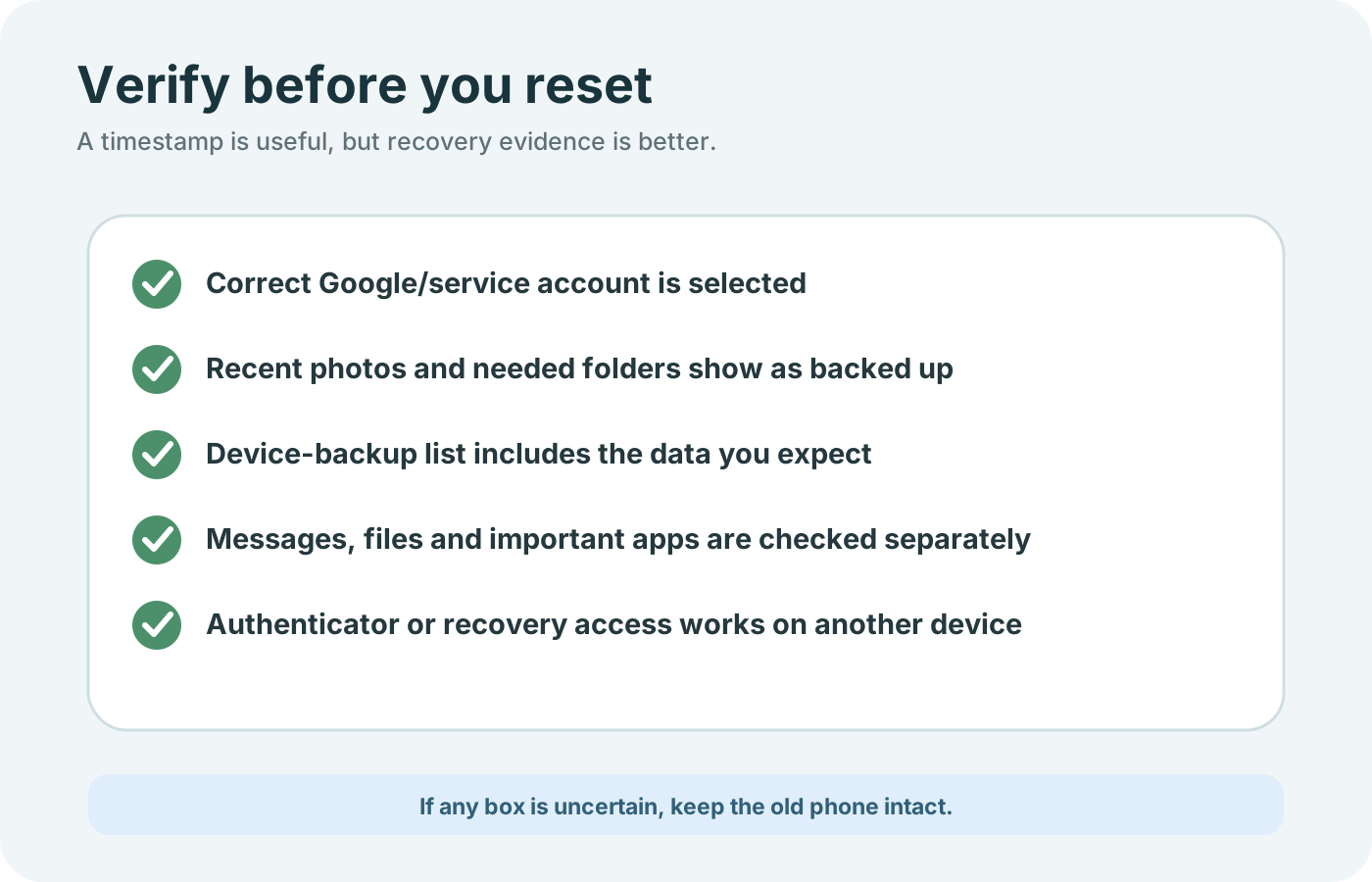
The last check is evidence, not a timestamp alone: the right account, Photos status, the device-backup types you selected, messages you can open elsewhere, and authenticator access on another device.
Scroll horizontally to read the labels in this diagram.
For a sale or trade-in, continue with the checklist before you sell an Android phone. Account removal and the factory reset come after these checks.
Worked example: 15 GB shared storage and the 24-hour bound
The backup page states the no-charge figure directly:
Backup allowance = 15 GB at no charge for the Google account.[1]
The Photos quality page states the account figure as up to 15 GB, and the Photos backup page says that storage is shared across Google Photos, Google Drive, and Gmail. Photos and videos backed up in Original, Storage saver, or Express count toward it, apart from the pre-1 June 2021 exceptions above.[2][3]
This example treats those two 15 GB statements as one shared allowance. The 9 GB already used is an assumed input for the arithmetic. It is not a measurement from a Google account.
Room left = 15 GB − 9 GB = 6 GB.
A video at the Photos per-file cap is 10 GB.[2] Compare the file with the room left:
10 GB > 6 GB.
The video meets the per-file cap and still does not fit the remaining allowance in this example. The page does not publish a separate backup bucket on top of the shared account storage, so this subtraction is the ceiling to use until you read the account’s own storage number.
Storage saver changes pixel count, not a promised byte saving. For a photo above 16 MP:
Stored megapixels = 16.
Example source = 48 MP, chosen because it is above the 16 MP threshold. Pixel fraction kept = 16 / 48 = 1/3. The quality page does not state the file size after that resize, so the example stops at the pixel count.[3]
The time bound is separate from the gigabytes:
Latest documented finish = backup start + 24 hours.
Example start = 18:00 on 17 October 2026. Latest documented finish = 18:00 on 18 October 2026. Erasing at 20:00 on the 17th is inside the window. The finish mark remains the word “On” under the selected types.[1]
The cost of erasing inside that window is the data that never reached another place: the types that do not show “On,” plus anything the copy page leaves behind. There is no price on these help pages. The loss is another setup and the files you cannot open.
A setup copy does not replace the backup
During setup you can copy from the old Android phone to the new one once. Google recommends doing it then, because the option can be missing later. Cable and Wi-Fi carry the same data. You need an internet connection, and Google recommends Wi-Fi on both phones. Both phones should be charged. The copy can take from a few minutes to a few hours. With a cable, the new phone shows “Copying your data…” and the old phone shows “Copying’s done.” Depending on the amount, a cable copy can run past an hour. Some of these steps work only on Android 10 and up.[6]
What copies includes apps and certain app data, music, photos, videos, contacts stored on the phone or SIM, text messages, most phone settings, multimedia in text messages, wallpaper, and call history. What does not copy includes downloads such as PDF files, photos, videos, and music in hidden folders, apps that are not from the Play Store, data from apps that do not use Android backup, accounts other than Google Accounts, contacts and calendars synced to services other than Google, ringtones, and some phone settings.[6]
Those leftover folders are a different job from Google backup. The checks in Syncthing between an Android phone and a PC apply to a shared folder you choose. They do not move Authenticator codes, and they do not replace the “On” mark in device backup.
If the old phone is an iPhone, use the iPhone to Android transfer guide. The Android-to-Android copy page is a different route, and its included list does not apply to an iPhone source.
After the copy, setting up the new Android phone gets the device into daily use. Reaching the home screen shows that setup finished. It does not show that every Photos item, message, and authenticator code arrived.
If the old phone is gone, the copy page says to restore from a Google Account backup instead: skip the cable, pick the backup when more than one exists, enter the old phone’s PIN if asked, choose the data types, and tap Restore. That restore exists only if backup was turned on beforehand.[6]
When this does not apply
Skip this backup plan when the phone is being set up as a personal device with a work profile, as work only, or as a company-owned device. Android Help says backup is unavailable in those cases.[1] A phone managed by a business or school can also block part of a data transfer, and Play services says an organization can block a work-data backup.[6][7]
Skip a full restore when the new phone runs an older Android version than the backup. Expect an incomplete result, and keep the original phone until you have opened the messages, settings, and files you need.[1]
Skip Authenticator’s account sync when you have chosen to use the app without an account. The codes are then on the device only, and the manual transfer needs that device.[4]
Frequently asked questions
Does the Android backup page state how long a backup is kept?
No. The backup and restore page checked on 17 October 2026 does not state a retention period. The 2-year inactivity rule is on the Google Photos quality page, and it applies to Photos content.[1][3]
Does a cable copy replace Google Photos and Authenticator?
No. The copy can move supported phone data once during setup, and it leaves downloads, hidden folders, non-Play apps, and non-Google accounts behind. Photos still need their own backup status. Authenticator still needs account sync or the published transfer.[6][4]
Method and sources
The figures in this guide come from the help pages listed in the source panel, fetched on 17 October 2026. The 15 GB allowance, the 24-hour bound, the Photos file caps, the Storage saver resize points, and the Authenticator transfer labels are quoted from those pages. The 9 GB and 48 MP figures in the worked example are assumed inputs for the arithmetic. Recheck the help page for the phone’s Android version before you erase it.
Sources & methodology7 sources
Evidence used for this article. Links open the original source in a new tab.
- Back up or restore data on your Android device — Android Help
- Back up photos and videos — Google Photos Help
- Choose the backup quality of your photos and videos — Google Photos Help
- Get verification codes with Google Authenticator — Google Account Help
- Learn about end-to-end encryption in Google Messages — Google Messages Help
- Copy apps and data from an Android to a new Android device — Android Help
- Copy data with Google Play services — Android Help
TasteOfAndroid is responsible for this page. The byline, method and commercial relationships are on the editorial policy and the author page.
Related Articles
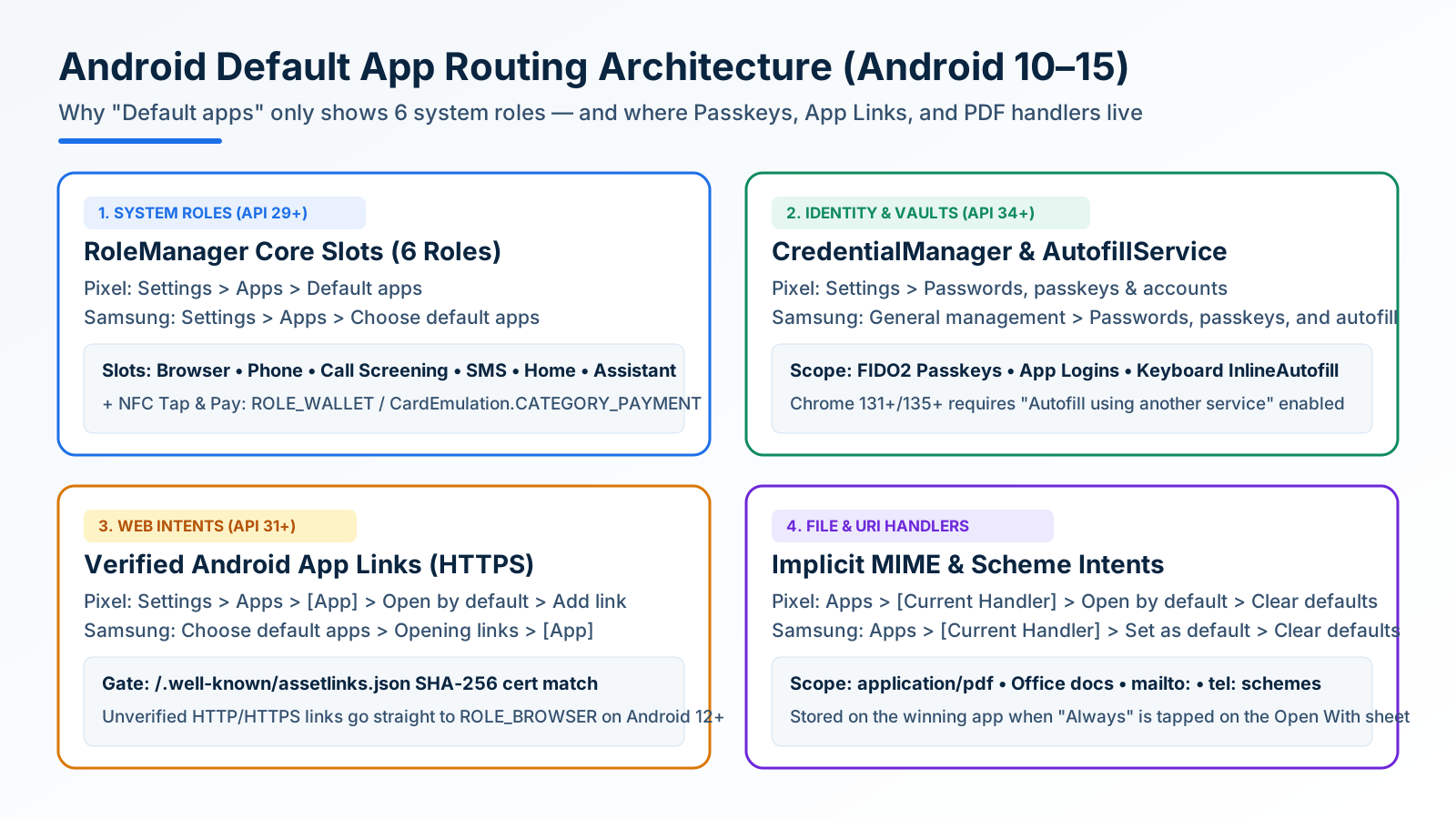
How to Change and Reset Default Apps on Android: Browsers, Passkeys, PDFs, and App Links
Looking only in Default apps fails when a wrong PDF viewer or browser hijacks links. Use Android's 4 routing menus to set browsers, passkeys, App Links, and MIME handlers.
Block Spam Calls and Robocalls on Android Without a Paid App
Use Filter spam calls, Pixel Call Screen, or Galaxy Text call. Google does not take numbers from your Contact list.
Split Screen and App Pairs: Multitasking on Android
Use two Android apps together, save supported app pairs, and check Pixel and Galaxy controls before relying on a multitasking shortcut.