
Contents
- The year count stays on the page that names the phone
- Where each software path fails
- The home screen keeps At a Glance at the top
- Modes, Quick Tap, and Call Screen are separate tools
- DeX for PC stops at One UI 7
- Private Space and Secure Folder lock different things
- Which software to keep
- What was checked on 18 October 2026
Picking Pixel Android or Samsung One UI for the wrong phone fails the tools you meant to keep when the update window or the menu belongs to a different model. Choose the Pixel whose named group on Pixel Help still covers the months you will keep it, and choose One UI when that Galaxy page prints both the window and the menu you will use.
More of this column sits in the Android buying guides.
Choose the Pixel whose Pixel Help group still covers the months you will keep the phone. Choose Samsung One UI when that Galaxy page prints the window and the menu you will open. Pixel 8 and later get 7 years of OS and security updates from first US Google Store availability. The named Pixel 6, Pixel 7, and original Pixel Fold phones get 5 years from that start. Pixel 5a and earlier no longer receive Android version updates or security updates. Footnote 21 on the 2/25/2026 US Galaxy S26 announcement gives the series seven OS generations and seven years of security updates from the global launch date. The January 18, 2024 Galaxy S24 article offers seven generations and seven years for the latest flagship, with no start date. Any other Galaxy name keeps a blank year cell.
Pixel Help, the US Google Store availability table, the US Galaxy S26 announcement, and the Galaxy S24 announcement were saved on 18 October 2026. [1] [2] [9] [10]
Scroll horizontally to view all table columns.
| Input or item | Printed value, saved 18 October 2026 | Why it matters | Dominant failure mode |
|---|---|---|---|
| Pixel 8 and later | 7 years of OS and security updates from first availability on the US Google Store. Names run from Pixel 8 through the Pixel 11 phones, including Pixel 8a, Pixel 9a, and Pixel 10a. The ordered list is in the next section. | The headline 7 years belongs only to these names. | Counting 7 years on a Pixel 6, Pixel 7, or Pixel Fold. |
| Pixel 6, Pixel 7, and Pixel Fold | 5 years of OS and security updates from the same US Google Store start. The names are Pixel Fold, Pixel 7a, Pixel 7 Pro, Pixel 7, Pixel 6 Pro, Pixel 6, and Pixel 6a. | A 5-year phone does not inherit the Pixel 8 clock. | Using the Pixel 8 sentence on this list. |
| Pixel 5a and earlier | Android version updates and security updates have ended. The page names Pixel 5a with 5G, Pixel 5, Pixel 4a (5G), Pixel 4a, Pixel 4 & Pixel 4 XL, Pixel 3a & Pixel 3a XL, Pixel 3 & Pixel 3 XL, Pixel 2 & Pixel 2 XL, and Pixel 1 & Pixel 1 XL. | A future patch is not on this page for these names. | Buying one of these for a plan that still needs later patches. |
| Galaxy S26 series | Footnote 21: seven generations of OS upgrades and seven years of security updates from the global launch date. The body sentence on the same page says seven years of security updates for the series and points at that footnote. | OS generations and security years are both printed, and both start at the global launch date. | Treating March 11, 2026, the US general-availability date, as that launch date. |
| Galaxy S24 article | Dated USA on January 18, 2024. The lifecycle sentence offers seven generations of OS upgrades and seven years of security updates for the latest flagship. Footnote 28 says timing may vary by model and market. No start date is printed. | The sentence stays on that article. It does not fill a later Galaxy row. | Copying the S24 sentence onto a phone the article does not call the latest flagship. |
| Other Galaxy names | Blank. Neither saved Samsung page prints a year count for an unnamed Galaxy. | Borrowing the S26 footnote for a Galaxy A, a tablet, or an older S series phone. | |
| S26 spec-table software | Galaxy S26 Ultra, Galaxy S26, and Galaxy S26+ each print Android 16 and One UI 8.5. | That pair is the software version on the announcement tables. It is not the seven-year clock. | Reading One UI 8.5 as an end date. |
| Price, RAM, battery capacity, refresh rate, camera | Blank on this page. The S26 announcement prints hardware and price figures. They are outside this software comparison. | Filling a software decision with a hardware number. |
Scroll horizontally to read the labels in this diagram.
Open the full-size remaining-months diagram
Pixel 8 and Pixel 8 Pro share October 2023. Pixel 6 and Pixel 6 Pro share October 2021. The Galaxy S26 series card stays blank because footnote 21 names the global launch date and the March 11, 2026 line is US general availability.
The year count stays on the page that names the phone
Pixel 8 and later phones will get updates for 7 years starting from when the device first became available on the Google Store in the US. Google says this includes 7 years of OS and security updates, and may also include new and upgraded features with Pixel Drops. The named phones, in the page’s order, are Pixel 11 Pro Fold, Pixel 11 Pro XL, Pixel 11 Pro, Pixel 11, Pixel 10a, Pixel 10 Pro Fold, Pixel 10 Pro XL, Pixel 10 Pro, Pixel 10, Pixel 9a, Pixel 9 Pro Fold, Pixel 9 Pro XL, Pixel 9 Pro, Pixel 9, Pixel 8a, Pixel 8 Pro, and Pixel 8. [1]
The 5-year paragraph uses the same US Google Store start for Pixel Fold, Pixel 7a, Pixel 7 Pro, Pixel 7, Pixel 6 Pro, Pixel 6, and Pixel 6a. Pixel 5a and earlier are in a separate block that says those phones no longer receive Android version updates and security updates. Updates roll out gradually and depend on the carrier and the device. Google says it may take a few weeks for the update to arrive. The manual check is Settings, System, Software update.
The availability page is the table of US Google Store purchase months. Pixel 8 and Pixel 8 Pro are October 2023. Pixel 8a is May 2024. Pixel 6 and Pixel 6 Pro are October 2021. Pixel 6a is July 2022. The page prints a month and a year, not a day. [2] How any brand’s own row is counted sits in how Android update support is counted. A OnePlus or Xiaomi year count does not move a Pixel or Samsung row.
The US Galaxy S26 announcement is dated 2/25/2026. The body says the Galaxy S26 series keeps its security layers resilient with seven years of security updates, and footnote 21 says the Galaxy S26 series will be supported with seven generations of OS upgrades and seven years of security updates from the global launch date. The same page says general availability for Galaxy S26 Ultra, Galaxy S26+, and Galaxy S26 starts March 11, 2026. That sentence does not say March 11, 2026 is the global launch date, so this page does not subtract it from seven years. [9] The spec tables on that announcement print Android 16 and One UI 8.5 for Galaxy S26 Ultra, and again for Galaxy S26 and Galaxy S26+. Those cells are the version pair. They are not an end month.
The Galaxy S24 article is datelined USA on January 18, 2024, and it unveils Galaxy S24 Ultra, Galaxy S24+, and Galaxy S24. Later it says the latest flagship continues Samsung’s commitment to extending the product lifecycle, offering seven generations of OS upgrades and seven years of security updates. Footnote 28 says availability and timing of Android OS upgrades and security updates may vary by device model and market. The sentence prints no start date, so remaining months stay blank. [10]
Elapsed months = (check year - start year) x 12 + (check month - start month).
Published months = published years x 12. Remaining months = published months - elapsed months.
The check month is October 2026, the month this page was updated. This is month-start arithmetic on the printed year and month. The availability page does not print a day, so the true gap can shift by less than a month. A negative uncovered figure means the assumed plan ends before the arithmetic end. A positive uncovered figure means part of the assumed plan sits past that end.
Worked example. A 4-year hold is 48 months. That 48 is a planning assumption. None of these pages print 4 years as a hold for this pair.
Pixel 8 and Pixel 8 Pro, start October 2023, published 7 years: published months = 7 x 12 = 84. Elapsed months = (2026 - 2023) x 12 + (10 - 10) = 36. Remaining months = 84 - 36 = 48, which is 4 years. Uncovered months = 48 - 48 = 0. The assumed plan ends in the same month as the arithmetic end. The Pixel 8 Pro row uses the same start month, so the same result stays on that row.
Pixel 8a, start May 2024, published 7 years: elapsed months = (2026 - 2024) x 12 + (10 - 5) = 29. Remaining months = 84 - 29 = 55, which is 4 years and 7 months. Uncovered months = 48 - 55 = -7. The assumed plan ends 7 months before the arithmetic end.
Pixel 6 and Pixel 6 Pro, start October 2021, published 5 years: published months = 5 x 12 = 60. Elapsed months = (2026 - 2021) x 12 + (10 - 10) = 60. Remaining months = 60 - 60 = 0. Uncovered months = 48 - 0 = 48. The anniversary month is October 2026. Pixel Help still lists these two phones in the 5-year group. It does not list them with the phones that no longer receive updates. The day inside October 2026 is not printed.
Pixel 6a, start July 2022, published 5 years: elapsed months = (2026 - 2022) x 12 + (10 - 7) = 51. Remaining months = 60 - 51 = 9. Uncovered months = 48 - 9 = 39. Thirty-nine months of the assumed plan sit past that arithmetic end. The Pixel 6 result does not move to Pixel 6a.
Galaxy S26 series: published duration is seven years from the global launch date. The start month is not printed on the footnote. Remaining months stay blank. March 11, 2026 stays on the US availability sentence.
Rule of thumb. If planned ownership months exceed 48 under this 4-year assumption, open the remaining-months line before you treat a 7-year or a seven-year headline as enough. If remaining months sit below 1 and you still plan to keep the phone past October 2026, stop on that Pixel row. If the Galaxy name is outside the S26 series footnote and outside the S24 latest-flagship sentence, the year cell stays blank.
When the arithmetic end month is already the check month, the exit steps are in before you sell an Android phone.
Where each software path fails
Scroll horizontally to view all table columns.
| Path | Dominant failure mode | Prevention |
|---|---|---|
| Pixel year group | Using 7 years on a 5-year name, or on a phone the page says has ended | Read the named list. Then subtract the US Google Store month. |
| Galaxy year cell | Copying footnote 21 onto a Galaxy it does not name | Verify the exact support window on that specific Galaxy model’s support page. |
| S26 start | Using March 11, 2026 as the global launch date | Keep the footnote’s start name. Keep March 11 on the US availability sentence. |
| At a Glance | Planning a home screen that moves the top block | Pixel Help says you cannot move it. You can turn the home-screen switch off. |
| Quick Tap and Call Screen | Expecting either tool outside the phones or countries on those pages | Quick Tap starts at Pixel 4a (5G). Call Screen uses the printed country lists. |
| Modes and Routines | Expecting the If-Then builder on a phone whose software version does not show it | The Samsung page says availability may vary by device and software version. |
| DeX for PC | Opening the PC app on One UI 7 or later | Use monitor or TV DeX where that model is listed, or Link to Windows. |
| Private Space | Leaving an alert or health app in a locked space | Locked private-space apps stop, including notifications. |
| Secure Folder | Assuming the folder exists because the phone is a Galaxy | If Secure Folder is absent from Security and privacy, that device does not support it. |
The home screen keeps At a Glance at the top
On a Pixel, the home-screen page says you cannot move the At a Glance information at the top of the screen. The same note is repeated for removal. You can still change what that block shows. Touch and hold the section, then open Customize. The examples on the page are the date, daily weather, the next calendar item, Nest package delivery reminders, and flight baggage-claim info. [3] Some of these steps only work on Android 14 and up. Icon size is a layout choice under Wallpaper and style. The page does not print a column count.
At a Glance is on by default. Turning it off leaves the date on screen. The home-screen switch and the feature switch are separate. With Show on home screen off, At a Glance leaves the home screen and can still appear on the lock screen. Some features are not available in all languages or countries. Sensitive lock-screen content has its own switch. [4]
Lock-screen clock style, color, and the Large size toggle are labeled for Android 16 and higher. Shortcuts on that page are Do not disturb, Home, QR code scanner, Wallet, Camera, Flashlight, Mute, and Video camera. Showing the lock-screen wallpaper on the Always-on display is limited to Pixel 10 Pro and Pixel 10 Pro XL. [5]
The One UI structure page describes a Home screen where apps move, widgets sit on the Home screen, and a swipe switches between Home and Apps. The Recents screen lets a user tap the icon above an app and open split screen or pop-up view. An Edge panel can drop an app into a pop-up or a split. That page is the design structure. It is not a model list. [16] The Edge panel support page says the panel is not on every model and software version. You can select up to ten Edge panels. The Apps Edge edit screen says you can add over 10 apps. Some downloadable panels are extra Galaxy Store items, and this page prints no price for them. [17]
Good Lock’s Home Up article is dated April 9, 2025. It says the One UI 7 update gives Home Up more home-screen control. DIY Home Screen resizes and repositions apps, widgets, and folders. Show Favorites can hide the bottom favorites row. Home Gesture Animation has four preset styles, and Advanced Tuning covers speed and vibration. The article’s comparison photo is a Galaxy S25 Ultra. The article prints no country list, so a market limit stays blank. [15] The S26 tables print One UI 8.5. This Home Up article prints One UI 7. This page does not merge those versions.
Scroll horizontally to read the labels in this diagram.
Open the full-size home-screen diagram
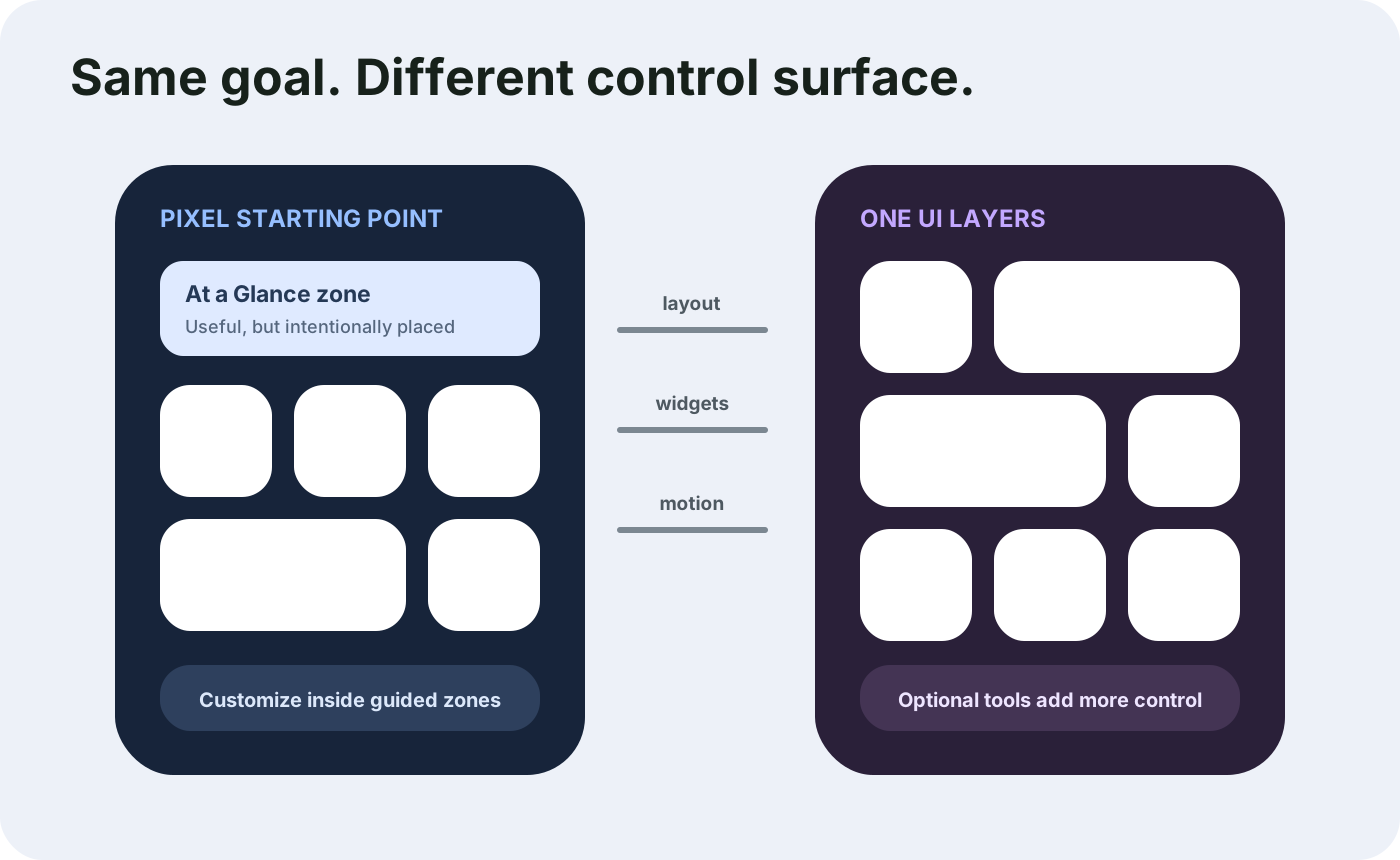
The left phone keeps one centered punch-hole and one centered USB-C. At a Glance is the strip under the hole, and the Pixel page says that strip does not move. The right phone uses the same hardware outline. Its three labels are the Home Up controls named on the April 9, 2025 article.
Pixel Help says some launcher apps may not support private space. A different home screen is the subject of distraction-free launchers on Android. Private-space apps also cannot place widgets or shortcuts on the home screen.
Dominant failure mode: building a layout that depends on moving At a Glance, or on Home Up controls the April 9, 2025 article ties to the One UI 7 update. Prevention: leave the Pixel strip in place, or confirm Home Up on the software version the phone is running. One UI 8.5 on the S26 tables does not, by itself, confirm those Home Up controls.
Modes, Quick Tap, and Call Screen are separate tools
Modes and Routines open from Settings, then Modes and Routines. A custom routine has an If line for the trigger and a Then line for the action. The page’s examples are a work arrival that mutes notification sounds and turns on Wi-Fi, and a bedtime action that lowers brightness through Bixby or Google Assistant. Preset modes and custom modes can turn on Do not disturb and restrict app usage. Routines can also sit on the lock screen. The page says availability of Bixby and of Modes and Routines may vary by device and software version. It does not print a count of triggers. [11] The Pixel Help pages saved here do not print that If-Then builder. A separate automation app is covered in Tasker profiles for beginners.
Quick Tap works on Pixel 4a (5G) and later phones. Two taps on the back of the phone take a screenshot, play or pause media, show notifications, or open an app. The path is Settings, System, Gestures, Quick tap. The gestures page says some of these steps may vary based on the device. [6]
Call Screen on Pixel phones is a country list, not a brand-wide switch. Automatic screening is listed for Australia, Canada, Ireland, the UK, and the US. Manual screening adds France, Germany, India, Italy, Japan, and Spain to that set. The India line is limited to Pixel 10, Pixel 10 Pro/XL, Pixel 10 Pro Fold, Pixel 11, Pixel 11 Pro/XL, and Pixel 11 Pro Fold. Manual Call Screen is also listed for selected Android devices in the US and Canada, and the page says manual Call Screen only works with a SIM from a country where Call Screen is available. Pixel 6 and below use unknown-caller settings. Pixel 7 and above use a protection level and an automatic-screening switch. If the Phone app has no Call Screen settings and no on-screen instructions, the page says that device does not work with Call Screen. [7] The S26 announcement has a separate Call Screening note for Call Assist: the feature may vary by language, and it needs to be turned on. The Pixel country list stays on the Pixel page.
Rule of thumb. If the country on your SIM is outside the Call Screen lists above, stop before you treat Call Screen as part of the Pixel. If the Galaxy software version does not show Modes and Routines, the If-Then path on the Samsung page is not that phone’s menu.
DeX for PC stops at One UI 7
Samsung DeX connects a supported phone or tablet to a monitor or TV for a desktop view. Some phones launch it wirelessly. The page says available screens and settings may vary by carrier and software version. Support for Samsung DeX for Mac OS ended as of January 2022. [12]
DeX for PC is no longer supported on Galaxy devices released with or updated to One UI 7 or later. The page names Link to Windows for calls, texts, and certain apps from a Windows PC. A second sentence says DeX for PC is not supported on models running Android 15 with One UI 7 or later. The example list under Use DeX for PC names Galaxy Z Fold8, Z Fold8 Ultra, Z Flip8, Z TriFold, Z Fold7, Z Flip7, the S25 series, and the S26 series. The line about running up to 5 apps from the phone on the computer sits in that DeX for PC section. Those named models do not inherit the 5-app line.
Monitor and TV lists are separate. DeX cable or HDMI includes the Galaxy S series from S8 through S26, named Notes, named folds through Z Fold8 and Z Flip8, and Z TriFold. The page says Z Flip7 FE and previous Z Flip models are not compatible with cable, HDMI, DeX on PC, or wireless DeX to a TV or monitor. Wireless DeX starts at the S9 series and includes the S26 series. The older DeX on PC list stops at the S24 series and Z Fold6. S25 and S26 are absent from that older list and present on the “not supported” example list.
Multi window, split screen, and pop-up view are documented for Galaxy Fold phones, Galaxy Flip phones, and non-foldable Galaxy phones. Split screen and pop-up view are not supported on the front screen of the Galaxy Z Fold series or the Z Flip series. Some apps do not support split screen. Swipe gestures for split screen and pop-up view are described for Galaxy devices running One UI 6 or later. The page does not print a date for One UI 6. [13]
An App pair is two apps. Three apps in one pair are described twice, and the two sentences do not match. One sentence includes Z Fold8 with Z Fold2 through Z Fold7, Z Fold8 Ultra, and Z TriFold. The later note lists Z Fold2 through Z Fold7, Z TriFold, and Z Fold8 Ultra, and it does not name Z Fold8. This page leaves Z Fold8’s three-app status as that conflict. It does not pick a sentence.
Scroll horizontally to read the labels in this diagram.
Open the full-size path diagram
The left card is the PC app. The middle card is the lock behavior Pixel Help prints for private space. The right card is the Samsung test for Secure Folder: the menu is either in Security and privacy, or the device does not support the feature.
Private Space and Secure Folder lock different things
Private space on the Pixel Help page is a separate space for apps you want hidden. Setup requires Android 15 or higher, a device that is not managed, no supervised account on the main space, and the main user. It is unavailable inside a secondary user, and it is unavailable when the device already has more than 4 users or profiles. A manufacturer or an enterprise admin can disable it. [8]
When the space is locked, its apps are completely stopped. They cannot run foreground or background work, and they cannot show notifications. The page’s own example is a medical app that cannot track health information while the device is locked. Apps outside the space keep running. Lock timing has three printed choices: every time the device locks, 5 minutes after screen timeout, and after a restart. Deleting the space deletes the app and its data with no backup. A device backup does not restore private space. A different Google Account is the page’s recommendation, because the same account can surface photos, mail, and other synced data outside the space.
Secure Folder is a Samsung passcode space for apps and files. If the device does not support it, the feature will not appear in the Security and privacy menu. The setup path on a supported phone is Settings, Security and privacy, More security settings, Secure Folder. Setup can ask for a Samsung account. Reset with Samsung account is optional, and the page says that leaving it off means a forgotten passcode blocks access. Adding an app puts a copy in the folder. Files in a cloud account cannot be moved in. The folder can be hidden from the Apps screen, and the page says it cannot be opened from the web or a computer. The page does not say that locking the folder stops background work. That stop sentence stays on the Private Space page. [14]
After a Private Space lock removes notifications, apps that should have stayed in the main profile are covered in what to check when Android notifications stop.
Dominant failure mode: treating the two locks as the same container. Prevention: use Private Space when the phone meets the Android 15 conditions and the apps inside can go silent. Use Secure Folder only when the menu is present, and turn on Samsung-account reset if a forgotten passcode must still open the folder.
Which software to keep
Choose the Pixel when three readings line up. The updates page names that exact phone in the 7-year list or the 5-year list. The month-start arithmetic above still covers the months you will keep it. And the tools you want are on the Pixel pages for that phone: At a Glance stays put, Quick Tap starts at Pixel 4a (5G), and Call Screen matches the country list. A Pixel 5a or earlier phone is already in the ended block.
Choose One UI when the Galaxy page for that model prints the window you need and you will open the menus that page describes. For a Galaxy S26 series phone, footnote 21 prints seven OS generations and seven years of security updates from the global launch date, and the spec tables print Android 16 with One UI 8.5. Remaining months stay blank until a start month is the global launch date and not only March 11, 2026. Modes and Routines, monitor DeX, and Secure Folder still have to appear on that unit. DeX for PC does not, once the phone is on One UI 7 or later.
If the shortlist is a Galaxy S26 and a Pixel 10, the model comparison is Galaxy S26 vs Pixel 10. This page does not import that page’s hardware figures. If you are leaving an iPhone, account and app changes are in what changes when you leave an iPhone for a Pixel or a Galaxy.
Set the phone up with how to set up a new Android phone once the named row matches the phone in your hand.
What was checked on 18 October 2026
The sentences above come from Pixel Help on updates, US Google Store availability, the home screen, At a Glance, the lock screen, gestures, Call Screen, and private space, plus the US Galaxy S26 announcement, the Galaxy S24 announcement, Samsung’s Modes and Routines, DeX, Multi window, Secure Folder, and Edge panel pages, the April 9, 2025 Home Up article, and the One UI structure page. Library search returned phone-news pages, and no figure was taken from them. No cached SERP row was available, and no new SERP was bought. Remaining-month lines are labeled arithmetic. The 48-month hold is a planning assumption. Price, RAM, battery capacity, refresh rate, and camera cells are blank on this page.
Frequently Asked Questions
Is Pixel Android the same as stock Android?
The Pixel Help pages saved here describe Pixel Drops, a home screen that keeps At a Glance at the top, Quick Tap, and Call Screen. They do not use the phrase stock Android.
How long do Pixel phones receive OS and security updates?
Pixel Help gives Pixel 8 and later phones 7 years of OS and security updates from first availability on the US Google Store. It gives the named Pixel 6, Pixel 7, and original Pixel Fold phones 5 years from that start. Pixel 5a and earlier no longer receive Android version updates or security updates.
How long do Galaxy phones receive OS and security updates?
Footnote 21 on the US Galaxy S26 announcement, dated 2/25/2026, says the Galaxy S26 series gets seven generations of OS upgrades and seven years of security updates from the global launch date. The Galaxy S24 article, dated USA on January 18, 2024, offers seven generations and seven years for the latest flagship and prints no start date. A Galaxy name on neither page stays blank here.
Does DeX for PC work on One UI 7?
Samsung's DeX page says DeX for PC is no longer supported on Galaxy devices released with or updated to One UI 7 or later. The same page still lists monitor and TV DeX for named models, including the S26 series, and points DeX for PC users to Link to Windows.
Do Private Space apps keep running while the space is locked?
Pixel Help says that when private space is locked, those apps are completely stopped. They cannot run in the foreground or the background, and they cannot show notifications. Setup on that page requires Android 15 or higher, a device that is not managed, and the main user.
Sources & methodology17 sources
Evidence used for this article. Links open the original source in a new tab.
- Learn when you'll get software updates on Google Pixel phones — Pixel Phone Help
- Find when your Pixel device became available — Pixel Phone Help
- Add apps, shortcuts and widgets to your Home screens — Pixel Phone Help
- Use At a Glance on your Pixel devices — Pixel Phone Help
- Customize the lock screen on your Pixel phone — Pixel Phone Help
- Use gestures on your Pixel phone — Pixel Phone Help
- Screen your calls before you answer them — Pixel Phone Help
- Hide sensitive apps with private space — Pixel Phone Help
- Samsung Unveils Galaxy S26 Series, US Newsroom, dated 2/25/2026 — Samsung US Newsroom
- Enter the New Era of Mobile AI With Samsung Galaxy S24 Series, USA on January 18, 2024 — Samsung Global Newsroom
- Use Modes and Routines on your Galaxy phone or tablet — Samsung Support US
- Use the Samsung DeX screen on your Galaxy phone or tablet — Samsung Support US
- Use Multi window and App pairs on your Galaxy phone or tablet — Samsung Support US
- Use the Secure Folder on your Galaxy phone or tablet — Samsung Support US
- The Ultimate Personalization Tool: Discover the All-New Home Up, April 9, 2025 — Samsung Global Newsroom
- One UI basic structure — Samsung Developer
- Add or remove Edge panels on your Galaxy phone or tablet — Samsung Support US
TasteOfAndroid is responsible for this page. The byline, method and commercial relationships are on the editorial policy and the author page.
Related Articles
Choosing Waterproof Phone Cases: IP Ratings, Seal Condition and Fit
Compare rigid waterproof phone cases and pouches by model fit, manufacturer-rated use, closure condition and controls. Understand the limits of phone barometer checks.
Pocket Casts vs AntennaPod: Choose and Move Your Podcasts
Choose Pocket Casts or AntennaPod by playback controls and sync needs, then move subscriptions with OPML while protecting listening progress and settings.
Xodo vs Flexcil: PDF Annotation and Signing on Android
Study marks, a visual signature, and a signing request are different jobs. Follow the public steps, then reopen a copied PDF. These pages do not name a winner or a price.