
Contents
- 1. Inventory data and account access first
- 2. Choose the method by its stated scope
- 3. Transfer during Android setup
- Worked example: 20 minutes on a stuck setup
- 4. Move WhatsApp before using it normally on Android
- 5. Deregister iMessage and test phone-number messaging
- 6. Copy iCloud Photos as a separate project
- Worked example: a request dated 18 October 2026
- 7. Verify the Android phone before erasing the iPhone
- Frequently asked questions
- Does classic cable copy call history and passwords?
- What if WhatsApp is already open on the Android phone?
- Can the iCloud Photos copy run while Advanced Data Protection is on?
- Do messages sent to my Apple Account follow the phone number?
- When is the 15-minute stop a different clock from the 30-minute copy?
- Conditions to recheck
- Sources
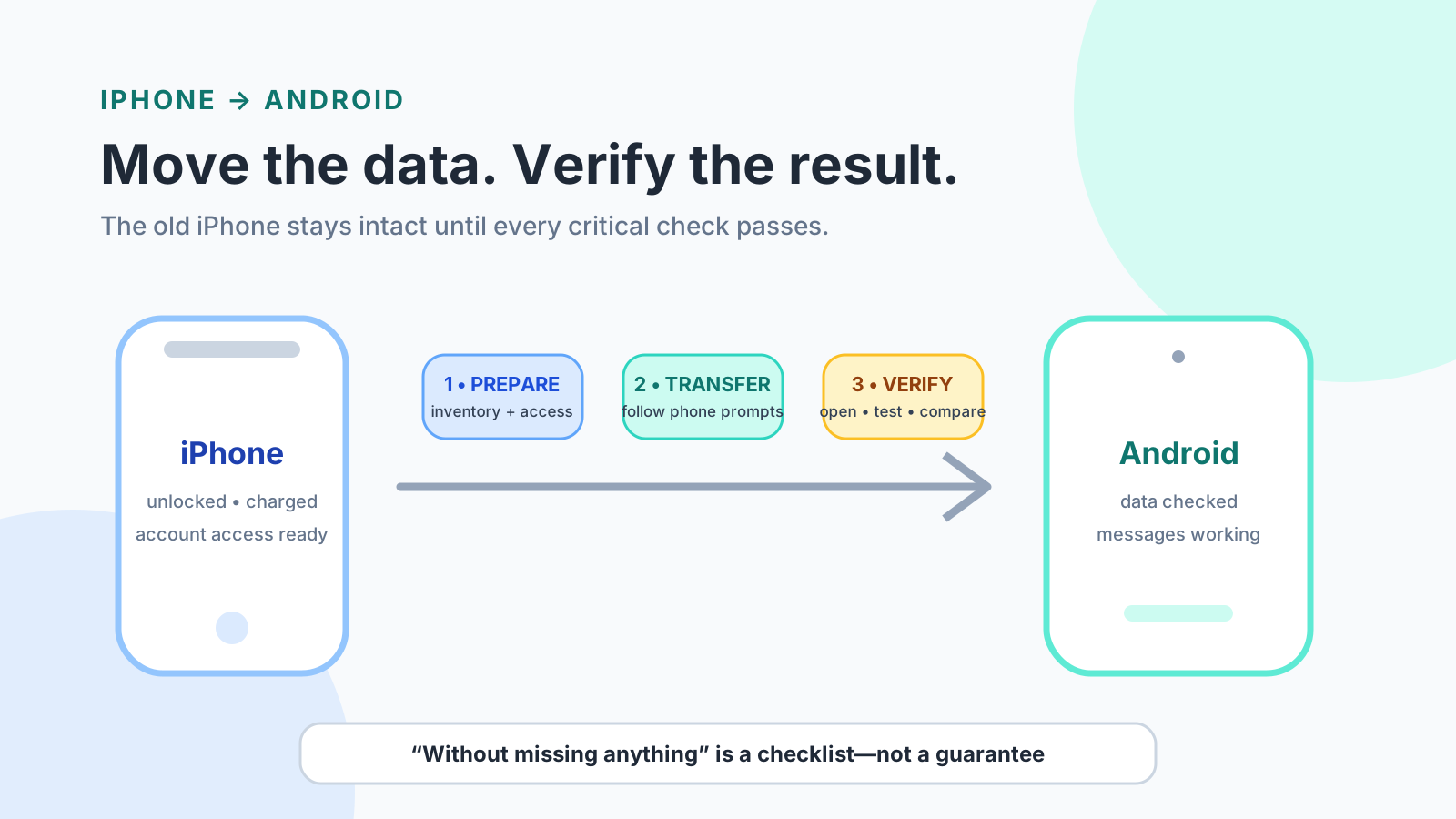
Erasing the iPhone too early fails a handover that Android Help splits across the copy column, WhatsApp, and an iCloud Photos request. Check messages, phone-number texts, and the photo completion email on the Android phone before the erase.
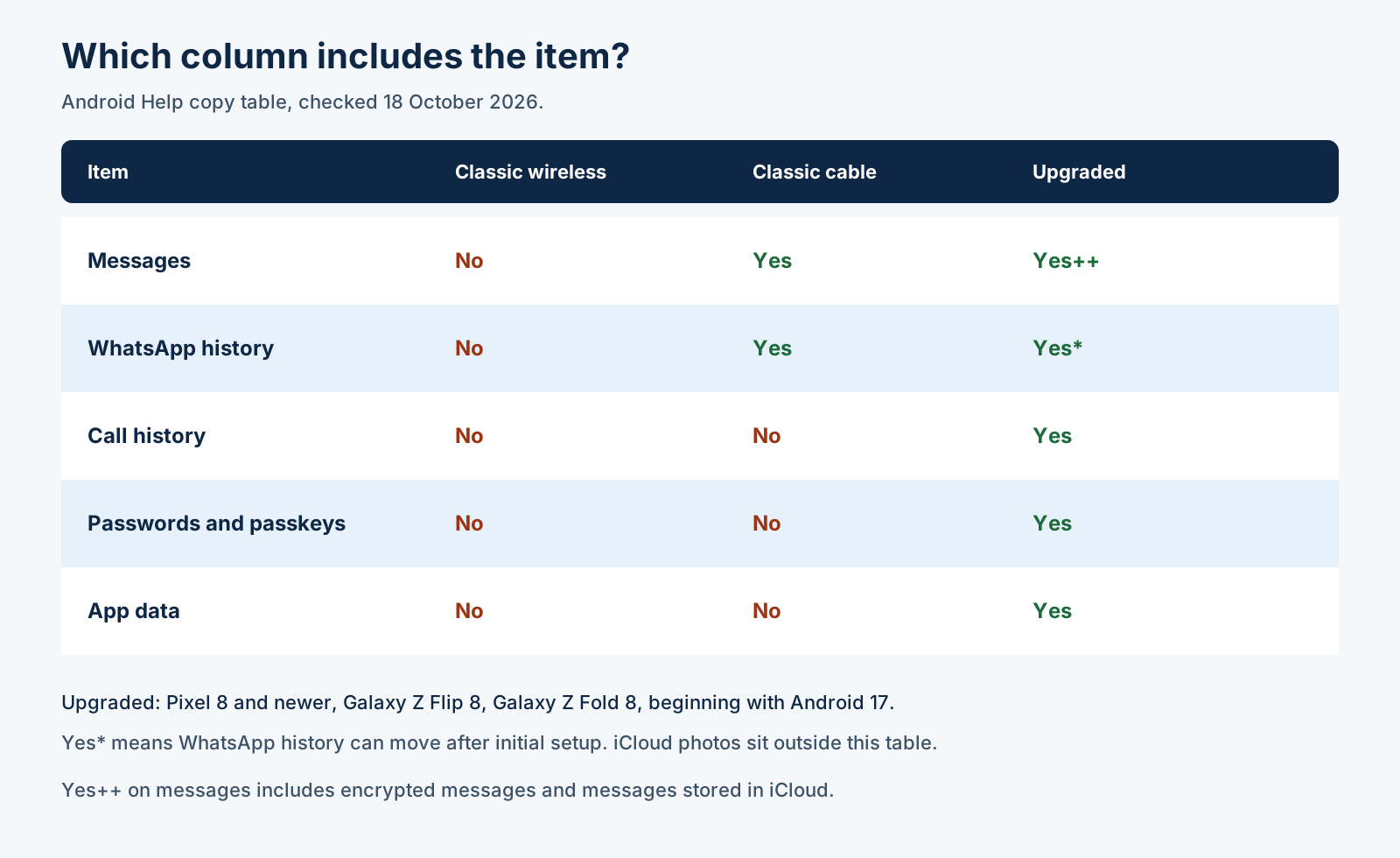
Moving data from iPhone to Android means reading the copy column the new phone is on, then finishing WhatsApp, iMessage, and iCloud Photos as separate jobs. On the Android Help copy page checked 18 October 2026, classic wireless Android Switch marks calendars, contacts, and photos and videos Yes. Classic cable adds messages, no-charge Google Play apps, downloaded files, music, and WhatsApp history, and it marks call history, passwords, and app data No. The upgraded column, beginning with Android 17, marks those extra rows Yes on Pixel 8 devices and newer, Samsung Galaxy Z Flip 8, and Samsung Galaxy Z Fold 8. Photos and videos stored only in iCloud, paid apps, in-app purchases, Safari bookmarks, and Health data stay off the phone-to-phone list.
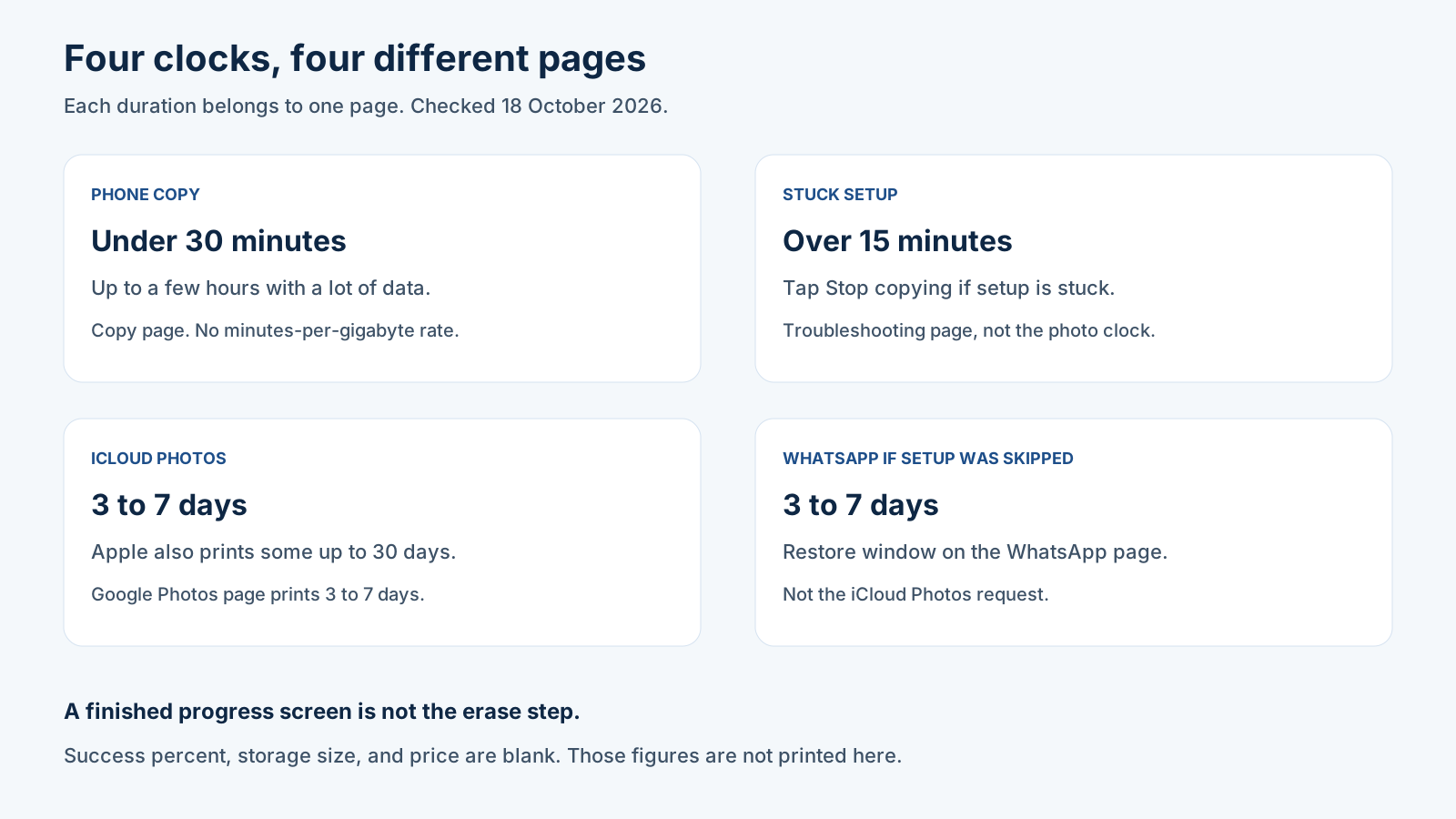
The pages print four clocks. Empty value cells are figures those pages do not print.
Scroll horizontally to view all table columns.
| Clock | What the 18 October 2026 pages print | Why it matters |
|---|---|---|
| Phone-to-phone copy | Usually under 30 minutes. Up to a few hours with a lot of data. | A long bar can still be the copy the page describes. [1] |
| Stuck setup | More than 15 minutes, then tap Stop copying. | That action is on the troubleshooting page. [2] |
| iCloud Photos request | Google Photos: 3 to 7 days. Apple: most transfers 3 to 7 days, some up to 30 days. | This clock starts at the request, not at the cable. [7] [6] |
| WhatsApp after a skipped setup | 3 to 7 days to restore chats. | This span is not the photo request. [4] |
| Success percent, storage size, price | These figures are not printed on the pages used here. |
1. Inventory data and account access first
Write down where each item lives before you trust a progress screen. Local files, iCloud, an app’s own store, and an account you sign into are four different piles, and the copy table covers only some of them.
The copy page’s preparation list is concrete. Connect the iPhone to Wi-Fi first. Charge both phones. Be able to unlock the iPhone with its PIN, pattern, or password. Turning off auto-lock on the iPhone is optional. If the Android phone lacks storage, the page says you will not be able to transfer all data. It also says the copy usually takes less than 30 minutes, and up to a few hours when there is a lot of data. It does not print a storage size or a minutes-per-gigabyte rate.[1]
The same page says you must turn off iMessage on the iPhone. The taps for that, and for FaceTime, are in section 5. If a business, school, or organization supervises the iPhone, the troubleshooting page says some of your data can’t be copied.[1] [2]
Passwords and passkeys are Yes only on the upgraded column. On a classic cable or classic wireless copy, plan those accounts before you erase. Authenticator codes are a separate check in how authenticator codes move on Android.
Contacts and calendars are marked Yes on every column, with a limit from the troubleshooting page: only contacts and calendar events that are not synced to an account transfer during setup. Account-synced entries come back when you sign into that account in Settings.[2]
Four items are on the copy page’s exclusion list, separate from the Yes/No table: photos and videos on iCloud, paid apps and in-app purchases, Safari bookmarks, and Health data. Apps that do transfer are those available at no charge on Google Play. Paid subscriptions go through the developer.[1]
2. Choose the method by its stated scope
Use the column that matches the method on the screen. Classic wireless, classic cable, and the upgraded process are three lists on the copy page checked 18 October 2026. Supported data also varies by the phones involved.[1]
The upgraded process begins with Android 17 on some devices and copies more data. If the phone is eligible, a QR code appears immediately after you choose to copy from an iPhone or iPad. The page names Pixel 8 devices and newer, Samsung Galaxy Z Flip 8, and Samsung Galaxy Z Fold 8. Other phones stay on the classic process during setup.[1]
Scroll horizontally to view all table columns.
| Data type | Classic wireless | Classic cable | Upgraded, wireless or cable |
|---|---|---|---|
| App data, at the developer’s discretion | No | No | Yes |
| Call history | No | No | Yes |
| Google Account | No | No | Yes |
| All files and folders | No | No | Yes |
| eSIM, select carriers | No | No | Yes |
| Passwords and passkeys | No | No | Yes |
| Wi-Fi networks | No | No | Yes |
| Calendars | Yes | Yes | Yes++, includes attachments |
| Contacts | Yes | Yes | Yes |
| Photos and videos | Yes | Yes | Yes++, includes photo albums |
| Accessibility settings | No | Yes | Yes++, fonts, color, audio, and more |
| Messages | No | Yes | Yes++, encrypted messages and messages stored in iCloud |
| Apps at no charge on Google Play | No | Yes | Yes |
| Music | No | Yes | Yes |
| Downloaded files | No | Yes | Yes |
| Home screen layout | No | Yes | Yes |
| Alarms | No | Yes | Yes |
| Notes | No | Yes | Yes++, attachments and labels |
| Voice memos | No | Yes | Yes |
| Wallpapers, custom photo | No | Yes | Yes |
| WhatsApp history | No | Yes | Yes*, after initial setup |
The switch page says that if the new device is a Pixel, go to the Pixel setup guide. The copy page still names Pixel 8 devices and newer for the upgraded column. Follow the guide the phone opens.[3] [1]
Choosing the phone is a separate page. Pixel versus Samsung for an iPhone switcher is that comparison. The table above is the list to read once the Android phone is in hand.
Scroll horizontally to view all table columns.
| Route | Dominant failure mode | Prevention |
|---|---|---|
| Classic wireless Android Switch | Erasing after a wireless finish while messages, apps, downloaded files, and WhatsApp history are still No | Keep this route for calendars, contacts, and photos and videos. iOS 15 or later is the floor the copy page prints for this app. [1] |
| Classic cable | Treating call history, passwords, app data, or iCloud photos as part of a finished cable copy | Those cells are No, or they sit on the iCloud exclusion list. Cable transfer works with most iPhones on iOS 8.0 and up. [1] [2] |
| Upgraded, wireless or cable | Using this column on a phone the copy page does not name | The named phones are Pixel 8 and newer, Galaxy Z Flip 8, and Galaxy Z Fold 8, beginning with Android 17. No QR code right after you choose iPhone or iPad means the classic steps. [1] |
Rule of thumb. If iOS is under 15, the wireless Android Switch path is outside the copy page’s requirement. The troubleshooting page adds that an iPhone on iOS 14 or earlier can’t transfer over Wi-Fi, and that cable transfer still works with most devices on iOS 8.0 and up.[1] [2]
Rule of thumb. If the Android version is under 17, leave the upgraded column. The copy page ties that process to Android 17 and to the named Pixel and Galaxy phones.[1]
Rule of thumb. If Advanced Data Protection for iCloud is on, Apple says you can’t export photo or video data. The photo request waits until that setting is off. The page does not print the taps for turning it off.[6]
Scroll horizontally to read the labels in this diagram.
An old Android phone is a different copy. How to set up a new Android phone is that order. Its steps are not this iPhone table.
SIM and eSIM stay with the carrier unless the upgraded column’s eSIM row applies. That row is Yes for select carriers, and No on both classic columns. A physical SIM is removed from the iPhone and inserted in the Android phone. An eSIM can be downloaded from the carrier. Carrier trouble goes to the carrier.[1]
3. Transfer during Android setup
Turn the Android phone on, choose iPhone or iPad when asked, and stay with the prompts that phone shows. Both devices stay connected for the whole transfer, including a prompt to transfer an eSIM. You can keep going through setup while the copy runs.[1]
On some newer phones the next screen is a QR code. Scan it with the iPhone camera to pair wirelessly. The troubleshooting page says only certain Android phones offer a QR code at the start, and that an iPhone on iOS 26.5 or earlier can miss that QR code. The fallback it prints is Pair your devices manually, then the session ID and pairing code in the iPhone’s Settings app, entered on the Android phone. A cable transfer does not require that QR code.[1] [2]
If there is no QR code, the copy page continues with Wi-Fi, a Google Account, and a mobile connection, then the cable. The switch page says the same fork: QR code, or Wi-Fi, SIM, and Google Account, then a cable prompt. Without a cable, follow the on-screen steps for copying without one.[1] [3]
Cable copy uses the iPhone’s charging cable. If it does not fit both phones, the copy page says a USB-A to USB-C adapter with the iPhone’s Lightning cable can bridge them. Stay with the phones, because the PIN is required through the process. When the iPhone asks for permission, tap Trust, choose the data types, and tap Copy. If you tapped Don’t Trust, unplug, plug back in, and tap Trust. If that still fails, turn the iPhone off, turn it on, unlock it, and plug the cable in again.[1] [2]
Wireless Android Switch needs iOS 15 or later, and the phones stay near each other. Samsung phones have another copy method. The copy page does not print its name. If the iPhone shows no QR code, the copy page says the Android version might not support Android Switch. The page then says to download Android Switch from the App Store and follow its screens. If the QR code does not open the App Store, the troubleshooting page prints g.co/android/sta as the address to type on the iPhone, then a second scan inside the Android Switch app. It also says to allow the camera, turn a VPN off, check the date and time, and use a current OS.[1] [2]
When a cable does nothing, or the phone says to try another cable, unplug both ends, wait a few seconds, and reseat it. Try another cable. Try the adapter on the other phone. Check the old phone’s port for debris. If those fail, use the Wi-Fi method. A “device may not be supported” message leads to updates: cable transfer works with most Android phones on Android 5.0 and up, and most iPhones on iOS 8.0 and up.[2]
If setup is stuck for more than 15 minutes, tap Stop copying. When the screen says copying is done, find out which data copied. A disconnect or a dead battery can usually be restarted after a recharge. If a retry from Settings is missing after setup, the troubleshooting page says a factory reset can be required. After a skipped setup, some phones show Finish setting up in Settings or in notifications for a few days. Copying again later from Settings, Accounts and backup, is available for all devices on Android 17 and later, and for select devices on earlier versions. The copy page’s after-setup line names updated Pixel 9 devices and newer, Galaxy Z Flip 8, Galaxy Z Fold 8, and select other devices. If data already moved during setup, more data has to come from that same phone.[2] [1]
If the Android phone is short on space, deselect some types before the copy. The troubleshooting page’s tip is to deselect photos and videos, because those items typically take more space. It does not print a gigabyte figure.[2]
Scroll horizontally to read the labels in this diagram.
Worked example: 20 minutes on a stuck setup
The copy page’s usual window is under 30 minutes, with an upper description of a few hours when there is a lot of data. The troubleshooting page says to tap Stop copying when setup is stuck for more than 15 minutes. Assume the screen has been stuck for 20 minutes. That 20 is an input for the arithmetic, not a time either page measured for a named phone.
over_stop = elapsed - 15, when setup is stuck and elapsed is over 15 minutes.
still_inside_usual = 30 - elapsed, when elapsed is under 30.
For this input, over_stop = 20 - 15 = 5 minutes, and still_inside_usual = 30 - 20 = 10 minutes. The stop action applies because the screen is stuck. A bar that is still moving at 20 minutes is still inside the copy page’s usual window. Neither page prints minutes per gigabyte, so that rate stays blank.[1] [2]
4. Move WhatsApp before using it normally on Android
WhatsApp follows the path that matches how the Android phone was set up, and it happens before normal use on that phone. The page requires a Google Account, the old phone’s charging cable, and the same phone number. It says to transfer chat history before you use WhatsApp on the new phone, so new messages are not overwritten.[4]
If setup copied data by scanning a QR code, WhatsApp chats are not part of that setup copy. After setup, open Settings, then Accounts & backup, Android Switch, Transfer WhatsApp Chats. A notification can offer the same job. Connect the iPhone cable, or an adapter if it does not fit. On the iPhone, tap Trust and enter the PIN. The page says the PIN can be required more than once. Scan the QR code on the Android phone with the iPhone camera, follow WhatsApp, wait until the transfer finishes, disconnect the cable, and sign in to WhatsApp on the Android phone.[4]
If setup copied data and you did not scan a QR code, chats are copied during setup with the other data. On the screen that says Copy apps and data, tap Copy from iPhone or iPad, connect the iPhone cable, tap Trust, and enter the PIN. Include Apps, and open Apps to see whether WhatsApp is in that list. Scan the QR code on the Android phone. If the scan fails, on the iPhone open WhatsApp, go to Settings, then Chats, Transfer chat history, Transfer to Android, then Start, Start transfer. Sign in on the Android phone when the transfer is complete.[4]
If you skipped the copy during setup, the page says the later transfer varies by phone and requires a factory reset in some cases. It also says you have 3 to 7 days to restore chats from the iPhone. The Settings path it prints is Accounts and backup, then Copy data using Android Switch. The menu location varies by maker and Android version. For Samsung phones, that section says to use Smart Switch, then Accounts and backup, Transfer data for device setup. Leave WhatsApp unopened on the Android phone until the transfer is complete. If you open it and the option is missing, the page says to factory reset. The troubleshooting page, for a transfer after setup, says that if WhatsApp was already opened or set up, uninstall and reinstall it, or clear its storage, before the transfer. If the upgraded process did not bring WhatsApp messages across, finish the extra steps after setup.[4] [2]
The WhatsApp page says enterprise certificates can block the transfer. A supervised or work-managed iPhone follows the organization’s policy.
5. Deregister iMessage and test phone-number messaging
Turn off iMessage and FaceTime while the iPhone is still available, then test a message to and from the phone number on the Android phone. Apple’s deregistration page, published 12 May 2026, is the procedure. The copy page already lists turning iMessage off as a requirement.[5] [1]
If the SIM is already in the Android phone, put it back in the iPhone. Connect to the cellular data network. In Settings, tap Apps, then Messages, and turn iMessage off. Go back to Settings, tap Apps, then FaceTime, and turn FaceTime off.[5]
If you no longer have the iPhone, Apple provides an online deregistration. After it finishes, the phone number is removed from iMessage. Texts should arrive right away, and some Apple devices can take a few hours to stop sending iMessage to that number. A message sent with iMessage to your Apple Account still arrives on your other Apple devices. A text to the phone number arrives as RCS or SMS/MMS only on the phone.[5]
The troubleshooting page adds three checks when texts do not arrive: iMessage off on all iOS devices, group chats recreated, especially groups of 10 or more people, and the eSIM or SIM set up on the Android phone. Ask people who write to your Apple Account to use the phone number instead.[2]
6. Copy iCloud Photos as a separate project
Photos and videos stored only in iCloud do not move in the phone-to-phone copy. Apple and Google both document a request that sends a copy to Google Photos. The copy does not remove or change what stays in iCloud, and later iCloud items do not keep syncing to Google Photos.[1] [6] [7]
Apple’s page, published 9 October 2026, says most transfers take three to seven days, and some take up to 30 days. That time is for verifying the request and making the transfer. The Google Photos page prints 3 to 7 days and does not print the 30-day bound. Wait for the completion email. A date on the calendar is not a finished library.[6] [7]
Before the request, Apple requires iCloud Photos, two-factor authentication on the Apple Account, Advanced Data Protection for iCloud turned off, a Google account, and enough Google storage. The service is available in over 240 countries and regions, and it is not available for child accounts or Managed Apple Accounts. Google’s list matches the iCloud Photos, two-factor, Google Account, and storage checks, and it says Apple shows the required storage when the transfer begins. This page leaves that storage figure blank.[6] [7]
Start at Apple’s Data & Privacy page. Apple’s steps are: sign in, choose Request to transfer a copy of your data under Transfer a copy of your data, then sign in to the Google account and follow the prompts. The Google Photos page names privacy.apple.com for the Apple ID sign-in, then the same request. You get an email for the request and another when it finishes. If you cancel early, items already copied stay in Google Photos. Status stays on Apple’s Data & Privacy page.[6] [7]
What moves is content stored in iCloud Photos, the most recent edit rather than the original, with duplicates kept as one item. Photos go with albums when they can. Videos transfer separately, without albums. Album and video filenames start with “Copy of.” Apple’s format list includes jpg, png, webp, gif, some RAW files, and a set of video extensions it prints on the page. If Google Photos already has the item, Google keeps one copy.[6] [7]
Left behind, on the two pages together: shared albums, smart albums, Photo Stream, the video portion of Live Photos on Google’s page, Live Photos as named on Apple’s page, some metadata, and photos or videos stored outside iCloud Photos. Apple also says some RAW files may not be available. Google Photos limits an album to 20,000 photos. Extra photos still transfer, and they are not added to that album. If you add items before the transfer starts, the Google account needs room for them. If it runs out of space during the transfer, Apple says not all items transfer. Changes after the start, and uploads still in progress, can be absent.[6] [7]
Another route on the troubleshooting page is Google Photos on the iPhone itself: install it, turn backups on, and wait with the phone on and the app open. The page says this can take several days. That backup is not the Data & Privacy request.[2]
Worked example: a request dated 18 October 2026
Use the printed day counts. The request date below is an assumed input, equal to this page’s update date. It is not a transfer Apple timed.
typical_start = request_date + 3 days
typical_end = request_date + 7 days
outer_bound = request_date + 30 days
With request_date = 18 October 2026, typical_start = 21 October 2026, typical_end = 25 October 2026, and outer_bound = 17 November 2026. Apple says most transfers fall between three and seven days, and some take up to 30 days. The 17 November date is that outer bound, not a promise that one library finishes that day. The Google Photos page’s printed span stops at 7 days. required_storage stays blank until Apple shows it at the start of the request.[6] [7]
7. Verify the Android phone before erasing the iPhone
Erase the iPhone after the Android phone opens the items you inventoried, sends and receives on the phone number, and shows the iCloud Photos completion email. Apple’s pre-sale page, published 29 May 2026, puts the transfer before personal-data removal. While you are signed into iCloud, manually deleting contacts, calendars, reminders, documents, or photos removes them from iCloud and from connected devices.[8]
Checks on the Android phone
These boxes are a reading aid. Keep a note of anything still open.
Scroll horizontally to read the labels in this diagram.
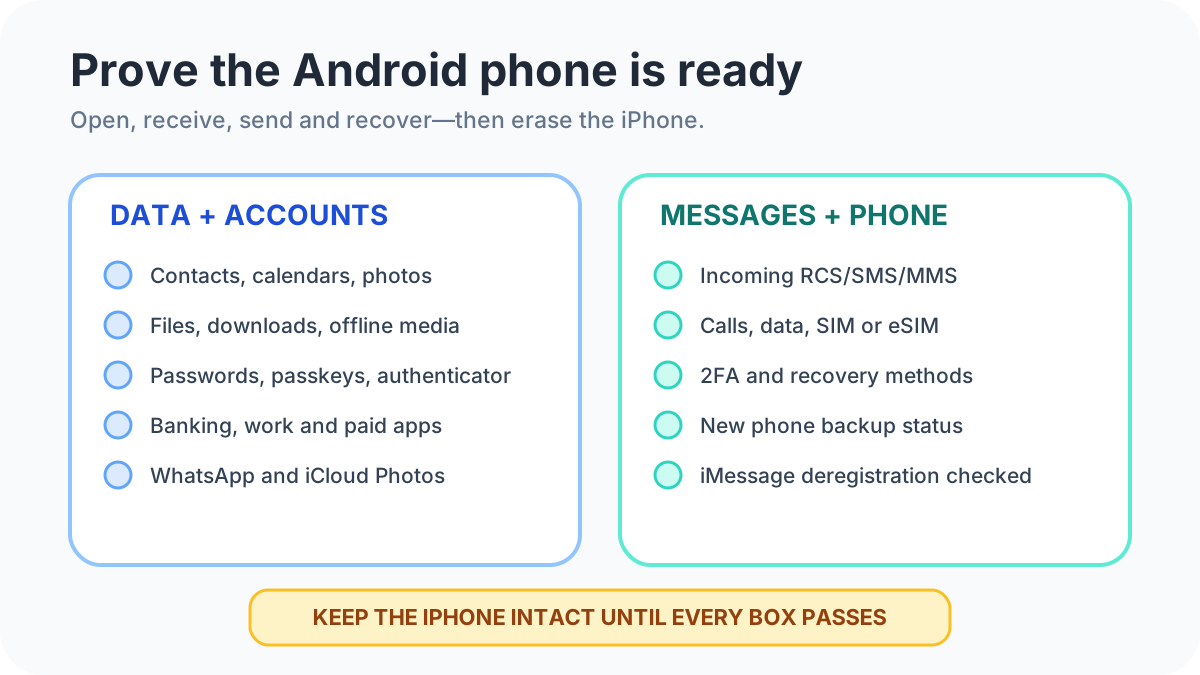
Apple’s pre-sale page says to use Quick Start when the old device has iOS 11 or later. That page is about preparing an iPhone or iPad. The Yes and No columns for an Android phone are on the Android Help copy page.[8] [1]
After the checks, Apple’s removal order is a backup, then unpair an Apple Watch if one is paired, then sign out and erase. On iOS 26 or later: Settings, your name, Sign Out, then Erase this device or Sign Out But Don’t Erase. If the page asks which account to sign out of, tap Sign out of iCloud and Store. On iOS 18 or earlier: Settings, your name, Sign Out, the Apple Account password, and Turn Off. On iOS 10.2 or earlier: Settings, iCloud, Sign Out, then Delete from My device, and after that Settings, iTunes & App Store, Apple ID, Sign Out. If you are switching to a non-Apple phone, deregister iMessage. Then General, Transfer or Reset, Erase All Content and Settings. Enter the passcode if asked. If the phone uses an eSIM, choose the option to erase the device and the eSIM profile when asked. That erase turns off iCloud, iMessage, FaceTime, and other services, and the page says the erase does not delete your content from iCloud. If Find My is on, the page says the erase can ask for the Apple Account and password. If the phone number will change, add other trusted phone numbers first. A Finish Repair line in Parts and Service History blocks a trade-in until that repair is finished. Stolen Device Protection is likely to add a one-hour delay when you change the password at the store.[8]
The switch page says to clear the old phone only after you have confirmed the copy, and to get removal and trade-in steps from the manufacturer and the carrier. For this iPhone, those steps are the Apple page above.[3]
Frequently asked questions
Does classic cable copy call history and passwords?
No. On the copy page checked 18 October 2026, call history, passwords and passkeys, and app data are No for classic cable and classic wireless. Those rows are Yes on the upgraded column.[1]
What if WhatsApp is already open on the Android phone?
The WhatsApp page says that if you open it and the option is missing, factory-reset the phone. The troubleshooting page, for a transfer after setup, says to uninstall and reinstall WhatsApp, or clear its storage, before the transfer.[4] [2]
Can the iCloud Photos copy run while Advanced Data Protection is on?
No. Apple says you can’t export photo or video data from iCloud while Advanced Data Protection for iCloud is turned on for the account.[6]
Do messages sent to my Apple Account follow the phone number?
No. Apple says an iMessage to your Apple Account arrives on your other Apple devices. A text to the phone number arrives as RCS or SMS/MMS only on the phone.[5]
When is the 15-minute stop a different clock from the 30-minute copy?
The troubleshooting page says to tap Stop copying if setup is stuck for more than 15 minutes. The copy page says a transfer usually takes less than 30 minutes and can take up to a few hours with a lot of data. The photo request is counted in days.[2] [1]
Conditions to recheck
Recheck, on the day you move, the upgraded device names, the Android 17 after-setup lines, the iOS floors for cable, Wi-Fi, and the opening QR code, WhatsApp’s 3-to-7-day window and reset wording, the iCloud Photos exclusions, iMessage’s on-device and online steps, and the carrier’s SIM or eSIM process. The copy page says some steps vary by device.
Sources
Android Help, Google Photos Help, and Apple Support pages listed in the source panel were fetched on 18 October 2026. Apple’s iMessage page shows a published date of 12 May 2026, the iCloud Photos page 9 October 2026, and the pre-sale page 29 May 2026. Setup labels on a later software version can differ from these sentences, so use the current page for the phone in your hand.
Sources & methodology8 sources
Evidence used for this article. Links open the original source in a new tab.
- Copy apps and data from an iPhone or iPad to a new Android device — Android Help
- Can't transfer data to a new Android device — Android Help
- Switch to a new Android device — Android Help
- Transfer WhatsApp data to a new Android — Android Help
- Deregister iMessage on your iPhone or online — Apple Support
- Transfer a copy of your iCloud Photos collection to another service — Apple Support
- Transfer iCloud photos and videos to Google Photos — Google Photos Help
- What to do before you sell, give away, or trade in your iPhone or iPad — Apple Support
TasteOfAndroid is responsible for this page. The byline, method and commercial relationships are on the editorial policy and the author page.
Related Articles
How to Change and Reset Default Apps on Android: Browsers, Passkeys, PDFs, and App Links
Looking only in Default apps fails when a wrong PDF viewer or browser hijacks links. Use Android's 4 routing menus to set browsers, passkeys, App Links, and MIME handlers.
Block Spam Calls and Robocalls on Android Without a Paid App
Use Filter spam calls, Pixel Call Screen, or Galaxy Text call. Google does not take numbers from your Contact list.
Split Screen and App Pairs: Multitasking on Android
Use two Android apps together, save supported app pairs, and check Pixel and Galaxy controls before relying on a multitasking shortcut.