
Contents
- Which screen are you on?
- Worked example: 72% meets one charge floor
- What does the Android Help copy include?
- What if the old phone is not here?
- Which taps does Pixel Help print?
- Which taps does Galaxy quick setup print?
- When does backup show On?
- When can you reset the old phone?
- Which Android version is on the phone?
- Method and sources
Erasing the old Android phone too early costs the copy Android Help lets you run only once during setup. Confirm the selected backup types show On before you reset that old phone.
- Match the taps to the help page that names the phone in your hand.
- Android Help’s copy is once, during setup. Some of those steps work only on Android 10 and up.
- A Pixel 8 or Pixel 8 Pro leaves that page for Pixel Help. A Galaxy uses Smart Switch when quick setup is offered.
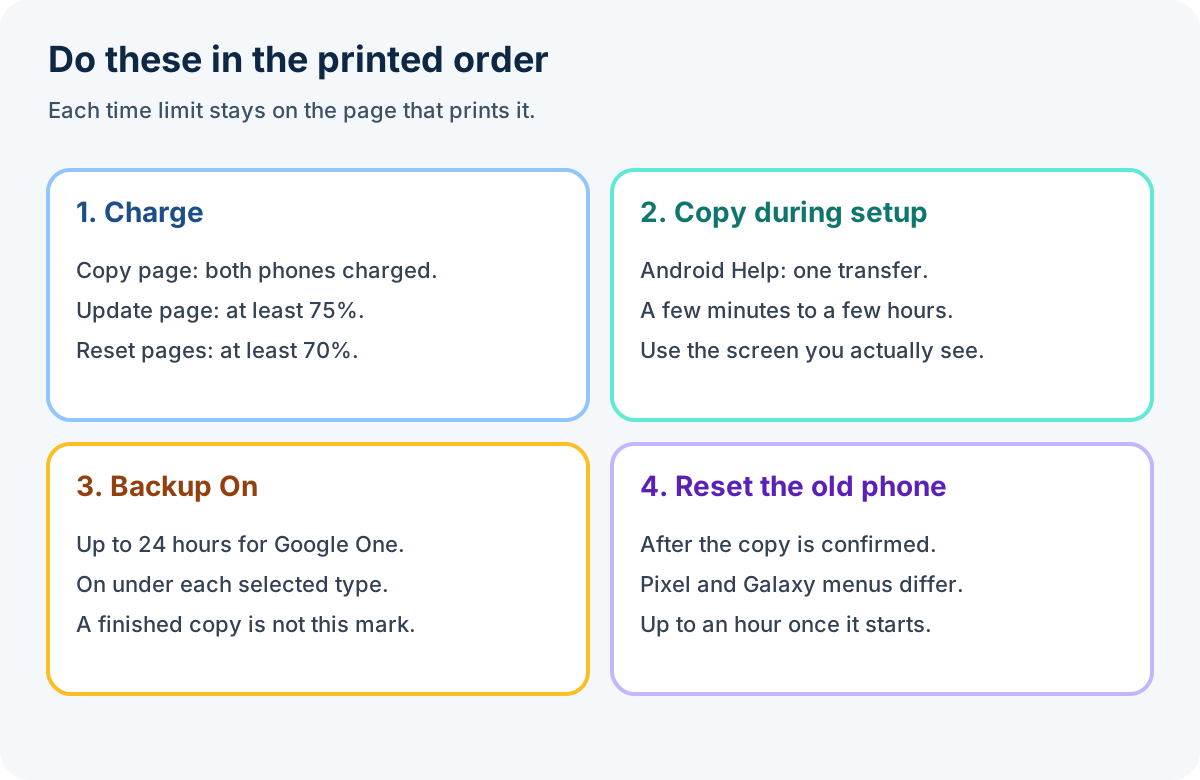
- Backup On can take up to 24 hours. A factory reset needs a charge of at least 70%.
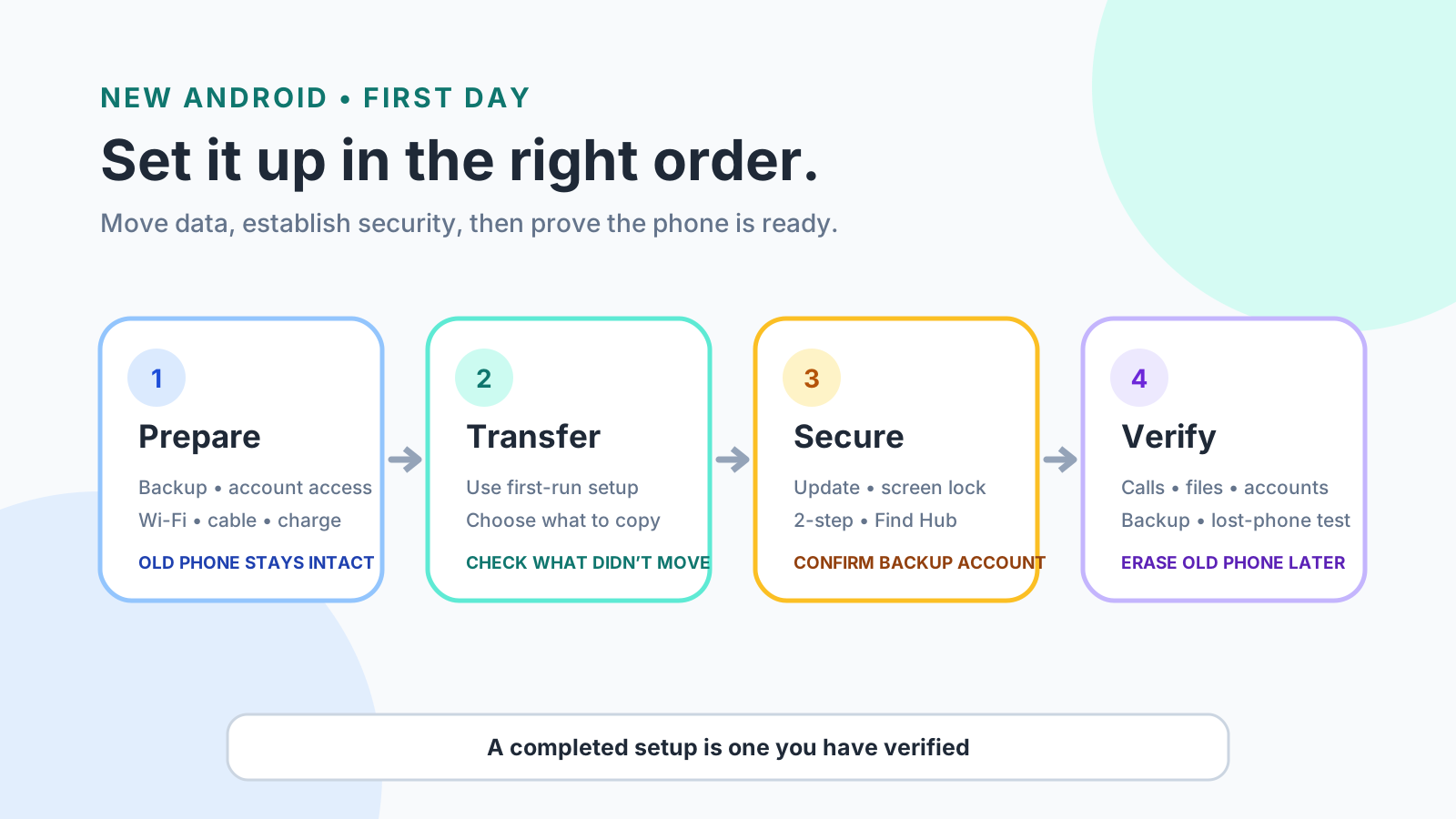
Set up a new Android phone by copying during first setup on the path that names that phone, then waiting until the selected backup types show On, then resetting the old phone. Checked 18 October 2026, Android Help says that device-to-device transfer can be done only once, some of those steps work only on Android 10 and up, and the copy takes from a few minutes to a few hours. Cable and wireless copy the same data on that page. A Pixel 8 or Pixel 8 Pro is sent to Pixel Help. A Galaxy uses the Smart Switch QR steps when that quick setup is available. A Google One backup can take up to 24 hours, and On under each selected data type is the saved mark. The factory-reset pages ask for a charge of at least 70%, and they say a reset can take up to an hour.
These steps sit with the other Android how-to guides. If the old phone is an iPhone, stop at the choice below and use how to transfer data from an iPhone to Android.
Scroll horizontally to read the labels in this diagram.
Open the full-size order diagram.
The diagram keeps three clocks apart. The copy page’s “few minutes to a few hours” is not the backup page’s “up to 24 hours,” and neither number is the reset page’s “up to an hour.”
Which screen are you on?
Scroll horizontally to view all table columns.
| Phone or screen | What the 18 October 2026 page prints | Dominant failure mode | Prevention |
|---|---|---|---|
| Android Help copy, and the new phone is not a Pixel 8 or Pixel 8 Pro | One transfer, best done during setup, because the option may not be available afterwards. Some steps work only on Android 10 and up. Cable and wireless copy the same data. | Erasing after “Copying’s done” while downloads, hidden folders, or non-Google accounts never moved. | Keep the old phone. Check the won’t-copy list before any reset. [1] |
| Switch page, prompt to set up using another device | Select Android device, scan the QR code, then enter the old PIN, pattern, or password. | Typing the copy page’s “No cable” taps into a QR screen, or the reverse. | Use the label on the screen. The page says some steps vary by device. [2] |
| Pixel 8 and later | Pair with Pixel or Android device, then Set up on the old phone, then the QR code. Cable setup can start with five taps. | Using the Pixel 7 cable taps, or the generic Android Help copy, on a Pixel 8 or Pixel 8 Pro. | Stay in the Pixel 8 and later section. Android Help already sends Pixel 8 and Pixel 8 Pro to Pixel Help. [5] [1] |
| Pixel Fold, Pixel 7 Pro, and earlier | Wi-Fi copy asks for Android 5 or later on the old phone and Android 12 or later on the Pixel. | Starting that Wi-Fi path on a Pixel below Android 12. | Read About phone first. The cable path on this group is a different five-tap. [5] |
| Pixel 9 and later, after setup | One previous device. Android Switch, or Back up or copy data, depending on the heading. | A second old phone without a reset, or treating Android Help’s “only once” line as this menu. | Reset the Pixel before a different previous device. Use the menu printed under that heading. [6] |
| Galaxy quick setup | Smart Switch QR during the initial setup wizard, when that feature is available. | Android Help’s “No cable” sequence on a Galaxy that is showing Smart Switch. | Follow Allow, then Wirelessly or Cable, on the Galaxy page. [9] |
| Google One backup | Up to 24 hours, then On under each selected type. Some backup steps work only on Android 9 and up. | Resetting because the toggle is on while On is still missing. | Wait for On. A copy screen is a different check. [3] |
Rule of thumb. If the new phone is a Pixel 8 or a Pixel 8 Pro, leave the generic Android copy page. That page sends those two models to Pixel Help. [1]
Rule of thumb. If the Pixel is in the Pixel Fold, Pixel 7 Pro, and earlier group and its Android version is under 12, the Wi-Fi steps in that section do not apply. The old phone on that path should run Android 5 or later, and the Pixel should run Android 12 or later. [5]
Rule of thumb. If the battery percent is under 70, charge before the factory reset those pages describe. If it is under 75, charge before the system update on the Android version page. The two floors come from different pages. [8] [7] [11]
Rule of thumb. If the selected backup types do not yet show On, wait. A Google One backup can take up to 24 hours, and On under each selected type is the saved mark. [3]
Worked example: 72% meets one charge floor
The factory-reset pages say charge to at least 70%. The Android version page says charge to at least 75% before an update. Assume the battery screen reads 72%. That 72% is an input for the arithmetic, not a charge time any page measured.
gap = floor - B, when B is under the floor. Otherwise the gap is 0.
For the reset floor, B = 72 and the floor is 70, so the gap is 0. For the update floor, gap = 75 - 72 = 3 percentage points. The pages do not print minutes per percent, so the wait stays blank. A factory reset can take up to an hour after it starts. That hour is not the missing 3 points. [8] [7] [11]
What does the Android Help copy include?
Before selecting a connection, compare Android-to-Android cable and wireless transfer for the supported-data limits, storage check, and completion checks on each setup path.
Scroll horizontally to read the labels in this diagram.
Open the full-size copy diagram.
Use this section when the new phone is not a Pixel 8 or Pixel 8 Pro, and when the screen is the Android Help copy flow rather than Smart Switch. Android Help says you can move data from the old Android device while you set up the new one. You can perform that transfer only once. Do it during setup, because the option may not be available afterwards. You need an internet connection. The page recommends Wi-Fi on both devices. Cable and wireless support the same data. The cable has to fit both phones, and you may need an adapter if it does not. An organization that manages the phone may block a full transfer. [1]
Before the copy, charge both phones, get a SIM card tool to swap SIMs, and check storage on both devices. If the new phone lacks room, you choose which data to transfer. The page sets aside time of a few minutes to a few hours. It does not print a rate per gigabyte. [1]
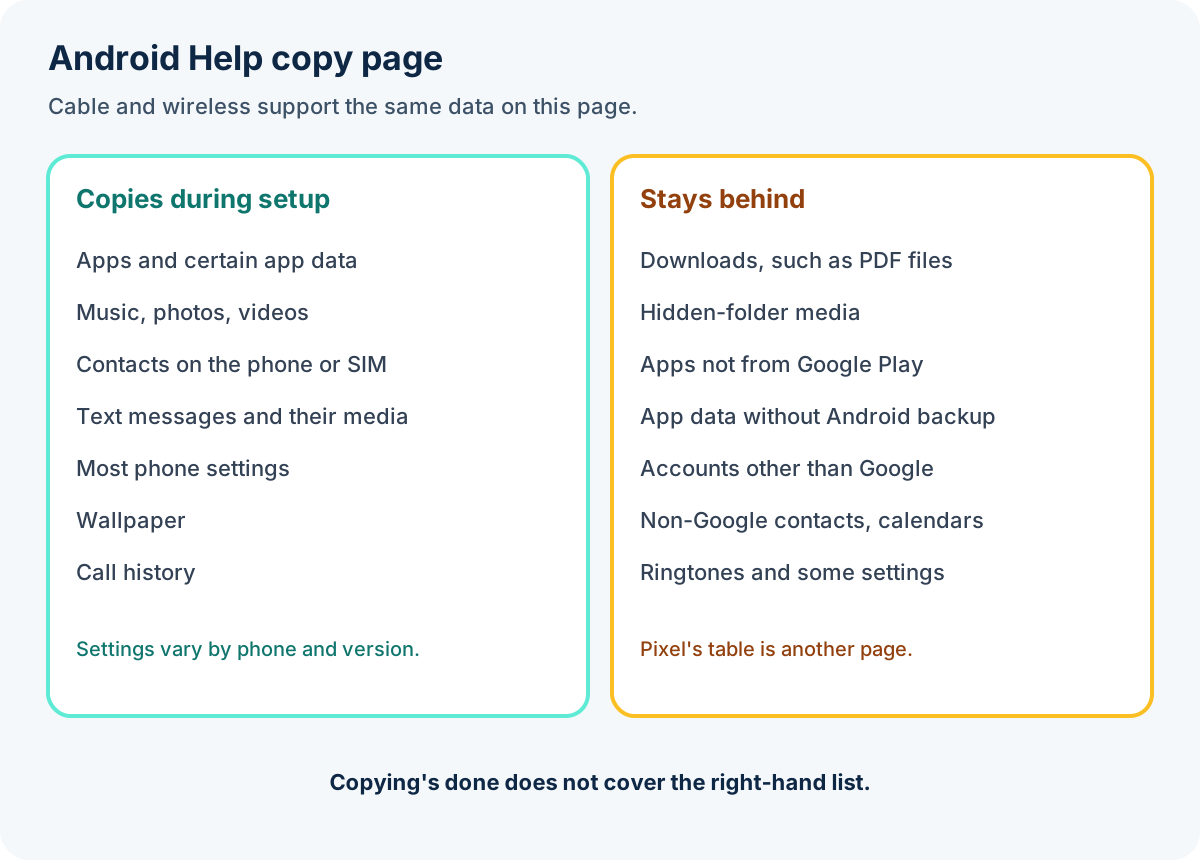
What copies: apps and certain app data, music, photos, videos, contacts stored on the phone or SIM card, text messages, most phone settings, multimedia in text messages, wallpaper, and call history. Most settings, and the settings that do not copy, vary by phone and Android version. [1]
What will not copy: downloads such as PDF files, photos, videos, and music in hidden folders, apps that are not from the Google Play Store, data from apps that do not use Android backup, accounts other than Google Accounts and their data, contacts and calendars synced to services other than Google, ringtones, and certain phone settings. [1]
Turn the new phone on and tap Start. You can change language or vision settings then. Connect to Wi-Fi from the list, or insert the SIM or download the eSIM. The page recommends both, and it says only one is required for the transfer as long as you have internet. Then tap Copy. [1]
Cable, which that page recommends: follow the on-screen instructions to connect the phones. On the old phone, tap Copy. Sign in to the Google Account for a more complete transfer. Choose what to copy, then tap Copy. The new phone shows “Copying your data…” and the old phone shows “Copying’s done.” The cable section says this could take from a few minutes to over an hour. [1]
Wi-Fi, if you have no compatible cable or adapter: when asked to find a cable, tap No cable. When it shows “Transfer wirelessly,” tap Next. On the old phone, enter the PIN. On the old phone, open the Google app, search set up my device, and tap Next. When it shows “Get started,” tap Next. Check that the shapes and numbers match, then tap Next and then Copy. Sign-in is recommended. Choose the apps and data, and wait for the completion message. [1]
The cable tip and the Wi-Fi tip name the same chat app. If it is installed, its chats and data restore from the cloud after you sign in on the new phone and open the app, and only if you turned on that app’s backups on the old phone first. [1]
The other Android Help page, “Switch to a new Android device,” describes a different opening. Charge both devices. Be able to unlock the old one with a PIN, pattern, or password. Sign in on the old device to transfer the most data, and back it up. If the new phone is a Pixel, that page sends you to the Pixel setup guide. Some of its steps vary by device. When prompted to set up using another device, select Android device, scan the QR code, and pair. Enter the PIN, pattern, or password to transfer Wi-Fi credentials and Google accounts, or add them manually. Then choose to copy apps and data. [2]
If the prompt offers iPhone or iPad, that is the iOS branch on the same page. The rest of that copy is the iPhone transfer above, not the Android lists in this section. [2]
Clear the old phone only after you have confirmed the copy. The switch page says to clear data and reset to factory settings before you recycle, donate, or trade in, and only after that confirmation. [2]
What if the old phone is not here?
On the copy page, restore from a previous backup in the Google Account. When asked to copy apps and data, tap Next. When asked to connect a USB cable, tap Cable doesn’t fit or No adapter? at the bottom left. If several backups exist, you may be asked which version. You may be asked for the old phone’s PIN. Select the types, then tap Restore. Backups show up only if backup was turned on for the old device. [1]
On the switch page, when asked if you are setting up using another device, tap Skip. Connect to Wi-Fi, provision the SIM, and sign in with the Google Account. You need that account and password if the old device is gone. Choose the apps and data, and select the backup. For security, you may need the old PIN, pattern, or password. [2]
Photos and videos that are already in Google Photos stay available there. The rest of a backup can restore during first setup or after a factory reset, and that process can take up to 24 hours to finish fully. This 24-hour line is the restore, not the separate line that waits for On. [3]
Which taps does Pixel Help print?
Keep this section on a Pixel. Charge both phones fully, use a strong Wi-Fi connection, keep the phones near each other, and have a USB-C cable if you want one. The prepare list marks that cable optional. A full Pixel can pause the transfer. On the old phone, update Google Messages to the latest version and set it as the default messaging app. If messages are still on the SIM, move them to main storage before you start. If a transfer stops halfway, Pixel Help says you can finish later with the Android Switch tool in Pixel settings. It does not print a longer menu in that sentence. [5]
Pixel 8 and later can pair the old Android or Pixel phone for wireless, cable, or both. The Pixel picks from the connection. Turn both phones on. On the new Pixel, tap Pixel or Android device. On the old phone’s notification, tap Set up. Scan the QR code on the new Pixel with the old Android or Pixel phone. You can open the Camera app to scan it manually. Enter the old screen lock, then follow the on-screen instructions to choose data. For Pixel 9 and later, that same section says you can transfer during initial setup and add more data after setup. If an eSIM is available, download it from the carrier by following the prompts. [5]
Cable without the QR code, Pixel 8 and later: when prompted “Copy data from your Android device,” tap the screen 5 times, then tap Next. Unlock the old phone and connect a USB-C cable. If you use a Quick Switch Adapter, plug it into the Pixel. Follow the old phone’s instructions. Tap Copy for everything, or turn off what you do not want and then tap Copy. You can use the cable even if the phones are not paired yet. Some apps need time to download and install before they show up. The page does not print that wait. [5]
Pixel Fold, Pixel 7 Pro, and earlier use another cable opening. To transfer with a USB-C cable, on the “Copy apps & data” screen, tap the image 5 times. You can do that before the phones are paired. The cable steps that follow, when asked “Copy Apps & Data,” are Next and then Copy your data. When asked “Use your old device,” tap Next. Connect the old phone’s charging cable to the Pixel. A Quick Switch Adapter, if you use one, plugs into the Pixel. On the old phone, tap Trust. Tap Express to transfer the Google Account and backed-up data. Tap Customize to transfer selected data, turn off what you do not want, and then tap Copy. Express Transfer copies all of the same data as Custom Transfer as long as that data is backed up in the Google Account. [5]
Wi-Fi on that earlier group: the old phone should run Android 5 or later, and the Pixel should run Android 12 or later. At “Copy Apps & Data,” tap Next and then Copy your data. At “Use your old device,” tap Next. At “Find your old phone’s cable,” tap No cable? and then Copy without cable. Open the setup notification on the old phone. On the Pixel, Express or Customize, then Copy. [5]
Pixel’s Android-to-Pixel column is not the Android Help won’t-copy list. Pixel Help says most Android OS data transfers, including contacts, files, and downloads, while some data stored by another manufacturer’s apps may not. On that table, recordings are No from another Android phone and Yes from a Pixel. Home screen layout is No from another Android phone and Yes from a Pixel. Passwords and passkeys, notes, and alarms transfer if you use a Google app such as Google Keep or Google Password Manager. Apps transfer if they were downloaded or purchased through Google Play. The chat-history row on that table is Yes in both columns. [5]
After setup, Pixel 9 and later can restore from only one previous device. A different previous device means reset the Pixel first. Under “Restore data after set up,” open Settings, then Accounts and backup, then Android Switch, then Start. Under “After initial setup” and under “Setup transfer stuck,” the taps are Settings, then Back up or copy data, then Copy data, then Start. Scan the old phone’s QR code if you used another device. Otherwise choose a device, choose the data, and tap Copy. The stuck-setup tip says certain data can only be copied during device initialization. That sentence does not name the types. [6]
The same fix page also prints a won’t-copy list under “What won’t copy during setup”: downloads such as PDF files, hidden or locked folders, non-Play apps, app data that does not use Android backup, non-Google accounts, contacts and calendars on services other than Google, ringtones, and certain settings. Within a few minutes, the page says you get a “Finish setting up your Pixel” notification. For a few days, open Settings and tap Finish setting up your Pixel at the top. The page does not convert “a few minutes” or “a few days” into a clock time. [6]
If power, Wi-Fi, mobile data, or the cable fails and the Pixel cannot reconnect, the transfer can finish only in part. For Pixel 9 and later, the completion taps on that heading are Settings, then Backup or copy data, then Copy data. The next sentence says to charge the previous phone, perform a factory reset, and start again. It does not name which phone the factory reset applies to. [6]
A work-profile prompt that fails during Pixel setup: on “Add your work account on the next screen,” tap Skip, finish setup, then Settings, then Passwords and Accounts, then Add Account, then Google. That path is the Pixel fix page. [6]
Which taps does Galaxy quick setup print?
Samsung’s quick setup with Smart Switch is for the first time you turn on a new Galaxy phone or tablet, and it may not be available on every Galaxy device. The page says you can send data using a Galaxy device running R OS or higher, and iOS devices. It does not define R OS. The initial setup screen may differ by carrier. [9]
Turn the new phone or tablet on. Select the language, tap Start, and agree to the terms. When asked to set up with the old device, the example on that page is Galaxy or Android device, not iPhone or iPad. A Smart Switch pop-up on the old device asks you to tap Set up. Scan the QR code on the new device with the old device. On Copy apps & data, tap Next, then tap Allow on both phones. Tap Agree, then Allow, on the new device. Tap Wirelessly or Cable, select the data, and tap Next. When it finishes, tap Done on the old device. On the new device, open the notification panel and tap Data transfer complete for the summary. [9]
If the Galaxy is already set up, Samsung says you can still use Smart Switch later for photos, files, or other data. The QR quick-setup route after that point requires a factory data reset first, which removes current data and returns the phone to the initial setup screen. That reset, on the Smart Switch page, is Settings, then General management, then swipe to Reset, then Factory data reset, then Reset, then Delete all, then the Samsung account password when prompted, then OK. [9]
When does backup show On?
A device-to-device copy and a Google Account backup are different checks. Android Help says you can back up to the Google Account and restore to the original phone or to some other Android phones. You cannot use that backup when you set up a personal device with a work profile, a work-only device, or a company-owned device. Restoring varies by phone and Android version. You cannot restore a backup from a higher Android version onto a phone running a lower one. Some of these steps work only on Android 9 and up. [3]
Use a PIN, pattern, or password, instead of a swipe or Smart Lock. The no-charge backup storage on that page is 15 GB for the Google Account, checked 18 October 2026. The page does not print how long a finished backup is kept. More storage is a Google One account afterwards. The page does not print a price. [3]
Automatic backup on that page: Settings, then Google services, then All services. Select Photos & videos, Device data, or both, then turn Backup on or off. A Google One backup can take up to 24 hours. When the data is saved, On appears under each data type you selected. Backup details are at Settings, then Google services, then Backup, under Backup details. Adding or switching the backup account is a second path: Settings, then Google, then All services, then Backup under Backup and restore. Manual backup on that same Google path is Backup and then Back up now. [3]
What that backup includes: apps and app data, call history, contacts, device settings, and SMS and MMS. RCS messages are included when you use Google Messages. Phone-call settings and blocked numbers are included when you use Phone by Google. Pictures and videos are included when you use Google Photos. Not all apps back up or restore all settings and data. Photos and videos in Google Photos, and MMS media from the carrier, are not encrypted by the screen lock. Other backup data is encrypted in transit, and some of it is further encrypted with the PIN, pattern, or password. [3]
Google Play services prints a different settings line for the same job: Settings, then Google, then Backup and restore, then Backup. Once cloud backup is on, the device backs up over Wi-Fi, mobile data is a choice in backup settings, and Back up now is the immediate run. Some of that functionality works only on Android 9 and up. An organization may block a work-data backup. You may get notifications from Google Play services about the backup. [4]
On the Pixel transfer-fix page, the Google One path is Settings, then Back up or copy data, then Back up data. Turn on Backup your device with Google One the first time. Select Photos & videos, Device data, or both, then turn Backup by Google One on or off. The 24-hour line and the On mark are repeated there. Photos in the Locked Folder cannot be backed up. Photos and videos otherwise go through Google Photos: open the app, tap the profile icon, then Photos settings, then Back up & sync. A second launch on that page is Settings, then System, then Backup. That Pixel path stays on the Pixel transfer-fix page. [6]
Photos, messages, and authenticator codes still need their own checks when the lists above do not name the item you care about. Use how to back up Android photos, messages, and authenticator codes for those three, and come back here before you erase the old phone.
Both devices must be on the same Android version, or the new device must be on a later one. A newer backup onto an older Android version can come back incomplete. [3]
When can you reset the old phone?
Scroll horizontally to read the labels in this diagram.
Open the full-size reset diagram.
Reset after the copy you needed is confirmed and after On is showing for the backup types you selected. The switch page’s recycle line is the same gate: confirm the copy, then clear the old device. The sale steps after that confirmation are on the privacy checklist before you sell an Android phone. [2]
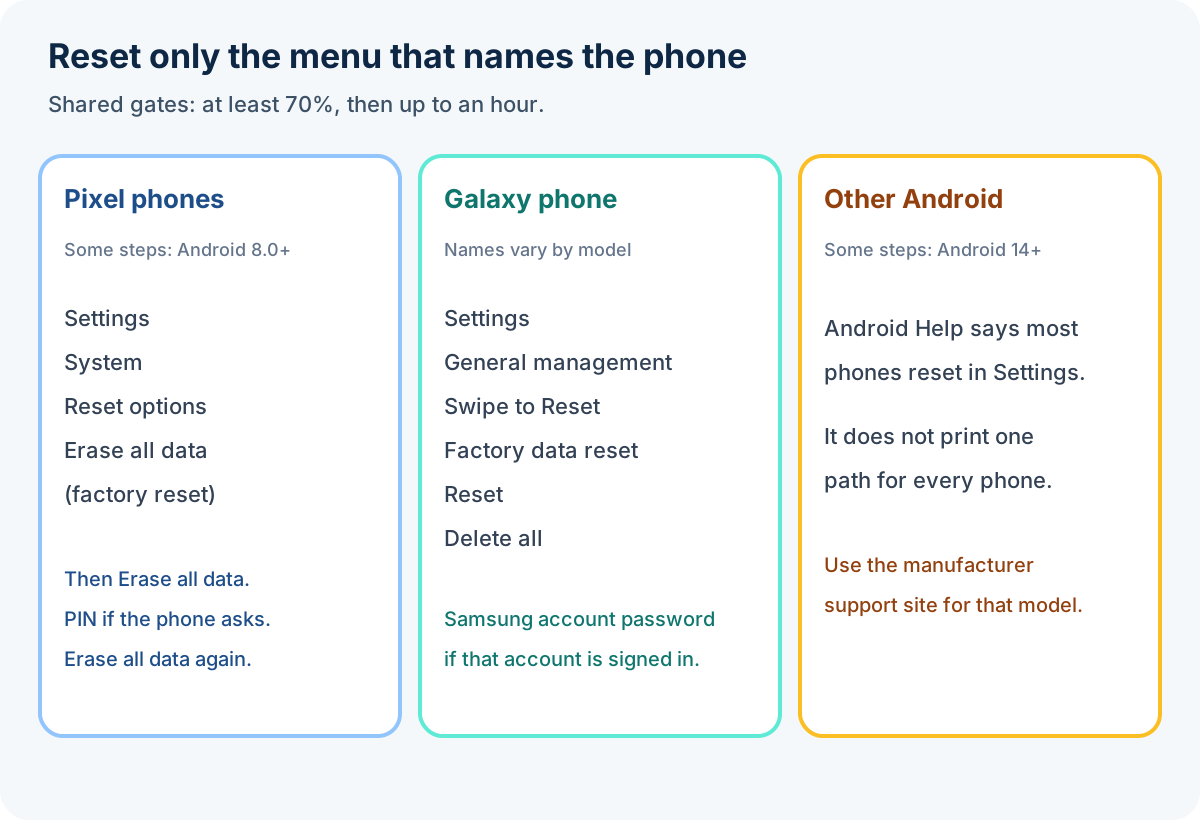
Android Help’s factory-reset page says a reset erases all data from the phone. Some of its steps work only on Android 14 and up. Know a Google Account on the phone: Settings, then Accounts, if that option is there. If Accounts is missing, the page sends you to the manufacturer. Know the password, and know the PIN, pattern, or password if a screen lock is set. If you recently reset the Google Account password, wait 24 hours before the factory reset. Back up first. Apps and their data are uninstalled even when Google Account data can be restored. On Android 15 and up, a wallet that backs up transit cards can remind you before the reset. The page does not name a wallet. Charge to at least 70%. A reset can take up to an hour. Stay on Wi-Fi or mobile data so you can sign in when it finishes. On most phones the reset is in Settings. The page does not print one menu for every phone, and it tells you to check the manufacturer’s support site. [8]
Pixel Help, for all Pixel phones, with some steps only on Android 8.0 and up: Settings, then System, then Reset options, then Erase all data (factory reset). Tap Erase all data. If the phone asks for the PIN, enter it and tap Erase all data again. Then restart, set the phone up, and restore. Trade-ins should use this Settings option. The same 70% charge, the hour, and the 24-hour wait after a Google Account password change are on this page too. The account name is under Settings, then Passwords & accounts, to the right of Google app. If you remove the Google Account, the backup is deleted. [7]
Galaxy, on the US factory-reset page: menu names, settings, and layouts vary by model and software version. Save what you need first, because personal information may not be recovered. If the microSD card is encrypted, decrypt it before the reset, or the phone will not read the card. From Settings, search for and select Decrypt SD card, then follow the prompts. A network connection is required to log out of the Samsung account. Open Settings, then General management, swipe to Reset, tap Factory data reset, review the information, tap Reset, then tap Delete all. A security lock asks for credentials. A signed-in Samsung account asks for that password. The phone then restarts at the initial setup screen. [10]
That Galaxy page also separates Google Factory Reset Protection. It is on Android 5.1 and later. It can ask for the previously registered Google Account after a reset that was not the Factory data reset option in Settings. On Android 9 and later, ownership may also be verified with the previous pattern, PIN, or password. Reset all settings, Reset mobile network settings, and Reset Wi-Fi and Bluetooth settings are different items on the same Reset screen, and they do not erase apps and personal data. [10]
Before you rely on the new phone as the one you can find, Android Help’s Find Hub conditions are power, mobile data or Wi-Fi, a Google Account, Find Hub turned on, and visibility on Google Play. Adding a Google Account turns Find Hub on. A PIN, pattern, or password is what the page asks for if you want help from the Find Hub network. The first account activated on the device is the one that gets the most recent location. Play sound rings the device at full volume for 5 minutes, including when it is on silent or vibrate. The page does not say this ring replaces the copy check or the On mark. [12]
Which Android version is on the phone?
Open Settings, then About phone or About tablet, then Android version. That screen shows the Android version, the Android security update, the Google Play system update, and the build number. Read it before you follow a step that names Android 9, 10, 12, or 14. [11]
Updates can be large. Before you update, connect to Wi-Fi and charge to at least 75%. A notification’s update action is one start. If you cleared it or the phone was offline: Settings, then System, then Software updates, then the on-screen instructions. Most system updates and security patches install automatically. If a download starts and does not finish, the phone tries again over the next few days and sends a notification. Older devices cannot always run newer Android versions. A “not enough space” message is a storage problem, and this page does not print a free-space number. [11]
Pixel phones and Pixel Tablet install a downloaded Android update in the background. It becomes active the next time you restart. Many other Android phones and tablets restart while they install, and the update becomes active when installation finishes. Update schedules vary by device, manufacturer, and carrier. How many years of updates to count for a named phone is the separate question on how Android update support is counted. [11]
Method and sources
The steps above are the labels on Android Help, Pixel Phone Help, and Samsung Support pages saved on 18 October 2026. The 3-point gap at 72% has no charge time because those pages do not print one. R OS is left as printed. The interrupted Pixel factory reset is left unnamed because that sentence does not name the phone. The generic Android reset page does not print one Settings path, so none is filled in here.
Sources & methodology12 sources
Evidence used for this article. Links open the original source in a new tab.
- Copy apps and data from an Android to a new Android device — Android Help
- Switch to a new Android device — Android Help
- Back up or restore data on your Android device — Android Help
- Learn more about Google Play services for data backup and transfer — Android Help
- Transfer data from your previous device to a Pixel phone — Pixel Phone Help
- Fix issues with data transfer on a new Pixel phone — Pixel Phone Help
- How to factory reset your Google Pixel phone — Pixel Phone Help
- Reset your Android device to factory settings — Android Help
- New Galaxy phone or tablet quick setup with Smart Switch QR code — Samsung Support
- Perform a factory reset on your Galaxy phone or tablet — Samsung Support
- Check and update your Android version — Android Help
- Find, secure, or erase a lost Android device — Android Help
TasteOfAndroid is responsible for this page. The byline, method and commercial relationships are on the editorial policy and the author page.
Related Articles
Android Private Space Versus a Work Profile and Cloned Apps
Compare Android 15+ Private Space, Work Profiles, and cloned apps across user IDs, locked notification states, Photo Picker visibility, VPN bypass, and backups.
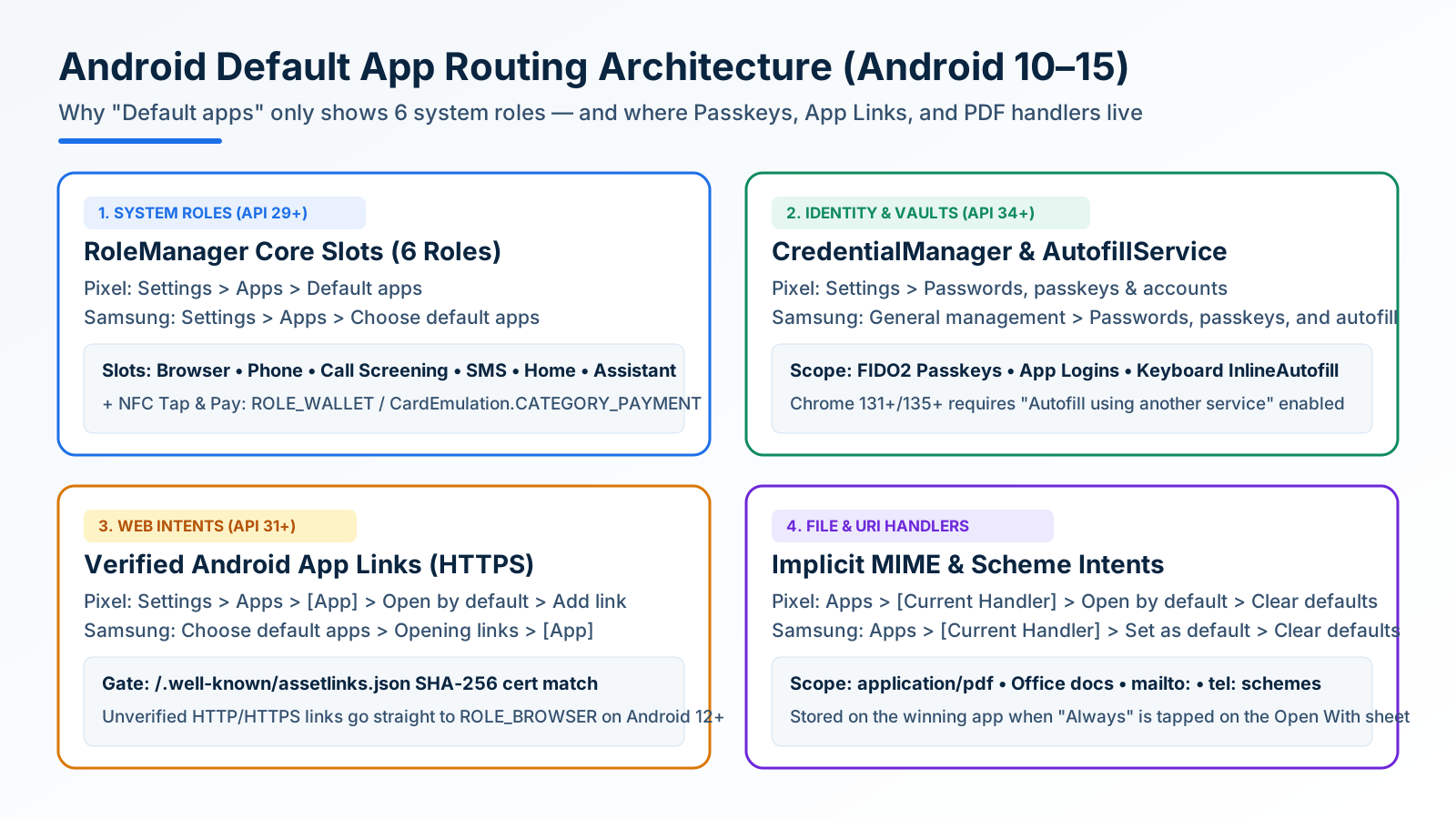
How to Change and Reset Default Apps on Android: Browsers, Passkeys, PDFs, and App Links
Looking only in Default apps fails when a wrong PDF viewer or browser hijacks links. Use Android's 4 routing menus to set browsers, passkeys, App Links, and MIME handlers.
Block Spam Calls and Robocalls on Android Without a Paid App
Use Filter spam calls, Pixel Call Screen, or Galaxy Text call. Google does not take numbers from your Contact list.