
Contents
- Before you start
- 1. Transfer and verify your data
- 2. Protect authenticator and recovery access
- 3. Review Wallet and other device-bound items
- 4. Resolve SIM, eSIM, RCS, and work management
- 5. Remove accounts, SIM, and microSD
- 6. Reset through Settings
- 7. Perform the exact handoff check
- Recovery and irreversible boundaries
- Reset last
- Frequently asked questions
- Does a factory reset back up an Android phone?
- Should I remove my Google Account before selling my phone?
- What happens to an eSIM when I reset an Android phone?
- Does remote erase delete a microSD card?
- How do I know an Android phone is ready to hand over?
- Sources
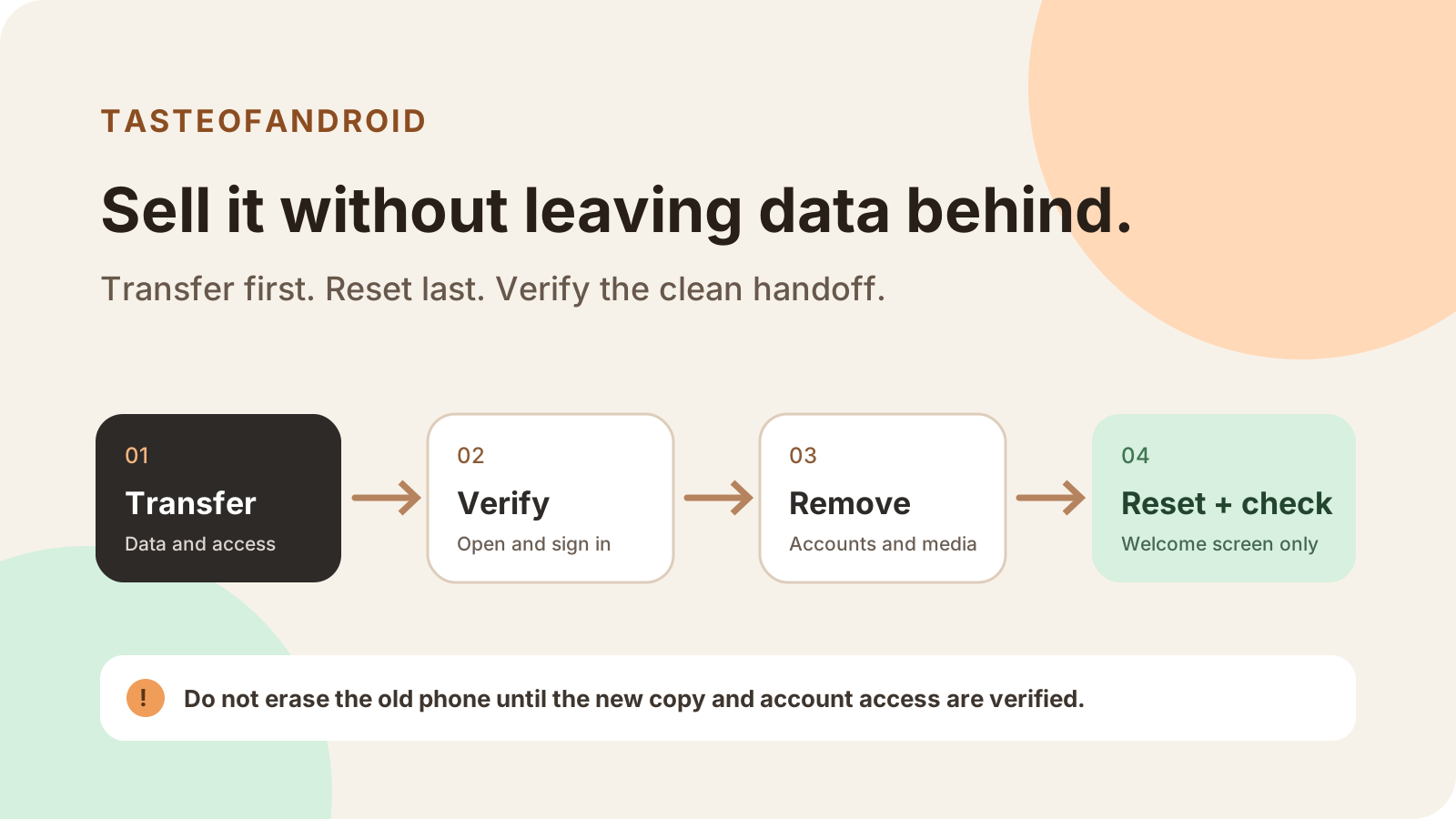
Resetting too early can erase your only copy or sign-in method. Quick answer: Before selling your Android phone, transfer and independently verify your data, confirm authenticator and recovery access, move device-bound services, remove accounts and removable items, and only then erase the phone through Settings. The governing rule is reset last: a factory reset erases local phone data; it does not create a backup.
- Open transferred photos, messages and files on the replacement.
- Test sign-in access and move device-bound services.
- Remove accounts, physical SIM and microSD after verification.
- Reset through Settings last; inspect the untouched welcome screen.
Open the full-size overview diagram.
Before you start
Use this checklist for a phone you own, can unlock, and still possess, including a trade-in, donation, or family handoff. A lost, damaged, company-owned, or employer-managed phone needs the relevant carrier, manufacturer, employer, or account-provider process.
Gather both phones, passwords, screen-lock code, charger, connection, SIM tool, and recovery information. Backup coverage and menu paths vary by app, manufacturer, Android version, carrier, and region. Not every app can back up or restore all settings and data. [6]
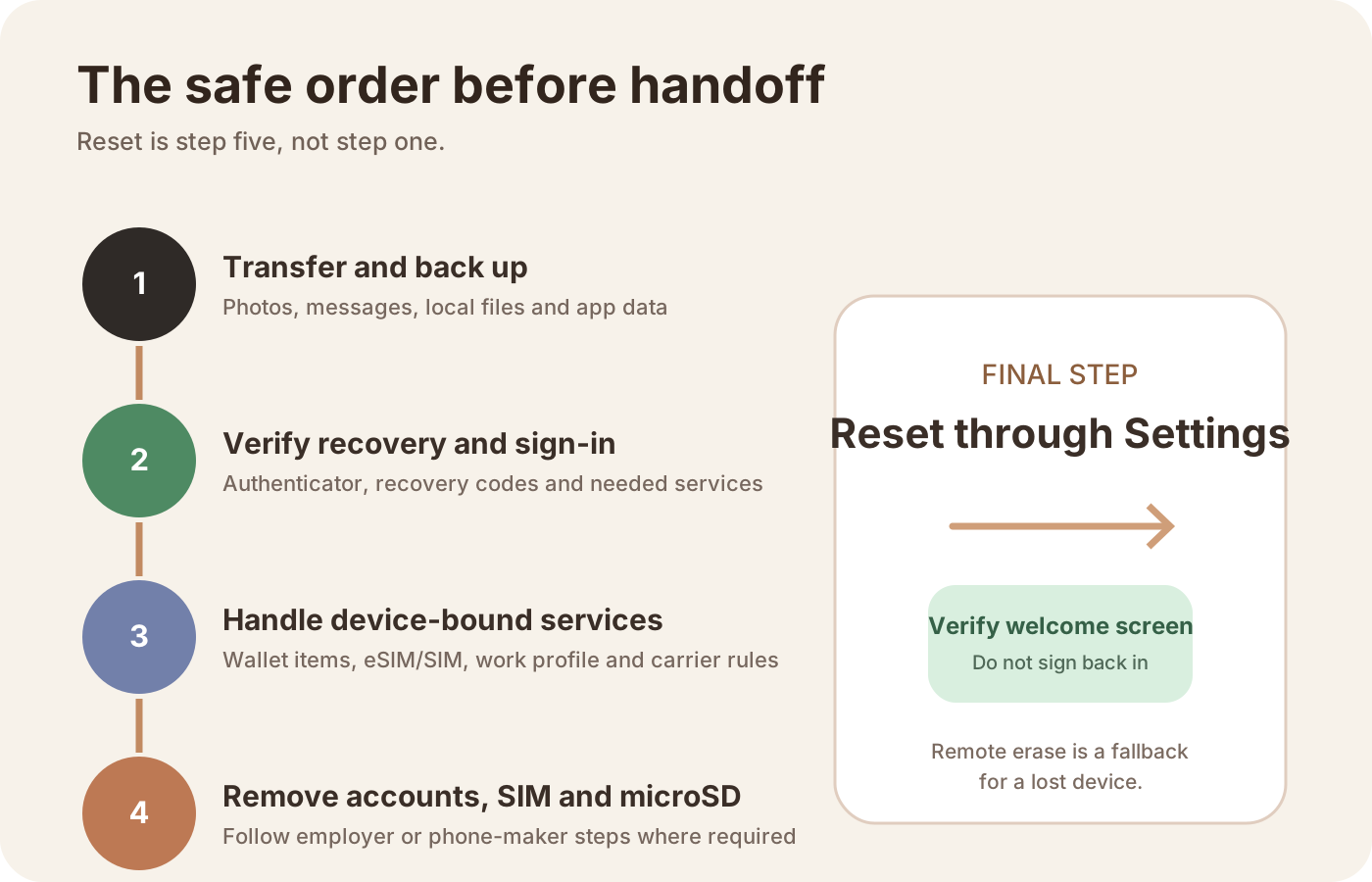
Follow one sequence: copy, verify, move device-bound access, remove accounts and removable items, reset, then inspect.
Handoff order: transfer and back up; verify data and sign-in; move device-bound services; remove accounts, SIM and microSD; reset through Settings; inspect the welcome screen.
Scroll horizontally to read the labels in this diagram.
1. Transfer and verify your data
First, back up your Android phone, then check each important category elsewhere:
- Open recent and older photos and videos.
- Confirm expected SMS, MMS, and relevant RCS conversations.
- Check Downloads, Documents, recordings, exports, contacts, and calendars.
- Test notes, password managers, banking access, health records, and important app data.
- Use an app’s own export or migration process where required.
When you set up a new Android phone, open transferred information before erasing the old device. For an iPhone source, follow the separate process to transfer data from iPhone to Android.
Android backup can include app data, call history, contacts, settings, and SMS or MMS, but support varies. [6] A transfer-complete message is not the verification gate; successfully opening representative data is.
2. Protect authenticator and recovery access
Do not reset a phone that remains your only way into an important account.
For Google Authenticator, confirm that expected codes appear on the replacement device. Without account synchronization, complete the documented device-to-device transfer while both phones are available. [7] For another authenticator app, use its official export, synchronization, or recovery process.
Confirm that recovery email addresses and phone numbers are current, recovery codes are stored away from the old phone, and an important sign-in works on the replacement. Check banking approvals, passkeys, password-manager prompts, and other sign-in methods. If access fails, stop.
3. Review Wallet and other device-bound items
Review services tied to the phone, an issuer, a carrier profile, or a local credential before removal.
Check each owner’s rules for Wallet items, authenticator access, SIM/eSIM/RCS, removable storage and work management. A completed backup does not settle every service transfer.
Scroll horizontally to read the labels in this diagram.
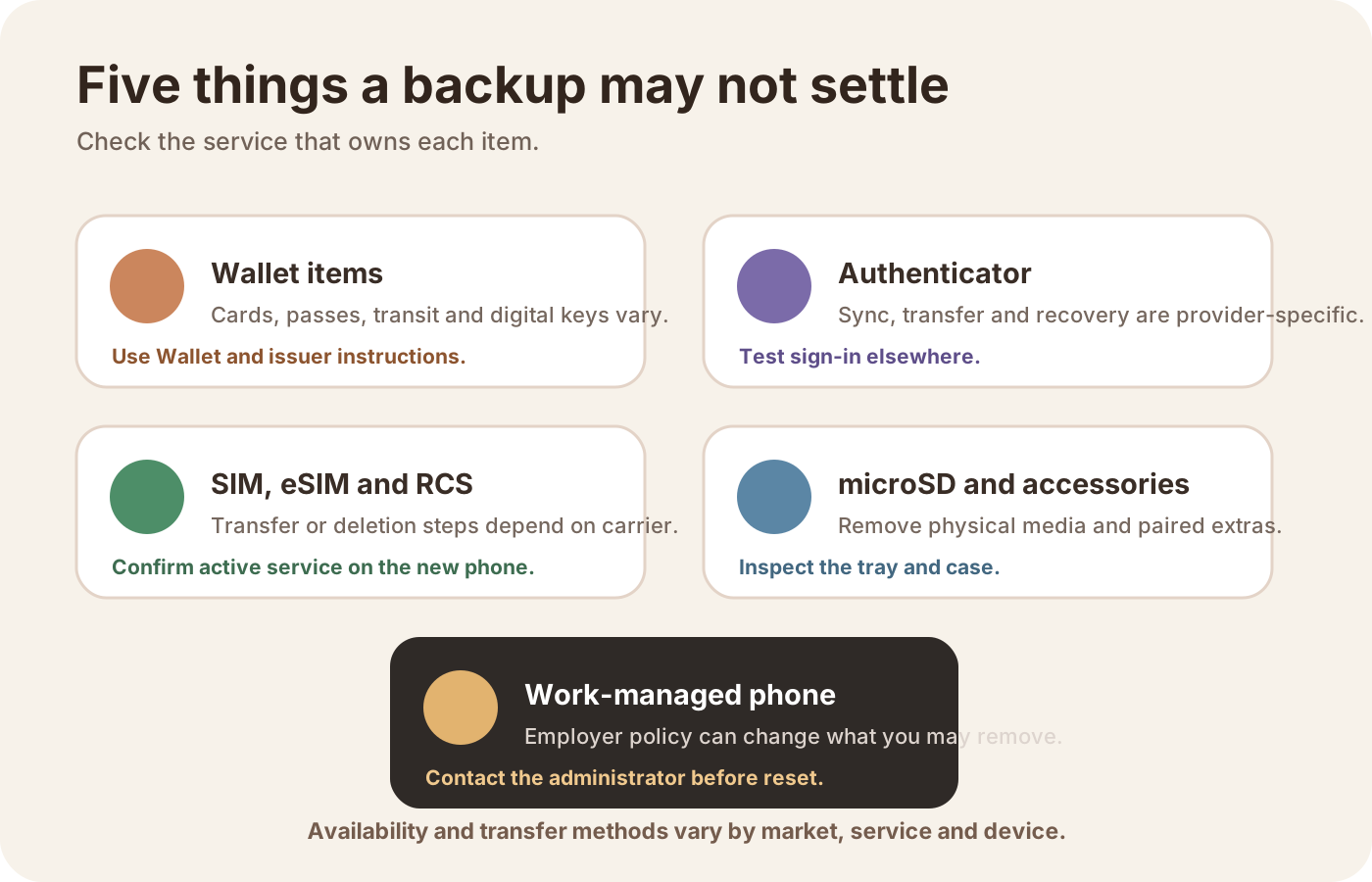
Check payment cards, transit passes, digital keys, digital IDs, work credentials, tickets, app licenses, VPN credentials, and smart-home access. Google Wallet notes that transfer and re-adding behavior varies, and some items require an issuer-controlled process. [4]
Do not mass-delete Wallet items. Confirm whether each important item works on the replacement phone, can remain on multiple devices, or must be removed from the old one. Contact the issuer when status is uncertain.
4. Resolve SIM, eSIM, RCS, and work management
Keep a physical SIM in the old phone until calls, mobile data, and required SMS verification work on the replacement. Remove it before handoff.
For eSIM, follow carrier and phone-maker instructions to transfer, reissue, or deactivate the plan. Reset behavior and downloaded-SIM prompts can differ. Confirm what the carrier expects, and stop if replacement service is not working.
RCS needs a conditional check. When the same number is active and RCS is connected on the replacement phone, there may be no reason to toggle it. Google advises against routinely switching RCS chats on and off, but provides deactivation steps when the old phone is unavailable or the new setup does not support RCS. [8]
Do not privately sell a company-owned phone. For a personally owned phone with a Work Profile, ask IT how to unenroll it and preserve only authorized information.
5. Remove accounts, SIM, and microSD
After every transfer and service check passes, remove each Google Account from the old phone. Google’s planned-reset guidance places account removal before the Settings reset. [3] Removing an account from Android removes its synchronized data from that device; it does not delete the online account. [2]
Menu labels vary, so inspect the full account list. Remove applicable personal, school, work, email, and manufacturer accounts; signing out of one app may not remove its device account.
Remove the physical SIM and microSD card. While the SIM tray is out, inspect the tray O-ring and internal liquid damage indicator using the steps in Android IP68 seal degradation and barometer testing. If the card is included in the sale, copy and verify its contents, then erase or format it using instructions for that phone and card.
6. Reset through Settings
For a planned sale, use the factory-reset option inside Settings. Google recommends Settings on most Android phones and refers users to the manufacturer when the path differs. [1]
Search Settings for “reset” or “erase all data.” Select the full factory-data reset, not a limited network or app-preference reset, and read every prompt— especially options involving downloaded SIMs or credentials.
Do not use ADB, bypass tools, recovery-mode shortcuts, or speculative account-lock procedures. If Settings cannot complete the reset, follow the manufacturer’s official instructions for the model.
Remote erase is a lost-device fallback, not the normal sale process. Find Hub erasure is permanent, depends on eligibility conditions, may not erase an SD card, and ends location availability afterward. [5]
7. Perform the exact handoff check
After the restart, verify the result before surrendering the phone.
Inspect the welcome/setup screen, confirm no personal setup has been restored, check SIM and microSD removal, and retain access on the replacement. Do not sign back in.
Scroll horizontally to read the labels in this diagram.
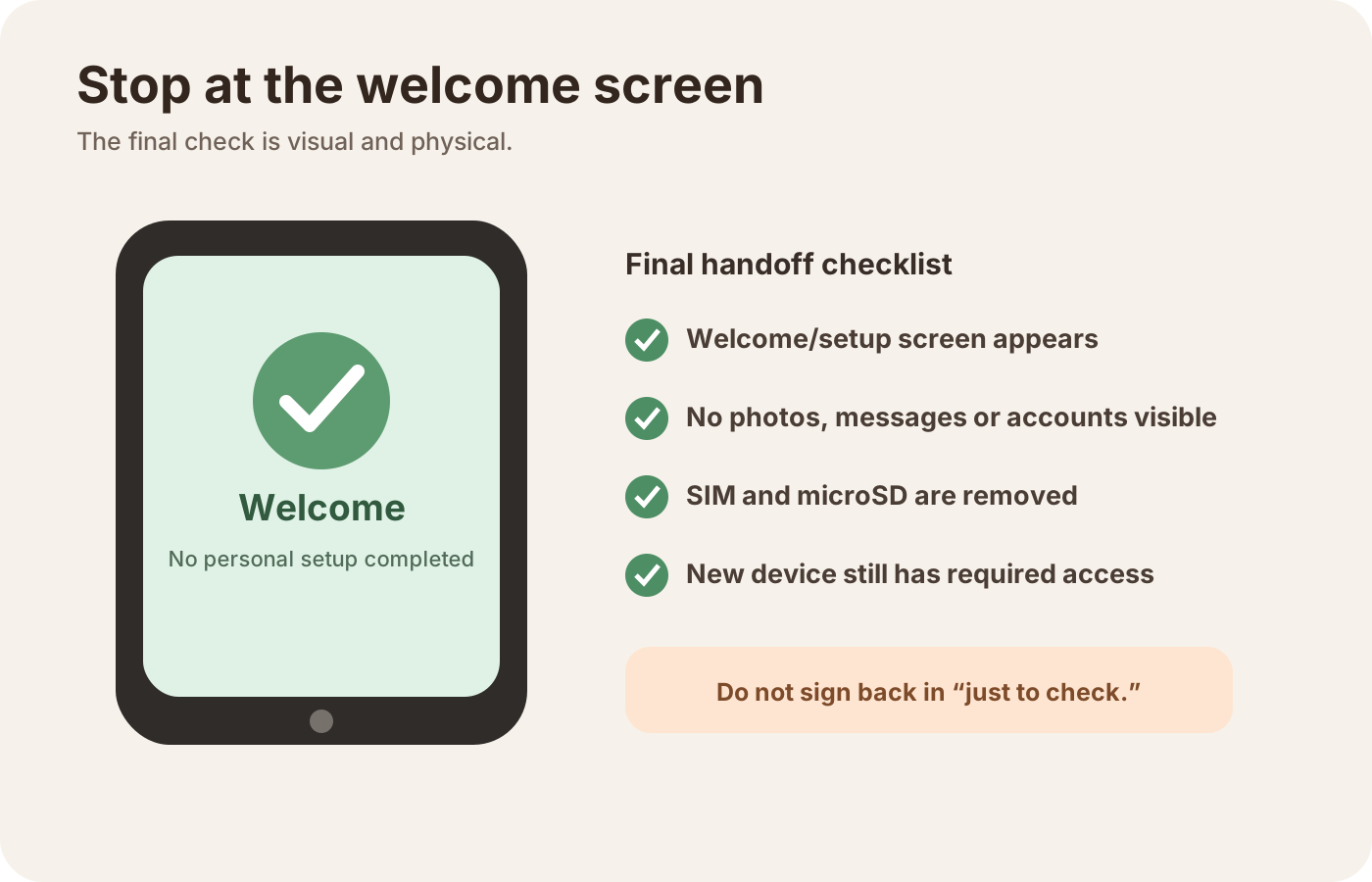
The phone should display its initial welcome, language, or setup screen—not your former lock screen, home screen, notifications, photos, messages, or app list. Do not connect to Wi-Fi, add an account, restore a backup, or complete setup. Confirm that the physical SIM and microSD card are absent, then power off from the setup screen.
This confirms that the phone returned to initial setup. It does not establish what happened to forgotten removable storage, every eSIM configuration, or external account sessions. If personal content remains, keep the phone and repeat the manufacturer’s approved reset process.
Recovery and irreversible boundaries
Before reset, missing data, failed sign-in, inactive replacement service, or an uncertain Wallet transfer means stop. Keep the old phone intact while you repeat the copy, use an official export process, recover access, or contact the relevant provider.
After reset, there is no general undo for data stored only on the phone. Recovery is limited to information previously transferred, synchronized, exported, or backed up. Restoration depends on what was saved and supported. [1] [6]
If the phone was handed over without reset, contact the recipient immediately. Find Hub remote erase may help only while the device remains eligible, is not guaranteed to run, and may not erase an SD card. [5] Contact any relevant carrier, employer, Wallet issuer, or account provider.
Reset last
A safe handoff starts with verification. Confirm replacement copies and sign-in methods, move device-bound services, remove accounts and removable items, then reset through Settings. When the untouched welcome screen appears, do not sign back in; power off and hand over the phone.
Frequently asked questions
Does a factory reset back up an Android phone?
No. A factory reset erases data stored on the phone; it does not create a backup. Back up and verify photos, messages, local files, authenticator access, and important app data first. Android restoration varies by app and device, so a backup status alone cannot prove that every item will return. [1] [6]
Should I remove my Google Account before selling my phone?
Yes, for a planned sale. Google’s documented sequence places removal of each Google Account before the factory reset through Settings. This removes the account and its synchronized data from that phone; it does not delete the online Google Account. Review other personal, school, work, and manufacturer accounts as well. [2] [3]
What happens to an eSIM when I reset an Android phone?
There is no universal outcome. It can depend on the phone, Android version, carrier, and choices shown during the reset flow. Transfer, reissue, or deactivate the mobile plan under carrier and manufacturer instructions first. Do not reset the old phone until service works on the replacement device and you understand any downloaded-SIM prompt.
Does remote erase delete a microSD card?
Not necessarily. Google states that Find Hub remote erasure may not delete data on an SD card. [5] For a planned sale, remove the microSD card physically before handoff. If the phone is already missing, do not assume the card was erased; treat any data stored on it as a separate exposure.
How do I know an Android phone is ready to hand over?
After the restart, the phone should display its initial welcome, language, or setup screen, with no former lock screen, home screen, notifications, photos, messages, or app list. Confirm that the SIM and microSD card are absent. Do not sign in or restore anything again; power the phone off directly from the setup screen.
Sources
The official references used in this checklist are listed in the source panel below and were checked on August 5, 2026. Recheck carrier, manufacturer and managed-device instructions before the final handoff.
Sources & methodology8 sources
Evidence used for this article. Links open the original source in a new tab.
- Reset your Android device to factory settings — Android Help
- Add or remove an account on Android — Android Help
- Reset your old Android device — Google Account Help
- Transfer a pass or card on Google Wallet — Google Wallet Help
- Find, secure or erase a lost Android device — Android Help
- Back up or restore data on your Android device — Android Help
- Get verification codes with Google Authenticator — Google Account Help
- Turn RCS chats on or off in Google Messages — Google Messages Help
TasteOfAndroid is responsible for this page. The byline, method and commercial relationships are on the editorial policy and the author page.
Related Articles
How to Change and Reset Default Apps on Android: Browsers, Passkeys, PDFs, and App Links
Looking only in Default apps fails when a wrong PDF viewer or browser hijacks links. Use Android's 4 routing menus to set browsers, passkeys, App Links, and MIME handlers.
Block Spam Calls and Robocalls on Android Without a Paid App
Use Filter spam calls, Pixel Call Screen, or Galaxy Text call. Google does not take numbers from your Contact list.
Split Screen and App Pairs: Multitasking on Android
Use two Android apps together, save supported app pairs, and check Pixel and Galaxy controls before relying on a multitasking shortcut.