
Contents
- How do Private Space, a Work Profile, and cloned apps compare at a glance?
- How do Android user IDs and profile types separate these spaces?
- Why Android 15+ Private Space has strict eligibility gates
- How Samsung Dual Messenger differs from a full privacy profile
- What stops when you lock Private Space versus pausing a Work Profile?
- Private Space locked vs. unlocked state
- Work Profile running vs. paused state (Android 7.0+)
- How Samsung Secure Folder handles locked notifications
- Which system surfaces, pickers, and files cross the profile boundary?
- Hiding the Private Space container and reading disguise prompts
- Moving or copying files into Private Space vs. Secure Folder
- What can an employer see in a Work Profile—and where does Private Space still leak?
- BYOD vs. company-owned Work Profile boundaries
- Four Private Space exposure paths to check before relying on it
- How do backups, new-phone transfers, and forgotten passcodes behave across each space?
- Which Android isolation boundary matches your goal?
- Technical sources
Choose Android 15+ Private Space when you need sensitive personal apps completely stopped and hidden whenever the space locks, choose an Android Work Profile when an employer manages work apps and policies alongside your personal apps, and choose OEM cloned apps only for a second messaging login on your main home screen. Picking the wrong container either leaves private apps visible in Settings and the Photo Picker or halts background sync and notifications that work, messaging, and medical apps require.
- Private Space (
android.os.usertype.profile.PRIVATE, Android 15+): Stops the profile user completely when locked, silencing notifications, blocking sensor access, and hiding apps from the launcher, Recents, Settings, Sharesheet, Photopicker, and DocsUI. AOSP Private Space · Android Help - Work Profile (
android.os.usertype.profile.MANAGED, Android 5.0+): Starts at boot alongside the primary user, displays briefcase-badged apps and inline notifications under a Device Policy Client (DPC), and pauses only when toggled off or scheduled. AOSP Managed Profiles · Android Enterprise Help - OEM Cloned Apps (such as Samsung Dual Messenger): Places a second badged copy of a supported messaging app on the main Apps screen with no separate profile lock, no pause switch, and a shared contact list unless you manually separate contacts. Samsung Dual Messenger Support
- Coexistence on Android 15+: A Private profile can exist on the same device alongside both a Work profile and a Clone profile, provided the phone is unmanaged and stays within Android’s 4-user/profile limit. AOSP Private Space · Android Help
This breakdown sits with our other Android how-to setup and troubleshooting guides.
How do Private Space, a Work Profile, and cloned apps compare at a glance?
The core architectural difference is whether the container stops its user process and disappears from system pickers when locked, stays active under enterprise policy until paused, or simply duplicates a messaging app on your main home screen. On Galaxy phones and tablets, Samsung also offers Secure Folder, which uses its own passcode and notification rules distinct from both Android 15 Private Space and Dual Messenger. AOSP Private Space · AOSP Managed Profiles · Samsung Secure Folder Support
Scroll horizontally to view all table columns.
| Isolation dimension | Android 15+ Private Space | Android Work Profile | OEM Cloned Apps (Galaxy Dual Messenger) | Samsung Secure Folder (Galaxy) |
|---|---|---|---|---|
| AOSP user / profile type | android.os.usertype.profile.PRIVATE (single instance, main user only) |
android.os.usertype.profile.MANAGED (secondary managed profile) |
Clone profile / OEM app-duplication feature for supported messaging apps | OEM passcode-protected container (Security and privacy > More security settings > Secure Folder) |
| Minimum OS & eligibility gate | Android 15+, supporting hardware, unmanaged device, no supervised account on main space, <= 4 users/profiles |
Android 5.0+ for BYOD work profiles; Android 7.0+ for pause toggle; Android 11+ for company-owned work profiles | Galaxy device and software build that lists Dual Messenger under Settings > Advanced features |
Supported Galaxy phone or tablet (menu is absent if the device does not support Secure Folder) |
| Process & notification state when locked or paused | Locking stops the private profile user completely: no foreground or background work, no sensor access, zero notifications | Runs at boot with briefcase-badged notifications; pausing stops work apps, notifications, data/battery use, and widgets | Always active on the main Apps screen; prints no separate passcode lock or pause switch | Optional Notifications setting can show alerts while locked; manual More options > Encrypt stops all apps and notifications |
| Launcher, Settings & picker visibility | Hidden from launcher (can also hide the container when locked), Recents, quick search, Settings, Permission Settings, Privacy dashboard, Sharesheet, Photopicker, and DocsUI while locked | Visible in the app drawer Work tab (or Work folder) and searchable in main Settings on Android 14+; icons turn gray or show an overlay when paused |
Second app icon sits on the main Apps screen with a Dual Messenger badge | Can be hidden from the Apps screen via Quick Settings or Settings; cannot be opened from the web or a computer |
| Contacts, files & cross-profile access | Separate app data; unlocked "Private" tab in Sharesheet/Photopicker/DocsUI; + Add > Add files copies or moves files to Private Space Downloads |
Separate /data/user/userid directory; no personal SMS/MMS access on Android 11+; cross-profile intents controlled by admin / INTERACT_ACROSS_PROFILES |
Shares main contacts unless Use separate contacts list is enabled; saves downloaded images to Internal storage (Dual Messenger) > DCIM |
Moves local/SD files in (Move to Secure Folder), excludes cloud-saved files, and manages clipboard/contacts in Other security settings |
| Backup, transfer & forgotten-lock recovery | Not included in device backups; deleting erases apps and on-device data; no unlock factor recovery if you forget the Private Space lock | Personal Google Account device backups cannot be restored when setting up a device with a work profile; removing deletes work apps and local data | Removed via Dual Messenger > More options > Delete all my data |
Cloud backup no longer supported (restores prior backups or transfers via Smart Switch); forgotten passcode reset requires Reset with Samsung account enabled beforehand |
Sources: AOSP Security and Enterprise specifications, Google Android Help, Google Android Enterprise Help, and Samsung Support US documentation. AOSP Private Space · Android Help · AOSP Managed Profiles · Android Enterprise Help · Samsung Dual Messenger · Samsung Secure Folder
How do Android user IDs and profile types separate these spaces?
Android isolates full profiles by assigning each profile user a separate user ID (userid), which shifts every app’s Linux process UID and points its private storage to a separate /data/user/userid directory. When you install an app inside Private Space or a Work Profile, Android treats it as a separate installation in that profile with its own account list and isolated data directory rather than sharing the main user’s app sandbox. AOSP Private Space · AOSP Managed Profiles
In AOSP’s managed-profile architecture, a profile operates as a secondary user associated with the primary user (userid = 0). The system computes each running app’s process UID using the formula:
uid = 100000 * userid + appid
Example calculation (assuming appid = 10145 for an installed app across userid = 0 and a secondary profile userid = 10):
- In the primary user profile (
userid = 0), the process UID is100000 × 0 + 10145 = 10145, and app data lives under/data/user/0. - In a profile with
userid = 10, the same package receives UID100000 × 10 + 10145 = 1010145, and its app data is segregated under/data/user/10. AOSP Managed Profiles
Because AccountManagerService maintains a separate account list per user and apps cannot communicate across the profile boundary without holding INTERACT_ACROSS_PROFILES permission or App-ops, two instances of the same app run independently. In Private Space (android.os.usertype.profile.PRIVATE), installing an app is always treated as a fresh app install—Android Help explicitly notes that you cannot move an app’s existing data from the main space into Private Space. AOSP Private Space · Android Help · AOSP Managed Profiles
Why Android 15+ Private Space has strict eligibility gates
Unlike an OEM app cloner, Private Space cannot be enabled on every phone or user account. Google’s Android Help documentation specifies that Private Space is available only when all of the following conditions hold:
- OS and hardware: The device runs Android 15 and up on supporting hardware, and the feature has not been disabled by the device manufacturer or an Enterprise Admin.
- No whole-device management or supervision: The phone is not a managed device, and no supervised account is signed in on the main space.
- Main user only: You are signed in as the main user of the device (never a guest user or a secondary user), and only one instance of Private Space can exist on a device.
- User and profile ceiling: The device does not have more than 4 users or profiles. AOSP Private Space · Android Help
You can verify whether a multi-user phone still has room for Private Space with a direct slot check:
remaining_profile_slots = 4 - current_users_and_profiles
Example calculation (assuming a phone has 1 main user, 1 Work Profile, 1 secondary user, and 1 guest/clone profile):
current_users_and_profiles = 1 + 1 + 1 + 1 = 4, leaving 4 - 4 = 0 additional slots before crossing the "more than 4 users or profiles" exclusion. Adding a fifth user or profile blocks Private Space creation until an existing secondary user or profile is removed. Android Help · AOSP Custom User Types
Dominant failure mode: Following a “Dual Apps” or “Dual Messenger” guide on a phone running Android 14 or an enterprise-managed phone, assuming an app cloner provides Private Space isolation. Prevention: Check Settings > Security & privacy > Private space first; if the phone is below Android 15 or is a managed device, Dual Messenger will not hide the app or stop its background processes. Android Help · Samsung Dual Messenger
How Samsung Dual Messenger differs from a full privacy profile
On Galaxy phones and tablets (Settings > Advanced features > Dual Messenger), Dual Messenger is built strictly to let you sign in to a second account inside supported messaging or social media apps. Once installed, the second copy sits directly on your main Apps screen with a small Dual Messenger badge on its icon. Samsung Dual Messenger
Dual Messenger provides no passcode lock, no hidden launcher container, and no profile pause toggle. By default, the second app also shares your main contact list unless you return to Settings > Advanced features > Dual Messenger, tap Use separate contacts list, turn on the switch, and manually select which contacts the second app may see. Images downloaded inside a Dual Messenger app may not show up in the main Gallery app; Samsung routes them to My Files > Internal storage (Dual Messenger) > DCIM > Messenger app folder. Samsung Dual Messenger
What stops when you lock Private Space versus pausing a Work Profile?
Locking Android 15+ Private Space stops the entire private profile user immediately, whereas a Work Profile keeps running alongside your personal apps until you or a schedule explicitly pause it. That runtime difference determines whether alarms, medical sensors, chat sync, and push notifications survive when you put the phone in your pocket. AOSP Private Space · Android Help · Android Enterprise Help
Private Space locked vs. unlocked state
When Private Space is locked (UserManager.isQuietModeEnabled in AOSP), the private profile user is placed in a stopped state:
- Zero foreground or background execution: Apps inside Private Space are completely stopped and cannot perform foreground or background activities.
- Zero notifications: Stopped Private Space apps cannot post notifications. Only when Private Space is unlocked do notifications appear, marked with the Private Space lock icon.
- No sensor access: While locked, Private Space apps cannot read device sensors or perform background tracking. Google Android Help specifically warns that medical apps cannot track health information when locked, so apps that must run continuously in the background do not belong in Private Space. Apps outside Private Space keep running normally. AOSP Private Space · Android Help
Inside Private Space settings (Private space > Settings > Lock private space automatically), Android 15+ gives you three automatic lock timers:
- Every time device locks: Private Space locks whenever the phone’s screen locks.
- 5 minutes after screen timeout: Private Space locks 5 minutes after the display times out from inactivity (
Settings > Display > Screen timeout). - Only after the device restarts: Private Space stays unlocked across normal screen locks and locks automatically only when the phone restarts (restart locking also applies by default to the other two options). Android Help
Work Profile running vs. paused state (Android 7.0+)
An Android Work Profile is designed to stay awake during your workday. It starts with the primary user at boot time, shares the activity stack via ActivityManagerService, and displays briefcase-badged notifications inline with personal notifications. AOSP Managed Profiles · Android Enterprise Help
When you pause (“turn off”) a Work Profile on Android 7.0 or higher, the system disables the work profile via WorkModeSwitch:
- What stops when paused: Work apps do not run, generate notifications, or consume mobile/Wi-Fi data or battery life, and work widgets become inaccessible. Tapping a grayed-out work app prompts you to turn the Work Profile back on.
- Three ways to pause: Toggle the Pause work apps switch at the bottom of the Work tab in the app drawer, tap the Work tile in Quick Settings (dimmed when paused, illuminated when running), or set an automatic schedule under
Settings > Digital Wellbeing > Work apps schedule > Schedule work apps. - Two scheduling and enterprise limits: First, Google Android Enterprise Help states that Work Profile scheduling does not allow work apps to be paused continuously for consecutive days (such as over a weekend). Second, on a company-owned device, your IT administrator can cap how long the Work Profile is allowed to stay paused and call
setPersonalAppsSuspendedto suspend access to your personal apps and data until you turn the Work Profile back on. AOSP Managed Profiles · Android Enterprise Help
How Samsung Secure Folder handles locked notifications
On a supported Galaxy phone or tablet, locking Secure Folder does not automatically stop background work or silence alerts the way locking Private Space does. Inside Settings > Security and privacy > More security settings > Secure Folder > Notifications, Samsung provides a toggle to allow notifications from apps in Secure Folder to be displayed even when Secure Folder is locked. Samsung Secure Folder
To stop all apps and notifications inside Secure Folder completely, you must open Secure Folder, tap More options (three vertical dots) > Encrypt. Samsung notes that while encrypted, all apps and their notifications stop working until you reopen Secure Folder and tap Decrypt. In addition, starting from Android 16 with One UI 8, Samsung removed the “Each time I leave an app” auto-lock option—making When screen turns off the default auto-lock setting—and added a manual More options > Lock and exit command inside Secure Folder. Samsung Secure Folder
Rule of thumb: If an app must deliver real-time push alerts or read health/location sensors while the phone sits locked in your pocket, keep it out of Android 15 Private Space (or set Private Space auto-lock to Only after the device restarts only if you accept the space staying unlocked between reboots). If an app in your main profile stops alerting even when no Private Space lock or Work Profile pause is active, run through our Android notification troubleshooting checks. Android Help
Which system surfaces, pickers, and files cross the profile boundary?
A Work Profile separates app data and corporate policy without hiding the existence of your work apps, whereas a locked Private Space removes its apps and media from the launcher, Recents, Settings, Sharesheet, Photopicker, and DocsUI. Understanding which system surfaces change state prevents both accidental data exposure and confusion when searching for files. AOSP Private Space · Android Help · AOSP Managed Profiles
Scroll horizontally to view all table columns.
| System surface or action | Private Space (Unlocked) | Private Space (Locked) | Android Work Profile |
|---|---|---|---|
| App drawer / Launcher | Visible in the Private Space container at the bottom of All Apps | Apps collapse; container itself is hidden if Hide private space when it's locked is enabled |
Visible in the Work tab (or Work folder) with a blue (#1A73E8 on Android 9+) briefcase badge; icons stay visible (grayed out or behind an off overlay) when paused |
| Quick search bar & Recents | Private Space apps and tasks appear in quick search and Recents views | Hidden from quick search and Recents views | Work apps appear in launcher search; recent work tasks are badged |
| Settings, Permission Settings & Privacy dashboard | Private Space apps and permissions are visible in Settings, Permission Settings, and Privacy dashboard | Hidden from Settings, Permission Settings, and Privacy dashboard (Settings app must not reveal the existence of private space) |
Work Profile settings appear under Settings > Passwords and accounts > Work tab and are searchable in main Settings on Android 14+ |
| Sharesheet, Photopicker & DocsUI | Displays a dedicated "Private" tab to share or pick files across spaces |
"Private" tab and all Private Space media/files are hidden |
Cross-profile sharing is governed by the IT admin’s DevicePolicyManager intent rules |
| Telephony, SMS/MMS & Intents | Telephony intents route to the main user and show a notification; all other intents stay confined to the private profile | Profile user is stopped | Work Profile apps cannot access personal SMS or MMS data on Android 11+; other intents follow admin policy |
Sources: AOSP Private Space and Managed Profile specifications, Google Android Help, and Google Android Enterprise Help. AOSP Private Space · Android Help · AOSP Managed Profiles · Android Enterprise Help
Hiding the Private Space container and reading disguise prompts
By default, locking Private Space collapses its apps into a locked bar at the bottom of All Apps. For stronger visual privacy against someone borrowing your unlocked phone, open Private Space, tap Settings, and enable Hide private space when it’s locked (which takes effect the next time Private Space locks). Android Help
When the container is hidden and locked, you unlock it by opening All Apps and typing "Private space" into the search bar, then tapping Private space: Tap to set up or open. Google Android Help notes two deliberate anti-enumeration details in the UI:
- Searching
"Private space"can display Private space: Tap to set up or open even on a phone where Private Space has never been set up. - Under
Settings > System > Reset Options, the Delete private space (“Reset private space”) action also appears when no Private Space exists on the phone. Android Help
Neither prompt lets a casual observer prove that a hidden Private Space is configured on the device. Note, however, that third-party launcher apps must hold android.permission.ACCESS_HIDDEN_PROFILES and the ROLE_HOME role (RoleManager.ROLE_HOME) to support Private Space; Google warns that some non-default launcher apps do not support Private Space. For broader differences between Google’s Pixel launcher and Samsung’s One UI home screen and Secure Folder menus, see our Pixel Android vs. Samsung One UI software comparison. AOSP Private Space · Android Help
Moving or copying files into Private Space vs. Secure Folder
When you want to bring existing documents or photos from your main profile into Private Space, Google Android Help documents opening Private Space and tapping + Add > Add files (a system file-picker workflow that AOSP’s security specification labels In Android 16 QPR2 and higher). After selecting one or more files from main storage, you choose between two actions:
- Copy: Leaves the original file in your main profile and places a copy in the Downloads folder of your Private Space storage.
- Move: Adds the file to the Private Space Downloads folder and deletes the original from your main profile once the foreground transfer service finishes. AOSP Private Space · Android Help
Android Help notes that a file transfer into Private Space fails if the file is currently in use, is renamed or deleted after the transfer starts, exceeds available device storage, or if Private Space locks while the files are moving. On a Galaxy device using Secure Folder, you can move local or SD-card files in at any time from Gallery or My Files via More > Move to Secure Folder (even without signing into Secure Folder first), whereas files stored only in a cloud account cannot be moved directly into Secure Folder. Android Help · Samsung Secure Folder
What can an employer see in a Work Profile—and where does Private Space still leak?
In a BYOD Work Profile, your employer’s IT admin controls only the work container and cannot inspect your personal apps or photos, whereas in Private Space the biggest privacy leaks come from reusing your main Google Account, assuming your main VPN covers Private Space, or connecting the phone to a computer. Android Help · AOSP Managed Profiles · Android Enterprise Help
BYOD vs. company-owned Work Profile boundaries
When you enroll a personal phone in a Bring Your Own Device (BYOD) Work Profile (Android 5.0+), an Enterprise Mobility Management (EMM) Device Policy Client (DPC) app acts as the profile owner via DevicePolicyManager:
- Personal space stays private: Google Android Enterprise Help and AOSP state that the organization manages only the work profile (work apps, work accounts, and work data), while your personal apps, data, and usage remain private.
- Shared device-level exceptions: Settings enforcement is restricted to the work profile except for lockscreen and encryption settings, which apply across the entire device. Wi-Fi, Bluetooth, NFC, input methods (IME), and accessibility services are also shared system-wide.
- Hardware identifier protection (Android 12+): On personal devices with a work profile running Android 12 or higher, Android removes admin access to hardware identifiers (IMEI, MEID, and serial number) and substitutes an organization-scoped enrollment-specific ID that stays stable across factory resets for inventory tracking.
- Company-owned devices with a work profile (Android 11+): If the phone is owned or provided by your employer (
isOrganizationOwnedDeviceWithManagedProfile()), the admin gains additional device-wide policies outside the work profile—includinginstallSystemUpdate,setScreenCaptureDisabled, andsetPersonalAppsSuspended(which can suspend personal apps if the work profile stays paused past an admin-defined limit). AOSP Managed Profiles · Android Enterprise Help · Android Enterprise Pause Help
Note that you cannot set up a Work Profile inside Private Space, and Private Space is blocked entirely on fully managed devices or when disabled by an Enterprise Admin. Android Help
Four Private Space exposure paths to check before relying on it
Google’s Android Help documentation explicitly warns that Private Space is not invisible to every channel on the phone. Check these four boundaries during setup:
- Main Google Account sync leaks: Private Space does not automatically read accounts from your main profile, but if you sign into Private Space using the same Google Account that is signed in on your main space or another device, synced data will surface outside Private Space. Google lists synced photos, files, emails, contacts, calendar events, app download history and recommendations, browsing history, bookmarks, saved passwords, and suggested content from Private Space activity. Always use a dedicated Google Account that is not signed in elsewhere.
- Device VPN bypass: Android Help states flatly that Private Space apps bypass virtual private network (VPN) connections on the device. Do not rely on a VPN running in your main profile to tunnel traffic from apps inside Private Space.
- One-way Bluetooth, no Quick Share receive, and no widgets: Private Space apps can send content over Bluetooth without the shared file or metadata revealing Private Space, but they cannot receive content over Bluetooth (Private Space does not appear as a Bluetooth share target or display incoming Bluetooth share notifications) and cannot receive content directly from Quick Share. Private Space also blocks adding home-screen widgets or shortcuts, dragging files to Workspace, pairing smart home devices, using Find Hub, and using voice commands.
- Computer (
adb), device logs, and app detection: You cannot hide the existence of Private Space from people who connect your phone to a computer (including Android Debug Bridge (adb) commands), read device logs, install apps on your phone, or use other installed apps capable of detecting Private Space and the apps inside it. Android Help
How do backups, new-phone transfers, and forgotten passcodes behave across each space?
Standard Android cloud backups and initial setup cable/wireless transfers do not back up or restore Private Space, cannot restore a personal Google Account backup onto a work-profile setup, and provide no passcode recovery if you forget a custom Private Space lock. Before switching phones or locking away important files, verify how your chosen container handles migration and credential loss. Android Help · Samsung Secure Folder
- Private Space backup and forgotten-lock rules:
- No device backup: Private Space app data and on-device files are not backed up or restored as part of an Android device backup. Only data that an individual app syncs to its own cloud servers returns when you reinstall and sign in to that app.
- No unlock factor recovery: If you set a separate PIN, pattern, or password for Private Space and forget it, there is no unlock factor recovery—you cannot access the space. Your only option is to delete/reset Private Space using your main device PIN under
Settings > System > Reset Options > Delete private space(or insideSettings > Security & privacy > Private space > Delete private spaceif you still know the lock), which permanently deletes all Private Space apps and unbacked-up local data. Android Help
- Work Profile backup and removal rules:
- Personal backup exclusion during setup: Google’s Android backup rules state that you cannot use a personal Google Account device backup when setting up a personal device with a work profile, a work-only device, or a company-owned device.
- Removing a Work Profile: On a personally owned device (or a company device whose ownership was relinquished to you), opening
Settings > Passwords and accounts > Work tab > Remove Work Profile > Deleteremoves all work apps and local data within that profile while leaving your personal profile intact. Android Enterprise Help
- Samsung Secure Folder migration and passcode reset:
- Smart Switch transfer: Samsung states that cloud backup is no longer supported for Secure Folder (though you can still restore data from previous Samsung account backups under
Secure Folder > More options > Settings > Restore from backup). To move an active Secure Folder to a new Galaxy device, open Smart Switch, connect the phones by USB cable or place them within 4 inches of each other for a wireless transfer, expand Apps, and select Secure Folder. - Forgotten passcode recovery: You can reset a forgotten Secure Folder PIN, pattern, or password (
Forgot > Reset) only if you enabledReset with Samsung accountwhen you set up the security method. IfReset with Samsung accountwas left off, access cannot be recovered; you can only uninstall/remove Secure Folder (optionally moving media files out during regular uninstallation when unlocked). Samsung Secure Folder
- Smart Switch transfer: Samsung states that cloud backup is no longer supported for Secure Folder (though you can still restore data from previous Samsung account backups under
Before erasing an old device, walk through our complete new Android phone setup, transfer, and backup verification checklist so files inside Private Space Downloads, Internal storage (Dual Messenger) > DCIM, or Secure Folder are exported first. Android Help · Samsung Dual Messenger · Samsung Secure Folder
Which Android isolation boundary matches your goal?
Use the three scenarios below to match your exact privacy, enterprise, or multi-account requirement before installing apps or moving files:
Scroll horizontally to view all table columns.
| What you need to isolate | Recommended Android container | Pre-setup verification checklist |
|---|---|---|
| 1. Sensitive personal apps and files that must disappear and stop running when locked | Android 15+ Private Space (Settings > Security & privacy > Private space) — or Samsung Secure Folder with manual Encrypt on Galaxy devices below Android 15 |
Confirm Android 15+, unmanaged phone, main user, no supervised account on main space, and <= 4 users/profiles. Sign in with a dedicated Google Account, enable Hide private space when it's locked, set the auto-lock timer (Every time device locks or 5 minutes after screen timeout), and verify that the app does not require background sensor tracking, main-profile VPN routing, or automatic device backup. |
| 2. Employer-managed work apps, corporate policies, and work notifications | Android Work Profile (Settings > Passwords and accounts > Work tab) |
Enroll via your organization’s IT admin / DPC app. Confirm whether the phone is enrolled as BYOD (personal space private; hardware IDs masked on Android 12+) or company-owned (admin can cap work-profile pause duration and suspend personal apps). Use the Work tab toggle, Quick Settings work tile, or Digital Wellbeing Work apps schedule to pause alerts after hours, remembering that schedules cannot pause continuously across a full weekend. |
| 3. A second login for the same messaging or social app that stays active on your home screen | OEM Cloned Apps / Samsung Dual Messenger (Settings > Advanced features > Dual Messenger) |
Toggle the supported app in Dual Messenger, then immediately enable Use separate contacts list if the second account should not read your full address book. Check My Files > Internal storage (Dual Messenger) > DCIM when backing up downloaded media. |
For more step-by-step device configuration and troubleshooting walkthroughs, return to our Android how-to guides.
Technical sources
- Android Open Source Project (AOSP): Private space (Security Features documentation, last updated 30 September 2026 UTC), covering
android.os.usertype.profile.PRIVATE, stopped-user behavior when locked, launcher/Settings/Sharesheet/Photopicker/DocsUI visibility, telephony intent routing, single-instance main-user rules, and Android 16 QPR2+ file transfers into Private SpaceDownloads. - Google Android Help: Hide sensitive apps with private space (Android 15 and up documentation), covering eligibility requirements, the 4-user/profile ceiling, stopped-app and medical-sensor warnings, the three auto-lock timers, hiding the container, file Copy/Move behavior, dedicated Google Account recommendations, VPN bypass, Bluetooth/Quick Share limits, ADB/computer discovery, and non-backed-up deletion/reset rules.
- Android Open Source Project (AOSP): Employ work profiles (Enterprise Managed Profiles specification, last updated 22 September 2026 UTC), covering
uid = 100000 * userid + appidprocess isolation,/data/user/useridstorage,DevicePolicyManagerand DPC profile owners,INTERACT_ACROSS_PROFILES, Android 12+ enrollment-specific IDs on BYOD, company-owned device policies,WorkModeSwitch, and blue (#1A73E8) briefcase badging. - Google Android Enterprise Help: What is an Android Work Profile? (Android 5.0 and later documentation), covering personal-space privacy on BYOD devices, Android 11+ personal SMS/MMS access restrictions, Android 14+ Settings searchability, and removing a Work Profile.
- Google Android Enterprise Help: Pause or turn on your Work Profile (Android 7.0 and later documentation), covering paused app/notification/battery behavior, company-owned pause limits, Work tab and Quick Settings toggles, and the Digital Wellbeing Work apps schedule consecutive-day weekend limitation.
- Android Open Source Project (AOSP): Implement custom user types (Enterprise Multi-user specification, last updated 22 September 2026 UTC), covering
config_user_types.xmlprofile definitions andandroid.os.usertype.profile.MANAGEDbadge and restriction attributes. - Samsung Support US: Set up Dual Messenger on your Galaxy phone or tablet (Answer ANS10001650), covering
Settings > Advanced features > Dual Messengersetup, Use separate contacts list,Internal storage (Dual Messenger) > DCIMmedia storage, and Delete all my data removal. - Samsung Support US: Use the Secure Folder on your Galaxy phone or tablet (Answer ANS10001401), covering Secure Folder setup, optional Reset with Samsung account passcode recovery, locked notification display vs. manual More options > Encrypt, Smart Switch wireless (within 4 inches) and wired transfers, and Android 16 with One UI 8 When screen turns off and Lock and exit changes.
TasteOfAndroid is responsible for this page. The byline, method and commercial relationships are on the editorial policy and the author page.
Related Articles
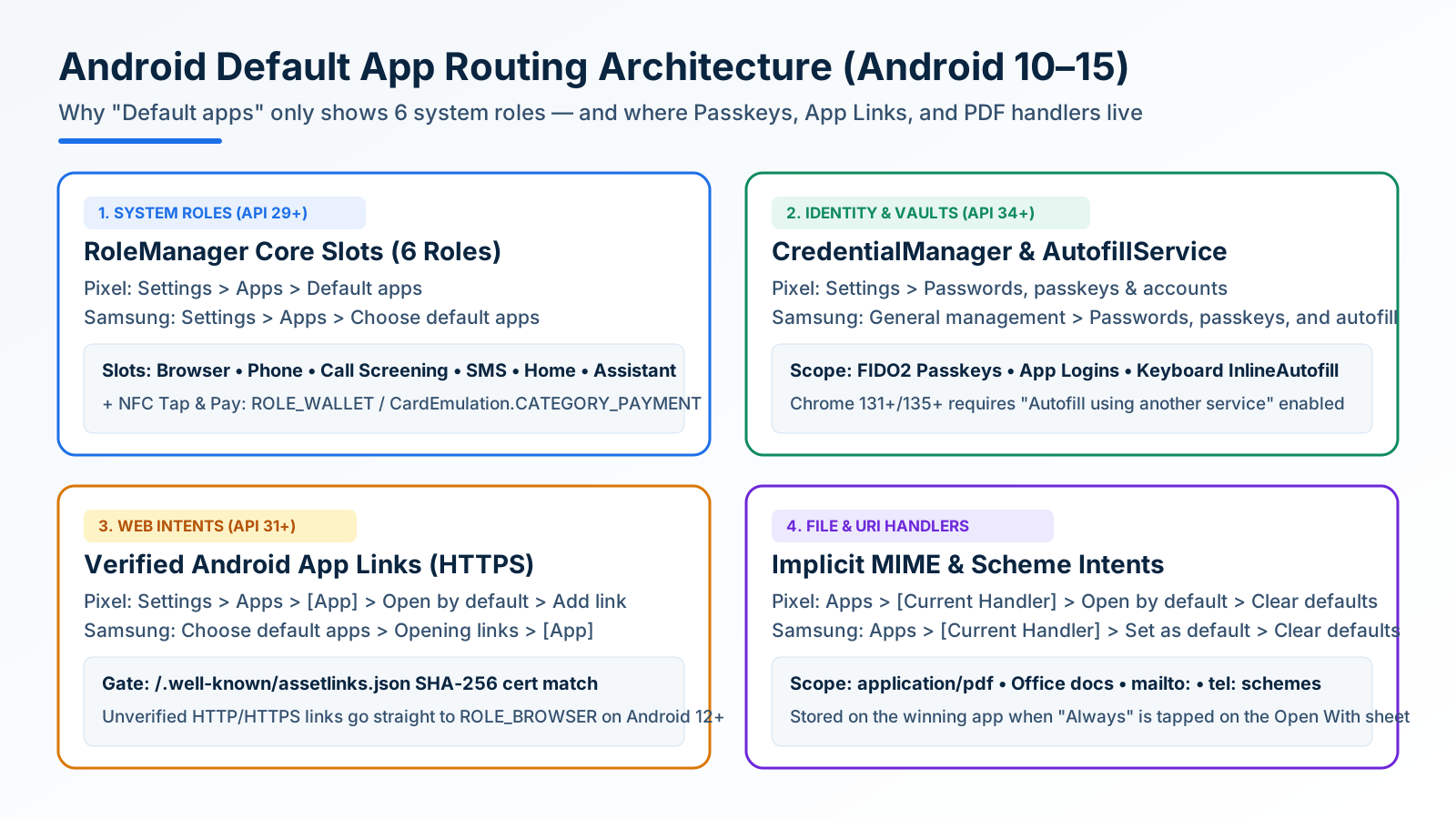
How to Change and Reset Default Apps on Android: Browsers, Passkeys, PDFs, and App Links
Looking only in Default apps fails when a wrong PDF viewer or browser hijacks links. Use Android's 4 routing menus to set browsers, passkeys, App Links, and MIME handlers.
Block Spam Calls and Robocalls on Android Without a Paid App
Use Filter spam calls, Pixel Call Screen, or Galaxy Text call. Google does not take numbers from your Contact list.
Split Screen and App Pairs: Multitasking on Android
Use two Android apps together, save supported app pairs, and check Pixel and Galaxy controls before relying on a multitasking shortcut.