
Contents
- Match one symptom to one failure mode
- Rules of thumb, then the 15-minute call window
- Worked example: two calls and a 15-minute window
- Read the Android version before you follow a Mode path
- Android Help: one app, a silent alert, and the lock screen
- Modes, Focus mode, and apps left unused
- Pixel: a delayed alert, then mobile data
- Galaxy: categories, history, and deep sleeping
- Change one control and repeat the same alert
- Method and sources
Changing several settings at once wastes the comparison that shows why Android notifications are not working. Match one fresh alert to the control printed for that phone, then leave every other switch as you found it.
- Send one alert. Note whether it is absent, late, silent, or missing only on the lock screen.
- One quiet app: that app’s notification switch and categories.
- Many quiet apps: Modes, including Do Not Disturb.
- A shade entry with no sound: Alerting versus Silent, then Notification cooldown.
- Retest after one change. Put the other switches back.
Android notifications are not working when a fresh alert never reaches the shade, shows up only after you open the app, appears with no sound, or stays off the lock screen. Write that result down before you change a setting. One quiet app points to that app’s notification switch or a category. Many quiet apps point to a Mode. A visible silent alert is Alerting versus Silent, or Notification cooldown during a burst. On a Pixel, Adaptive Battery may delay notifications, and Data Saver lets most apps use background data only on Wi-Fi. On a Galaxy, Deep sleeping apps run only when you open them, and categories appear after you turn on Manage notification categories for each app.
These checks sit with the other Android how-to guides. The taps below stay on the support page that prints them. This guide does not report a TasteOfAndroid measurement.
Scroll horizontally to read the labels in this diagram.
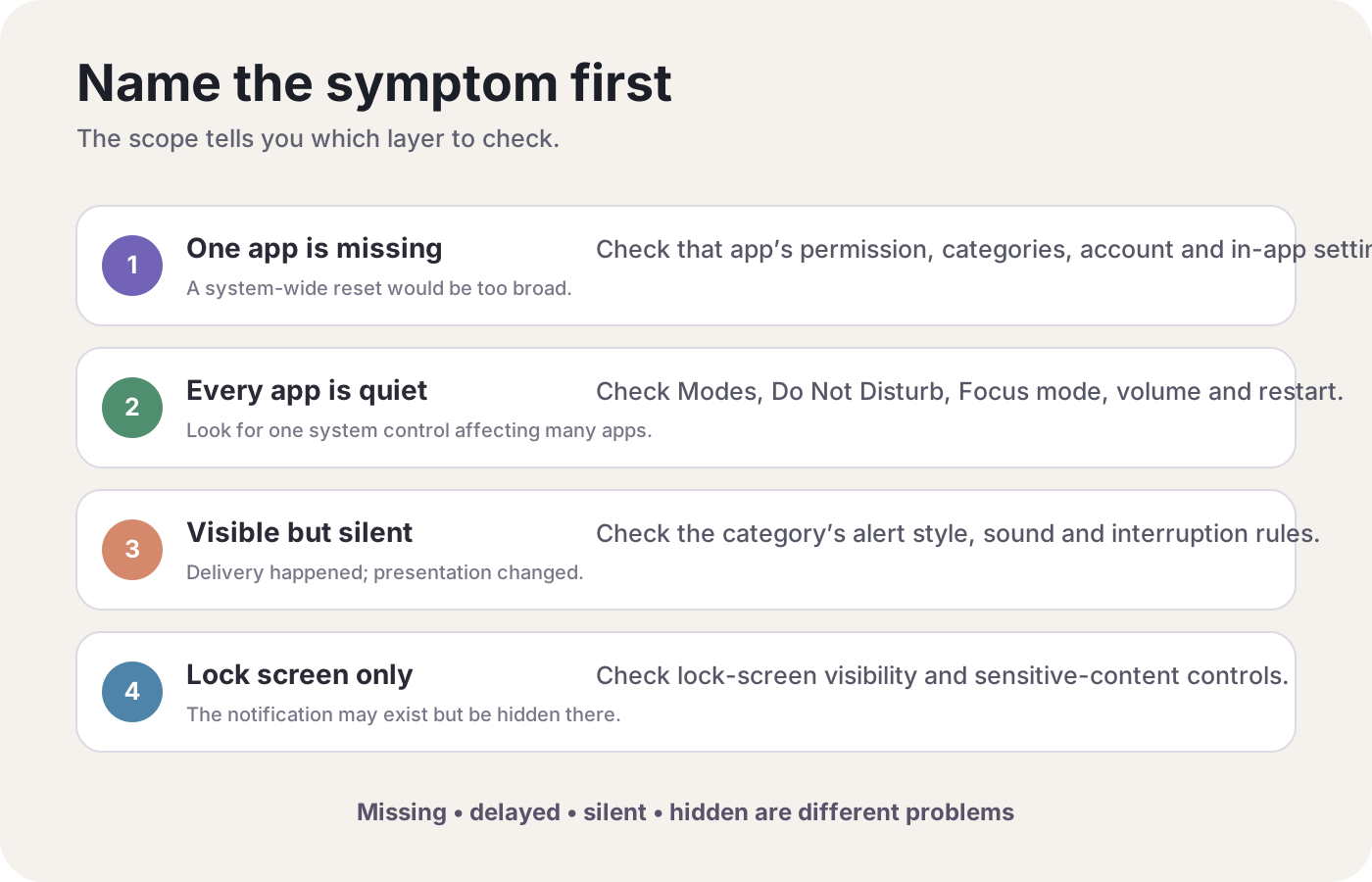
Open the full-size symptom diagram.
The diagram sorts the first check. It does not add a volume button or a restart. Those are not the first controls on the notification pages below.
Match one symptom to one failure mode
Scroll horizontally to view all table columns.
| Symptom | Dominant failure mode | Prevention |
|---|---|---|
| One app is quiet, others still alert | That app’s notifications are off, or one category is off | Android Help: Settings, Notifications, App notifications, then the app. On a Galaxy, turn on Manage notification categories for each app before the categories appear. [1] [10] |
| Many apps go quiet together | A Mode is filtering apps, people, or conversations | Settings, Modes, then the active mode’s notification filters. Critical system security notifications still show. Some steps work only on Android 14 and up. [2] |
| The shade shows it, and there is no sound | The alert is Silent, or cooldown has softened a burst | Set the category to Alerting, or turn Notification cooldown off for the retest. Cooldown minimizes sound and pop-ups. It leaves the notification in place. Calls, alarms, priority conversations, and emergency alerts are exceptions. [1] |
| The shade shows it, and the lock screen does not | Lock-screen visibility | Use the lock-screen option Android Help prints for that heading. The four options do not share one menu label. [1] |
| It appears only after you open the app | Background work is limited for that app | Pixel: Adaptive Battery and the Optimized state. Galaxy: Deep sleeping apps, which Samsung says work only when opened. [6] [11] |
| It fails on mobile data and arrives on Wi-Fi | Data Saver is holding background mobile data | Pixel only: Settings, Network & internet, Data Saver. Unrestricted data is the per-app exception on that page. [8] |
| The app has sat unused for a long time | Android has paused it | Apps, Unused apps. To exclude one app: App Info, Unused apps, then turn off Pause app activity if unused. [4] |
| A chosen app stays silent during Focus mode | Focus mode pauses that app and its notifications | Settings, Digital Wellbeing, Focus mode. Take a break, or turn Focus mode off, then repeat the same alert. [3] |
Rules of thumb, then the 15-minute call window
Rule of thumb. If one app is quiet and other apps still alert, open that app under Settings, then Notifications, then App notifications, before you open Modes. Android Help lets you turn off all notifications for the app or one category. If the phone does not show “Recently sent,” the same page says you are on an older Android version: tap App notifications, then the app, and use the category list there when the app has one. [1]
Rule of thumb. If many apps go quiet at the same time, open Settings, then Modes, and read the active mode’s notification filters. People, apps, and alarms are separate choices. Some of these steps work only on Android 14 and up. With any of those settings, critical notifications still show. Android Help’s example is system security notifications, which you cannot block. [2]
Rule of thumb. If the notification is already in the shade and the sound is missing, check Alerting versus Silent before you look for a delivery failure. Alerting plays a sound, shows a message on the lock screen, and puts the app icon in the status bar. Silent does not play a sound or vibrate, and the notification shows when you swipe down from the top of the screen. [1]
Rule of thumb. If the same person calls twice inside 15 minutes while a Mode is filtering calls, Allow repeat callers is the control Android Help prints for that second call. The gap, in minutes, is G = T2 − T1. T1 is the first call and T2 is the second. This rule is about calls under the People filter. It does not time chat notifications or app banners. [2]
Worked example: two calls and a 15-minute window
Android Help places Allow repeat callers under a mode’s People filter: turn it on to let a call through if the same person calls twice in 15 minutes. [2]
G = T2 − T1
Worked example. Put the first call at 9:00 and the second at 9:14. G = 14 minutes, inside the 15-minute window the page names. Put the second call at 9:16 and G = 16 minutes, outside that window. The page does not say what happens at exactly 15 minutes. App notifications, messages, and conversations are separate choices on the same filter screen, and this arithmetic does not sort them.
When the symptom is a missing app banner, skip this example and use the app or category row in the table.
Read the Android version before you follow a Mode path
Android Help’s Mode page says some of its steps work only on Android 14 and up. The version is under Settings, then About phone or About tablet, then Android version. That screen also shows the security update, the Google Play system update, and the build number. [2] [5]
Pixel’s Adaptive Battery page and Pixel’s battery page carry the same Android 14 limit on some of their steps. Data Saver’s phone steps are the ones Pixel Help limits to Android 8.0 and up. [6] [7] [8]
If About phone shows a version those Mode steps do not cover, the missing screen is a software limit. How long this phone should still receive Android updates is the separate question on how long an Android phone receives updates. Android Help also says older devices cannot always run newer Android versions. [5]
Android Help: one app, a silent alert, and the lock screen
Scroll horizontally to read the labels in this diagram.
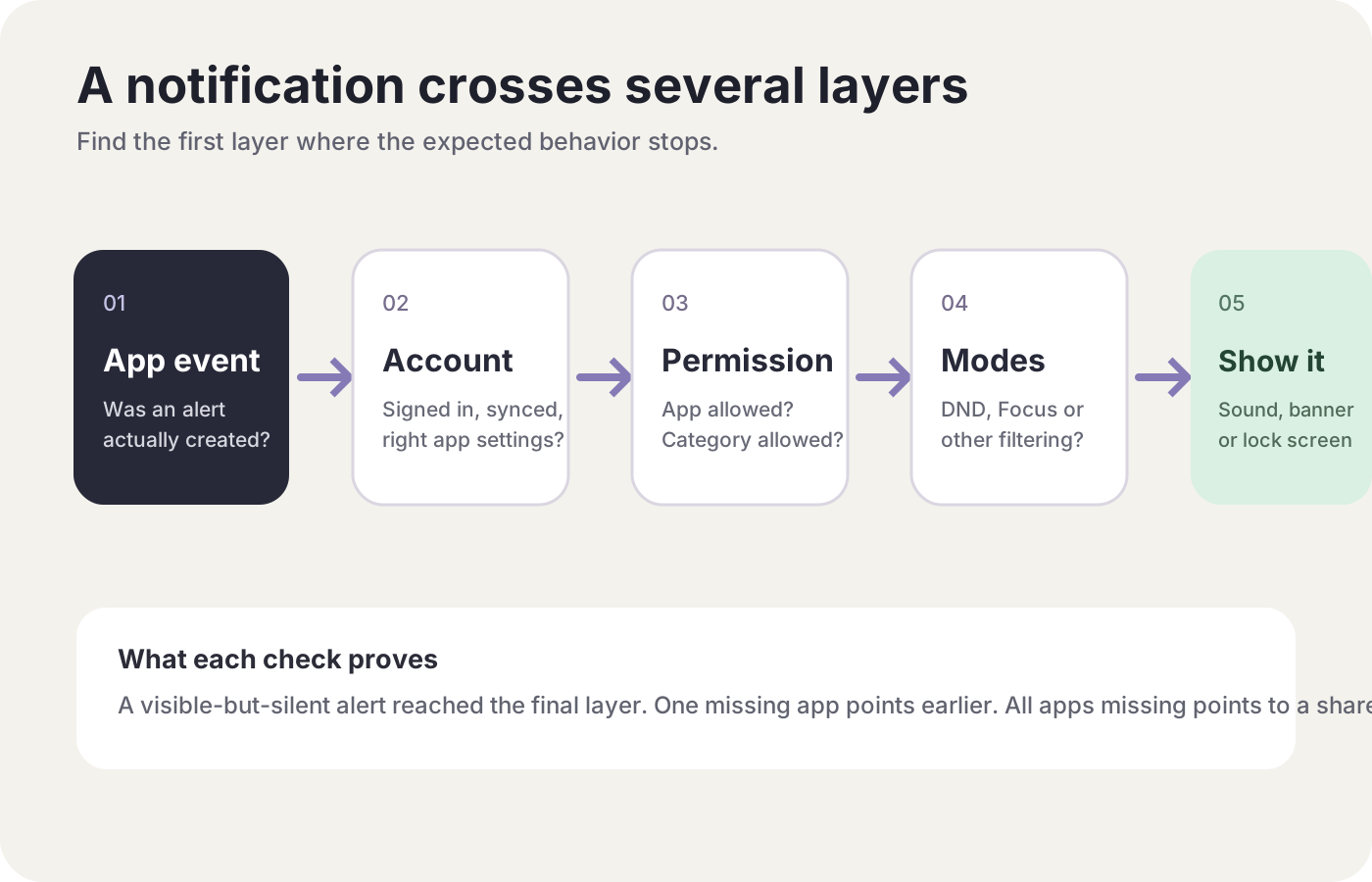
Open the full-size layer diagram.
Stop at the first layer that disagrees with the fresh alert. A visible silent notification has already passed the app, the account, and the permission. An alert that exists only after you open the app has not.
Android Help’s app switch is Settings, then Notifications, then App notifications. Under “Most recent,” open the app that just alerted you, or choose All apps from the dropdown. You can turn off all notifications for that app or choose specific categories. From the shade, touch and hold the notification, tap Settings, and turn All notifications off, or turn individual types on or off. Many apps also keep their own notification settings inside the app. Open the app and use its settings menu for the account, conversation, or alert type. [1]
Alerting or Silent, on the same page: Settings, then Apps & notifications, then Notifications. Under “Recently Sent,” tap the app, tap the notification type, then choose Alerting or Silent. For an alerting notification, Pop on screen is the banner while the phone is unlocked. If you chose Silent, Minimize can be on or off. From the shade, drag the notification slightly right or left, tap Settings, then tap Alerting or Silent, then Apply. [1]
Notification cooldown is for a burst, such as the alerts that arrive when you turn Airplane mode off after a flight. Settings, then Notifications, then under General, Notification cooldown, then Use Notification cooldown. While it is on, the phone minimizes sound interruptions and on-screen pop-ups when too many notifications arrive in a short time. Calls, alarms, priority conversations, and emergency alerts stay outside that limit. Turn it off, repeat the same burst, and turn it back on if the sound was not the thing that changed. [1]
Notification history, on Android Help, is a lookup for snoozed notifications, recently dismissed notifications, and a history of the day’s notifications. Some devices do not have it. To check, go to Settings, then Notifications. The page does not print an enable switch. To act on an entry, tap and hold a notification under “recently dismissed,” or tap one under “last 24 hours.” No entry is not proof the app never created an alert. The Galaxy switch that turns history on is in the Samsung section, because that is the page that prints it. [1] [10]
Lock-screen controls on Android Help are four options, and the page says settings can vary by phone. Use the option whose heading matches the symptom.
Don’t show any notifications: Settings, then Apps & notifications, then Notifications. Under “Lock screen,” tap Notifications on lock screen or On lock screen, then Don’t show notifications. Chosen as the default, this applies to all apps. [1]
Show all notifications: the same path, then Show alerting and silent notifications. On some phones the choice is Show all notification content. You can still restrict certain apps to “Hide sensitive notification content” or “Don’t show notifications at all” on the lock screen. [1]
The heading “Hide silent notifications on your lock screen” is paired, on that page, with Settings, then Notifications, then under Privacy, Notifications on lock screen, then Show sensitive content on or off. [1]
Hide sensitive content: Settings, then App & notifications, then Notifications. Under “Lock screen,” turn off Sensitive notifications. The page prints “App & notifications” for this option and “Apps & notifications” for the first two. Follow the label on the phone when they differ. [1]
Modes, Focus mode, and apps left unused
On Android 14 and up, where the Mode page’s steps apply, swipe down from the top of the screen and tap Do Not Disturb to turn that mode on or off. The setup path is Settings, then Modes, then Do Not Disturb, then Turn on now. Bedtime mode and Driving mode are on the same Modes screen. Each one tells you to edit its notification filters, so a schedule can quiet apps while the Do Not Disturb tile looks off. [2]
Inside a mode, under Notification filters: People blocks or allows calls, messages, or conversations. Apps chooses which apps can send notifications. Alarms & other interruptions blocks or allows alarms, media, touch sounds, reminders, or calendar events. Allow repeat callers, under People, is the 15-minute call control in the worked example. [2]
How long Do Not Disturb stays on from Quick Settings: Settings, then Modes, then Do Not Disturb, then Duration for Quick Settings. The choices are until you turn it off, a certain time, or ask every time. The page’s examples of a certain time are “For 2 hours” and “For 15 minutes.” Those examples are duration choices, not a second copy of the repeat-caller window. [2]
Filtered notifications can also be hidden or shown: Settings, then Modes, select the mode, then More settings, Display settings, Display options for filtered notifications. The page says to choose what to block or allow. It does not list the display choices in the article text, so this guide does not name any. [2]
If the phone shows “Do Not Disturb preferences” instead of Modes, Android Help says you are on an older Android version and sends you to the Android 8.1 and below steps. Those start at Settings, then Sound, then Do Not Disturb preferences, or Settings, then Sound & vibration, then Do Not Disturb, then Turn on automatically. The quick-settings gesture on that older section is a two-finger swipe from the top of the screen. Total silence, on that older path, stops alarm noise, vibration, and notification sounds, and it also silences music, video, and games. You can still hear the other person during a call. Alarms only, and Priority only, do not mute that media. Do not type the Android 14 path into a phone that is still showing the Android 8.1 labels. [2]
Override Do Not Disturb for one app, as that page prints it: Settings, then Apps & notifications, then the app. If the app is not listed, tap See all apps or App info, then the app. Tap App notifications, then turn on Override Do Not Disturb. If that line is missing, tap Additional settings in the app, then Notifications, then turn on Override Do Not Disturb. [2]
Focus mode is on the Digital Wellbeing page, not on the Modes page. Settings, then Digital Wellbeing, then Focus mode. Choose the apps to pause. While Focus mode is on, you cannot use those apps and you do not get notifications from them. Turn on now or Turn off now starts and stops it. Set a schedule turns it on at a time you pick. Take a break unpauses the apps for a time limit you choose. On some devices you can add Focus mode to Quick Settings. The page says some of these steps vary by device, and that Digital Wellbeing itself is on some phones. [3]
Unused apps are a separate Android Help page, and only for an app you have not used for a long time. Android then deletes temporary files, revokes permissions, stops background running, and stops notifications. Review them at Apps, then Unused apps. To keep one app out of that pause: App Info, then Unused apps, then turn off Pause app activity if unused. [4]
Pixel: a delayed alert, then mobile data
Keep this section on a Pixel. The menus are from Pixel Phone Help.
Adaptive Battery is on by default. Apps you use less often run less while you are not using them. Pixel Help says this can reduce performance and delay notifications. Some of these steps work only on Android 14 and up. After you set up a new Pixel, or after a factory reset, optimization may take up to a few weeks, and the page says to keep Adaptive Battery and battery optimization on during that time. A little extra battery drain for a few days after a software update is also described there, because the phone is downloading and optimizing the update. [6]
The per-app state on that page is Settings, then Apps, then See all apps, then the app, then App battery usage, then Allow background usage, then Optimized. Battery optimization is not offered for some essential services. Turning optimization off lets that app run more in the background even while Adaptive Battery is on, and Pixel Help says that can use more battery than needed. If the phone then runs down faster, use the Android battery drain checks for that separate problem, and put this app back on Optimized unless the notification retest required it to stay off. [6]
The battery screen is a second Pixel page, also limited to Android 14 for some steps. Settings, then Battery, then Battery usage, then View by apps, then the app name. The page says that for some apps you can restrict background battery usage there. It does not print a second menu name for that restriction. Use the Optimized path above when you need the named state. [7]
Data Saver, when the failure is mobile data only: Settings, then Network & internet, then Data Saver. While it is on, most apps and services get background data only via Wi-Fi. The app you are using can still use mobile data. To let one app use background mobile data, open Unrestricted data under Data Saver and turn that app on. Some of these phone steps work only on Android 8.0 and up. Turn the exception off again if the locked-phone retest does not change. [8]
If the same alert arrives on one connection and fails on another, Pixel’s network page lists Wi-Fi, mobile network, VPN, and Airplane mode as separate items under Settings, then Network & internet. Airplane mode itself is that screen’s switch, and you can also swipe down and use the tile. You can connect to Wi-Fi while Airplane mode is on. That page does not print a notification repair. It tells you which connection you are changing. [9]
Galaxy: categories, history, and deep sleeping
Keep this section on a Galaxy phone or tablet, from Samsung’s US support pages.
Open notifications by swiping down from the top of the screen. Notification settings is at the bottom of that panel. The settings path for one app is Settings, then Notifications, then App notifications. The dropdown includes Most recent. To block an app, tap its switch. Notifications turned off, in that dropdown, lists the blocked apps. [10]
Categories are behind a switch. Settings, then Notifications, then Advanced settings, then the switch next to Manage notification categories for each app, then Back. Then App notifications, then the app. Notification categories is where Samsung says you can set a custom sound or silence a category. Some apps do not have a Notification categories section, and the options vary by app. For a custom sound, the category needs Allow notifications on and Alert selected, then Sound. Some apps keep the sound control in the app instead of in phone settings. [10]
Notification history on this Galaxy page is off until you enable it. Settings, then Notifications, then Advanced settings, then Notification history, then the switch at the top. Samsung says this saves recently dismissed notifications so you can view them later. Enable it before you rely on it for the next dismissal. It does not recreate an alert the app never posted. [10]
Snooze, on the same page, is also under Advanced settings: the switch next to Show snooze button. That is separate from Android Help’s Allow notification snoozing. [10] [1]
Deep sleeping apps are on Samsung’s sleeping-apps page. Settings, then Battery and device care, then Battery, then Background usage limits. Deep sleeping apps never run in the background. Samsung says they work only when you open them. Sleeping apps are the other list: they may run in the background once you start using them again. Put unused apps to sleep is the automatic switch for apps you have not used in a while. Never sleeping apps are the list for apps that should not sleep. [11]
If the affected app is on Deep sleeping apps, remove it with the page’s steps: More options (the three vertical dots), Remove apps, select the app, Remove. Repeat the same alert with the phone locked. If delivery does not change, put the app back. Adding it to Never sleeping apps is a different list, for apps you want left running. Do not put a Pixel Optimized toggle, or Android’s Pause app activity if unused, on this Galaxy screen. [11]
Change one control and repeat the same alert
Scroll horizontally to read the labels in this diagram.
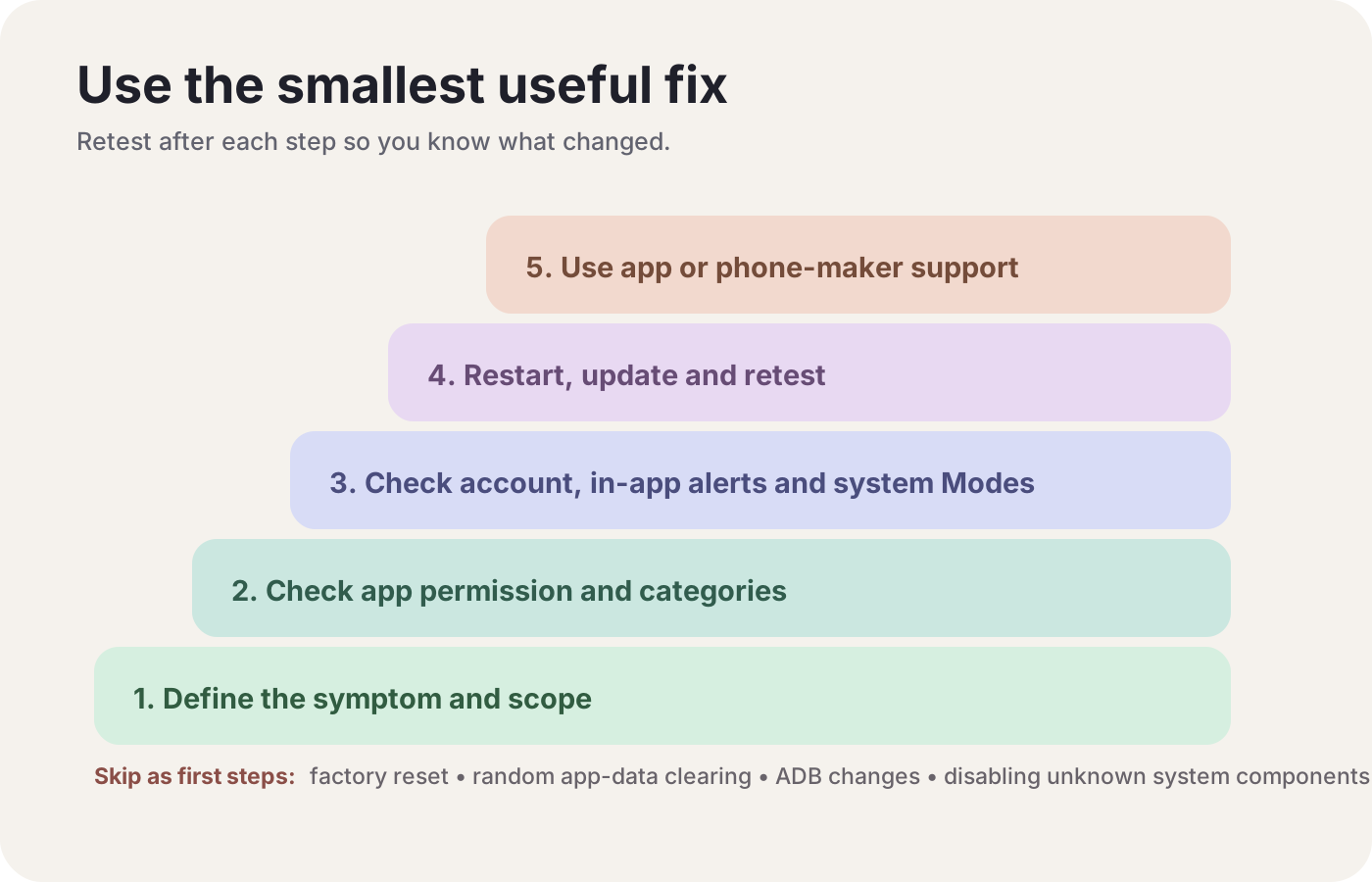
Open the full-size check order.
Use the same app, account, alert type, and lock state for the retest. Keep the change that moved the result. Return the others.
When the printed control is missing, Android Help’s repeated instruction is to contact the device manufacturer, because settings vary by phone. Record the model, the Android version from About phone, the app version, the account or alert type, and the time of the test before you do that. [1] [5]
Method and sources
The steps above are copied from Android Help, Pixel Phone Help, and Samsung Support US pages fetched on October 18, 2026. developer.android.com and source.android.com returned a sign-in redirect loop on that fetch, so this page does not use them for permission exemptions, notification channels, or Doze. Each menu path stays with the support page that prints it.
Sources & methodology11 sources
Evidence used for this article. Links open the original source in a new tab.
- Control notifications on Android — Android Help
- Limit interruptions with Modes and Do Not Disturb on Android — Android Help
- Manage how you spend time on your Android phone with Digital Wellbeing — Android Help
- Manage unused apps on your Android device — Android Help
- Check and update your Android version — Android Help
- Keep Adaptive Battery and battery optimization on — Pixel Phone Help
- Check battery level on your Pixel phone — Pixel Phone Help
- Use less mobile data with Data Saver — Pixel Phone Help
- Control airplane mode, private DNS and other network settings — Pixel Phone Help
- Control app notifications on your Galaxy phone or tablet — Samsung Support
- Sleeping apps on your Galaxy device — Samsung Support
TasteOfAndroid is responsible for this page. The byline, method and commercial relationships are on the editorial policy and the author page.
Related Articles
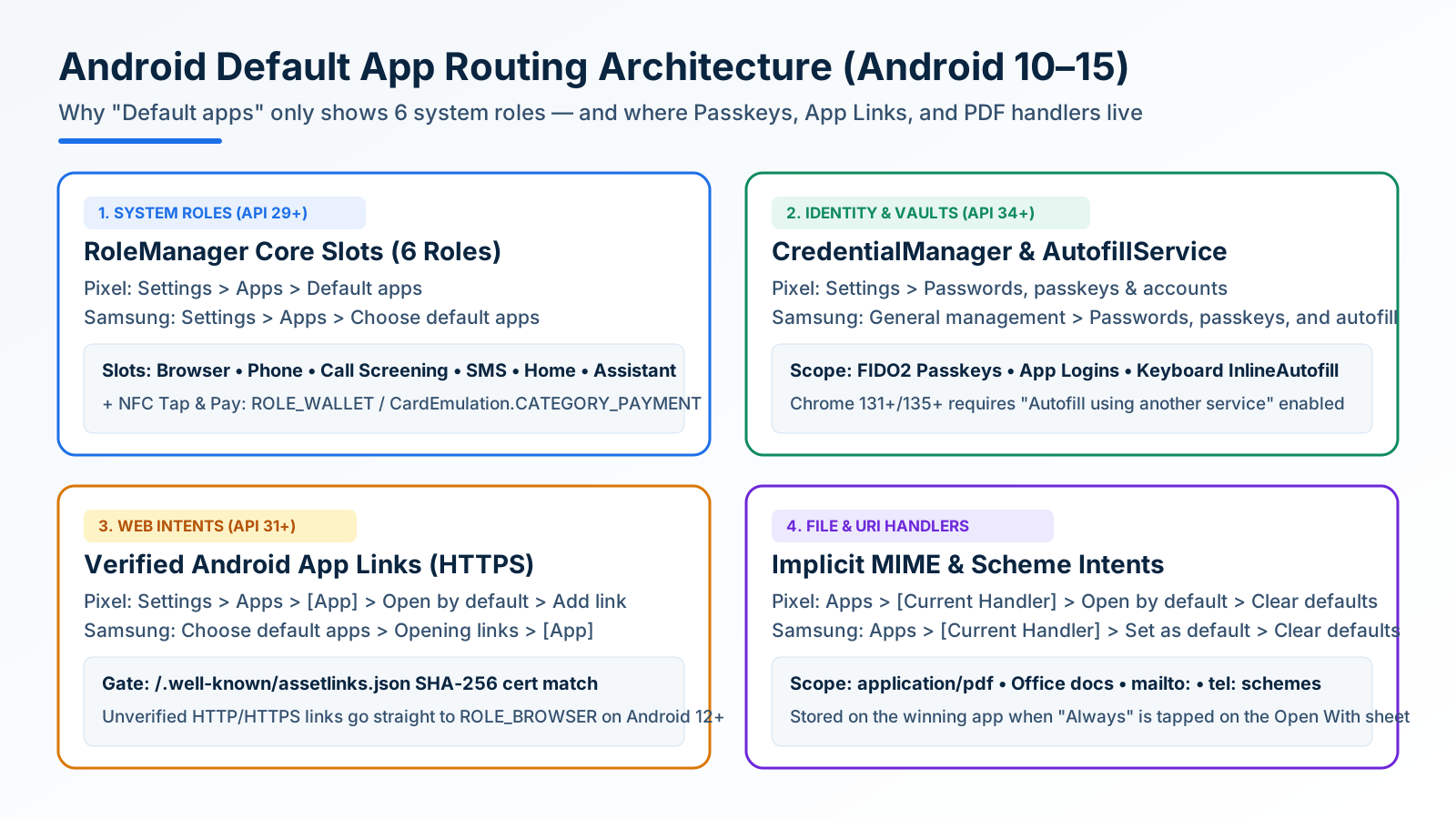
How to Change and Reset Default Apps on Android: Browsers, Passkeys, PDFs, and App Links
Looking only in Default apps fails when a wrong PDF viewer or browser hijacks links. Use Android's 4 routing menus to set browsers, passkeys, App Links, and MIME handlers.
Block Spam Calls and Robocalls on Android Without a Paid App
Use Filter spam calls, Pixel Call Screen, or Galaxy Text call. Google does not take numbers from your Contact list.
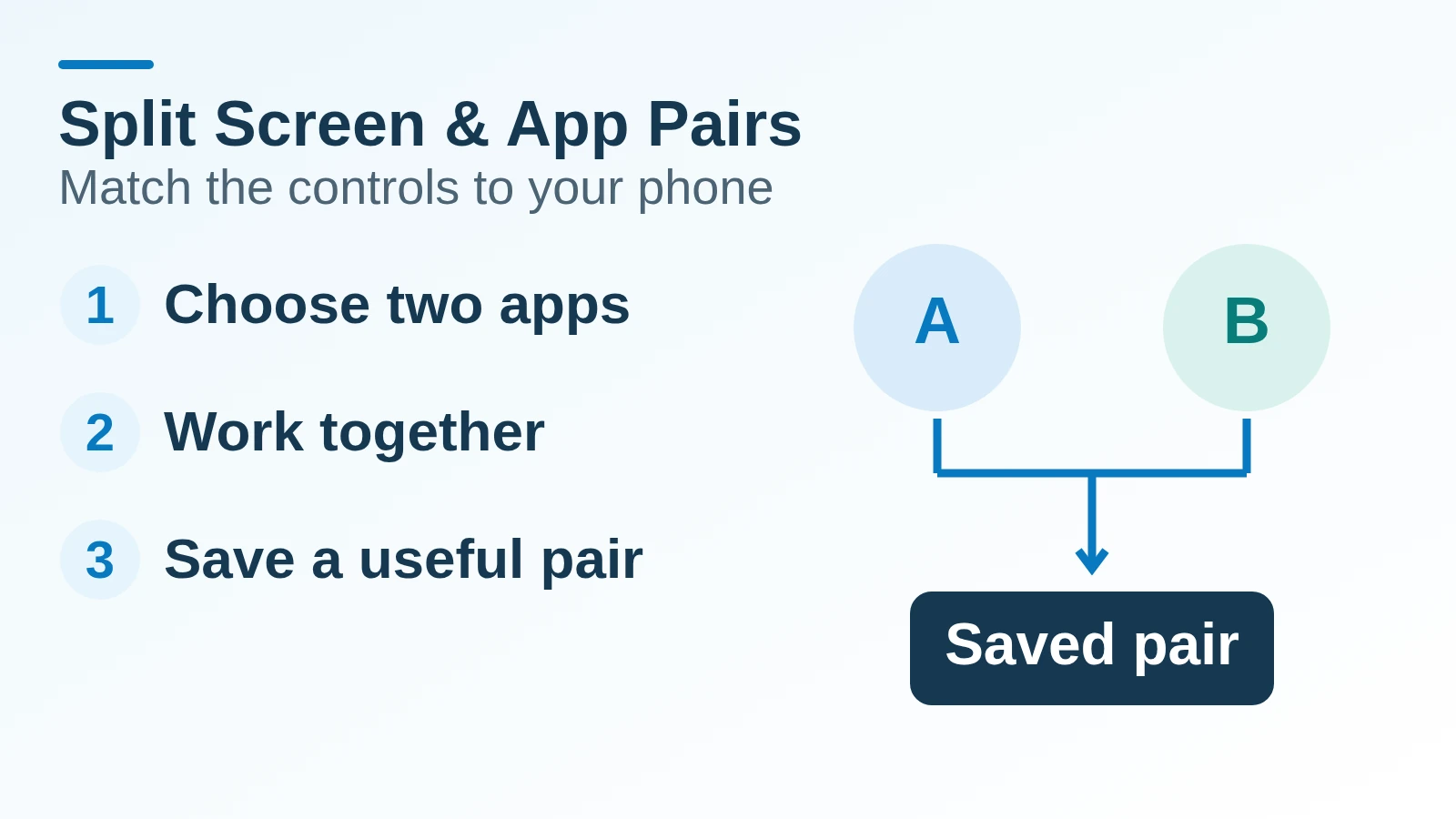
Split Screen and App Pairs: Multitasking on Android
Use two Android apps together, save supported app pairs, and check Pixel and Galaxy controls before relying on a multitasking shortcut.