
Contents
- Cable or wireless: what actually changes?
- How much free storage do you need?
- How do you copy with a cable in generic Android setup?
- How do you copy wirelessly in that same flow?
- What changes on a Galaxy using Smart Switch?
- What can still be missing after a successful copy?
- How much time should you set aside?
- Method and sources
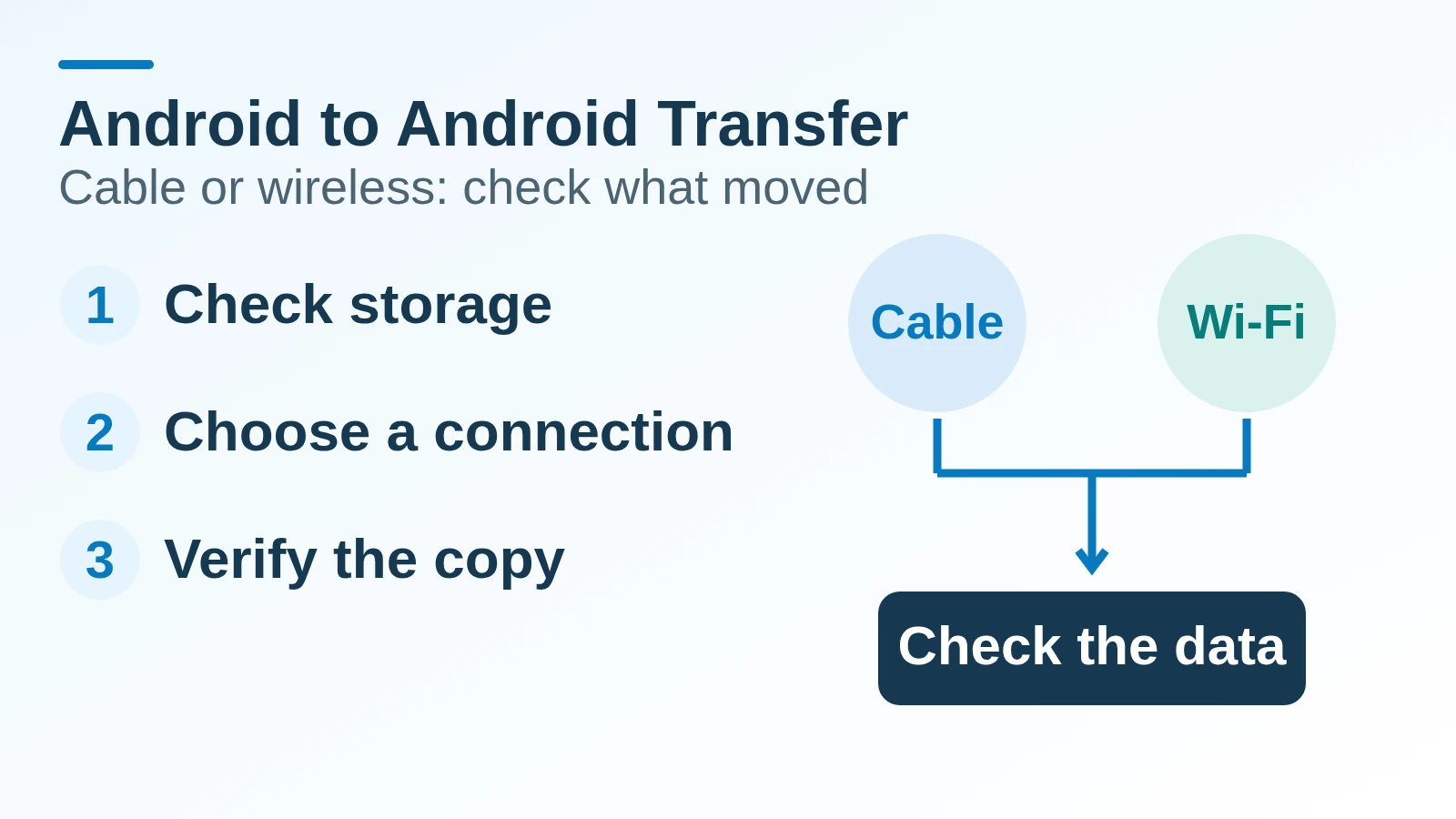
Erasing the old phone too early can leave downloads, app data, or account access behind. To transfer data from Android to Android, choose the cable path Android Help recommends when a compatible cable is available, or wireless when it is not, then verify the result before retiring the old phone.
Cable and wireless support the same data in Android Help’s generic setup flow. Cable is its recommended option; wireless is the alternative when a compatible cable or adapter is unavailable. That does not establish a universal speed winner or mean that everything on the old phone transfers. Check storage first, use the instructions for the destination phone, and keep separate time for the copy, app-specific restoration, sign-ins, and verification. Galaxy Smart Switch and Pixel setup have their own documented paths, so their controls and later-copy options should not be inferred from the generic Android flow.
Use this comparison alongside the broader new Android phone setup checklist, which covers backup and the checks before a reset.
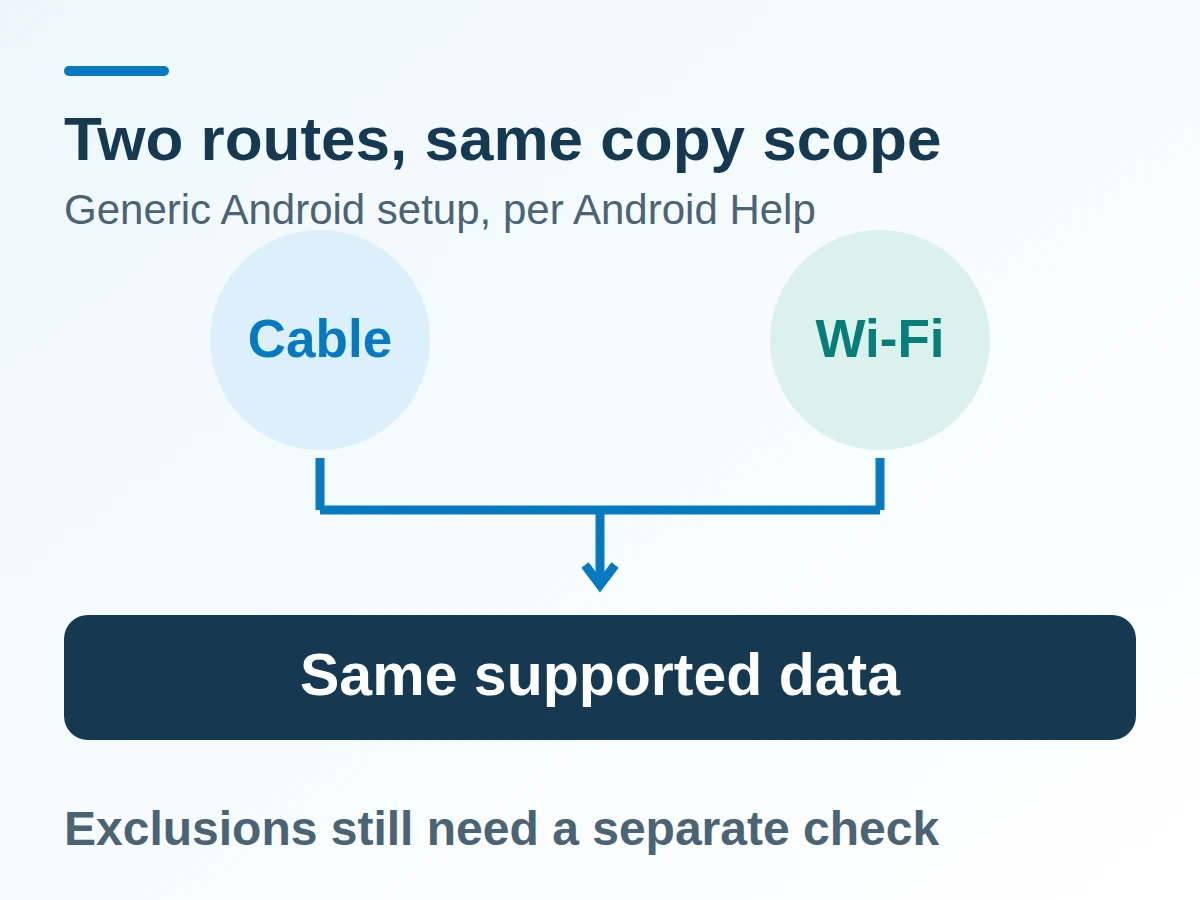
The transport choice does not remove the generic setup flow’s exclusions.
Cable or wireless: what actually changes?
The connection and pairing steps change; Android Help says both options support the same data. Its copy guide recommends a cable, requires internet access, and recommends Wi-Fi on both phones even when you choose the cable route.
Scroll horizontally to view all table columns.
| Route | Choose it when | What the source establishes | Dominant Failure Mode & Prevention |
|---|---|---|---|
| Generic Android, cable | A compatible cable fits both phones, or a suitable adapter is available | Recommended by Android Help; follow the connection prompts | The cable does not fit or the connection cannot be established. Confirm compatibility before starting; use the wireless route if needed. |
| Generic Android, wireless | You lack the compatible cable or adapter | Same supported data; the old phone uses the Google app pairing path | Pairing the wrong devices or skipping completion. Match the shapes and numbers and wait for the completion message. |
| Galaxy Smart Switch | The new Galaxy offers Smart Switch, including quick setup on supported devices | The QR setup page offers Wirelessly or Cable and a transferred-data summary | Following generic No cable steps on a Smart Switch screen. Stay with Samsung’s labels and inspect its summary. |
| Google Account backup restore | The old phone is unavailable and an existing backup is available | Android Help documents restoring a previous backup | Expecting a backup to contain data never saved to it. Check its available data types and plan separate recovery for missing items. |
The Galaxy quick-setup page says availability varies and initial screens can differ by carrier. Android Help explicitly sends transfers to Pixel 8 or Pixel 8 Pro to Pixel Help. Pixel’s page separates device groups and setup stages; use the section naming your Pixel rather than mixing its taps with the generic sequence below.
How much free storage do you need?
The new phone needs enough space for the data you select. Android Help tells you to check storage on both devices and choose which data to transfer if the new phone lacks room. It supplies no universal spare-space percentage.
Threshold rule: If the selected transfer size exceeds the destination’s available storage, reduce the selection or make space before proceeding. A faster connection cannot fix insufficient capacity. Compare values shown in the same units and account separately for later downloads.
Formula: provisional headroom = available destination storage − selected transfer size.
Worked example — hypothetical storage inputs: 48 GB available − 36 GB selected = 12 GB provisional headroom. This is a subtraction using assumed displayed values, not a guarantee of final free space. App installation, downloads, and changes during setup can consume additional storage.
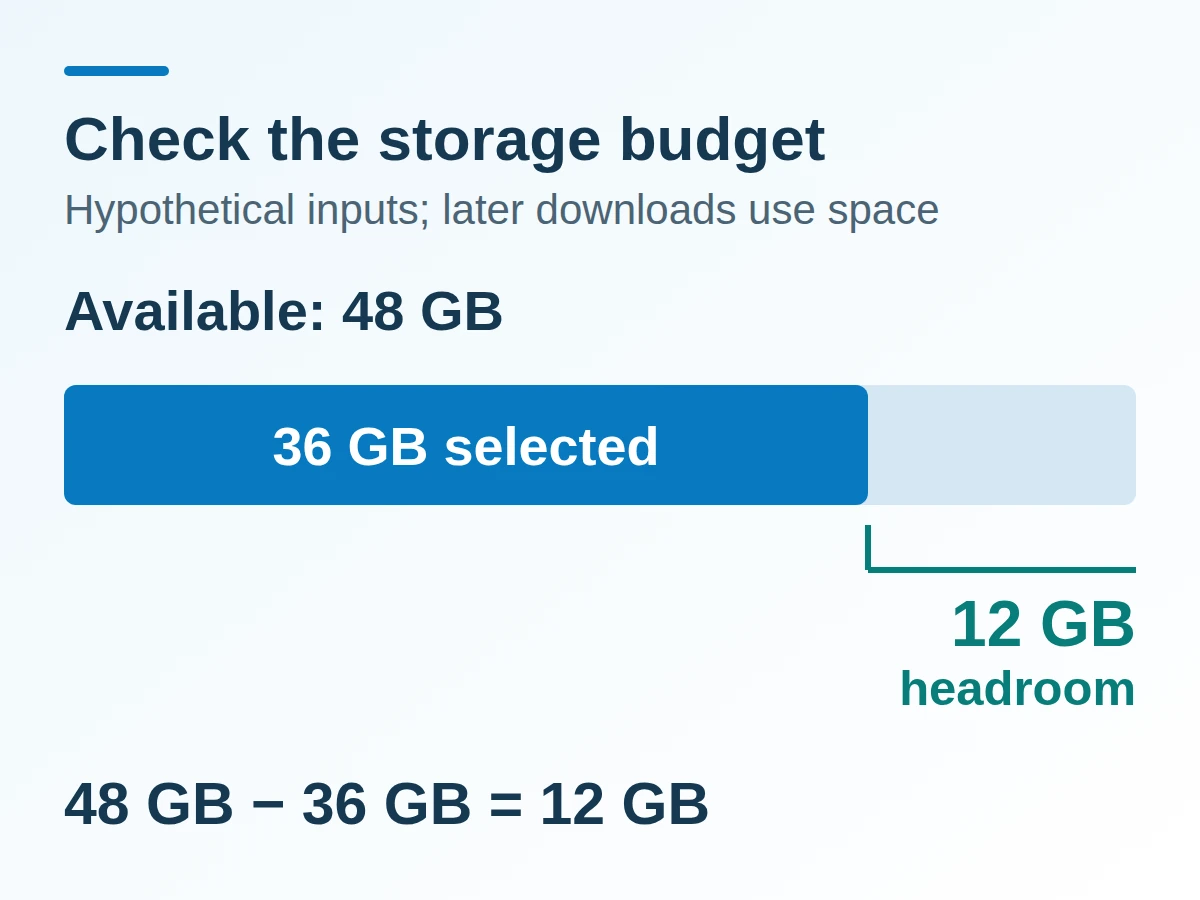
Compare selected data with available space, rather than comparing the two phones’ advertised capacities.
How do you copy with a cable in generic Android setup?
Choose Copy, connect the phones as prompted, and select the data to move. These steps follow Android Help, which says some of its instructions work only on Android 10 and up and recommends copying during setup because the option may not be available afterwards.
- Charge both phones and check their storage before starting. Keep the old phone available and unlocked when the process asks for it.
- Turn on the new Android device, tap Start, and connect to a network as prompted.
- At the apps-and-data copy step, tap Copy, then follow the cable connection instructions on screen.
- On the old phone, tap Copy. Sign in to the Google Account as recommended for a more complete transfer, choose what to copy, then tap Copy.
- Wait for completion. The page describes Copying your data… on the new phone during the process and Copying’s done on the old phone when finished.
This is the generic flow, not a substitute for Smart Switch or the Pixel-specific instructions. Android Help describes its transfer as available only once; that statement should not be expanded into a claim that every manufacturer’s tool can never copy data after setup.
How do you copy wirelessly in that same flow?
Choose No cable and follow the Google app pairing instructions on the old phone. These are the wireless steps in Android Help, rather than a Google Account backup restore.
- On the new phone, when asked to find a cable, tap No cable. At Transfer wirelessly, tap Next. Enter the old phone’s PIN on the old phone as instructed.
- On the old phone, open the Google app and search for set up my device.
- Tap Next, then Next at Get started.
- Check that the shapes and numbers match on both phones, then tap Next → Copy.
- Sign in to the Google Account as recommended, select the apps and data, and wait for the completion message.
If the old phone is unavailable, Android Help instead offers a restore from a previous Google Account backup. That path depends on the backup already existing; it is not a wireless live copy from a missing phone.
What changes on a Galaxy using Smart Switch?
Follow the Galaxy’s QR and permission prompts, then choose Wirelessly or Cable on the new device. The Samsung quick-setup instructions begin during first setup and do not apply to every Galaxy.
Select Galaxy or Android device on the new phone. When the old phone shows the Smart Switch pop-up, tap Set up and scan the new phone’s QR code with the old phone. At Copy apps & data, tap Next, allow Smart Switch on both phones, and complete the agreement and permission prompts. Choose the connection, select the data on the new phone, then tap Next.
Wait until the transfer completes and tap Done on the old phone. Samsung then tells you to open the new phone’s notification panel and tap Data transfer complete to see the summary. That summary is a useful starting point for checking what moved.
Samsung says Smart Switch can still transfer data later if the new phone is already set up. Repeating its initial QR quick-setup route requires a factory reset, which removes current data. Do not reset a configured phone merely to recover the QR entry point; first use the later-transfer option linked from Samsung’s page.
What can still be missing after a successful copy?
A completed connection does not mean every file, account, and app session moved. Before erasing the original, check each important app’s migration instructions for any separate backup or sign-in requirements. The generic Android copy page lists supported items and explicit exclusions for both transport options.
Scroll horizontally to view all table columns.
| Data group | Generic Android setup scope | Check before retiring the old phone |
|---|---|---|
| Photos, videos, music, contacts, texts and call history | Listed as copying, with contacts on the phone or SIM and most settings dependent on device/version | Open representative items on the new phone, including older ones you still need. |
| Apps and app data | Apps and certain app data; non-Play Store apps and data from apps without Android backup are excluded | Open important apps, check their contents, and complete required sign-ins or their own migration process. |
| Downloads and hidden folders | Downloads such as PDFs, and media in hidden folders, do not copy in this generic flow | Inventory these on the old phone and arrange a separate copy where needed. |
| Other accounts | Non-Google accounts and their data, plus contacts and calendars synced to other services, are excluded | Restore account access and confirm the service’s data is present. |
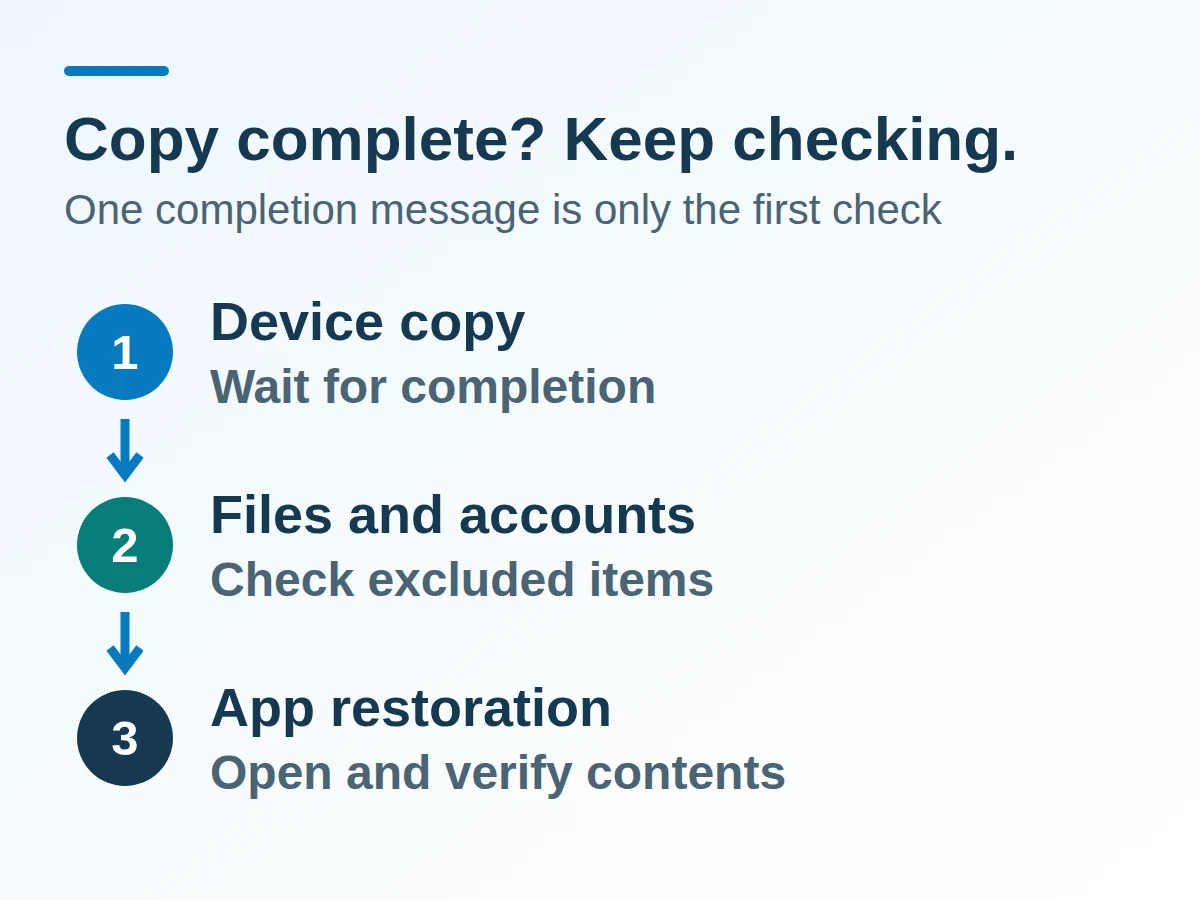
Apply this exclusion list to the generic Android flow. Check the selected tool’s own summary and documentation for Galaxy or Pixel details.
How much time should you set aside?
Allow for the whole migration, including recovery and verification. Android Help gives a broad range of a few minutes to a few hours before transfer; its cable section also says the copy can take a few minutes to over an hour, depending on data quantity. Those statements are not benchmarks for cable versus Wi-Fi and do not establish a transfer rate per gigabyte. Source: Android Help.
Scroll horizontally to view all table columns.
| Time ledger | What consumes the time | Next useful page |
|---|---|---|
| Preparation | Charge both phones, confirm account access, check storage and the cable or wireless path | Set up a new Android phone |
| Copy | Wait for the selected tool’s completion message; record the actual duration rather than inferring it from a port specification | Android how-to guides |
| Recovery and verification | Restore excluded items, open important apps, confirm photos and messages, and preserve authenticator access | Back up photos, messages and authenticator codes |
| New backup | Confirm the selected types are saved on the new phone; Android Help says Google One backup can take up to 24 hours | Backup checks before retiring the old phone |
The Android backup page says On appears under selected data types when saved. That backup clock is separate from the device-copy clock. Keep the old phone until the data and account-access checks relevant to you pass; a transport completion message alone does not settle them.
Method and sources
Updated 19 October 2026. This comparison uses Android Help, Pixel Phone Help, and Samsung US support pages retrieved on that date. The generic Android copy list applies to that flow; Samsung and Pixel instructions are kept within their documented scope. The storage calculation uses labeled assumptions. No USB signaling rate is treated as a measured migration speed, and the diagrams do not reproduce a device interface.
Sources & methodology4 sources
Evidence used for this article. Links open the original source in a new tab.
- Copy apps and data from an Android to a new Android device — Android Help
- New Galaxy phone or tablet quick setup with Smart Switch QR code — Samsung Support
- Transfer data from your previous device to a Pixel phone — Pixel Phone Help
- Back up or restore data on your Android device — Android Help
TasteOfAndroid is responsible for this page. The byline, method and commercial relationships are on the editorial policy and the author page.
Related Articles
Termux for Beginners: Install, Manage Packages and Check Your First Script
Choose a single Termux install channel on Android, keep add-on signatures matched, learn pkg and storage boundaries, and verify a first Python script.
Syncthing Android to PC: Setup, Conflicts and Recovery Checks
Set up Syncthing on Android and PC, map a shared folder, and check edits, conflicts and deletion recovery with disposable files before syncing real work.
Make a Simple Android Clock Widget with KWGT
Build one KWGT clock widget, resize it before loading the preset, and see why minute updates and taps can differ by launcher.