
Contents
- Record the window before you change a setting
- Match the pattern to a failure mode
- Rules of thumb, then the Pixel overnight arithmetic
- Worked example: the Pixel overnight drop
- Use the path printed for your phone
- Android Help, for phones that follow that page
- Pixel menus
- Samsung Galaxy menus on the UK page
- Safe mode changes the network unless you undo that
- Heat, signal, and charging are separate tests
- The ladder, and the reset that erases the evidence
- Frequently asked questions
- Does the 10% overnight test apply to every Android phone?
- Should I drain an Android battery from full to empty to calibrate it?
Changing several settings at once wastes the comparison that would show which change fixed Android battery drain. Heat makes the next reading worse. Android Help says the battery drains much faster when the phone is hot, even while you are not using it, and that this kind of drain can damage the battery. [1]
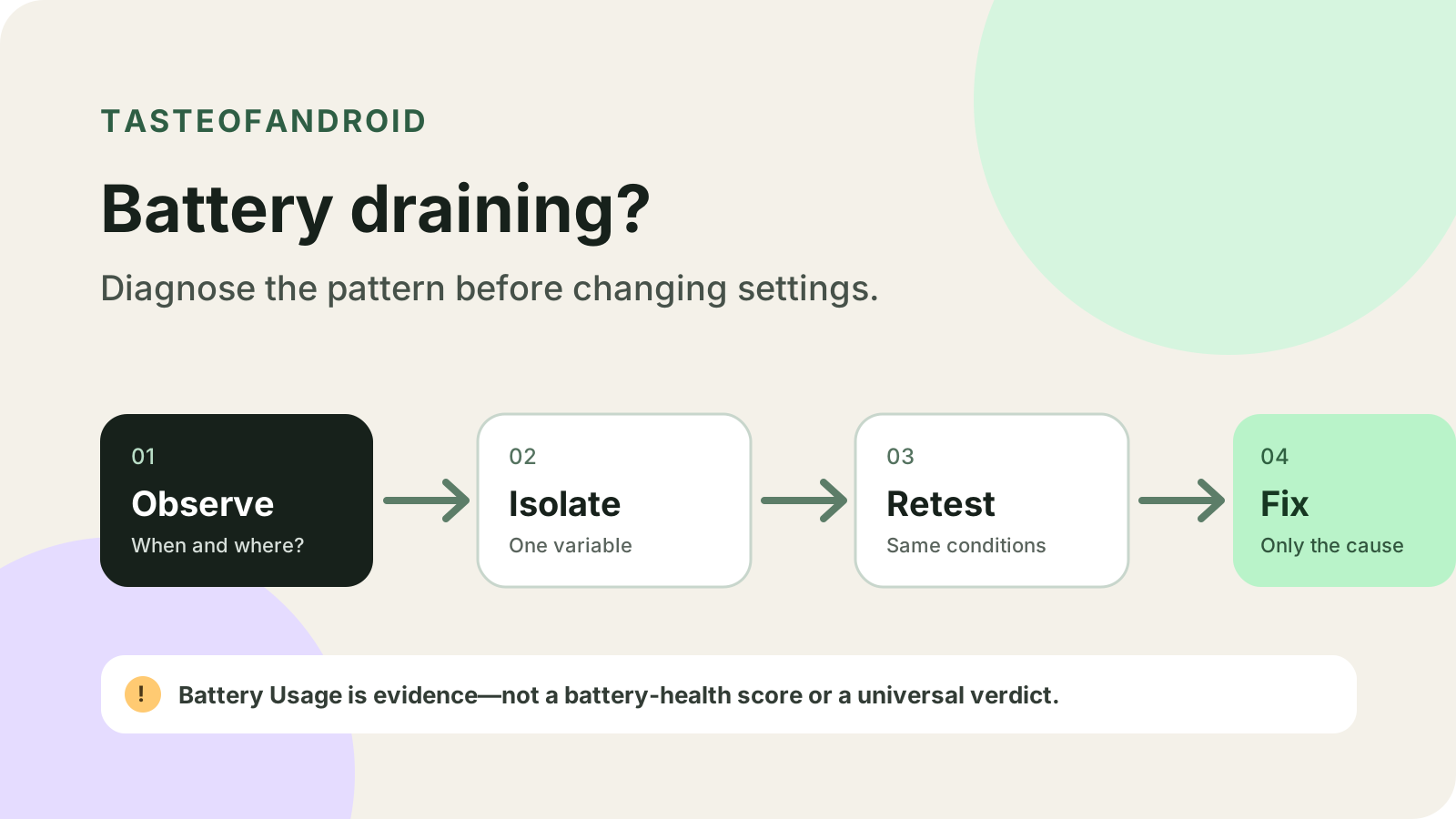
Fix Android battery drain by matching one window to one published pattern, then changing a single variable. On a Pixel, a little extra drain for a few days after a software update is normal, and a new phone or a factory reset can keep learning for up to a few weeks while Adaptive Battery stays on. Samsung’s UK support page, updated 28 April 2026, treats the first few days on a Galaxy as temporary optimisation and an unstable network as its own cause. Pixel’s overnight idle test, from a full charge with the phone unplugged, uses a drop of more than 10 percentage points as the point to open Battery usage. Android Doze, on Android 6.0 and higher, defers background CPU and network work only when the phone is unplugged, stationary, and the screen is off. The usage list is a share of that period.
- Write down the start charge, end charge, clock times, screen-on or idle, network, and warmth before you change anything.
- Read the usage screen for the phone you actually have. Pixel, Samsung, and Android Help do not share one menu.
- Keep Adaptive Battery on during a Pixel learning period. Restrict one app only after the same window still looks wrong.
- If the phone is hot, unplug it and let it cool before the next test.
- Leave factory reset until the smaller checks are done, and back up first.
These steps follow the support pages cited below. This guide does not report a TasteOfAndroid battery measurement.
Record the window before you change a setting
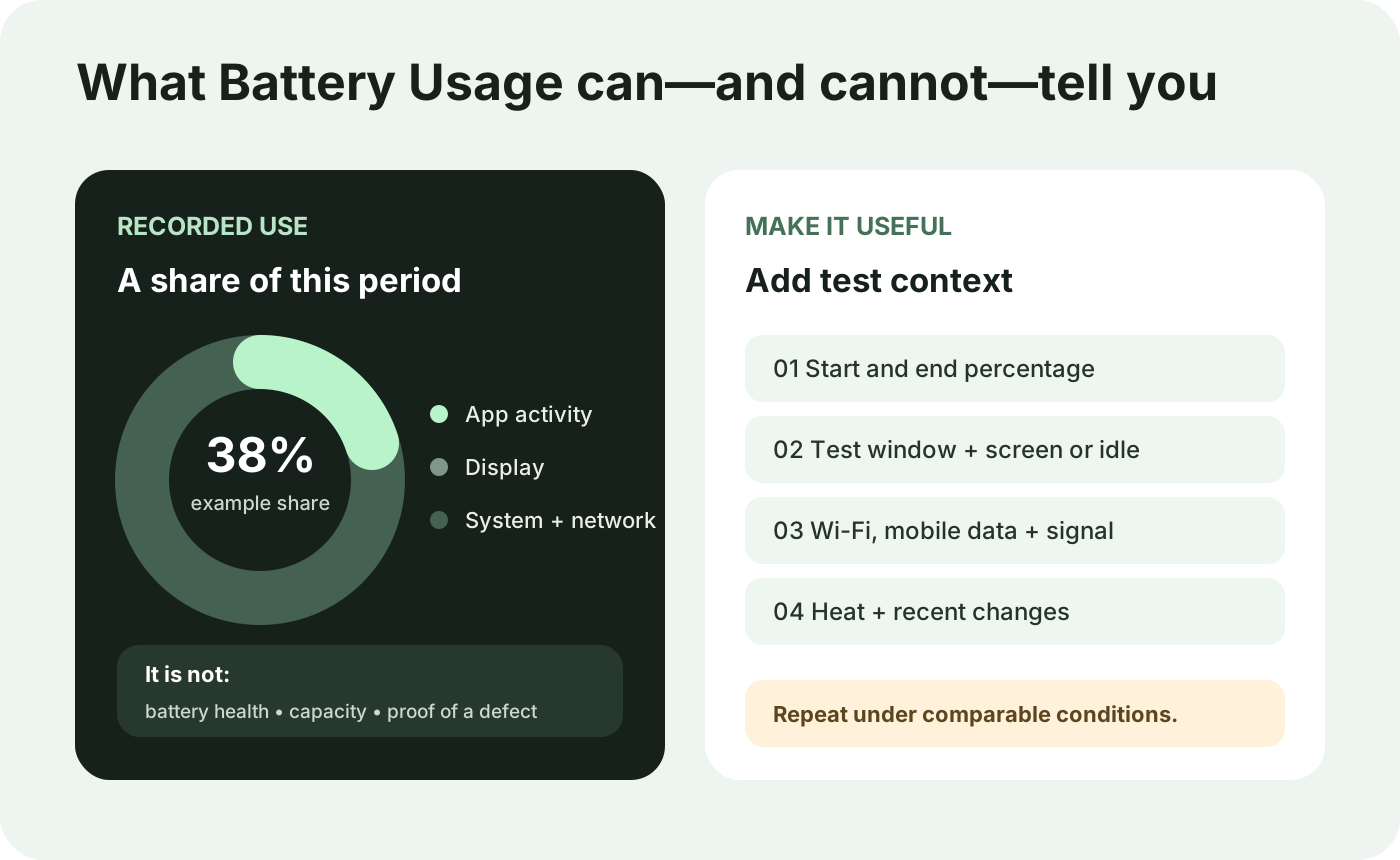
Copy this log into a note. Fill the retest column after one change, with the same kind of use.
Scroll horizontally to view all table columns.
| Observation | Baseline | Retest | Why it matters |
|---|---|---|---|
| Start charge to end charge | ___ → ___ | ___ → ___ | The drop is the thing you compare |
| Start, end, and duration | ___ | ___ | A short spike and an overnight idle window are different tests |
| Screen on, or idle | ___ | ___ | Screen-on drain and pocket drain have different causes |
| Wi-Fi, mobile data, and signal | ___ | ___ | A weak network is its own pattern on Samsung’s page |
| Warmth | ___ | ___ | Heat raises drain and can damage the battery |
| Setup, update, app, or charger change | ___ | ___ | Pixel and Samsung both describe a short period after setup or an update |
| The one setting you changed | None | ___ | Several edits at once hide the cause |
Scroll horizontally to read the labels in this diagram.
Open the full-size usage diagram.
The diagram’s ring is a share of one period. It is not a published drain rate and not a capacity figure. On a Pixel, the battery chart shows the level since the last full charge, and rounding can keep the listed amounts from adding up to 100%. [3]
Android’s power-profile page, updated 9 October 2026, says the framework does not measure battery current directly. It times how long the display, CPU, Wi-Fi, cellular radio, Bluetooth, and GPS stay in each state, then approximates consumption from the manufacturer’s power profile. When several apps hold wakelocks that keep the phone awake, that consumption is split across those apps, and the split is not necessarily equal. The framework writes those statistics about every 30 minutes so a shutdown at zero remaining capacity does not erase the record. After the phone dies, the usage list is still worth opening. A high share names the next retest. [11]
Match the pattern to a failure mode
Scroll horizontally to read the labels in this diagram.
Open the full-size diagnostic tree.
Scroll horizontally to view all table columns.
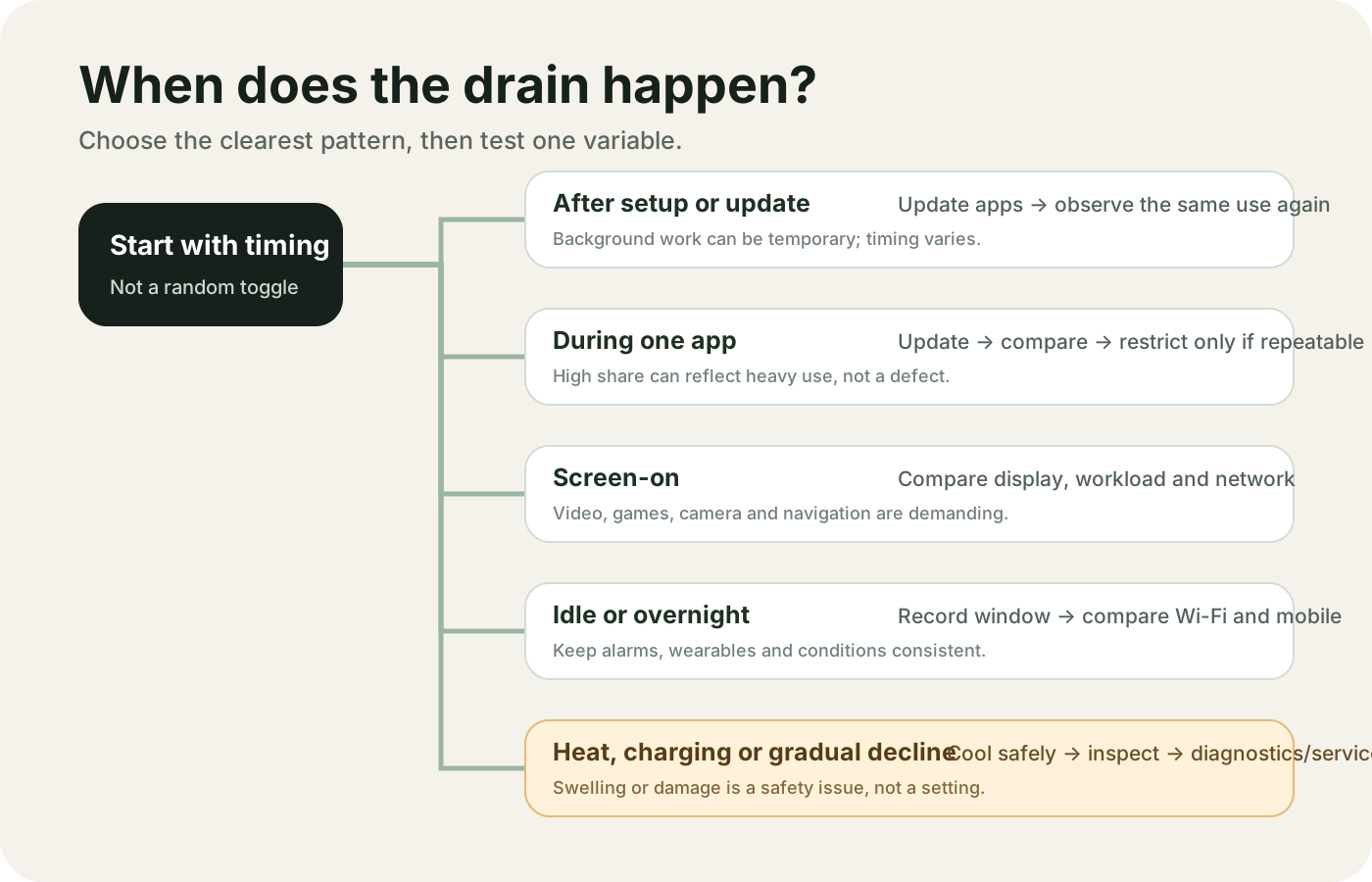
| Pattern | Dominant failure mode | Prevention |
|---|---|---|
| Pixel, a few days after a software update | The phone is downloading and optimizing the new software | Repeat the same use before restricting apps. Contact Pixel support if the unusual drain is still there after a few days. [3] |
| New Pixel, or a Pixel after factory reset | Usage learning is still unfinished | Keep Adaptive Battery and battery optimization on. Pixel Help says this can take up to a few weeks. [3] |
| Galaxy, first days of use | Apps and services are still being optimised | Let that period finish. Samsung says usage settles once optimisation is done. [9] |
| One downloaded app, and the same window repeats | Background work you did not ask for, including a wake lock Doze would otherwise ignore | On a Pixel, leave the app Optimized, or remove recent apps one at a time after a safe-mode check. Doze ignores wake locks only while the phone is unplugged, stationary, and the screen is off. [5] [10] |
| Screen-on navigation, video, games, camera, or a hotspot | The workload itself | Change one of those activities and repeat the route or the video. Android Help lists them as the actions that keep the screen and radios busy. [1] |
| Idle drain in a weak signal spot | The phone spends more effort holding the network | Samsung names unstable signal as a cause. Compare the same idle window on stable Wi-Fi and in that spot. [9] |
| The phone is hot, especially near a full charge | Heat drain, plus protective limits on a Pixel | Unplug, move it out of sun or a hot vehicle, and leave it unused until it cools. [1] [8] |
| Shorter runtime that grew over months of charging | The cell is a consumable and the lost capacity stays lost | Samsung says repeated charge and discharge lowers capacity and settings cannot restore it. A Pixel battery icon that shows “?” needs an authorized repair center. [9] [6] |
Rules of thumb, then the Pixel overnight arithmetic
Rule of thumb. If the phone is a Pixel, the window is overnight, and you started from 100% with apps closed and every charger disconnected, open Battery usage when the morning drop is over 10 percentage points. A drop under 10 percentage points is the result Pixel Help calls expected for that test. [6]
Rule of thumb. If you are about to install an Android update while you chase drain, connect to Wi-Fi and charge to at least 75% first. Pixel phones and Pixel Tablet install the download in the background, and the update becomes active the next time you restart. Many other phones restart during the install. Update schedules vary by device, manufacturer, and carrier. [2]
Rule of thumb. If the phone is plugged in, moving, or the screen is on, Doze is not active. Doze starts after the phone has been unplugged and stationary for a period with the screen off, and it exits when you move the phone, turn the screen on, or connect a charger. [10]
Rule of thumb. If a Pixel is too hot to keep testing, disconnect power, move it somewhere cooler, and do not use it until it has cooled. If it keeps turning off, contact Pixel support. [8]
Worked example: the Pixel overnight drop
Pixel Help’s overnight test is a Pixel procedure, for the drain section of its battery troubleshooting page. Samsung’s UK page does not use this cutoff. Run it only as written: charge to 100%, close open apps, disconnect every power source, leave the phone idle overnight, then read the morning charge. [6]
The drop, in percentage points, is:
D = 100 − E
E is the charge percent on the phone the next morning.
Worked example. The published cutoff is 10 percentage points, so the boundary morning reading is E = 100 − 10 = 90. Pixel Help classifies a drop of less than 10 percentage points as expected battery behavior for that idle test, and a drop of more than 10 percentage points as the point to open Settings, then Battery, then Battery usage. The page does not classify a drop of exactly 10. Write the morning percent as shown. Do not round 90 into a pass.
That 10 is not the second 10 on the same page. After a drop of more than 10 percentage points, sort by View by systems. If Android OS, Screen, CPU, Wi-Fi, or Mobile network accounts for more than 10% of the listed usage, Pixel Help says to talk to Pixel Support. Sort by View by apps when one app stands out. For an app Google does not own, the page’s examples include Netflix, Instagram, and Uber: clear that app’s storage or cache, repeat the overnight test, and compare with 10 again. For a Google app you can download, such as Chrome or YouTube, uninstall the app updates and repeat the overnight test. If a system app or a Google app still accounts for more than 10% of the battery after repeated tests, use the phone normally for 2 to 5 days and then contact Pixel support. If a third-party app still does, the page points to a factory reset and then the app developer. [6]
This test does not apply while the phone is charging, in active use, or on a Galaxy. Charging also exits Doze, so an overnight-on-the-charger reading is a different experiment. [10]
Use the path printed for your phone
Some Android Help battery steps work only on Android 13 and up. Some Pixel battery steps work only on Android 14 and up. The version is under Settings, then About phone or About tablet, then Android version. That screen also shows the security update, the Google Play system update, and the build number. [1] [2]
Android Help’s own update check is Settings, then System, then Software updates. The Pixel battery pages name the same area Software update, at the bottom under System. Use the label on the phone. If this phone no longer receives those versions, the settings steps stop being available, which is a reason to check how many years of Android updates to plan for before you spend the week on toggles.
Android Help, for phones that follow that page
Battery Saver, where the phone has it: open Settings, tap Battery, then Battery Saver, and choose a schedule or an automatic turn-off. In that mode Android Help says Dark theme comes on and background activity is limited or turned off, so some visual effects, features, network connections, and apps experience delays. [1]
The same page lists lighter settings that depend on the device: a shorter screen timeout, lower or automatic brightness, no keyboard sounds or vibration, restrictions on apps with high battery use, Adaptive Battery, deleting unused accounts, and dark theme. It sends the how-to for those items to the manufacturer. Do not borrow the Pixel taps below for a phone Android Help has not named.
Restart, on most phones: hold the power button for about 30 seconds, or until the phone restarts. Tap Restart if that button is on the screen. Then check for an Android update and for app updates in Google Play: profile icon, Manage apps and devices, Updates available. [1]
Use the power adapter that came with the phone. Android Help says other adapters and chargers can charge slowly, fail to charge, or damage the phone or battery. [1]
For ordinary care, you do not teach the phone its capacity by running from full to zero or from zero to full. Android Help’s recommendation is an occasional drain to under 10%, then a full charge overnight. That under-10% care step is not Pixel’s overnight diagnostic and not Pixel’s sudden-shutdown calibration. [1]
Pixel menus
On the battery screen, the chart is the level since the last full charge. Battery usage, then View by apps, then the app name, is where you review that app. View by systems splits the same period another way. For every app, Pixel Help says to keep battery optimization on. A usage summary at the top of Battery usage, under Settings, then Battery and charging, then Battery usage, then Summary, is listed for Pixel 10 and later, including Fold, and it requires the latest AI Core. [3]
Adaptive Battery: Settings, then Battery, then Battery Saver, then Adaptive Battery, then Expand More, then Use Adaptive Battery. Apps you use less often run less while you are not using them. Pixel Help says this can reduce performance and delay notifications. If alerts go missing after you leave it on, use the checks for Android notifications that stop arriving. Per app, the optimized state is Settings, then Apps, then See all apps, then the app, then App battery usage, then Allow background usage, then Optimized. Turning optimization off lets that app run more in the background even while Adaptive Battery is on. Some essential services do not offer the control. If an app causes abnormal drain, Pixel says you get a notification to optimize battery usage. [5]
On Pixel 6 and later, battery diagnostics sit under Settings, then Battery, then Battery diagnostics. “Battery draining too quickly” is the drain entry. “Phone is very warm” is the heat entry. A battery icon that shows “?” means an authorized repair center or further support, not another toggle. [4] [6] [8]
Force-stop is for one problem app: Settings, then Apps, then See all apps, then the app, then Force stop, then OK. It is missing for some apps. You cannot force-stop or uninstall Google Play services. Force-stopping an essential app can leave the phone unable to work correctly. [4]
Restart differs by model. Pixel 5a and earlier: hold Power for about 30 seconds, or until the phone restarts. Pixel 6 and later, including Fold: hold Power and Volume up, then tap Restart. [4]
If a Pixel 6 or later, including Fold, turns off suddenly, Pixel’s calibration for the on-screen battery performance is a separate procedure: restart, charge to 100%, drain the battery completely, then charge to 100% again. That is how the page says to show the latest performance. It is not the everyday care cycle on Android Help, and it is not the overnight 10-point test. [6]
A new Pixel’s first days overlap with setup work. The setup steps a new Android phone runs through are the companion list while optimisation is still running. Pixel also says a modified Android install can cause unexpected issues. The documented remedy is a backup, then a return to an unmodified factory OS. [6]
Samsung Galaxy menus on the UK page
Samsung’s UK page, updated 28 April 2026, gives Galaxy paths and then says menu names, paths, and layouts vary by model, software, and app version. Environmental conditions, background apps, and battery condition are the three causes it names.
Unused radios: swipe down from the top right to open the Quick panel, then switch off Wi-Fi or Bluetooth you are not using. Apps that auto-sync, or that use Wi-Fi, Bluetooth, or GPS, raise consumption. Apps in power saving mode have limited notifications or background activity.
Device care: Settings, then Device care, then Optimise now.
Sleeping apps: Settings, then Battery, then Background usage limits, then Sleeping apps or Deep sleeping apps, then the plus icon, then the apps, then Add. Deep sleeping apps do not run in the background at all. They work when you open them.
Power saving: Settings, then Battery, then Power saving, then turn Power saving on and pick any extra restrictions. Samsung says this restricts background data for unused apps and turns off high-power features such as Always On Display.
To remove a downloaded app from the battery graph: Settings, then Battery, then the graph, then the apps, then the usage detail, then press and hold the app, then Uninstall, then OK. [9]
If the suspect is a preinstalled or duplicate app, the cleanup choices are in how to review preinstalled and duplicate Android apps.
Safe mode changes the network unless you undo that
On a Pixel, safe mode is the test for a downloaded app. It also removes some Home-screen widgets, so screenshot the layout first.
If the phone is on, turn it off. Pixel 5a and earlier: hold Power, then tap Power off. Pixel 6 and later, including Fold: hold Power and Volume up, then touch and hold Power off or Restart, then tap OK. If the phone is already off: press Power, and when the animation starts hold Volume down until the animation ends. “Safe mode” shows at the bottom of the screen.
Airplane mode turns on by itself in safe mode. Pixel Help says to turn Airplane mode off if you still need GPS, Wi-Fi, or calls. Leave it on and the test has changed the radios as well as the apps. Use the phone normally. If the drain remains, Pixel Help says an app is not the cause. If the drain stops, an app is the likely cause. Leave safe mode with the same restart gesture you use for that Pixel generation, then remove recently downloaded apps one at a time. Restart normally after each removal and repeat the window. Put back the apps that were not the cause. [7]
Doze explains the idle case only when its conditions hold. While Doze is active, Android suspends network access, ignores wake locks, defers standard alarms, skips Wi-Fi scans, and does not run sync adapters or JobScheduler work. Maintenance windows let apps catch up, and those windows get less frequent as an unplugged, idle phone stays idle. Alarms set to fire during Doze are limited to once every nine minutes per app. App Standby, the companion behavior, gives long-idle apps network access about once a day, and plugging in a charger releases apps from standby. None of that is a switch in Settings for you to set to nine minutes or to one day. [10]
Heat, signal, and charging are separate tests
A Pixel can feel warm during video, games, a backup restore, high-definition recording, tethering, a large download, setup, or any of those while charging. Past a point it protects itself: lower CPU performance, slower charging, flash off, camera off, mobile data or Wi-Fi partly or fully off (including 5G), and low power mode. If the temperature keeps rising it can show a warning, enter low power mode, and turn off. Let it cool, then restart. Keep it out of direct sun and hot cars, avoid enclosed spaces, and use a case made for that phone. Brightness on a Pixel is Settings, then Display and touch, then Brightness level. Prefer Wi-Fi over mobile data when you have a choice. [8]
Android Help’s heat line is broader and harsher: avoid overheating, especially at a full charge, because a hot battery drains much faster even when idle and that drain can damage the battery. [1]
A charging fault is a different measurement from an idle drop. Pixel’s overnight test disconnects all power on purpose. If the phone only misbehaves on a charger, start with the adapter that came with the phone, then the manufacturer, rather than another battery-saver toggle. [1]
The ladder, and the reset that erases the evidence
Scroll horizontally to read the labels in this diagram.
Open the full-size action ladder.
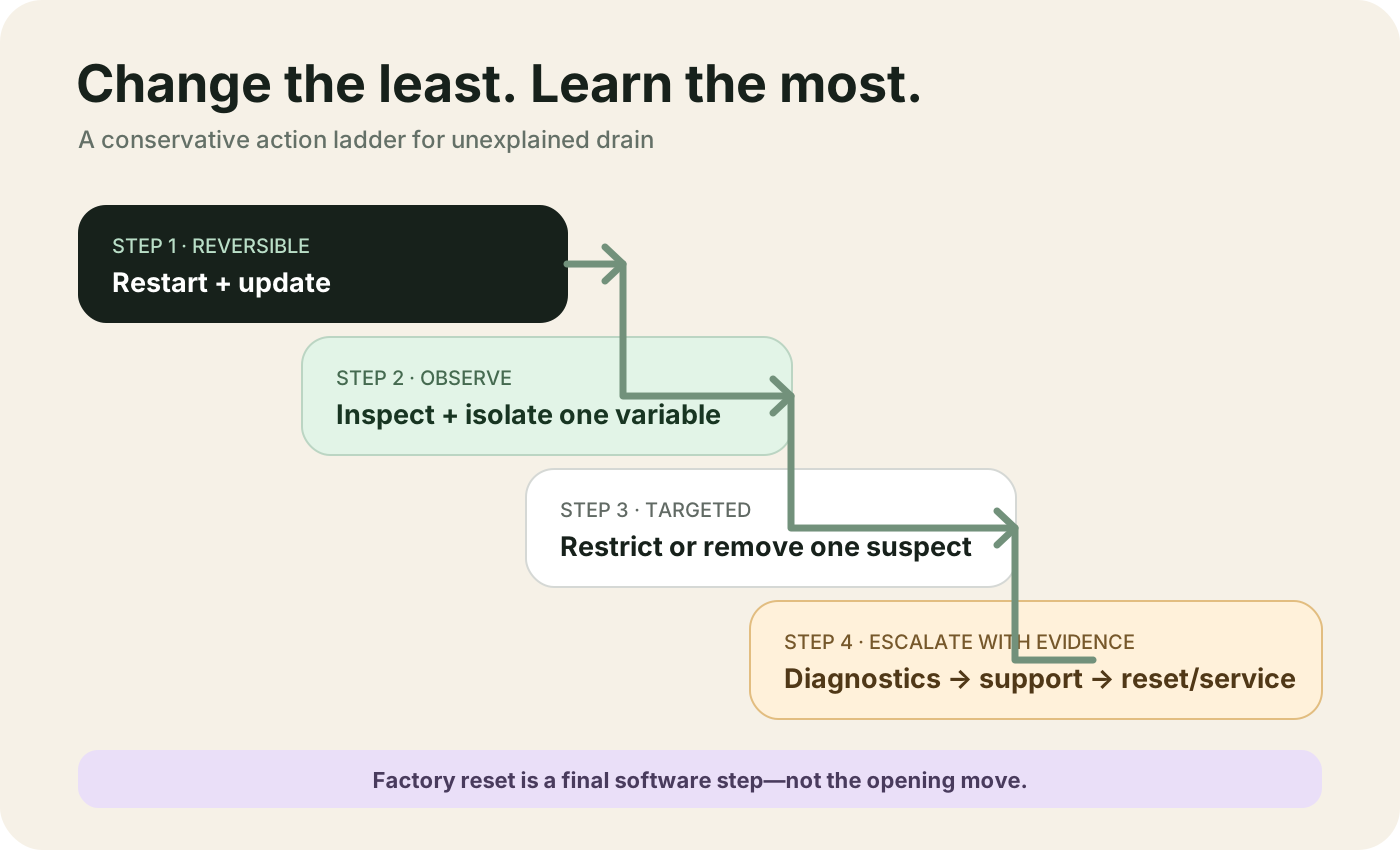
- Restart with the gesture for that phone, then install the Android update and the app updates.
- Repeat the same window and read usage once.
- Change one variable. On a Pixel, keep the suspect app Optimized before you uninstall it.
- Use safe mode on a Pixel, with Airplane mode turned back off if the network is part of the question.
- Run the maker’s diagnostics where they exist. On Pixel 6 and later that is Battery diagnostics.
- Factory reset only after that, and only with a backup. Android Help says a reset removes all data. Apps and their data are uninstalled. Data in the Google Account can be restored. The usage history from before the reset goes with the wipe, so you lose the comparison you would have shown support.
Back up photos, messages, and authenticator codes before a reset. Other evidence-first checks live with the Android how-to guides.
The hidden cost of resetting first is that wipe. You spend the restore, and you still do not know which app or which radio produced the drop. Battery Saver and Galaxy Power saving hide the same evidence in a smaller way: they limit background work and notifications, so the phone looks calmer without naming the cause.
Skip the habits that spoil the log. Do not force-stop every app. The documented Pixel step is one problem app, and Play services is excluded. Do not run Android Help’s full-to-zero “teaching” cycle. The care recommendation is an occasional drop under 10%, then a full overnight charge. Do not turn off sync, location, and notifications in one sitting. Android Help says some apps and features stop working with location off, so you have changed the phone and lost the trail. If the phone still misbehaves after the software checks, take the version, the log, and the recent changes to the manufacturer or to Pixel support.
Frequently asked questions
Does the 10% overnight test apply to every Android phone?
No. The charge-to-100%, unplug, idle-overnight, and compare-with-10 procedure is the overnight test on Pixel Help’s battery troubleshooting page. Samsung’s UK Galaxy page does not use that cutoff. Android Help’s separate “under 10%” line is an occasional care drain before a full overnight charge, not a pass-fail for idle loss.
Should I drain an Android battery from full to empty to calibrate it?
No, not as routine care. Android Help says you do not need to teach the phone its capacity by going from full to zero or from zero to full. Pixel Help does publish a full drain, and only as the calibration when a Pixel 6 or later, including Fold, turns off suddenly: restart, charge to 100%, drain completely, charge to 100% again, so the battery display shows the latest performance.
Sources & methodology11 sources
Evidence used for this article. Links open the original source in a new tab.
- Get the most life from your Android device's battery — Android Help
- Check and update your Android version — Android Help
- Check battery level on your Pixel phone — Pixel Phone Help
- Fix battery drain problem — Pixel Phone Help
- Keep Adaptive Battery and battery optimization on — Pixel Phone Help
- Fix issues with your Pixel phone battery — Pixel Phone Help
- Find problem apps by rebooting to safe mode — Pixel Phone Help
- Help keep your Pixel phone from feeling too warm or hot — Pixel Phone Help
- What to do when your Samsung Galaxy device battery drains faster — Samsung Support UK
- Optimize for Doze and App Standby — Android Developers
- Power profiles for Android — Android Open Source Project
TasteOfAndroid is responsible for this page. The byline, method and commercial relationships are on the editorial policy and the author page.
Related Articles
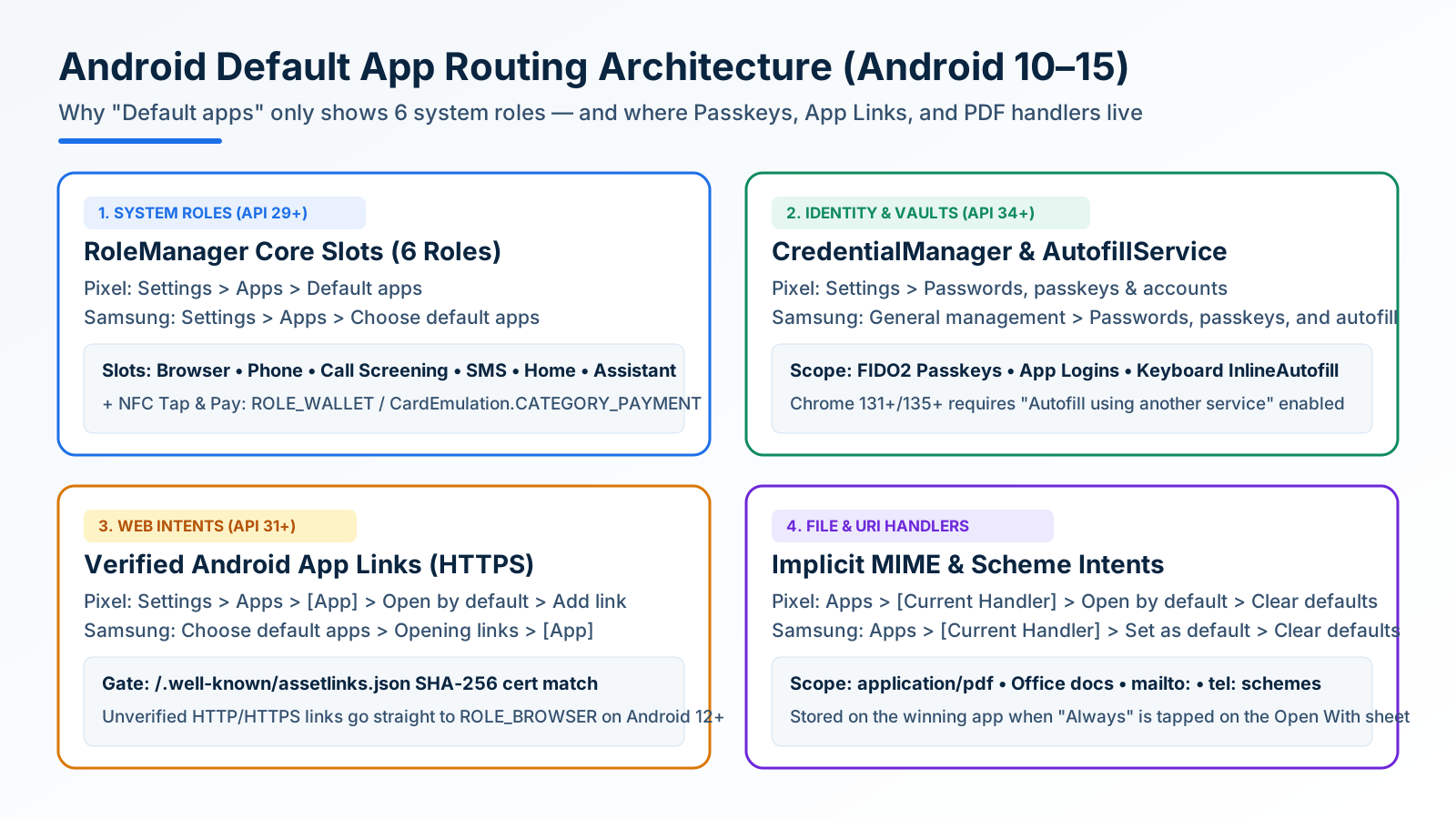
How to Change and Reset Default Apps on Android: Browsers, Passkeys, PDFs, and App Links
Looking only in Default apps fails when a wrong PDF viewer or browser hijacks links. Use Android's 4 routing menus to set browsers, passkeys, App Links, and MIME handlers.
Block Spam Calls and Robocalls on Android Without a Paid App
Use Filter spam calls, Pixel Call Screen, or Galaxy Text call. Google does not take numbers from your Contact list.
Split Screen and App Pairs: Multitasking on Android
Use two Android apps together, save supported app pairs, and check Pixel and Galaxy controls before relying on a multitasking shortcut.