
Contents
Sharing the wrong folder can spread unwanted edits or deletions to your other device. To set up Syncthing from Android to a PC, choose a currently maintained Android client, pair the two Device IDs, and verify an empty shared folder before adding important files. This guide uses project documentation checked October 15, 2026; we did not install the clients or test devices.
The original Android app is discontinued; Syncthing-Fork is a community continuation, and the PC still runs the Syncthing core. Start with one disposable folder in Send & Receive mode, accept the intended peer on each side, and open a sample file at both local paths. Then rehearse a conflict and a deletion with recovery before trusting the arrangement with real work. Recent project activity establishes maintenance activity, not a security audit or a guarantee that your phone will keep running it in the background.
- Pairing grants device trust; folder sharing chooses the files.
- The shared Folder ID must match; local folder paths can differ.
- Two-way sync carries deletions as well as additions.
- Versioning needs an explicit setting on each receiving device you want protected.
Check the Android client before installing
Use a dated project and release check to choose the Android wrapper. The upstream Android repository is archived and says its final release was planned with the December 2024 Syncthing version; this does not retire the cross-platform core.
Scroll horizontally to view all table columns.
| Input or item | Typical value or source | Why it matters |
|---|---|---|
| Android project | Community Syncthing-Fork at researchxxl/syncthing-android, checked October 15, 2026 (project) |
A community fork has its own maintenance and trust decision |
| Stable reference | v2.1.6.0, published October 6, 2026; not a prerelease (release) |
The newer v2.1.7.0-rc.4 entry is marked prerelease in the October 15 release list |
| Package identity | Stable-tag source declares com.github.catfriend1.syncthingfork (build file) |
The historical namespace does not name the current maintainer; the README lists Catfriend1 among former maintainers |
| Minimum system declaration | Stable-tag catalog declares minimum SDK 23 (catalog) |
A source requirement is not a verified installation or an all-device compatibility promise |
| Acquisition path | Project GitHub releases, linked from its README (project, release list) | Recheck the project identity, release notes and build before installing |
The README also links F-Droid, but we could not verify its current listing during this check. We have not established channel equivalence, signing-key continuity or independent security assurance. If those are requirements for your files, resolve them before installing; recent releases alone cannot answer them.
On the PC, follow the core installation instructions for your operating system. Start Syncthing and open its local administration page, documented at http://localhost:8384/. Keep it local; this procedure does not require exposing an administration port to the internet. Leave valuable folders unshared while you set up the trial.
Pair the devices and map one empty folder
Configure each device with the other device’s actual Device ID, then share one folder with a matching Folder ID. The core tutorial documents Actions → Show ID and Add Remote Device in the Web GUI; these are not verified Android-native menu instructions. Use your installed client’s controls or its Web GUI to find the equivalent settings, and stop if you cannot identify the intended peer or folder.
- Create an empty, user-accessible folder on each device.
SyncTrialis an example name for this exercise, not an app default. Keep it separate from notes vaults, photos and existing archives. - Read each device’s own ID. On Android, add the PC’s ID; on the PC, add Android’s ID. Compare the full values with the actual devices before accepting a request.
- Add the trial folder on one device and select only the intended other device for sharing. Accept that offered folder on the other device, selecting its empty local trial directory. Preserve the offered Folder ID rather than creating an unrelated share with a similar name.
- Confirm Send & Receive on both trial folders. This is the standard two-way mode, including changes originating on either peer. Inspect permission or folder errors before creating a file.
Fill these values from your own clients. The configuration reference distinguishes ID, label and path; matching labels alone do not connect folders.
Scroll horizontally to view all table columns.
| Field | Android: record your value | PC: record your value | Pass condition |
|---|---|---|---|
| Own Device ID | Copy phone’s actual ID | Copy PC’s actual ID | Each remote-device record matches the other device’s actual ID |
| Folder ID | Copy trial share’s ID | Copy accepted share’s ID | Exactly the same Folder ID on both sides |
| Local path | Selected empty phone directory | Selected empty PC directory | Each points to the intended disposable directory; paths may differ |
| Label | Your descriptive name | Your descriptive name | Useful to you; equality is not required |
| Sharing and type | Intended PC; Send & Receive | Intended phone; Send & Receive | Correct peer selected and folder accepted on both devices |
| Versioning | Record actual setting | Record actual setting | You know which receiving peer archives remote changes |
If you only need to open or copy a PC share on demand, use the Android SMB file-manager guide to assess that workflow instead of setting up ongoing synchronization.
Verify additions, edits and availability
Accept the setup only after files open with the expected content at both mapped paths. The GUI’s Up to Date status reports synchronization state; it does not prove you selected the right directory or checked the contents.
This is a proposed acceptance checklist for your own setup, not a record of completed tests. Use small plain-text files with distinct names and markers, and record the actual observation for each row.
Scroll horizontally to view all table columns.
| Trial | Expected observation | Stop if |
|---|---|---|
On phone, create from-phone.txt containing PHONE FIRST |
PC receives it at its mapped trial path; open and read the marker | Missing, unreadable or in an unexpected location |
On PC, create from-pc.txt containing PC FIRST |
Phone receives and opens that file | Device connects but folder remains unshared or errors |
| Edit a marker on one device at a time | Other device opens the intended new content after synchronization settles | Wrong content or an unexplained conflict appears |
| Make a peer unavailable, then available again | After both clients can run and communicate, inspect the destination and read the queued change | Changes remain pending or you cannot explain the observed run conditions |
There is no promised completion time. A paused folder cannot synchronize; an unavailable peer cannot exchange the queued files. Observe the actual Android client and phone’s background restrictions rather than assuming an always-running service. If the trial fails when the screen is off, keep the workload disposable until you understand that behavior.
Rehearse a conflict without losing either edit
Preserve both candidate files before deciding which content to keep. Syncthing’s conflict documentation describes a copy named with .sync-conflict- plus date, time and device information when simultaneous differing modifications collide. A conflict copy is an ordinary synchronized file, so removing it can itself spread a deletion.
For a controlled rehearsal:
- Create
conflict-trial.txtand confirm the same starting content on both devices. - Isolate the peers so neither can receive the other’s edit. Change the same file to different content on each device, save both, then reconnect.
- Inspect the ordinary file and any conflict copy. If no conflict appears, record that outcome and investigate; do not mark this check as passed merely because both devices say Up to Date.
- Stop editing and pause the trial folder on both devices. Copy the ordinary file and conflict candidate outside the synchronized directories before comparing them.
- Read both preserved candidates and merge deliberately into a chosen result. Resume synchronization and open the result on each device. Remove obsolete trial copies only after confirming the preserved copies and intended content.
Do not choose the desired document by its timestamp alone. Syncthing’s conflict handling selects a file to rename; it cannot decide which of your ideas belongs in the finished document. Leave Override Changes and Revert Local Changes out of this beginner trial: those are consequential actions described in the folder-type reference.
Test deletions and receiving-side recovery
Expect deletions to propagate in the trial’s two-way mode, and enable versioning before the remote change you want to recover. Syncthing’s backup FAQ warns that synchronized modifications and deletions reach other devices. Send Only and Receive Only control direction; neither creates an independent, deletion-proof archive.
Versioning defaults to off and is configured per folder, per device. It archives earlier content when changes arrive from another device. Enabling it on the PC does not archive the PC’s own local edits. The default archive is .stversions; retention depends on the chosen strategy and settings, so do not assume every historical edit survives.
Scroll horizontally to view all table columns.
| Recovery trial | What to do with disposable content | Required observation |
|---|---|---|
| Phone-origin deletion | Sync a fresh trial file to PC, then delete it on phone | It also disappears from the PC’s live trial folder |
| PC-origin deletion | Sync a different trial file to phone, then delete it on PC | It also disappears from the phone’s live trial folder |
| Receiving-PC versioning | Enable a strategy such as Simple versioning on PC; record retention. Sync a new trial file to PC, then change or delete it on phone | PC’s configured archive contains the earlier content; a PC-only edit does not demonstrate this protection |
| Restore rehearsal | After the remote change settles, pause the trial folders on both devices. Preserve the archived content outside the share and rehearse restoring a copy to the PC trial path | Open the restored content while paused; after deliberate resumption, confirm the intended result on both peers |
| Independent recovery | Keep a separate copy outside these shared folders and their synchronized deletion path | Open recovered disposable content from that copy; do not rely solely on another live synchronized device |
A version archive on the same PC is also vulnerable to that PC’s storage failure. Choose a separate recovery arrangement for important files; this small rehearsal is not a complete backup policy. For photos, messages and authentication data, continue with the Android backup checklist, which treats those as separate jobs.
Only after you understand all observations should you add a small real folder, with an independent recoverable backup already available. Any unclear deletion or restoration result is a reason to keep real files out of the trial.
Find the failure before changing more settings
Check the identity, sharing and local path first; then check whether the clients are able to run and communicate. A device connection and a correctly synchronized folder are separate conditions.
Scroll horizontally to view all table columns.
| Observation | Next check | Safe boundary |
|---|---|---|
| Remote device remains disconnected | Both remote records match the actual opposing Device IDs; both clients are running and can communicate (setup) | Do not accept an unfamiliar peer or expose the GUI as a shortcut |
| Device connects, folder says Unshared | Intended peer is selected and the offered folder was accepted (GUI) | A matching label does not establish shared identity |
| Up to Date but file seems missing | Open the exact recorded local paths and compare Folder IDs (configuration) | Keep real folders unshared until the mismatch is resolved |
| Folder is Paused or Stopped | Inspect pause state and the reported error; confirm directory access (GUI) | Stop if the phone cannot grant access; this guide does not establish support for every directory or SD card |
| Works only while both clients are open | Observe actual phone run conditions and peer availability | No always-on or battery-life guarantee follows from the core setup |
| Unexpected conflict, removal or content | Pause both trial folders and preserve outside copies | Do not use blind override, revert or mass deletion to clear a status |
For the next step in building a complete notes-and-files routine, return to the Android productivity and essential apps guide.
Method and sources
This is a documentation-based setup procedure with suggested checks, written with AI assistance and editorial responsibility retained by TasteOfAndroid. Sources checked October 15, 2026 include the upstream discontinuation notice, the community project’s README and release metadata, stable-tag build declarations, and the Syncthing core documentation cited above. We did not test installation, current Android-native menus, permissions, background operation, conflicts or recovery on hardware. The desk scenes show devices, separate folders and storage; they are not app screenshots or evidence of completed tests.
Last updated October 15, 2026.
Sources & methodology13 sources
Evidence used for this article. Links open the original source in a new tab.
- Archived upstream Android app: discontinuation notice — Syncthing project
- Syncthing-Fork project, distribution links and acknowledgments — researchxxl/syncthing-android
- Syncthing-Fork stable release v2.1.6.0 — researchxxl/syncthing-android
- Syncthing-Fork release list: stable and prerelease builds — researchxxl/syncthing-android
- Stable-tag Android build configuration — researchxxl/syncthing-android
- Stable-tag version catalog — researchxxl/syncthing-android
- Getting Started: installation, mutual Device IDs and folder sharing — Syncthing project
- Configuration: folder identity, label, local path and pause — Syncthing project
- Folder Types: Send & Receive, Send Only and Receive Only — Syncthing project
- GUI: folder and device states — Syncthing project
- Understanding Synchronization: conflicting changes — Syncthing project
- FAQ: matching Folder IDs and why synchronization is not backup — Syncthing project
- File Versioning: defaults, remote changes and retention strategies — Syncthing project
TasteOfAndroid is responsible for this page. The byline, method and commercial relationships are on the editorial policy and the author page.
Related Articles
Make a Simple Android Clock Widget with KWGT
Build one KWGT clock widget, resize it before loading the preset, and see why minute updates and taps can differ by launcher.
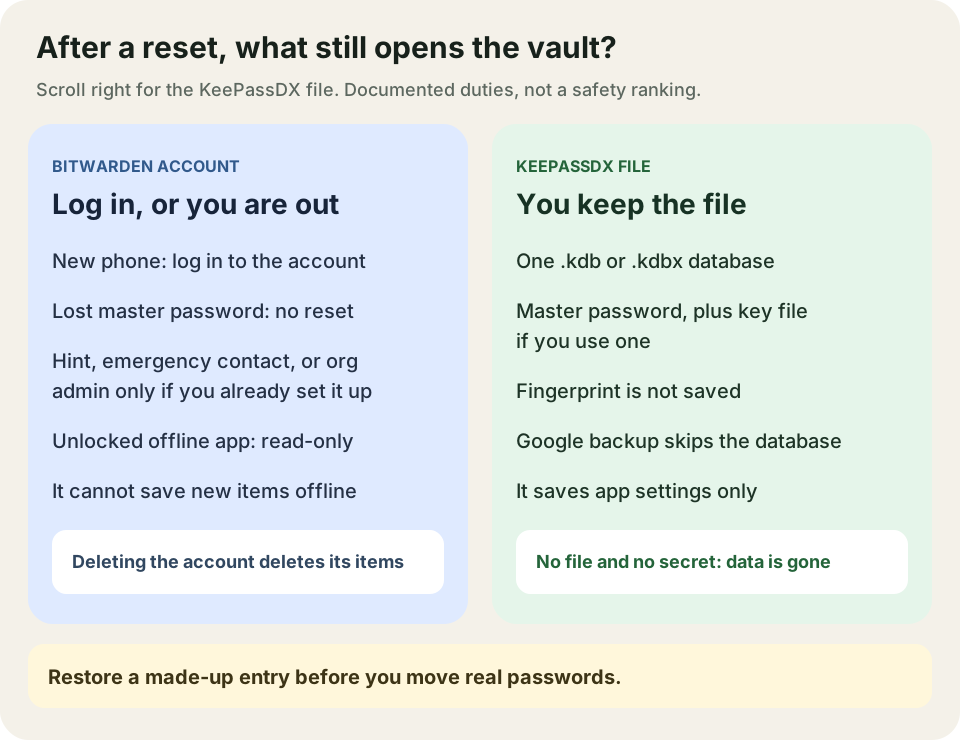
Bitwarden vs KeePassDX: Cloud Account or a Local Database
Compare Bitwarden cloud-account recovery with a KeePassDX database you control, then check Android autofill before moving real passwords.
Android File Managers with SMB: MiXplorer vs Solid Explorer
Both apps list SMB access to PC and NAS shares. Pick by layout and cloud needs, share the folder to a named account, then verify a disposable copy before moving files.