
Contents
- What Does a USB OTG Cable or Adapter Do?
- Legacy Micro-USB OTG Versus Modern USB-C Dual-Role-Data
- Compliant USB-C OTG Adapters Versus Non-Compliant Dongles
- How Do You Check If Your Android Phone Supports USB OTG?
- How Do You Enable USB OTG in Android Settings?
- How Does a USB OTG Flash Drive Work With a USB-C Android Phone?
- Accessing and Safely Unmounting Files on Android
- FAT32 Versus exFAT Compatibility on Android Flash Drives
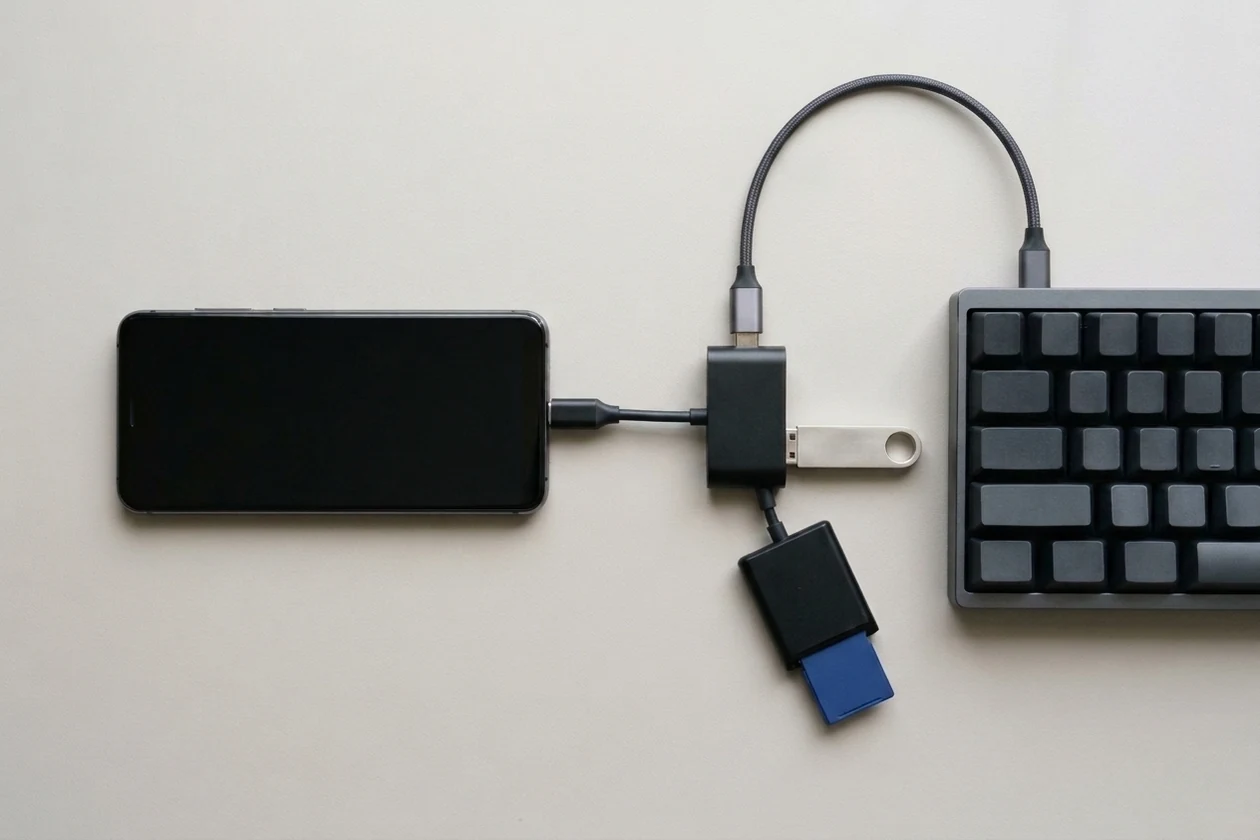
- What Peripherals Work Over USB OTG and When Do You Need a Powered Hub?
- Why Is USB OTG Not Working on Android and How Do You Fix It?
- Frequently Asked Questions
- What is USB OTG used for on an Android phone?
- Where is the USB OTG setting on Samsung Galaxy phones?
- Why does USB OTG keep turning off on OnePlus, Oppo, and Vivo phones?
- Should I format a USB OTG flash drive as FAT32 or exFAT for Android?
- Why won’t my external hard drive work with a USB OTG adapter on Android?
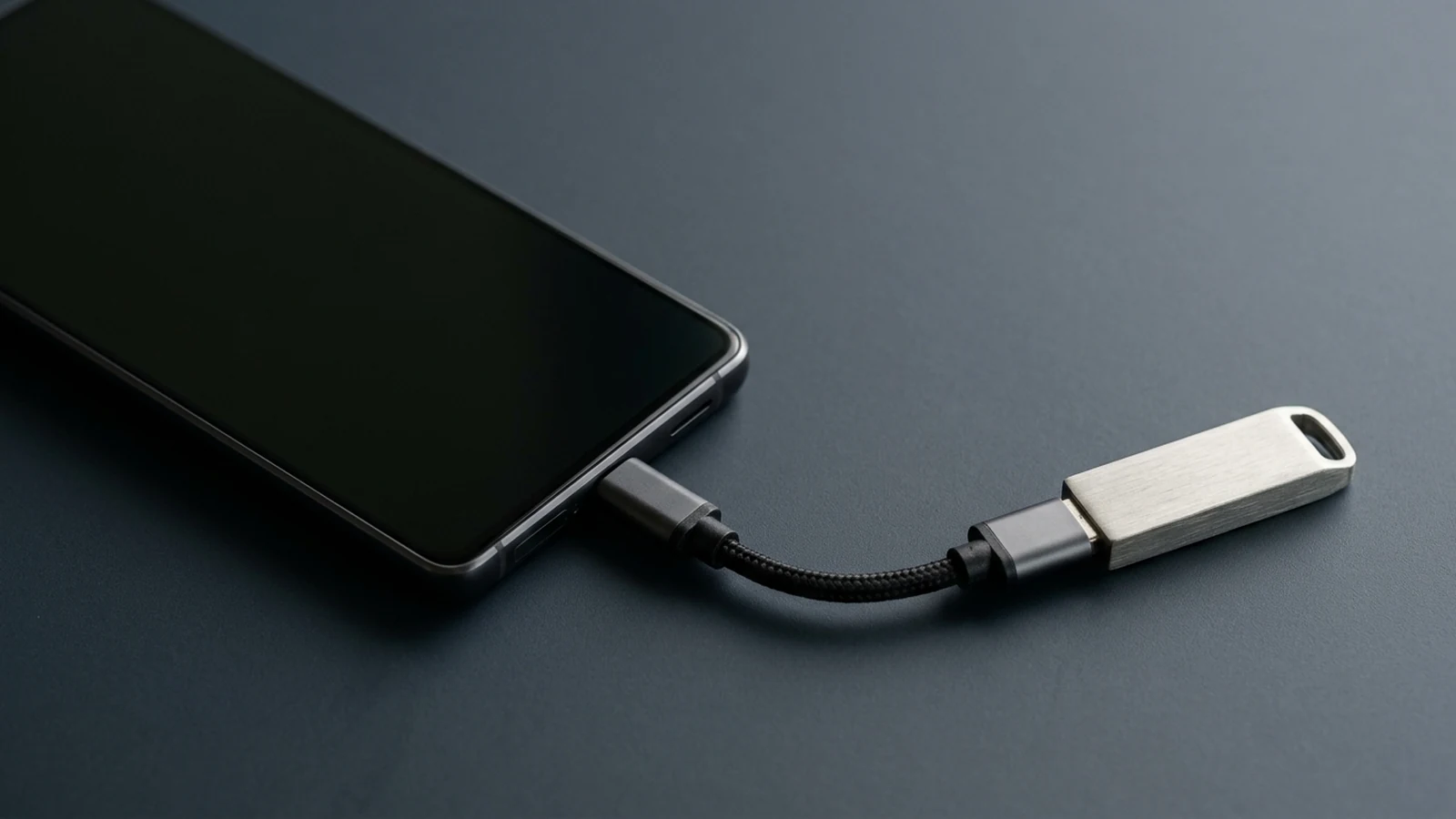
USB On-The-Go (USB OTG) is a USB specification introduced in late 2001 that allows smartphones and tablets to function as either a host or a peripheral. When acting as a host, an Android phone powers its USB port and connects directly to flash drives, keyboards, mice, digital cameras, or card readers without a computer between them. USB On-The-Go overview
Unlike standard USB links that lock one side as a fixed host and the other as a peripheral, USB OTG lets a smartphone switch roles depending on what plugs into it. A phone acts as the host when reading files from a USB flash drive, then shifts back to peripheral mode when connected to a laptop. Explore this setup guide alongside our other Android how-to guides.
What Does a USB OTG Cable or Adapter Do?
A USB OTG cable or adapter bridges a full-sized USB-A peripheral to a phone’s Micro-USB or USB-C charging port while signaling the phone to enter host mode and supply bus power. On older Micro-USB hardware, wiring inside the plug set the host role physically; on modern USB-C phones, both connected devices negotiate host and peripheral roles electronically over the Configuration Channel wire. USB-C specification overview
Legacy Micro-USB OTG Versus Modern USB-C Dual-Role-Data
The USB Implementers Forum stopped certifying new USB OTG products in September 2019 because the USB-C standard superseded legacy OTG role negotiation. Even though phone makers and accessory packaging still print OTG on labels, modern USB-C smartphones rely on Dual-Role-Data capability rather than the legacy five-pin Micro-USB OTG wiring.
Scroll horizontally to view all table columns.
| Feature or Mechanism | Legacy Micro-USB OTG (USB 2.0 Supplement) | Modern USB-C Dual-Role-Data (DRD) |
|---|---|---|
| Role naming convention | OTG A-device supplies power and starts as host; OTG B-device consumes power and starts as peripheral | Host uses a downstream-facing port (DFP); peripheral uses an upstream-facing port (UFP) |
| How initial host role is detected | Fifth connector pin called the ID-pin is grounded in a micro-A plug and left floating in a micro-B plug | Connected devices negotiate host and peripheral roles through the Configuration Channel (CC) wire |
| Power and data role swapping | Three USB 2.0 supplement protocols handle link power and direct swaps, though role swapping does not work through a standard hub | Dual-Role USB-C devices with USB Power Delivery swap data and power roles independently for charge-through hubs and docks |
| Bus power ceiling | Standard USB baseline provides 500 mA (0.5 A) unless higher current is negotiated | Optional 1.5 A or 3.0 A at 5 V advertised over the Configuration Channel or USB Power Delivery |
| Certification status | USB Implementers Forum ended new USB OTG product certification in September 2019 | Active standard replacing legacy OTG across modern smartphones and hubs |
Compliant USB-C OTG Adapters Versus Non-Compliant Dongles
Samsung explains that an OTG adapter, such as Samsung’s USB-A to USB-C adapter carrying part number GH96-12331A, connects full-sized USB flash drives or USB-A cables through the phone’s charging port. The USB-C specification defines exactly two standard legacy adapters with a Type-C plug: one with a USB 3 Standard-A receptacle supporting up to 10 Gbit/s for connecting legacy peripherals to a modern host, and one with a Micro-B receptacle supporting up to USB 2. By contrast, legacy adapters with a USB-C receptacle are not defined or allowed by the specification because they can create invalid and potentially unsafe cable combinations. USB-C specification overview
How Do You Check If Your Android Phone Supports USB OTG?
Android has supported USB host mode natively since Android 3.1 (API level 12), but actual compatibility still depends on each phone’s physical USB controller hardware rather than software version alone. You can verify compatibility before buying an adapter by checking device specification databases for USB Host or checking whether Android exposes the android.hardware.usb.host system feature.
Android Developers documentation distinguishes between two USB operating modes on Android devices:
- USB host mode: The Android-powered device acts as the USB host, powers the bus, and enumerates connected USB devices such as digital cameras, keyboards, mice, and game controllers.
- USB accessory mode: The external Android USB accessory acts as the USB host and powers the bus instead, which allows Android devices without host hardware to communicate with compliant external accessories.
Because Android Developers notes that not all Android-powered devices are guaranteed to support the USB host APIs, system apps and diagnostic tools rely on the android.hardware.usb.host feature flag to confirm hardware support. Before ordering an adapter, you can also look up your exact phone model on device specification databases such as GSMArena and check Specifications > Comms > USB; if USB Host appears there, the phone should support external OTG accessories. If your phone’s Settings app shows no OTG option even after searching and a known-good drive will not mount, that model may not support USB OTG hardware.
How Do You Enable USB OTG in Android Settings?
Many modern Android phones, including Samsung Galaxy devices, activate USB host mode automatically when a peripheral plugs in, whereas manufacturers including OnePlus, Oppo, and Vivo require enabling an OTG switch manually in Settings. On phones with a manual toggle, many Android devices turn OTG back off automatically after 10 minutes if no USB device stays connected.
Scroll horizontally to view all table columns.
| Android Brand or Software Pattern | Where to Find USB OTG Behavior | Automatic Shutoff or Mode Requirement |
|---|---|---|
| Samsung Galaxy devices | Plug in the drive and open My Files > USB Storage; no separate OTG toggle is required | USB Storage appears in My Files only while a flash drive is inserted; Quick settings > Android System > USB for file transfer confirms transfer mode |
| OnePlus, Oppo, and Vivo phones | Open Settings > System (or Additional Settings) > Advanced > OTG Storage or USB OTG and switch it ON | Automatically turns OTG off after 10 minutes if no device is connected for battery and security protection |
| Alternative OEM Settings layout | Open Settings > Connected Devices or Bluetooth & Device Connection and enable the OTG toggle | Automatically disabled while Ultra Power Saving Mode is active until that power mode is turned off |
Remember two practical behaviors documented across Android troubleshooting guides. First, because many Android devices disable the manual OTG switch after 10 minutes with no accessory attached, you must flip the toggle back on before plugging a drive in again later. Second, if your phone enters Ultra Power Saving Mode, OTG may be disabled automatically and cannot be turned back on until you exit Ultra Power Saving Mode.
How Does a USB OTG Flash Drive Work With a USB-C Android Phone?
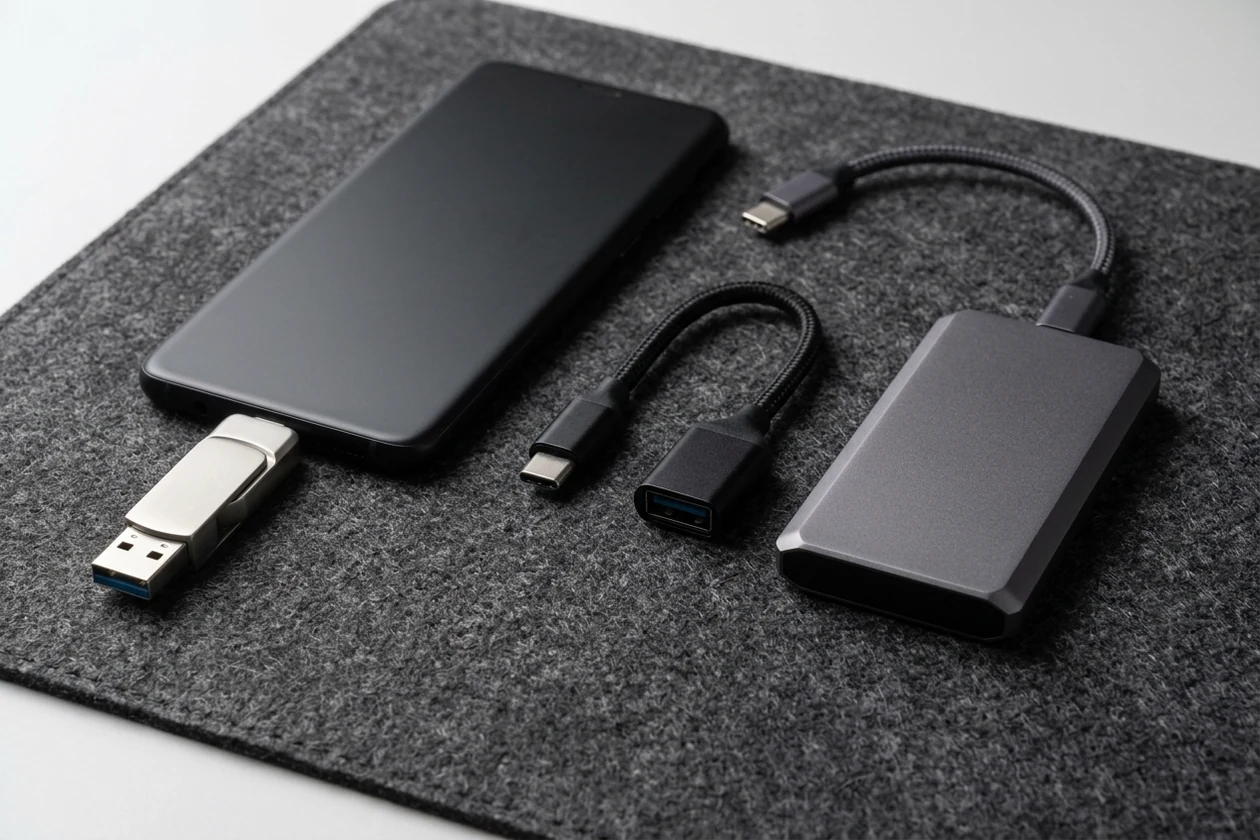
A USB-C OTG flash drive plugs directly into your phone’s charging port with no separate dongle, while a standard USB-A flash drive connects through a Type-A to Type-C USB-OTG adapter. Once seated, Android enumerates the drive in your file manager so you can copy, move, or play files directly, provided the drive uses a supported file system such as FAT32 or exFAT. exFAT file system overview
Accessing and Safely Unmounting Files on Android
Samsung Support documents a straightforward workflow for transferring media and documents from a USB drive on Galaxy devices:
- Seat the USB-C flash drive directly in the charging port, or connect a USB-A drive through a Type-A to Type-C USB-OTG adapter.
- Open the My Files app and tap USB Storage, which appears only while the flash drive is connected.
- Long-press the files you want to move or copy, choose Copy or Move, return to My Files home, select Internal Storage and a destination folder, and confirm. Samsung notes that moving or copying files to USB storage works inside My Files rather than directly from apps such as Gallery.
- Before unplugging the drive, swipe down to open the notification panel and tap UNMOUNT, or navigate to Settings > Device Care > Storage > Advanced and unmount the USB drive there.
If you prefer moving files over your local network instead of plugging in drives, see our guide to Android file managers with SMB LAN support. For full device-to-device migration, compare wired and wireless transfer methods in our Android cable versus wireless data transfer guide.
FAT32 Versus exFAT Compatibility on Android Flash Drives
File system format is one of the most frequent reasons a working flash drive fails to mount on an Android phone. Microsoft published the exFAT specification on 28 August 2019 and released the patent to Open Invention Network members, and native exFAT support landed in Linux kernel version 5.4 in November 2019. According to Esper’s technical analysis of Android storage, Google Pixel phones gained native exFAT support in Android 13 once Android’s volume daemon (vold) had both kernel support and the mkfs.exfat and fsck.exfat helper binaries available, extending the basic exFAT support vold first added in early 2018.
Scroll horizontally to view all table columns.
| Storage Format | Individual File Size Limit | Removable Media Scope and Android Notes |
|---|---|---|
| FAT32 | 4 GB maximum per file | Widely readable across legacy and modern Android devices, but cannot hold single video or backup files larger than 4 GB |
| exFAT | Greater than 4 GB | Default SD Association file system for SDXC and SDUC cards larger than 32 GB; natively supported on Pixel in Android 13 and on many OEM Android phones without NTFS overhead |
| NTFS | Greater than 4 GB | Higher data-structure overhead than exFAT; standard flash drives formatted with FAT32 or exFAT avoid cross-platform mounting issues on Android |
Safe ejection matters even more on exFAT drives than on legacy FAT volumes. Standard exFAT is not journaled and relies on a single file allocation table and free-space map, whereas legacy FAT file systems used alternating tables to aid recovery if removable media was pulled out mid-write. Tap UNMOUNT before removing a USB flash drive. exFAT file system overview
What Peripherals Work Over USB OTG and When Do You Need a Powered Hub?
Android USB host mode supports low-power peripherals including flash drives, keyboards, mice, digital cameras, game controllers, and printers, while high-draw drives such as bus-powered external hard disk drives may require an externally powered USB hub. Under the OTG specification, a host only needs to power accessories on its manufacturer’s Targeted Peripheral List, so a phone’s port can fall short for spinning hard drives or multi-device chains. USB On-The-Go overview
Samsung Support lists five everyday tasks supported through an OTG adapter on Galaxy phones:
- Keyboards and mice: Typing long notes or navigating a phone screen with a damaged touch layer.
- USB flash drives and external storage: Accessing documents, audio, and videos through a file manager without filling internal storage.
- Digital cameras: Importing photos directly from a compatible camera onto the phone.
- Printers: Sending print jobs directly from a smartphone over USB.
- Phone-to-phone data migration: Copying data between devices using Samsung Smart Switch.
Power delivery sets the practical ceiling on what runs directly from your phone battery. Standard USB bus power sits at 500 mA (0.5 A) unless higher current is negotiated, while USB-C devices may optionally supply or draw 1.5 A or 3.0 A at 5 V advertised via the Configuration Channel or USB Power Delivery. Even on USB-C phones, Samsung cautions that because most external HDDs draw power from the connected device, a phone may fail to run an HDD reliably and USB flash drives remain the more dependable portable storage choice.
When you need to power a demanding peripheral or attach multiple accessories at once, use a powered USB hub that supplies its own power under the USB 2.0 or USB 3.0 specifications. On Dual-Role USB-C phones supporting USB Power Delivery, independent Data Role Swap and Power Role Swap also enable charge-through hubs and docks so the phone stays in USB host mode for peripherals while drawing charging power from a wall adapter. To understand how phones and wall adapters negotiate charging contracts across those ports, read our explainer on USB-C PD PPS versus fixed PDO charging negotiation.
Why Is USB OTG Not Working on Android and How Do You Fix It?
When USB OTG stops working on Android, common causes include an auto-disabled OEM OTG toggle, Ultra Power Saving Mode, an unpowered hard drive, a loose or obstructed USB-C port, or an incompatible drive format rather than a broken phone. Work through the ordered checks below to isolate the failure in minutes.
- Re-enable the manual OTG toggle on OnePlus, Oppo, and Vivo phones: Open Settings > System (or Additional Settings) > Advanced > OTG Storage or USB OTG—or Settings > Connected Devices—and switch it ON. Remember that many Android phones turn this switch off automatically after 10 minutes with no device connected.
- Exit Ultra Power Saving Mode: Check battery settings and disable Ultra Power Saving Mode, which can automatically block OTG host power until deactivated.
- Inspect the USB-C port and flash drive connectors: Samsung’s troubleshooting guidance recommends unplugging the accessory and checking the phone’s USB-C charging port for corroded, bent, broken, or pushed-in contacts, as well as inspecting the flash drive for physical damage and lint.
- Reseat the adapter and avoid non-compliant couplers: Make sure a USB-C drive or Type-A to Type-C USB-OTG adapter is pushed all the way into the port (removing a thick phone case if needed), and replace any non-standard USB-A male to USB-C female adapter that falls outside the USB-C specification.
- Restart the phone and check Quick settings USB mode: Restart the phone and reconnect the drive. On Samsung Galaxy devices, swipe down with two fingers to open Quick settings, tap USB for file transfer under Android System, and select Transferring files.
- Check bus power by swapping to a flash drive or powered USB hub: If a spinning external HDD fails to mount or disconnects under phone bus power, test with a low-power USB flash drive or connect through an externally powered USB hub.
- Format the drive to a compatible file system after backing up data: If the drive is detected as unsupported, back up its files on a computer first. On Samsung Galaxy phones, you can format an attached drive via Settings > Device care > Storage, selecting the drive, tapping More options, and tapping Format.
Frequently Asked Questions
What is USB OTG used for on an Android phone?
USB On-The-Go lets an Android phone switch into USB host mode so it can power the port and connect directly to external peripherals without a computer. Supported everyday uses documented by Android Developers and Samsung include reading USB flash drives, typing on wired keyboards, using mice and game controllers, importing photos from digital cameras, printing directly, and transferring phone data with tools like Samsung Smart Switch.
Where is the USB OTG setting on Samsung Galaxy phones?
Samsung Galaxy phones do not require a separate manual OTG toggle in Settings. Plug a USB-C flash drive or a Type-A to Type-C OTG adapter directly into the charging port, then open the My Files app and tap USB Storage, which appears automatically while a compatible drive is inserted.
Why does USB OTG keep turning off on OnePlus, Oppo, and Vivo phones?
For battery saving and security, many Android devices that use a manual OTG toggle—including OnePlus, Oppo, and Vivo models—automatically turn the OTG switch off if no USB device is connected for 10 minutes. Ultra Power Saving Mode can also disable OTG automatically until that battery mode is turned off.
Should I format a USB OTG flash drive as FAT32 or exFAT for Android?
Choose FAT32 only if every file you store is 4 GB or smaller and you need broad compatibility with older Android devices. Choose exFAT for files larger than 4 GB—such as long high-definition videos—on modern devices like Google Pixel phones running Android 13 or newer and OEM Android phones with built-in exFAT drivers, and unmount the drive before unplugging because standard exFAT is not journaled.
Why won’t my external hard drive work with a USB OTG adapter on Android?
Under the USB OTG specification, a mobile host is only required to supply enough bus power for peripherals on its Targeted Peripheral List, and Samsung warns that most external HDDs draw power from the connected device and may not run reliably from a smartphone port. Switch to a USB flash drive or connect the external drive through an externally powered USB hub.
Sources & methodology3 sources
Evidence used for this article. Links open the original source in a new tab.
- USB On-The-Go — Wikipedia
- USB-C — Wikipedia
- exFAT — Wikipedia
TasteOfAndroid is responsible for this page. The byline, method and commercial relationships are on the editorial policy and the author page.
Related Articles
Android Bypass Charging Power Path and Gaming Heat Troubleshooting
On Samsung Galaxy smartphones, the Pause USB PD charging when gaming feature helps reduce heat production and protect battery life by stopping battery charging.
Android Private Space Versus a Work Profile and Cloned Apps
Compare Android 15+ Private Space, Work Profiles, and cloned apps across user IDs, locked notification states, Photo Picker visibility, VPN bypass, and backups.
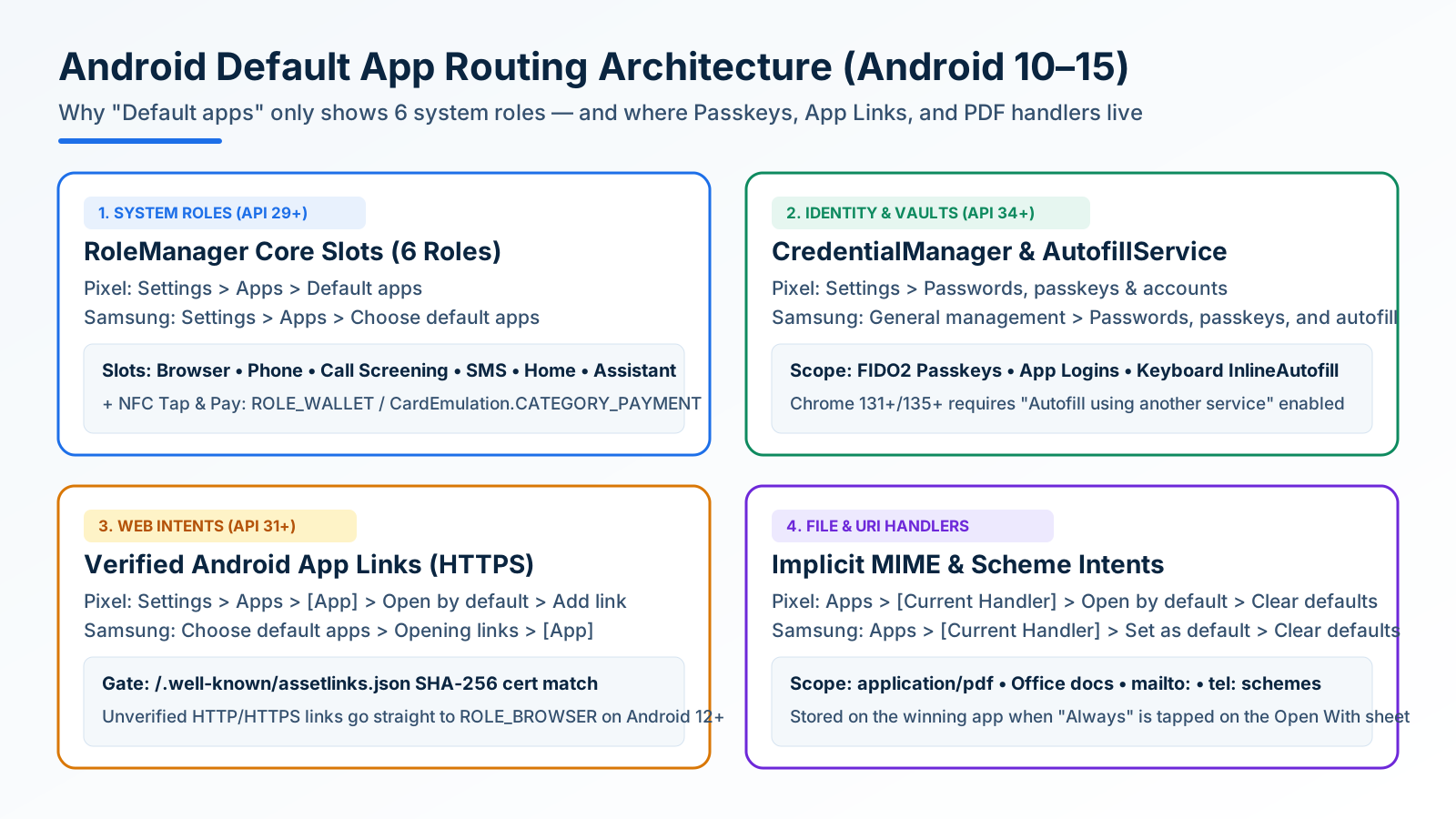
How to Change and Reset Default Apps on Android: Browsers, Passkeys, PDFs, and App Links
Looking only in Default apps fails when a wrong PDF viewer or browser hijacks links. Use Android's 4 routing menus to set browsers, passkeys, App Links, and MIME handlers.