
Contents
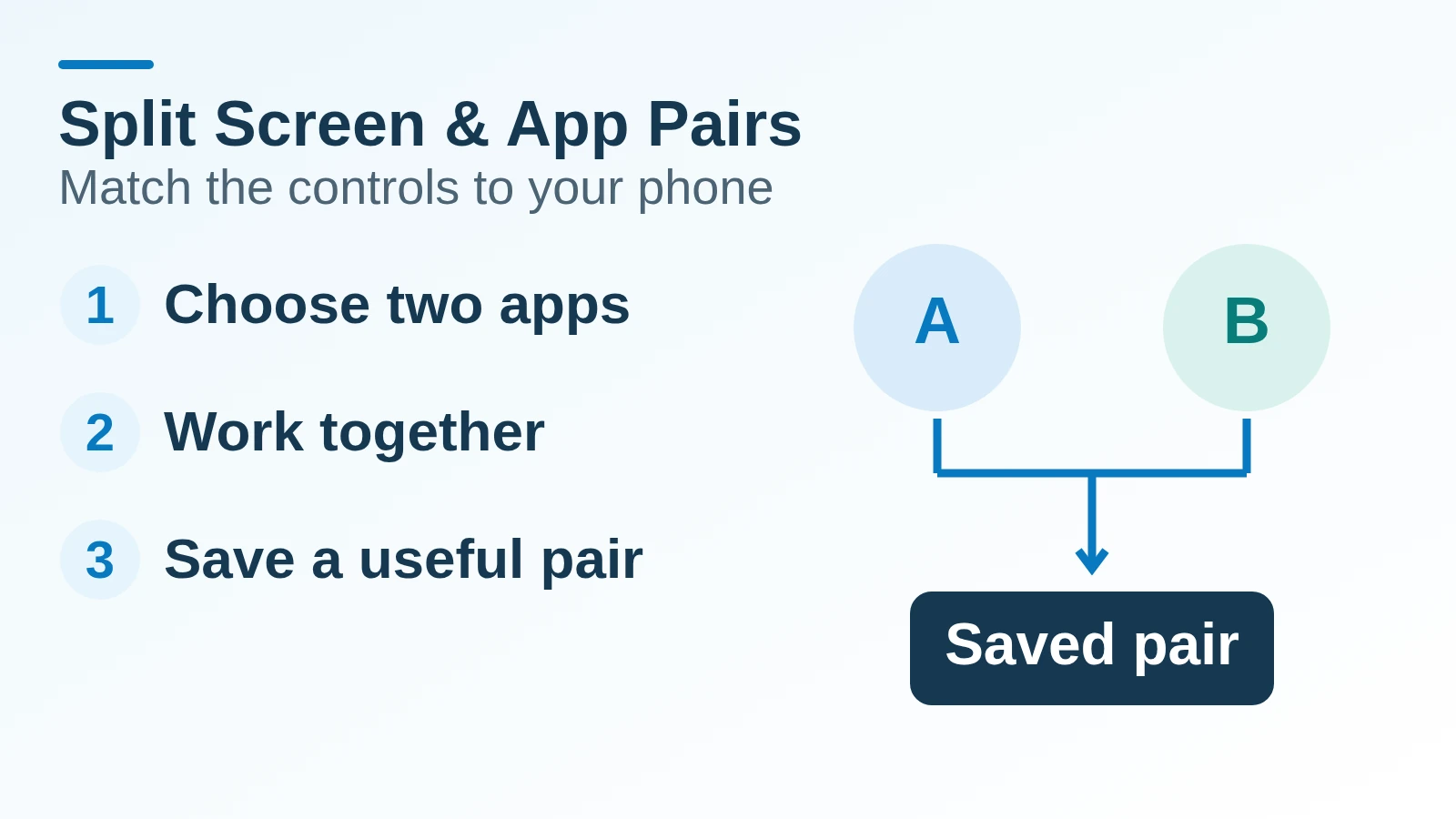
Repeatedly reopening the same reference while writing a note wastes time. For split screen Android multitasking, open two supported apps together; save an app pair only when your Pixel or Galaxy offers that control and the combination is useful repeatedly.
Split screen divides the display between apps; an app pair saves a supported combination so you can reopen it together. Start with the phone maker’s instructions: Pixel Phone Help uses the app icon in the overview menu, while Samsung offers Recents and, on supported models, the Edge panel. Pixel Fold has a documented Save app pair command; Samsung saves pairs from the divider between the apps. These controls are device dependent. If the second app cannot run in the layout, a saved shortcut will not solve that limitation. Picture-in-picture is a separate option for a supported video app.
For the wider workflow, return to the Android productivity and essential apps guide.
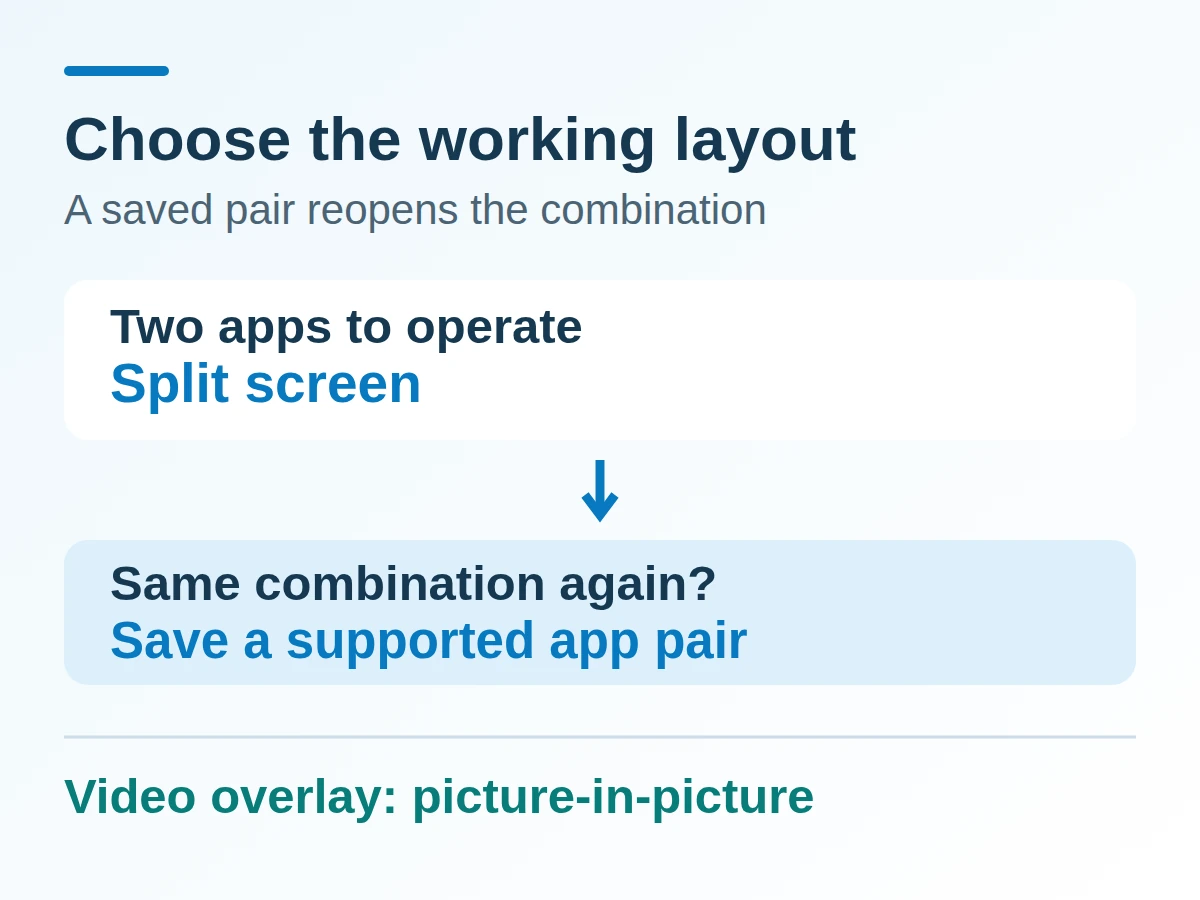
Split screen is the working layout. An app pair is a way back to that layout; picture-in-picture serves a different task.
Which multitasking mode fits the job?
Choose split screen for two apps you need to read or operate together, a saved pair for a recurring combination, and picture-in-picture for supported video while another app takes the main display.
Scroll horizontally to view all table columns.
| Mode | Best fit | Documented boundary | Dominant Failure Mode & Prevention |
|---|---|---|---|
| Split screen | Read a reference while entering notes | Pixel says availability depends on the app; Samsung says some apps do not support it | The needed app lacks the split option. Check both apps in the actual layout before reorganizing your workflow. |
| Saved app pair | Reopen the same working combination | Pixel Fold documents saving from overview; Galaxy documents saving from the divider | Expecting a universal Android shortcut. Use the maker’s saving control only where it appears. |
| Picture-in-picture | Keep a supported video visible while using another app | Pixel’s page says a video app that closes without the option does not support this path | Treating a video overlay as two fully usable panes. Use split screen when both apps need substantial interaction. |
| Galaxy pop-up view | Keep a supported app in a floating window | Samsung documents a separate Open in pop-up view command | Opening a floating window when you need a stable division. Select Open in split screen view instead. |
The controls above come from Pixel Phone Help, Pixel Fold Help, and Samsung Support. None makes every app compatible. Android’s developer documentation explains that multi-window behavior depends on device configuration, Android version, and the app’s support and sizing rules.
How do you start and leave split screen on a Pixel?
Use the app’s icon in overview, then select the other app. The Pixel phone instructions warn that some steps work only on Android 14 and up; they do not establish Android 14 as the first version to support split screen.
- Swipe up from the bottom to the top to find your apps, then open the first app.
- Swipe up from the bottom, hold, then release to open overview.
- Tap the app’s icon, then Split screen.
- Tap the second app in the second part of the display.
- To return to one app, drag the bar between the apps to the top or bottom of the screen.
Pixel Help separately tells Pixel 2 and Pixel (2016) users to enable Swipe up on Home button under Settings → System → Gestures. Match those older-device instructions to the phone rather than applying them to every Pixel.
On an unfolded Pixel Fold, the dedicated help page gives a taskbar route: open an app, swipe slowly up from the bottom edge to reveal the taskbar, and drag the second app from the taskbar to one side. To retain just one app, touch and hold the divider and drag it to either side. These are Fold instructions; the ordinary Pixel page describes a different entry path.
How do you use split screen and save pairs on Galaxy?
Start from Recents, then save a working combination through the divider. Samsung’s help page says screens and settings vary by carrier, software version, and model; the Edge panel exists only on certain models.
- Tap Recents, tap the first app’s icon, then Open in split screen view.
- Use the second-app selection offered on the device. Samsung also documents opening the Edge panel and dragging a second app into the other portion of the display on supported devices.
- Adjust the windows using the divider between the apps.
- To save the combination, tap the dotted divider, then Add to app pair. Samsung describes this icon as a star or, in its pair section, a plus sign or star. Select a save location if prompted.
Samsung describes Home as leaving the pair together in Recents. Its closing instructions use the blue divider at the top of an app’s window and then X. Leaving the working display, closing an app, and deleting a saved shortcut are different actions.
Threshold rule: If the Galaxy runs a One UI version below 6, do not assume the swipe shortcut in this help page is available. Samsung places its Settings → Advanced features → Multi window swipe controls in the One UI 6 or later section. Where supported, enabling Swipe for split screen allows a two-finger upward swipe from the bottom. Use the documented Recents route when that setting is absent.
Do not infer cover-screen support from the product family’s name. The Samsung page has conflicting wording about the Z Fold front screen between its introductory note and its drag instructions. Use the main display for this walkthrough and check model-specific help before relying on a cover-screen layout.
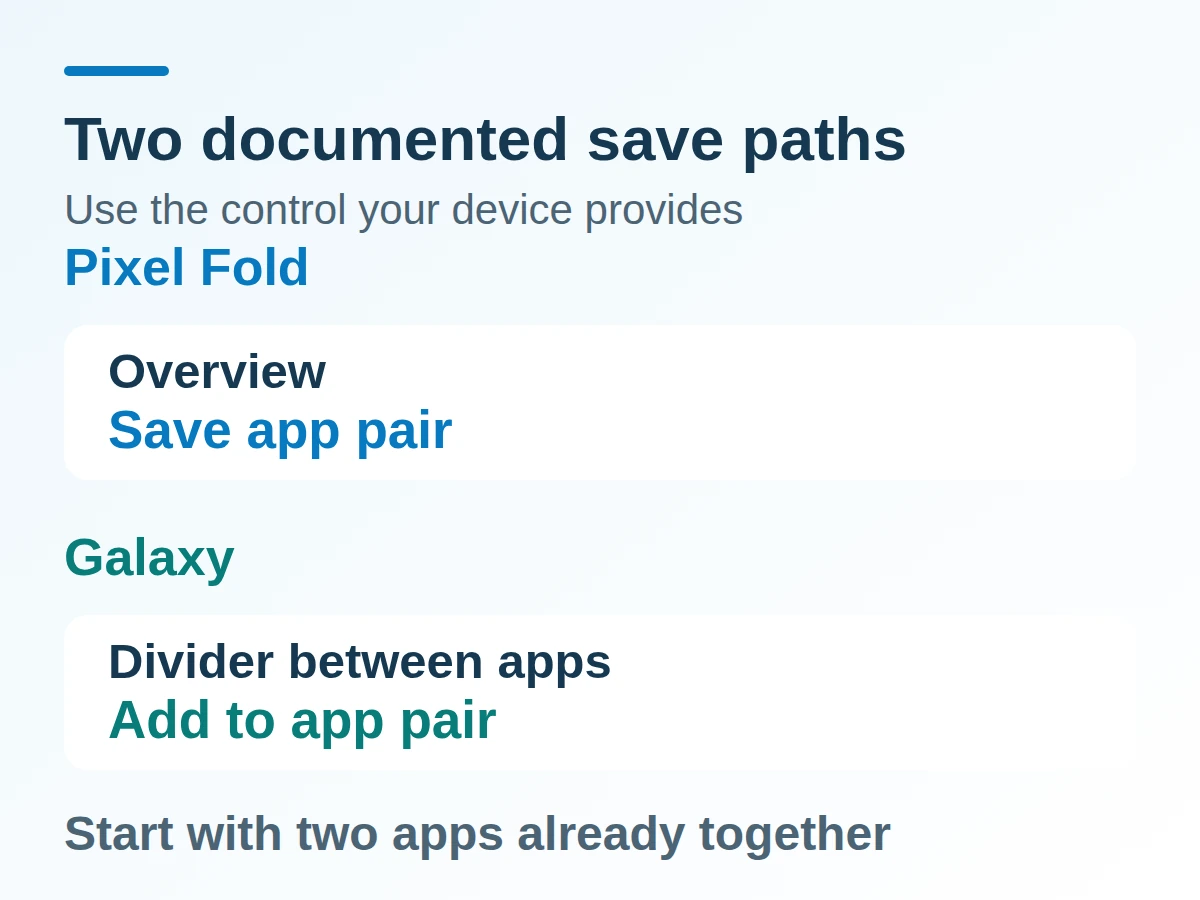
Both paths start with a useful working combination. Their saving controls are different.
Can a Pixel save an app pair too?
Pixel Fold can save a pair through overview according to its dedicated help page. That source does not establish the same saving command for every Pixel phone, launcher, or Android release.
With the two apps together on the Fold, swipe up to open overview. Below the focus tile, tap Save app pair. The saved pair can be viewed and launched from the home screen; the page also says you can move it on the home screen and add it to the taskbar. Pixel Fold Help is the source for those steps.
For a Pixel without that command, retain the split-screen instructions above and check the device’s current help. An absent saving control is not a reason to install a launcher or enable a developer override on the assumption it will create one.
What should you check when the layout fails?
Check the apps and the available space before changing system settings. A pair that opens but leaves the reference unreadable has failed the task even if the shortcut works.
Try the same task in each app alone, then in the split. If the split command is missing for one app, compare another supported app using the maker’s steps. If the keyboard obscures what you need to read, return to one app or use a display orientation that the apps support. These are workflow checks, rather than a promise that rotation or a different app will remove every limitation.
Keep the source visible only as long as it helps. A browser and notes app can be a useful pair, but two competing inboxes can scatter notes; the productivity guide’s one-inbox check addresses that separate problem.
Does saving the pair repay the setup time?
Save a pair when the time it avoids over repeated launches exceeds the time spent creating and maintaining it. Count the whole reopening sequence on your phone, rather than assigning an assumed number of taps to all devices.
Formula: net time saved = N × (t_manual − t_pair) − t_setup.
Here, N is the number of future launches, t_manual is seconds to reopen the combination manually, t_pair is seconds using the saved pair, and t_setup includes creating and checking the shortcut.
Worked example — hypothetical planning inputs: 20 launches × (12 s − 4 s) − 40 s = 120 s net time saved. These are assumed inputs for the calculation, not measured Pixel or Galaxy timings. With these inputs, five launches merely repay the 40-second setup; the sixth begins to save time.
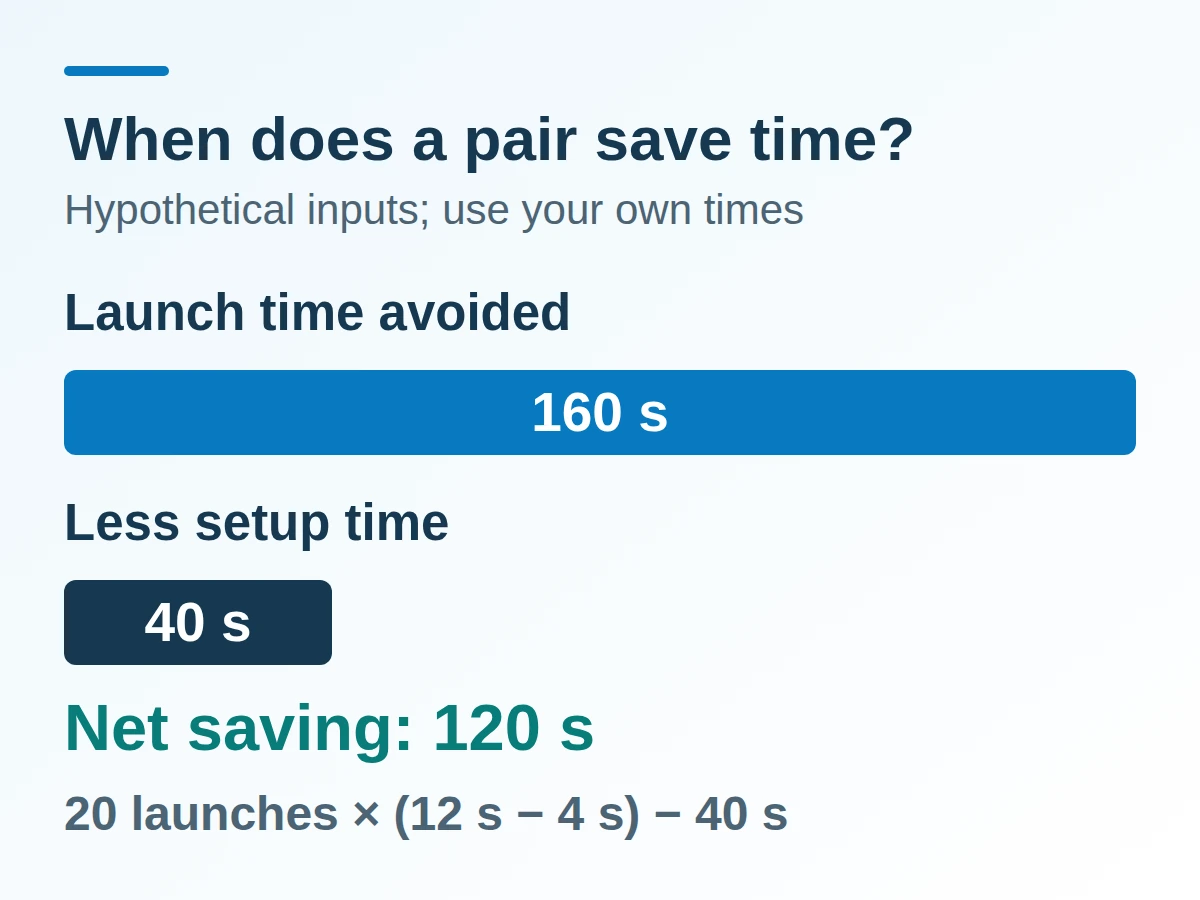
Use your own full reopening times. A changed app combination adds maintenance time to the setup side.
Scroll horizontally to view all table columns.
| Time ledger | What to count | Next useful page |
|---|---|---|
| Initial setup | Find compatible apps, arrange them, save and reopen the pair | Android productivity workflow |
| Recurring use | Reopening time plus time lost to cramped input or repeated resizing | Android how-to guides |
| Maintenance | Replace a changed app or shortcut and preserve important notes before changing the workflow | Back up Android photos, messages and authenticator codes |
Method and sources
Updated 19 October 2026. This guide follows the Pixel, Pixel Fold, Samsung US support, and Android developer pages retrieved on that date. It separates documented controls by device and labels the time calculation as hypothetical. The diagrams show relationships and time accounting, rather than reproducing a phone interface. Recheck the maker’s page when the phone’s labels differ.
Sources & methodology4 sources
Evidence used for this article. Links open the original source in a new tab.
- See two apps at the same time on Pixel phone — Pixel Phone Help
- Use split screen and switch between apps on your Pixel Fold — Pixel Phone Help
- Use Multi window and App pairs on your Galaxy phone or tablet — Samsung Support
- Support multi-window mode — Android Developers
TasteOfAndroid is responsible for this page. The byline, method and commercial relationships are on the editorial policy and the author page.
Related Articles
Termux for Beginners: Install, Manage Packages and Check Your First Script
Choose a single Termux install channel on Android, keep add-on signatures matched, learn pkg and storage boundaries, and verify a first Python script.
Syncthing Android to PC: Setup, Conflicts and Recovery Checks
Set up Syncthing on Android and PC, map a shared folder, and check edits, conflicts and deletion recovery with disposable files before syncing real work.
Make a Simple Android Clock Widget with KWGT
Build one KWGT clock widget, resize it before loading the preset, and see why minute updates and taps can differ by launcher.